The Slice tool in Cricut Design Space is a powerhouse, offering a multitude of creative possibilities for your crafting projects. It's more than just cutting; it's about manipulating shapes, text, and images to achieve unique designs. Understanding how to effectively use the Slice tool will significantly expand your design capabilities and allow you to create truly custom projects.
Whether you're looking to create intricate cutouts, design custom shapes, or simply crop unwanted portions of an image, the Slice tool is your go-to solution. It’s one of the foundational tools alongside Weld, Attach, Contour, and Flatten that every Cricut user should understand. This guide will walk you through various applications of the Slice tool, providing step-by-step instructions and expert tips to help you master this essential function.
Get ready to unlock your creative potential! This comprehensive guide covers everything from basic slicing techniques to more advanced applications, ensuring you have the knowledge and skills to tackle any project with confidence. So, let's dive in and explore the amazing world of the Slice tool!
Step 1: Understanding the Basics of the Slice Tool
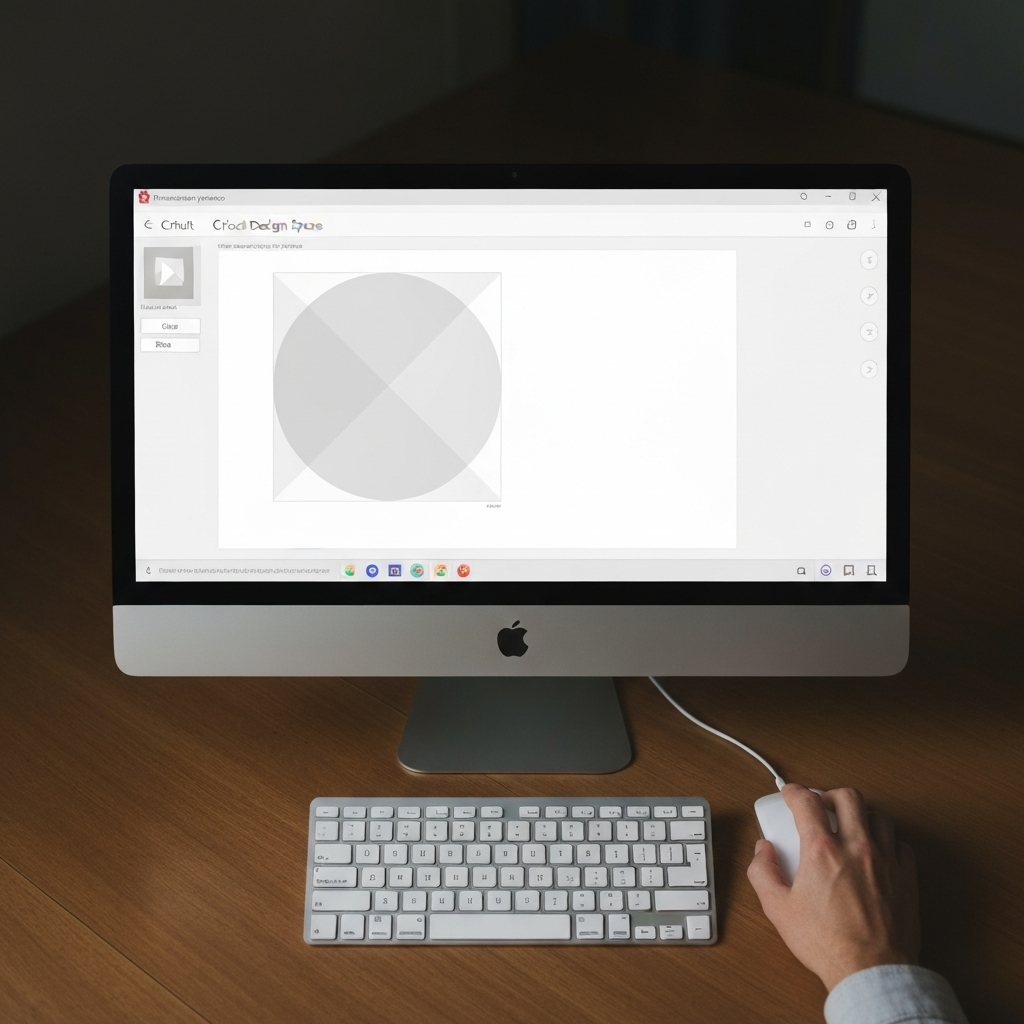
The Slice tool allows you to cut one or more shapes from another overlapping shape. It's crucial to remember that the Slice tool only works when you have exactly two layers selected. Trying to slice with more or fewer layers will result in the Slice button being greyed out. The area where the two shapes overlap will be separated into its own new shape, resulting in multiple new layers. Mastering this fundamental constraint is the key to unlocking the power of the Slice tool.
Step 2: Cutting Out Shapes from a Background
One of the most common uses for the Slice tool is to cut out shapes from a background. This is perfect for creating custom gift tags, stencils, or any project where you need to remove a specific shape from a larger design. First, insert both your background shape and the shape you want to cut out onto your canvas in Cricut Design Space. Ensure that the shape you want to cut out is positioned directly over the area of the background shape where you want the cutout to appear. Select both layers and click 'Slice'. You will now have multiple sliced layers including your cutout shape and the original background with the cutout.

Step 3: Creating New Shapes Using Slice
The Slice tool isn't just for cutting out existing shapes; you can also use it to create entirely new shapes. This is particularly useful when you need a custom shape that isn't available in the Cricut Design Space library. Begin by inserting two or more basic shapes onto your canvas. Strategically position and overlap these shapes to form the outline of your desired new shape. Select all overlapping layers (remember, only two at a time) and click 'Slice'. Delete the unwanted sliced layers to reveal your custom shape. This method allows for unlimited design possibilities, turning simple shapes into complex and unique creations.

Step 4: Cropping Shapes and Images
Sometimes you might want to use part of an image or shape, but not the entire thing. This is where the cropping function of the Slice tool comes in handy. To crop, place a shape (usually a rectangle or square) over the portion of the image you want to keep visible. The shape you place on top should only reveal the desired portion of the image or shape. Select both the image and the cropping shape, and click 'Slice'. Delete the unwanted portions to reveal your cropped image. This is especially helpful when working with complex designs or imported images.

Step 5: Cutting a Shape into Multiple Pieces
The Slice tool can also be used to divide a single shape into multiple distinct pieces. This technique is useful for creating puzzle pieces, layered designs, or any project where you need to separate a shape into components. Position overlapping shapes (rectangles, lines, or even other shapes) across the shape you wish to divide. The intersecting layers will determine the cutting lines. Select two layers and click 'Slice'. Repeat this process for each additional cutting line to separate the shape into the desired number of pieces. Ensure that the shapes you use to cut with are fully covering the area.

Step 6: Rearranging Image Elements
The Slice tool offers the flexibility to rearrange parts of an existing image. This is perfect for customizing pre-designed images or creating unique compositions. Identify the elements within the image you want to move, and use shapes to isolate them using the Slice tool. Slice out those elements, then delete the unwanted sliced result layers. This allows you to reposition the sliced elements to create a modified version of the original image. Then, group and attach or weld, depending on your project's intent.
Tools or Materials Required
- Cricut Machine (Maker, Explore, or Joy)
- Cricut Design Space Software
- Computer or Mobile Device
- Design Elements (Shapes, Images, Text)
- Cutting Mat
Common Mistakes to Avoid
- Slicing with more or less than two layers. The Slice tool only works with exactly two selected layers.
- Forgetting to delete unwanted sliced layers, which can clutter your project.
- Not fully overlapping shapes when attempting to cut or crop.
- Using the Slice tool on editable text, which converts the text to an image layer and makes it uneditable.
Pro Tips
- Utilize the 'Undo' function (Ctrl+Z or Cmd+Z) immediately after slicing if you're not satisfied with the result.
- Experiment with different shapes and placements to discover new and unexpected design possibilities.
- Use the 'Align' tool to precisely position shapes before slicing, ensuring accurate and professional results.
FAQ Section
Q: Why is the Slice button greyed out?
A: The Slice button is only active when you have exactly two layers selected in Cricut Design Space. Check your Layers panel to ensure you have the correct number of layers selected.
Q: Can I slice text?
A: Yes, you can slice text, but remember that slicing converts text into an image layer, making it uneditable. It's a non-destructive operation if you use the 'undo' command or Ctrl+Z (Cmd+Z on Mac).
Q: What happens to the layers after slicing?
A: Slicing creates multiple new layers based on the overlapping areas of the original shapes. You'll have the original shapes, the sliced portions, and any overlapping sections as separate layers.
Conclusion
The Slice tool in Cricut Design Space is a fundamental yet powerful feature that allows for a wide range of creative applications. By mastering the basics, avoiding common mistakes, and exploring advanced techniques, you can unlock the full potential of this essential tool. Experiment with different shapes, images, and text to create unique and personalized projects that reflect your individual style and vision. Don't be afraid to experiment!