Navigating the Starbucks scheduling system can feel overwhelming at first, but with the right knowledge and tools, you can easily stay on top of your shifts, manage your time off, and understand your pay stubs. This guide provides a detailed walkthrough of the various platforms and processes available to Starbucks partners, ensuring you have all the information you need to manage your work life effectively.
Whether you're a new barista just learning the ropes or a seasoned shift supervisor looking for a refresher, this comprehensive guide will empower you to take control of your Starbucks schedule. We'll cover everything from accessing your schedule online to requesting time off and understanding your benefits.
By understanding the various resources available to you, you can avoid scheduling conflicts, plan your personal life with confidence, and ensure you're utilizing all the benefits available to you as a Starbucks partner. Let's dive in and unlock the secrets to mastering the Starbucks schedule!
This guide will equip you with the knowledge to proactively manage your work life. From troubleshooting common access issues to optimizing your time off requests, we'll cover all the essential aspects of the Starbucks scheduling system.
Step 1: Accessing Your Schedule via Partner Central Hub
Logging into Partner Central
The Starbucks Partner Central Hub is your primary online resource for all things related to your employment, including your work schedule. To access it, you'll need your partner number and password, which should have been provided during your onboarding process. If you've forgotten your login credentials, don't hesitate to ask your store manager for assistance. Once logged in, navigate to the "My Schedule" tab to view your current and upcoming shifts.

Step 2: Utilizing the WorkJam App
Navigating the WorkJam App for Schedule Viewing
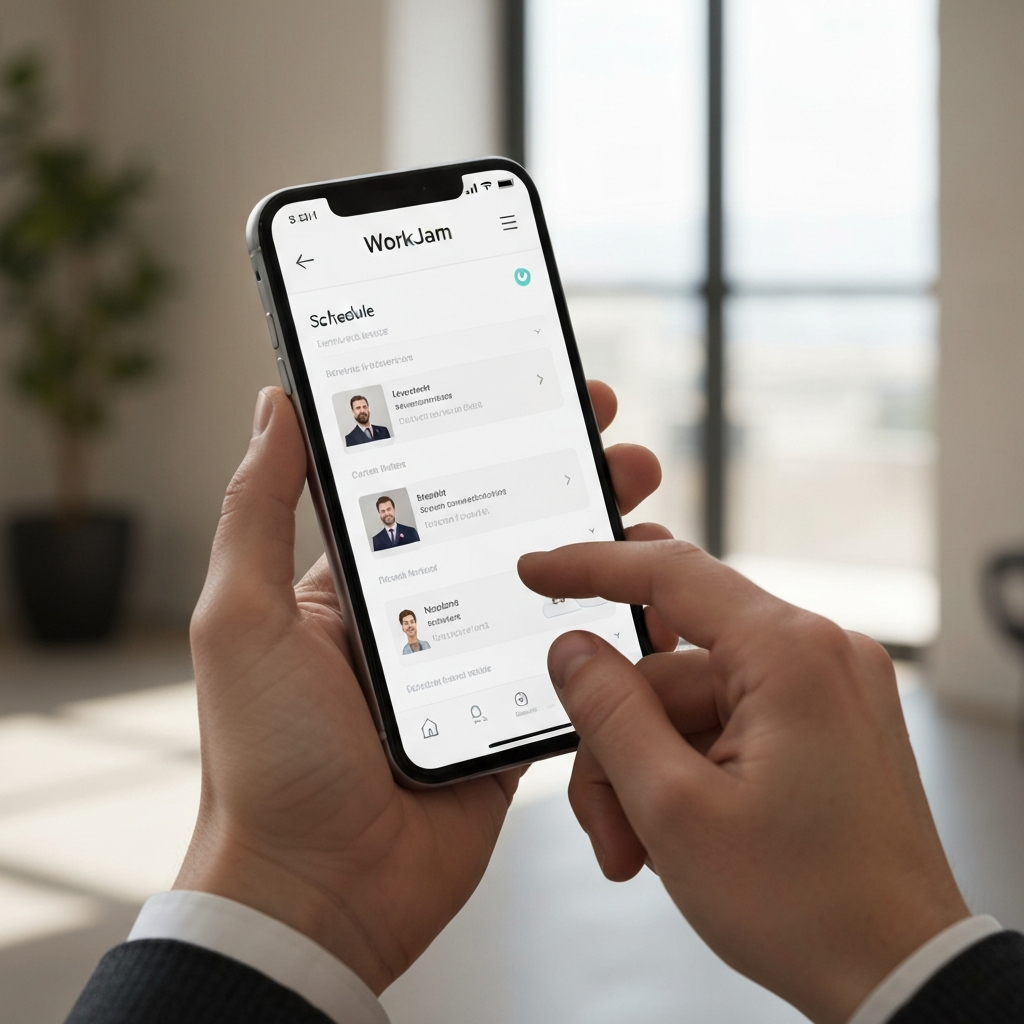
WorkJam is the official Starbucks partner app designed for easy access to schedules, pay stubs, and time-off requests. Download the app from your device's app store (Google Play or App Store) and log in using your Global Username (usually your partner number followed by @starbucks.com) and password. The "Schedule" tab is where you'll find your current and upcoming work schedule. The app offers convenient notifications and schedule updates directly to your mobile device.
Step 3: Requesting a Physical Copy of the Schedule
Obtaining a Printed Schedule from Your Manager
If you're unable to access the Partner Central Hub or the WorkJam app, your store manager can provide you with a physical copy of the schedule. This is especially helpful if you're experiencing technical difficulties or prefer a hard copy for reference. Don't hesitate to ask your manager for assistance navigating the online platforms as well. Ensure you note down any discrepancies or conflicts immediately and communicate them to your manager.

Step 4: Checking the Posted Schedule in the Store
Referring to the In-Store Schedule Display
Most Starbucks stores display a physical copy of the schedule in a designated area for partners to review. This is a quick and easy way to check your schedule when you're at work. It's always a good practice to take a photo of the schedule with your phone for offline access and reference, especially if you have varying work locations. If any conflicts or discrepancies arise, immediately communicate them to your manager to prevent scheduling issues.

Step 5: Checking Your Available Paid Sick Time
Accessing Sick Time Information on Partner Central
To view your available paid sick time hours, log in to the Partner Central Hub. Paid sick time allows you to take time off work to care for yourself or an eligible family member due to illness, injury, or medical care. As a partner, you accrue 1 hour of sick time for every 25 hours you work, and you can use it as soon as it's earned. There's no maximum amount of sick days you can earn, but you can only carry up to 520 hours from year to year (January 1 to December 31).

Step 6: Requesting Paid Time Off (PTO)
Submitting PTO Requests through Partner Central or WorkJam
You can request PTO through either the Partner Central Hub or the WorkJam app. On the Hub, log in from a Starbucks device, click on the “Time Off” tab, and tap “Create Request.” On the WorkJam app, go to the “More” tab and tap “Time off balance.” Remember that PTO accrual rates vary based on your length of service with Starbucks. Retail hourly partners begin to accrue vacation time after 12 months of continuous service. Plan ahead and submit your requests well in advance to increase the likelihood of approval.

Step 7: Applying for a Leave of Absence
Navigating the Leave of Absence Process
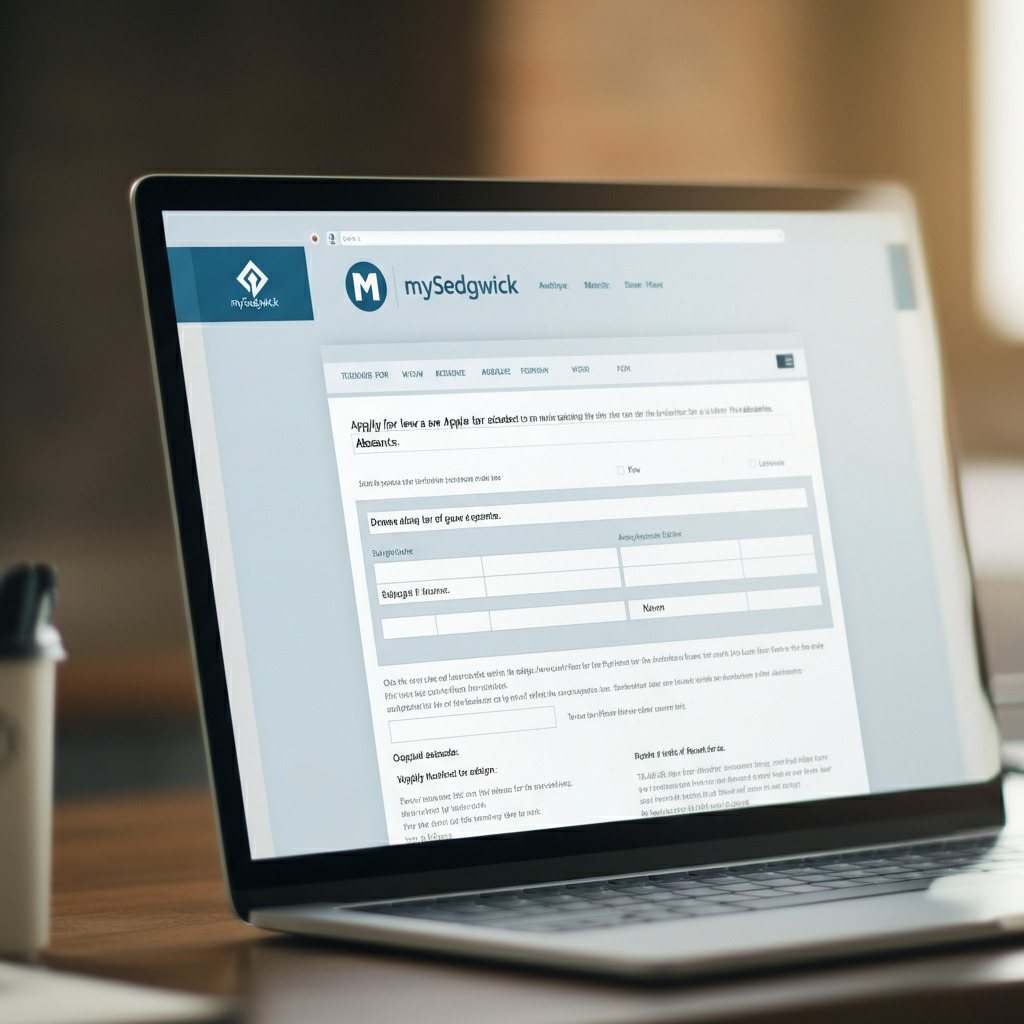
Starbucks offers leaves of absence for various reasons, including illness, injury, or the need to care for a family member. To apply for a leave of absence, log in or create an account with mySedgwick, or call Sedgwick at 866-206-6769. In addition to medical leaves, Military Leave, Personal Leave, and Career Coffee Break (sabbatical) may also be available to eligible partners. Carefully review the eligibility requirements and application procedures for each type of leave to ensure a smooth process.
Step 8: Accessing Your Pay Stubs
Locating Pay Stub Information on Partner Central or WorkJam
You can access your pay stubs through the Partner Central Hub or the WorkJam app. On the WorkJam app, look for a banner at the top that says “Partner Hours” and swipe until you see “Pay Statements.” On the Hub, click on the “Pay” tab, then click on “Pay Stubs.” You may also be able to access your pay stubs on the ADP app using the Employer Code provided by your store manager. Regularly review your pay stubs to ensure accuracy and address any discrepancies promptly.
Common Mistakes to Avoid
- Forgetting Your Login Credentials: Always keep your partner number and password in a safe place. If you forget them, contact your store manager immediately.
- Failing to Check the Schedule Regularly: Check your schedule at least twice a week to stay informed of any changes.
- Not Communicating Availability Changes: Inform your manager of any changes to your availability as soon as possible.
- Ignoring PTO Accrual Rates: Understand how your PTO accrues and plan accordingly.
FAQ Section
- How far in advance is the schedule posted?
- Starbucks typically posts weekly work schedules at least 14 days in advance.
- What if I find a mistake in my schedule?
- Contact your store manager immediately to address any errors or conflicts.
- How do I request a specific day off?
- Submit a PTO request through the Partner Central Hub or WorkJam app well in advance.
- Where can I find my partner number?
- Your partner number is usually provided during the onboarding process. Ask your manager if you need help locating it.
Conclusion
Mastering the Starbucks scheduling system is crucial for a smooth and stress-free work experience. By utilizing the Partner Central Hub, WorkJam app, and communication with your store manager, you can effectively manage your schedule, request time off, and stay informed about your benefits. Remember to check your schedule regularly, communicate any changes promptly, and take advantage of the resources available to you as a Starbucks partner. With these tips, you'll be well-equipped to navigate the Starbucks scheduling system with confidence and ease.