In today's hyper-connected world, technology is an indispensable part of our daily lives. From smartphones and laptops to smart home devices and intricate networks, we rely on these tools to stay productive, informed, and entertained. But what happens when your tech throws a wrench in the works? Don't panic! Troubleshooting is a skill that can be learned. This comprehensive guide will empower you with the knowledge and techniques to diagnose and resolve common tech issues like a seasoned professional.
The key to effective troubleshooting lies in a systematic approach. Randomly poking and prodding can often exacerbate the problem or, at best, lead to wasted time. By following a structured process, you can isolate the source of the malfunction and implement a targeted solution. Whether you're dealing with a sluggish computer, a malfunctioning printer, or a network connectivity problem, the principles outlined in this guide will serve you well.
This isn't just about fixing things; it's about understanding how your tech works and developing a proactive mindset towards potential problems. So, roll up your sleeves, and let's dive in!
Step 1: Define the Problem Clearly
Identify the Symptoms
Before you can even begin to fix anything, you need to understand precisely what's broken. Avoid vague descriptions like "my computer is slow." Instead, be specific: "My computer takes five minutes to boot up," or "My web browser freezes when I try to watch videos." The more detailed you are, the easier it will be to pinpoint the cause. Note down exactly when the problem started, what actions preceded it, and any error messages you're seeing. This information is crucial for diagnosis. Don't underestimate the power of simple observation. Is there a strange noise? An unusual light? Anything out of the ordinary?

Step 2: Check the Obvious (and Often Overlooked)
Power, Connections, and Basics
It may seem insulting, but many tech issues stem from the simplest of causes. Is the device plugged in? Is the power switch on? Are all the cables securely connected? For wireless devices, is Bluetooth enabled? Is the Wi-Fi password correct? Always start with the fundamentals, no matter how experienced you are. A loose cable or a forgotten power switch can lead you down a rabbit hole of unnecessary troubleshooting. Double-check that devices are compatible and that any necessary software is installed.

Step 3: Restart the Device
The Universal Fix
The adage "Have you tried turning it off and on again?" exists for a reason. Restarting a device clears its memory, closes running programs, and often resolves temporary software glitches. Whether it's a computer, a smartphone, or a router, a simple restart can be surprisingly effective. Think of it as giving your device a fresh start. Make sure to properly shut down the device through the operating system, rather than simply cutting off the power, to avoid potential data corruption. Wait a few seconds before powering it back on.

Step 4: Google It!
Leveraging the Power of Search
Chances are, you're not the first person to encounter the problem you're facing. The internet is a vast repository of troubleshooting information. Use search engines to look up the specific error message or symptoms you're experiencing. Be as precise as possible in your search queries. Include the device model, operating system, and any relevant keywords. Scan through the search results, paying attention to forums, knowledge base articles, and official support pages. Be wary of unofficial sources or advice that seems dubious.

Step 5: Update Drivers and Software
Keep Everything Current
Outdated software and drivers can cause a myriad of problems, from compatibility issues to security vulnerabilities. Make sure your operating system, applications, and device drivers are up to date. Regular updates often include bug fixes and performance improvements that can resolve existing issues. Check for updates through the software's built-in update mechanism or by visiting the manufacturer's website. Be cautious when downloading drivers from third-party sources, as they may contain malware.
Step 6: Check Device-Specific Settings (AirPods Example)
Tailoring Solutions to Specific Devices
Some issues are unique to specific devices and require device-specific troubleshooting. Take AirPods, for example. If your AirPods aren’t playing audio, even when connected, try these steps, adapted from expert advice: First, put the AirPods back in their case for 30 seconds. Then, unpair and re-pair them in your device's Bluetooth settings. Ensure AirPods are selected as the default audio output. Clean your AirPods, as debris can block audio. Turn off "Automatic Ear Detection" in the settings as a test. Increase your device's volume limit. Adjust your computer's audio balance. Check that your AirPods firmware is current by placing them in their case near a Wi-Fi-connected Apple device. Outdated firmware can cause audio playback issues. If these steps fail, factory reset your AirPods, but remember that resetting them wipes all settings, so proceed with caution.

Step 7: Test and Isolate
The Process of Elimination
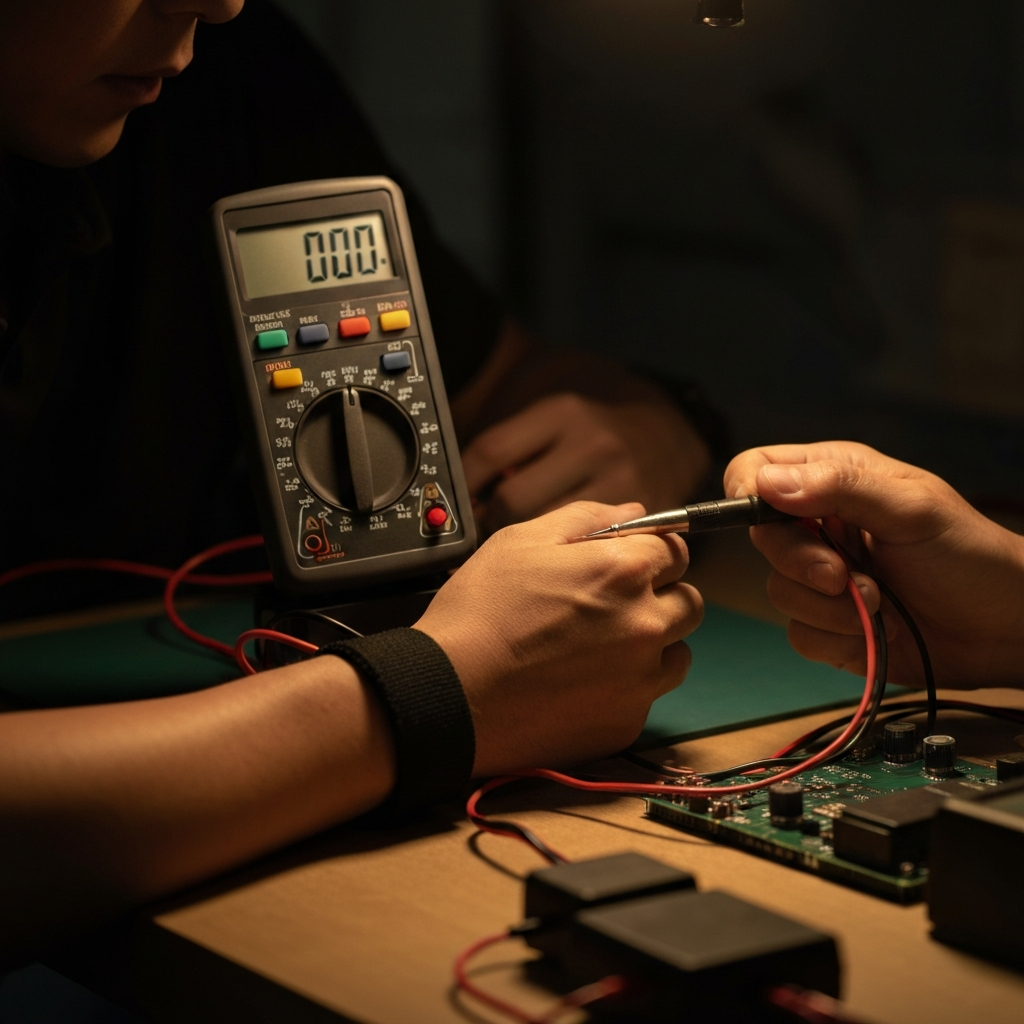
If the problem persists, try to isolate the cause by systematically testing different components. If you suspect a network issue, test your internet connection on another device. If you suspect a software conflict, try running the device in safe mode. If you suspect a hardware problem, try swapping out the component with a known working one. By isolating the variable, you can narrow down the potential causes. Document your testing process and the results, even if the test is unsuccessful. This information can be valuable in identifying patterns and eliminating possibilities.
Step 8: Document Your Steps
Creating a Troubleshooting Record
Maintaining a record of the troubleshooting steps you've taken is crucial for several reasons. First, it prevents you from repeating the same steps unnecessarily. Second, it helps you identify patterns and potential correlations. Third, it provides valuable information if you need to seek help from a technician or support forum. Document everything, including the problem description, the steps you've taken, the results of each step, and any error messages you've encountered. Use a simple text file, a spreadsheet, or a dedicated troubleshooting app.

Tools or Materials Required
- Screwdrivers (various sizes)
- Multimeter
- Anti-static wrist strap
- Microfiber cloths
- Compressed air
- USB drive with bootable diagnostics tools
- Network cable tester
Common Mistakes to Avoid
- Ignoring error messages
- Making assumptions
- Not backing up data before making changes
- Downloading software from untrusted sources
- Trying to fix something you don't understand
- Forcing connections
Pro Tips
- Use a process of elimination, changing one thing at a time to isolate the problem.
- Keep your drivers updated.
- Create system restore points before making significant changes.
- Use strong, unique passwords for all your accounts.
- Back up your data regularly.
- Install a reputable antivirus program and keep it up to date.
- Learn basic command-line skills.
FAQ Section
- Q: My computer is running slowly. What should I do?
- A: Start by closing unnecessary programs, running a virus scan, and defragmenting your hard drive. If that doesn't help, consider upgrading your RAM or reinstalling your operating system.
- Q: My printer won't print. What should I do?
- A: Check the power and cable connections, make sure the printer is online, and verify that you have enough ink or toner. Also, check for any paper jams.
- Q: I can't connect to the internet. What should I do?
- A: Check your modem and router connections, restart your devices, and verify that your Wi-Fi password is correct. If that doesn't work, contact your internet service provider.
Conclusion
Troubleshooting your tech can be a challenging but rewarding experience. By following a systematic approach, staying patient, and leveraging the resources available to you, you can resolve many common issues and become a more confident and capable tech user. Remember to define the problem, check the basics, restart the device, search online, update software, test, document your steps, and avoid common mistakes. With practice and persistence, you'll be troubleshooting like a pro in no time!