Technology is an integral part of our lives, but it doesn't always cooperate. When your computer freezes, your internet drops, or your printer refuses to print, it can be incredibly frustrating. Most people panic and call for help, often paying unnecessary fees for simple fixes. However, with a methodical approach and a few key techniques, you can learn to troubleshoot your tech problems like a seasoned professional, saving time, money, and a whole lot of stress.
This guide provides a step-by-step process for identifying and resolving common tech issues. We'll cover everything from basic troubleshooting steps to more advanced techniques, empowering you to become your own tech support expert. Remember, patience and persistence are key! Even experienced professionals don't always find the solution immediately.
Before diving in, it's important to understand that troubleshooting is a process of elimination. By systematically checking potential causes, you can narrow down the possibilities and identify the root of the problem. So, let's get started!
Step 1: Define the Problem Precisely
Describe the Issue in Detail
The first and most crucial step is to clearly define the problem. Avoid vague descriptions like "my computer is broken." Instead, ask yourself (and others involved): What exactly isn't working? When did the problem start? What were you doing when the problem occurred? Write down specific details, such as error messages, unusual sounds, or recent software installations. The more information you gather, the easier it will be to pinpoint the cause. Consider if the problem is intermittent or consistent. Intermittent issues can be harder to diagnose but noting the circumstances under which they occur will be invaluable. Don't skip over the obvious; double check cables are connected or devices are powered on.

Step 2: Restart the Device
The Universal Fix (Seriously!)
It sounds simplistic, but restarting your device (computer, smartphone, router, etc.) is often the most effective solution. Restarting clears the device's memory, closes running programs, and resets its operating state. This simple action can resolve a surprising number of issues, from minor glitches to more serious software conflicts. Don't just click "restart"; consider performing a "hard restart" (holding down the power button until the device shuts off) if the standard restart doesn't work. But be aware that forcibly shutting down may cause loss of unsaved data. After restarting, test if the problem is resolved before moving to more complex troubleshooting steps. On a smartphone consider both restarting and power cycling (turning the device off then on).

Step 3: Check the Obvious Things
Power, Connections, and Basic Settings
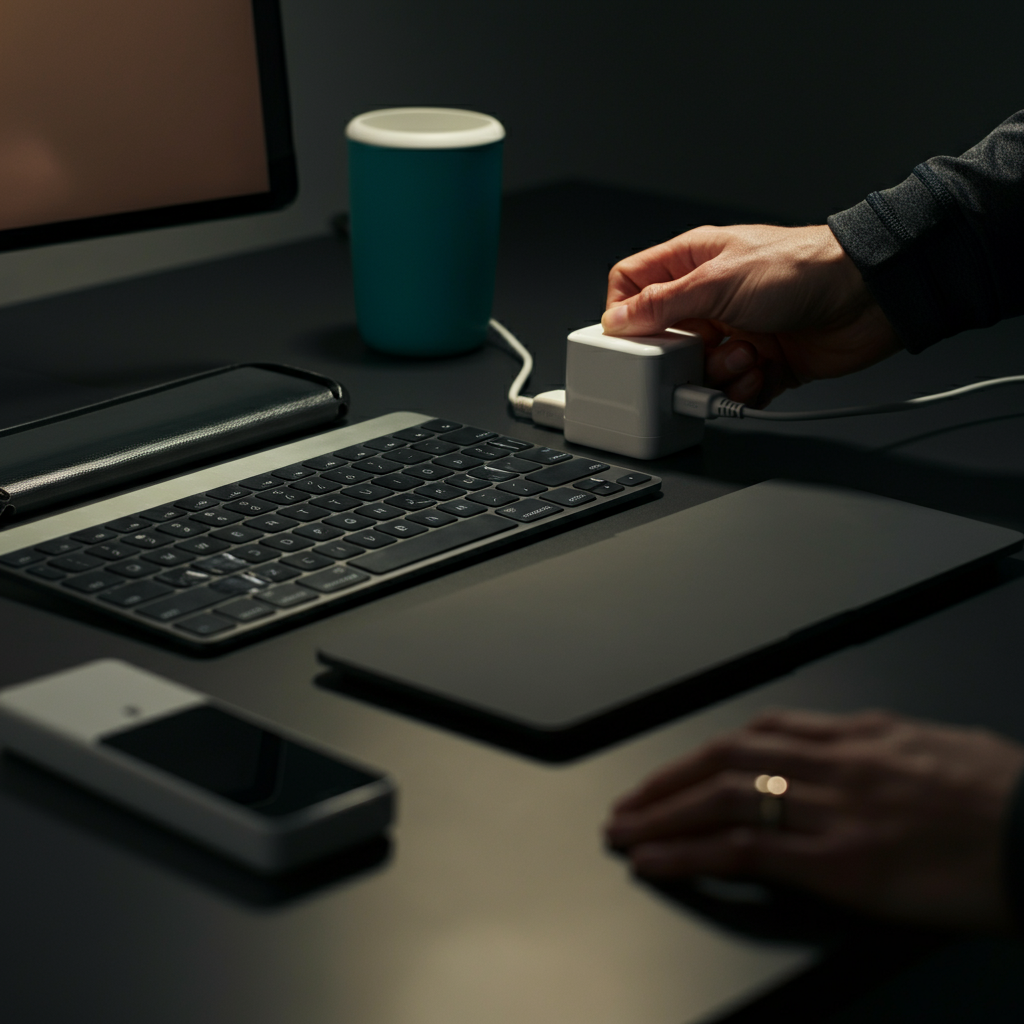
Before diving into complex software issues, rule out the simple things. Is the device plugged in and turned on? Are all cables securely connected? Is the Wi-Fi on? Is the volume turned up? Many problems stem from something as simple as a loose cable or a muted speaker. Double-check the basics, even if you think you've already checked them. If you have multiple monitors connected, ensure the display settings are correctly configured and that the correct monitor is selected. For network problems, ensure that airplane mode is turned off.
Step 4: Google It!
Leverage the Power of the Internet
You are almost certainly not the first person to encounter your particular tech problem. Google (or your preferred search engine) is your best friend. Search for the exact error message or a detailed description of the issue. Include specific keywords related to your device, software, or operating system. Browse forums, support websites, and online tutorials. Be critical of the information you find; stick to reputable sources and cross-reference information from multiple sources before trying any solutions. Pay attention to dates of the posts and articles. Solutions from several years ago may no longer be relevant or safe.

Step 5: Systematically Test Components
Isolate the Problem Area
If the basic steps haven't resolved the issue, start systematically testing different components to isolate the source of the problem. For example, if your internet isn't working, test your internet connection on different devices. If the problem is isolated to one device, the issue is likely with that device's hardware or software. If the problem persists across multiple devices, the issue is likely with your modem or router. Similarly, if you are having printing problems, try printing from a different application. This process of elimination is key to identifying the root cause. If you can test hardware components independently (e.g., swapping out a faulty RAM stick), it will help confirm suspicions.

Step 6: Update Drivers and Software
Keep Everything Current
Outdated drivers and software can cause compatibility issues and other problems. Ensure that your operating system, drivers, and software are up-to-date. Check for updates regularly, and install them promptly. Driver updates often include bug fixes and performance improvements that can resolve a wide range of issues. Conversely, recent updates can sometimes introduce new problems. If a problem started immediately after an update, consider rolling back to the previous version (if possible) to see if that resolves the issue. Before updating, back up any critical data, in case the update introduces problems.

Step 7: Run Diagnostics
Utilize Built-In Tools
Most operating systems and devices come with built-in diagnostic tools that can help identify hardware and software problems. Run these tools to check for errors and potential issues. Windows, for instance, has a memory diagnostic tool and a disk check utility. Mac OS has Disk Utility. These tools can provide valuable insights into the health and performance of your system. These tests can take a while to complete, so be prepared to allocate the necessary time.

Step 8: Restore to a Previous State
Turn Back Time (Carefully!)
If you suspect that a recent change (e.g., software installation, configuration change) is causing the problem, consider restoring your system to a previous state using a system restore point. System restore reverts your system files and settings to a previous point in time, effectively undoing any recent changes. This can be a useful way to resolve problems caused by faulty software or incorrect configurations. However, be aware that system restore does not affect your personal files, but any applications installed after the restore point will need to be reinstalled. It is always advisable to backup important files before performing a system restore.

Step 9: Seek Expert Help
When to Call in the Professionals
If you've exhausted all other troubleshooting steps and the problem persists, it may be time to seek expert help. Contact the manufacturer's support website or contact a qualified computer technician. Don't be afraid to admit that you need assistance. Be prepared to provide a detailed description of the problem, the troubleshooting steps you've already taken, and any relevant information about your system. Sometimes, a professional diagnosis can save you time and prevent further damage. Before contacting support, be sure to gather all relevant information about your device (model number, serial number, operating system version, etc.).
Tools or Materials Required
- Screwdrivers (various sizes)
- Antistatic wrist strap
- Multimeter
- Compressed air
- Flash drive (for backups and OS installation)
Common Mistakes to Avoid
- Not backing up data before making changes.
- Downloading software from untrusted sources.
- Ignoring error messages.
- Making changes without understanding their consequences.
- Assuming the worst-case scenario immediately.
Safety Considerations
- Always disconnect the power before opening any electronic device.
- Use an antistatic wrist strap to prevent electrostatic discharge.
- Be careful when handling sharp objects or small components.
- Do not attempt to repair devices if you are not comfortable doing so.
Pro Tips
- Create a troubleshooting checklist for common problems.
- Document all changes you make to your system.
- Learn keyboard shortcuts to increase efficiency.
- Join online forums and communities to learn from other users.
FAQ Section
- Q: My computer is running slow. What should I do?
- A: Try closing unnecessary programs, running a virus scan, defragmenting your hard drive, and upgrading your RAM.
- Q: My internet connection is unstable. What should I do?
- A: Try restarting your modem and router, checking your network cables, and contacting your internet service provider.
- Q: My printer is not printing. What should I do?
- A: Check the power and cable connections, make sure the printer is online, and check the ink levels.
In conclusion, troubleshooting your tech like a pro is about having a systematic approach, gathering information, and leveraging available resources. By following the steps outlined in this guide, you can confidently tackle common tech problems and avoid unnecessary expenses. Remember to be patient, persistent, and don't be afraid to ask for help when needed! With a little practice, you'll become a proficient tech troubleshooter in no time.