In today's digital age, our computers have become extensions of ourselves. They house our work, memories, and connections to the world. But just like a physical space, a computer can quickly become cluttered, leading to frustration, decreased productivity, and even system slowdown. A digital detox, focused on decluttering your computer, can revitalize your workflow and create a sense of calm amidst the digital noise.
This guide provides a structured approach to decluttering your computer, offering practical steps and expert advice to reclaim your digital space. We'll cover everything from organizing files and folders to removing unnecessary programs and managing your digital footprint. Get ready to breathe new life into your digital world!
Follow these steps to regain control of your digital life and experience the benefits of a cleaner, faster, and more organized computer. Let's begin!
Step 1: The Initial Assessment
Before diving in, take a moment to assess the extent of the clutter. This involves identifying the areas that are most disorganized and understanding the types of files and programs that contribute to the problem. Are your downloads folder overflowing? Is your desktop covered in icons? Identifying these pain points will help you prioritize your efforts and create a targeted decluttering strategy. Consider making a list or taking screenshots to document the “before” state, which will be rewarding to see the difference later on.

Step 2: Taming the Downloads Folder
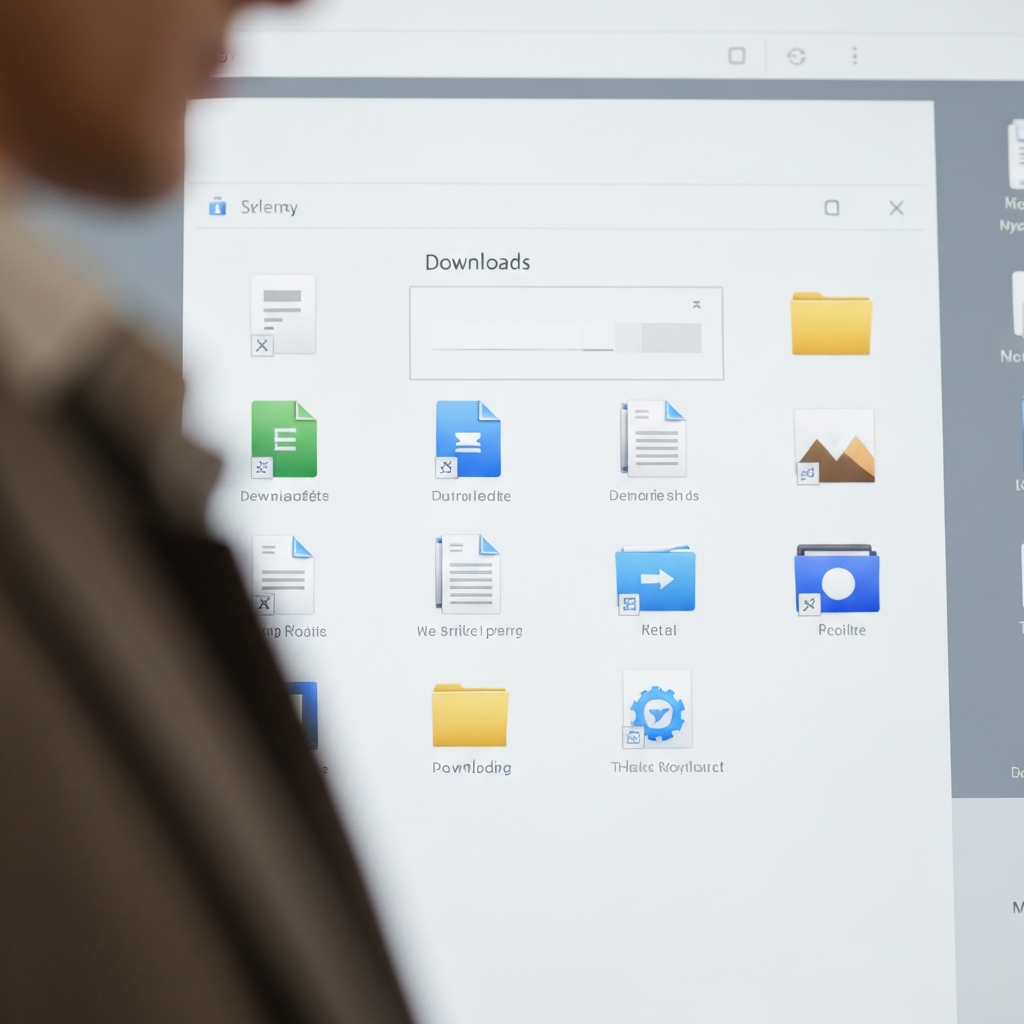
The downloads folder is often the biggest culprit of computer clutter. It's a repository for everything we download from the internet, and it quickly becomes a chaotic mix of installers, documents, images, and more. Start by sorting the files by date, size, or type to identify the oldest or largest files. Delete anything you no longer need. For the remaining files, create a simple folder structure (e.g., Documents, Images, Software) and move each file to its appropriate location. Be ruthless – if you're unsure if you need something, ask yourself when you last used it. If it's been months or years, chances are you can safely delete it.
Step 3: Desktop Detoxification
A cluttered desktop can be distracting and impede productivity. The desktop should be a workspace, not a dumping ground. The goal is to have only the essential shortcuts and files that you use daily. Create a "Desktop Archive" folder and move everything else into it. Then, review the contents of the archive and sort them into your existing folder structure (see Step 2). Consider deleting rarely-used shortcuts or consolidating them into a single folder for easier access. A clean desktop promotes a clear mind.

Step 4: Application Audit
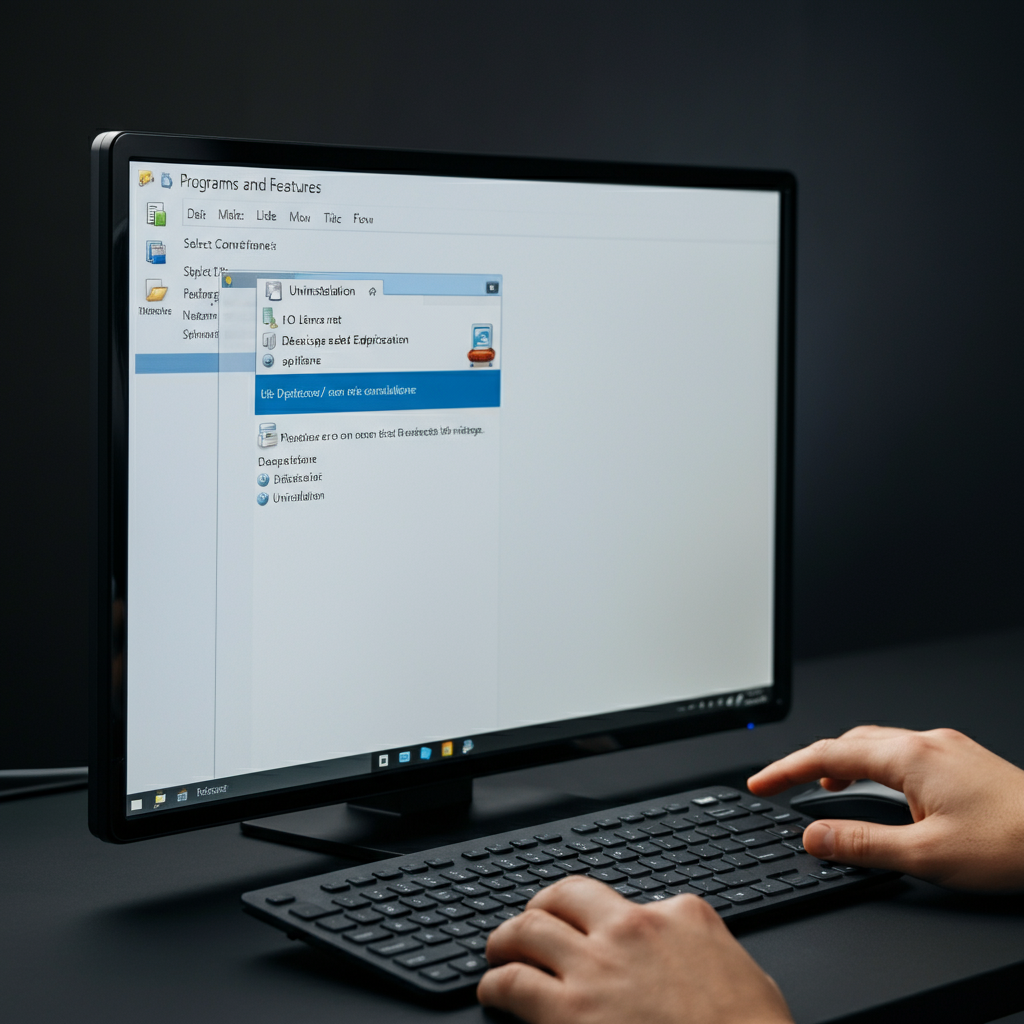
Over time, we accumulate a lot of software on our computers, often forgetting about programs we no longer use. Regularly review your installed applications and uninstall anything you don't need. On Windows, you can find the list of installed programs in the Control Panel or Settings app. On macOS, look in the Applications folder. When uninstalling, be mindful of bundled software or toolbars that might also be removed. Rebooting after uninstalling programs is often a good practice to ensure that all files are properly removed.
Step 5: Browser Extension Check-up
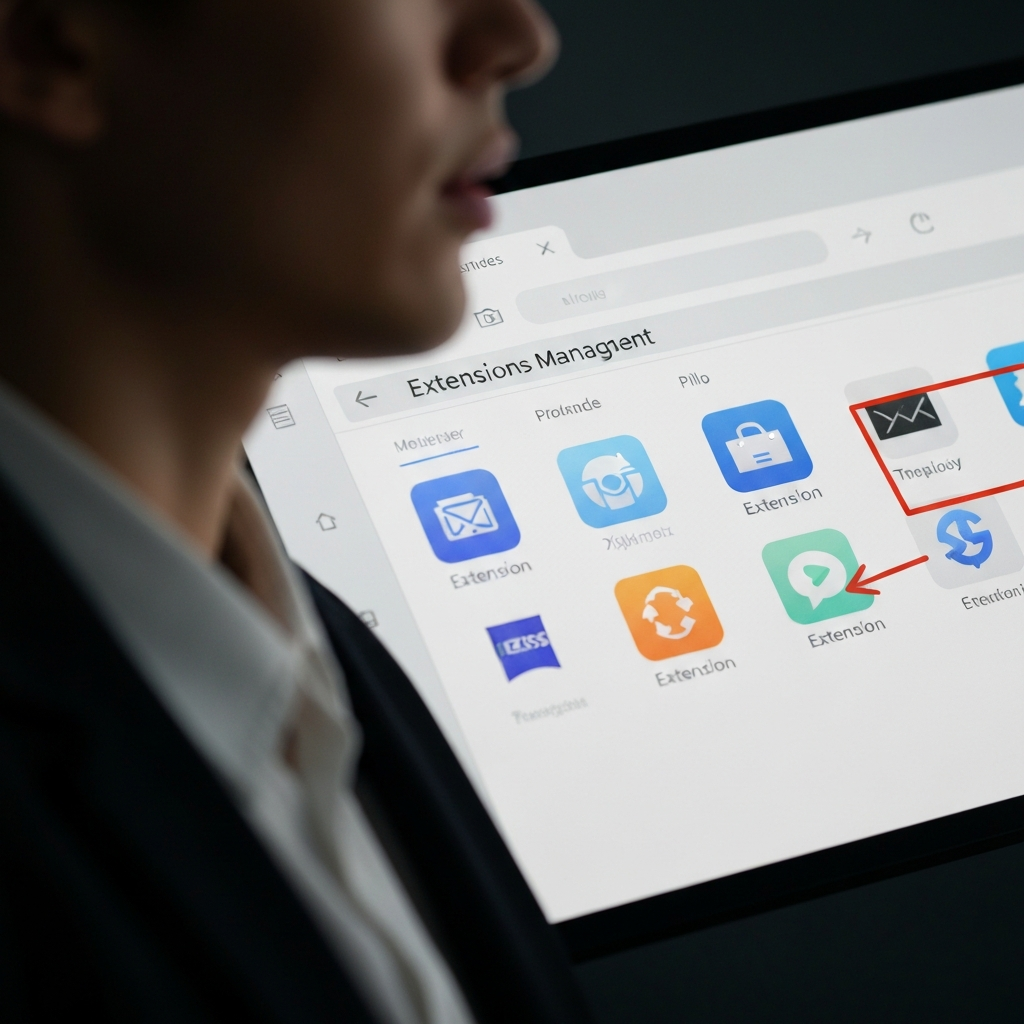
Browser extensions can enhance functionality, but they can also slow down your browser and compromise your privacy. Regularly audit your browser extensions and remove any that you don't actively use or recognize. Most browsers have a dedicated extensions management page (e.g., chrome://extensions in Chrome, about:addons in Firefox). Be cautious of extensions that request excessive permissions or come from unknown developers. Read reviews before installing new extensions to ensure they are reputable and safe.
Step 6: Empty the Recycle Bin (or Trash)
This might seem obvious, but it's a crucial step that's often overlooked. Emptying the Recycle Bin (Windows) or Trash (macOS) permanently removes deleted files from your computer, freeing up valuable disk space. Remember that once you empty the Recycle Bin/Trash, the files are usually gone for good unless you use specialized data recovery software. Consider setting a schedule to empty the Recycle Bin/Trash regularly (e.g., weekly or monthly).

Step 7: Cloud Storage Synchronization
Cloud storage services like Google Drive, Dropbox, and OneDrive are great for backing up and accessing files from anywhere. However, if not managed properly, they can also contribute to clutter. Ensure your cloud storage folders are well-organized and that you're only syncing the files you need. Remove duplicate files and delete anything you no longer need. Consider using selective sync to choose which folders are synced to your computer, saving disk space and bandwidth.
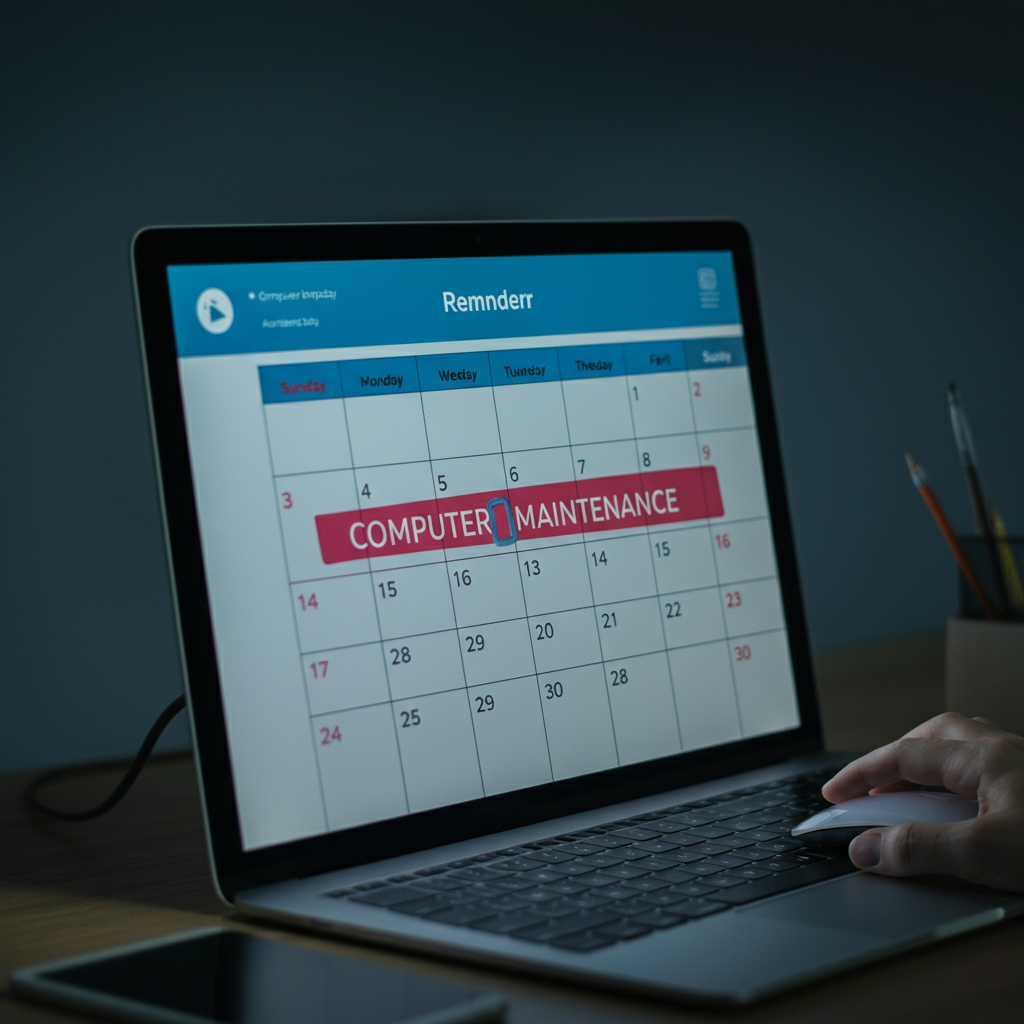
Step 8: Create a Maintenance Routine
Decluttering is not a one-time event; it's an ongoing process. Establish a regular maintenance routine to keep your computer clean and organized. Schedule time each week or month to review your files, uninstall unused programs, and empty the Recycle Bin/Trash. Automate tasks like disk cleanup and defragmentation (if applicable) to minimize manual effort. A consistent maintenance routine will prevent clutter from accumulating in the first place.
Common Mistakes to Avoid
- Not Backing Up Before Deleting: Always back up important files before deleting anything, just in case you make a mistake.
- Deleting Files Without Reviewing: Take the time to review files before deleting them to ensure you don't accidentally delete something important.
- Ignoring the Recycle Bin/Trash: Remember to empty the Recycle Bin/Trash regularly to permanently remove deleted files.
- Installing Too Many Unnecessary Programs: Be mindful of the programs you install and avoid installing bloatware or unwanted software.
Pro Tips
- Use a file management tool or file manager for advanced organization options.
- Leverage tags or labels in your file system for easier searching.
- Consider using a password manager for secure password storage instead of storing them in documents.
- Automate cleaning tasks to maintain your progress.
FAQ Section
- How often should I declutter my computer?
- Aim for a mini-declutter (emptying downloads, clearing desktop) weekly and a more thorough declutter (applications, large files) monthly or quarterly.
- What should I do with very old files I might need someday?
- Archive them to an external hard drive or a low-cost cloud storage service. Document what the files contain to easily recall them later.
- Is it safe to delete temporary files?
- Yes, deleting temporary files can free up disk space and improve performance. Use built-in tools like Disk Cleanup (Windows) or third-party utilities.
Conclusion
Conquering computer clutter is an ongoing journey, but the rewards are well worth the effort. By following the steps outlined in this guide and establishing a regular maintenance routine, you can create a cleaner, faster, and more organized digital environment. A digital detox not only improves your computer's performance but also reduces stress and boosts productivity. Embrace the power of a clutter-free computer and reclaim your digital life!