Is your trusty old laptop starting to feel more like a paperweight than a powerhouse? Don't despair! Before you resign yourself to buying a new machine, there are several steps you can take to breathe new life into your aging device. This guide will walk you through a series of proven techniques to boost your laptop's performance, from simple software tweaks to hardware upgrades.
The slowdown you're experiencing is often a result of accumulated software clutter, outdated components, and inefficient power settings. By systematically addressing these issues, you can significantly improve your laptop's speed and responsiveness, making it feel like new again. We'll cover everything from optimizing your operating system to upgrading key hardware components.
This process doesn't require advanced technical skills. With a little patience and careful attention to detail, you can dramatically improve your laptop's performance and extend its lifespan. Let's get started!
Step 1: Uninstall Unnecessary Programs
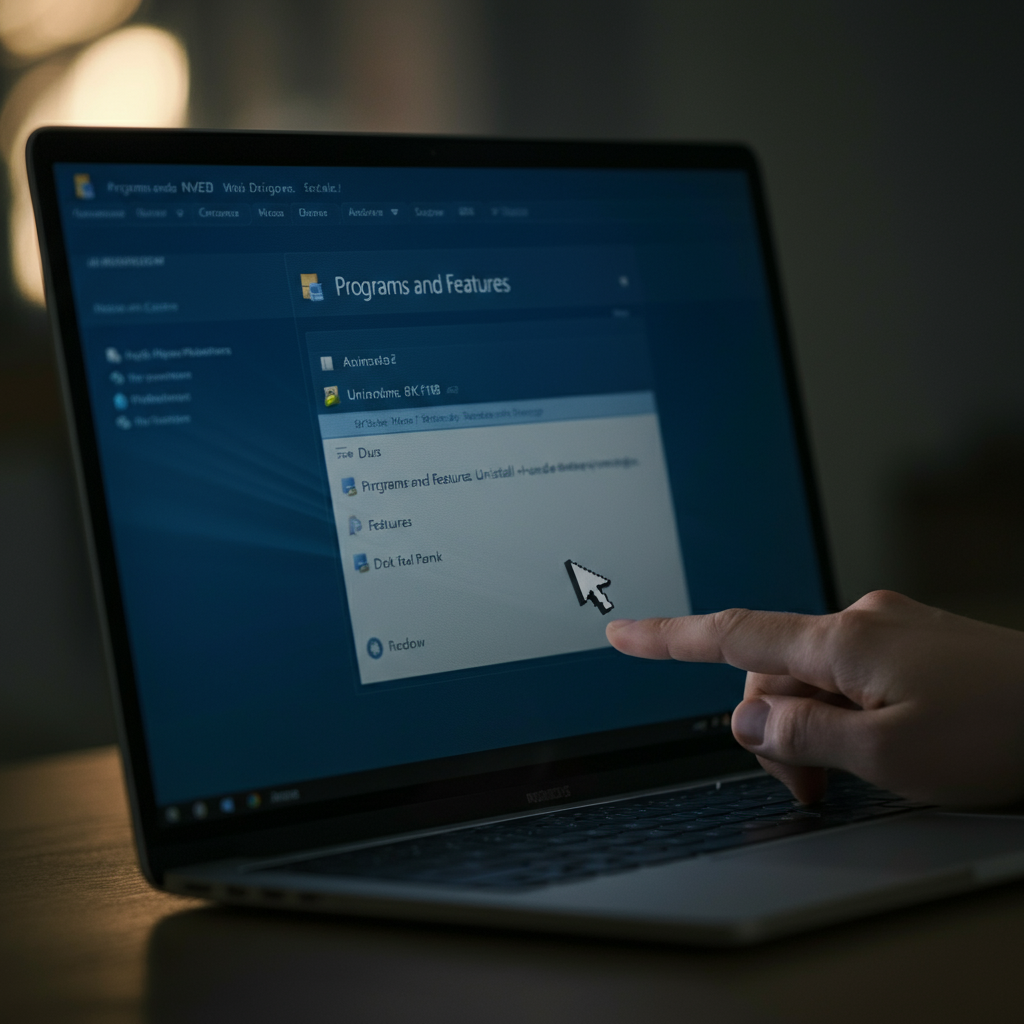
Remove Bloatware and Unused Applications
One of the easiest and most effective ways to speed up your laptop is to remove programs you no longer use. Many laptops come pre-installed with bloatware—unnecessary software that takes up valuable storage space and consumes system resources. Go through your list of installed programs and uninstall anything you don't recognize or use regularly. Be careful not to remove critical system files. If you're unsure about a particular program, a quick online search can help you determine if it's safe to uninstall.
Step 2: Defragment Your Hard Drive (HDD Only)
Optimize Data Storage for Faster Access
If your laptop has a traditional hard disk drive (HDD), defragmenting it can improve performance. Over time, files become fragmented, meaning they're stored in scattered locations across the drive. Defragmentation rearranges these files, placing related data closer together, which allows your laptop to access information more quickly. Solid State Drives (SSDs) should NOT be defragmented as it degrades their lifespan; they handle file storage differently. Most operating systems have built-in defragmentation tools; use those for best results.
Step 3: Upgrade to a Solid State Drive (SSD)
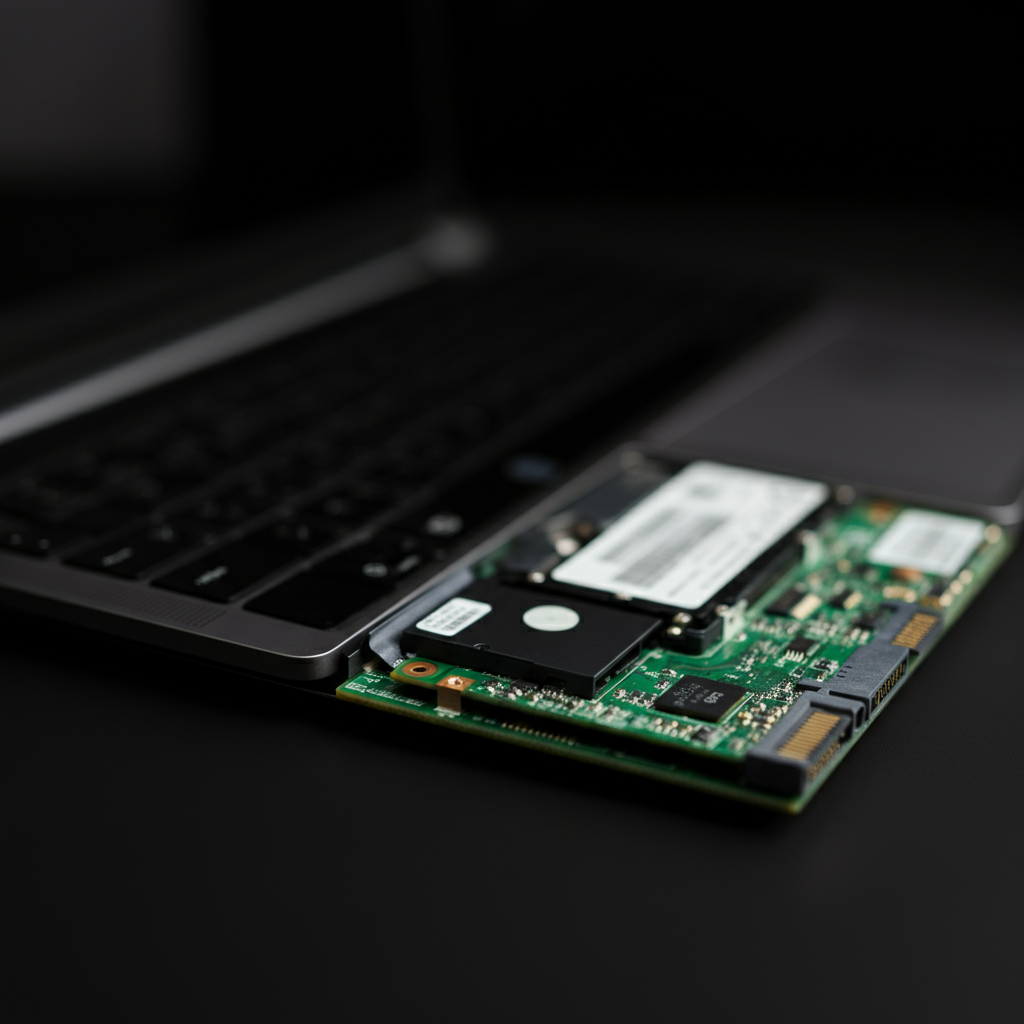
The Single Biggest Performance Booster
Replacing your old HDD with an SSD is the most impactful upgrade you can make. SSDs use flash memory to store data, which results in significantly faster read and write speeds compared to HDDs. Your laptop will boot up faster, applications will launch quicker, and overall system responsiveness will dramatically improve. SSD prices have dropped considerably in recent years, making this a more affordable upgrade than ever before. Choose an SSD with sufficient storage capacity for your needs, typically 256GB or 512GB is recommended for most users.
Step 4: Increase RAM (Random Access Memory)
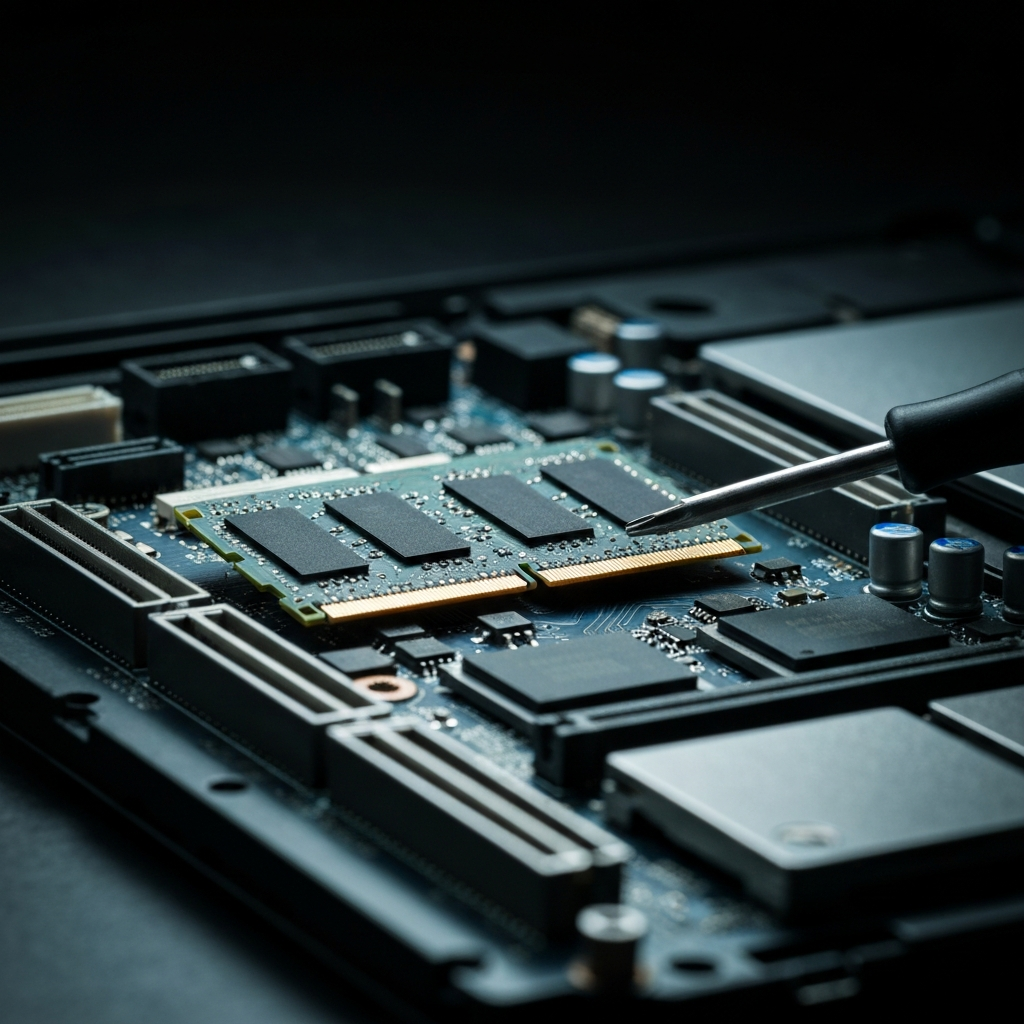
Boost Multitasking Capabilities
RAM is your laptop's short-term memory, used for running applications and accessing data. If you frequently run multiple programs simultaneously or work with large files, upgrading your RAM can significantly improve performance. Check your laptop's specifications to determine the maximum amount of RAM it supports and the type of RAM it uses (e.g., DDR3, DDR4). Adding more RAM allows your laptop to handle more tasks at once without slowing down.
Step 5: Update Your Operating System and Drivers
Ensure Compatibility and Stability
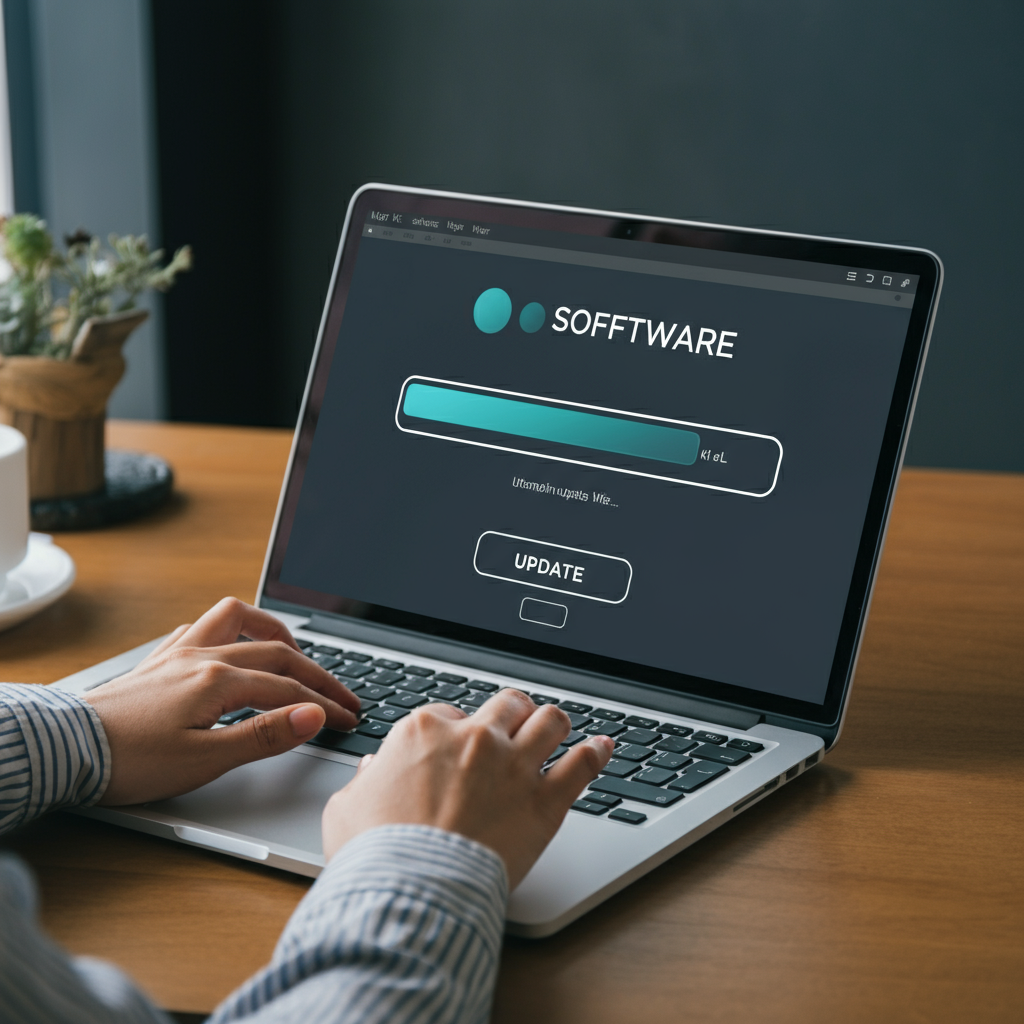
Keeping your operating system and drivers up to date is crucial for performance and security. Updates often include performance improvements, bug fixes, and security patches. Outdated drivers can cause compatibility issues and lead to slowdowns. Most operating systems have automatic update features, but it's always a good idea to manually check for updates periodically to ensure you're running the latest versions.
Step 6: Clean Up Startup Programs
Reduce Boot Time and Background Processes
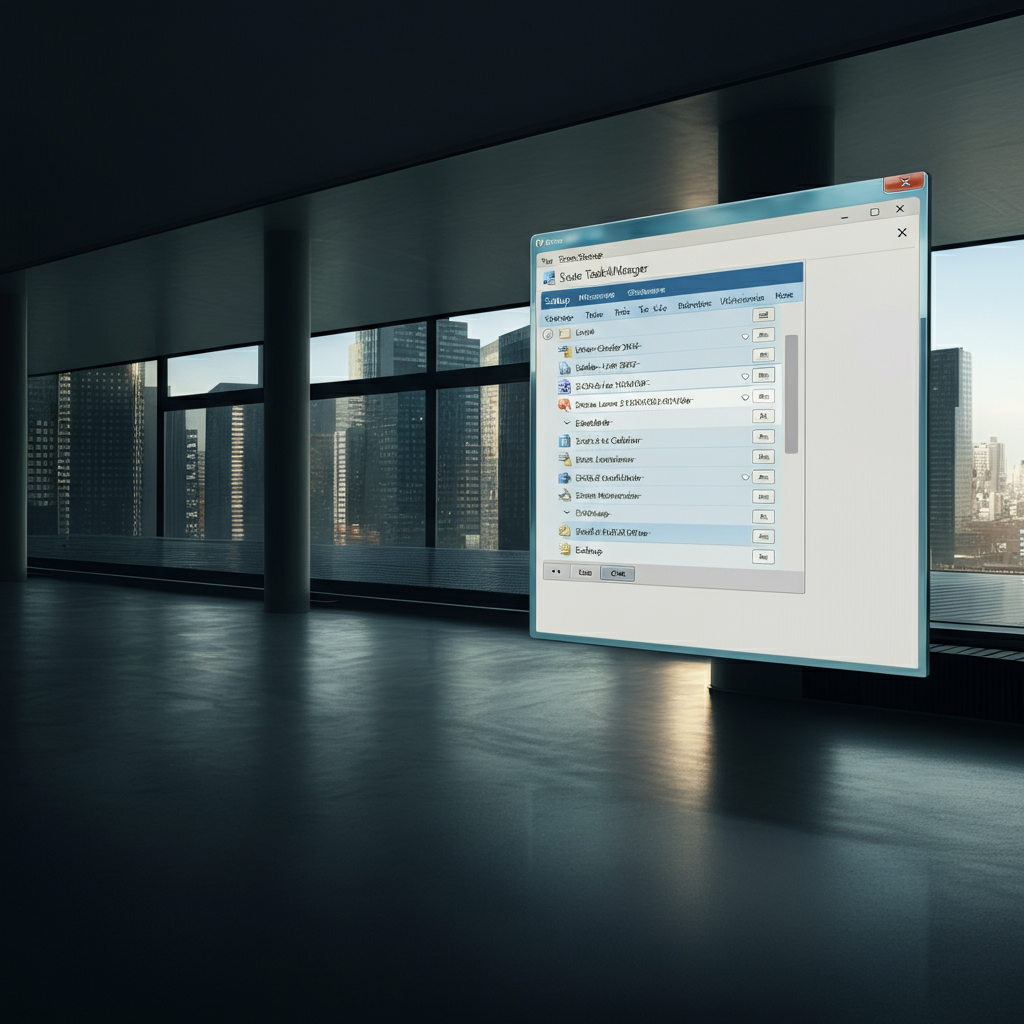
Many programs are configured to launch automatically when your laptop starts up. This can significantly slow down boot time and consume system resources in the background. Disable unnecessary startup programs to improve boot time and free up system resources. You can usually manage startup programs through the Task Manager (Windows) or System Preferences (macOS).
Step 7: Adjust Power Settings
Optimize for Performance or Battery Life
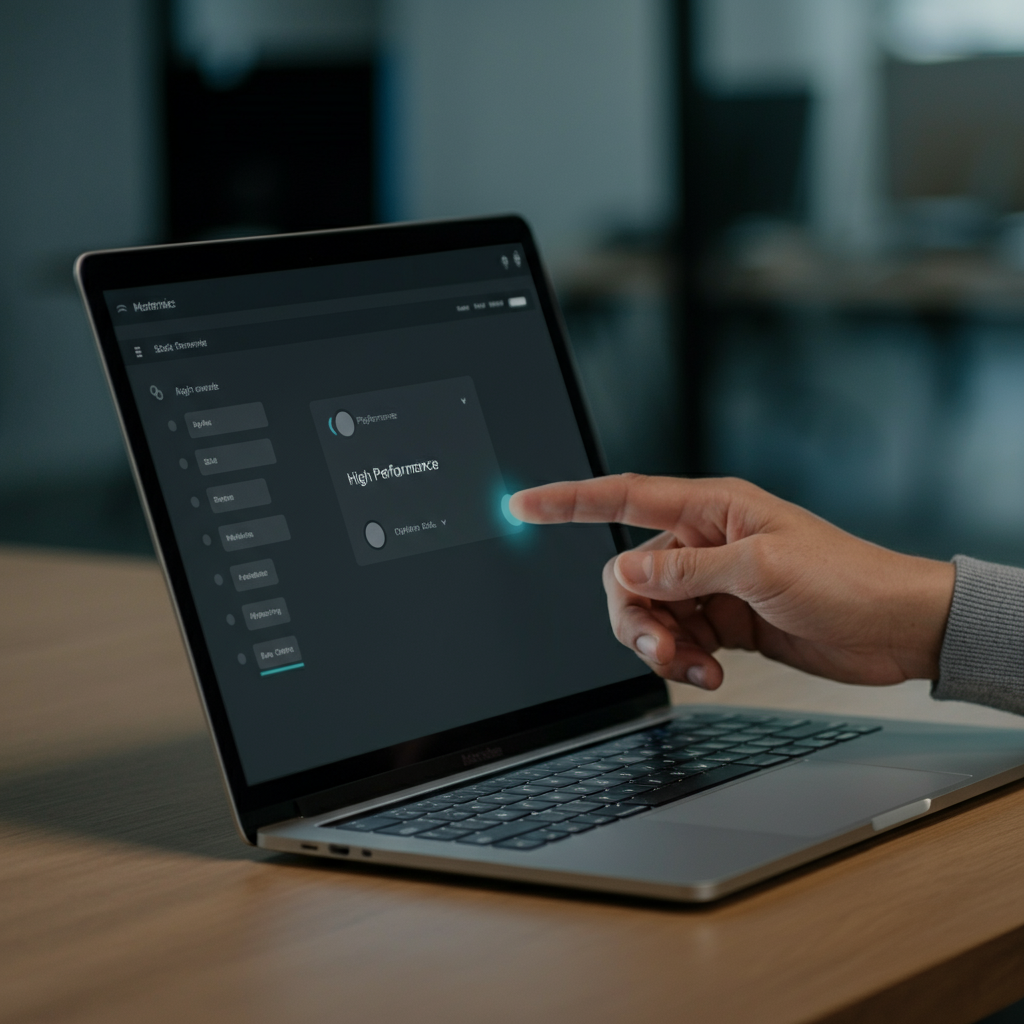
Your laptop's power settings can impact performance. By default, many laptops are configured to prioritize battery life, which can limit performance. Adjust your power settings to "High Performance" mode to maximize your laptop's speed. Be aware that this will consume more battery power, so consider switching back to a balanced mode when battery life is a concern.
Step 8: Run a Virus Scan
Eliminate Malware and Viruses
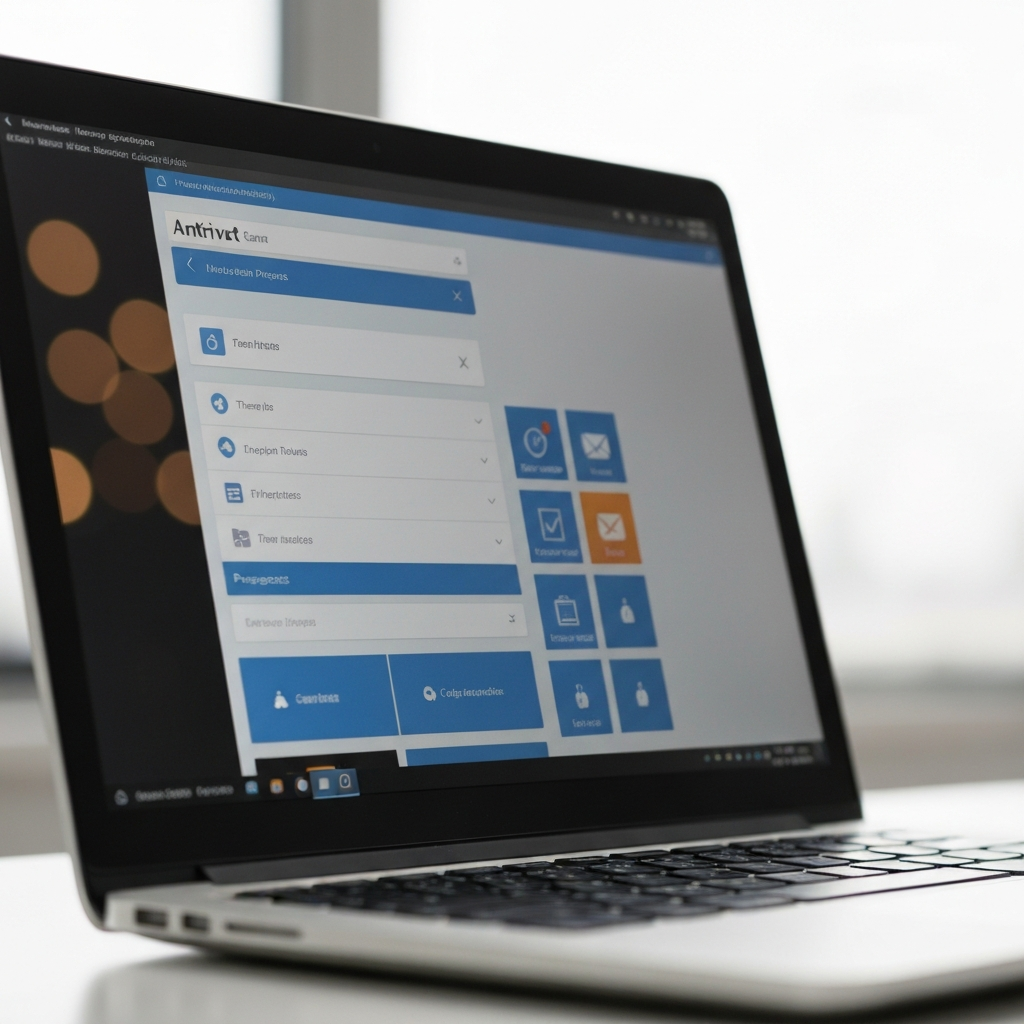
Malware and viruses can significantly impact your laptop's performance. They can consume system resources, slow down your internet connection, and even damage your files. Run a thorough virus scan using a reputable antivirus program to detect and remove any malicious software. Consider scheduling regular scans to prevent future infections.
Safety Considerations
When performing hardware upgrades, it's important to take precautions to avoid damaging your laptop. Always disconnect the power adapter and remove the battery before opening your laptop. Use anti-static wrist straps to prevent electrostatic discharge, which can damage sensitive electronic components. Consult your laptop's service manual or online resources for detailed instructions on how to safely disassemble and reassemble your device.
Conclusion
Supercharging your old laptop doesn't have to be a daunting task. By following these steps, you can significantly improve its performance and extend its lifespan. From uninstalling unnecessary programs to upgrading to an SSD and increasing RAM, these techniques can make a noticeable difference in your laptop's speed and responsiveness. Remember to prioritize safety when performing hardware upgrades, and always back up your data before making any major changes. With a little effort, you can breathe new life into your aging laptop and enjoy a smoother, faster computing experience.