Life360 is a popular family safety app that uses location tracking to keep loved ones connected. One of its core features is Drive Detection, designed to monitor driving behavior and alert users to potential risks. The "Risky Drive" notification can be unsettling, prompting questions about what it means, how it's triggered, and what you can do about it. This guide provides a deep dive into the Risky Drive feature, offering expert insights and practical advice.
Receiving a Risky Drive alert doesn't necessarily mean you're a reckless driver. The app's algorithms can be sensitive and may misinterpret certain situations. Understanding the specific criteria that trigger the alert is crucial for addressing the issue effectively. This guide will explore the common triggers, potential false alarms, and ways to minimize unwanted notifications while maintaining the app's safety benefits.
Whether you're a concerned parent, a young driver, or simply curious about Life360's functionality, this article will equip you with the knowledge to navigate the Risky Drive feature with confidence. We'll cover everything from understanding the underlying technology to troubleshooting common issues and optimizing your app settings.
Step 1: Decoding the "Risky Drive" Alert
What Constitutes a Risky Drive?
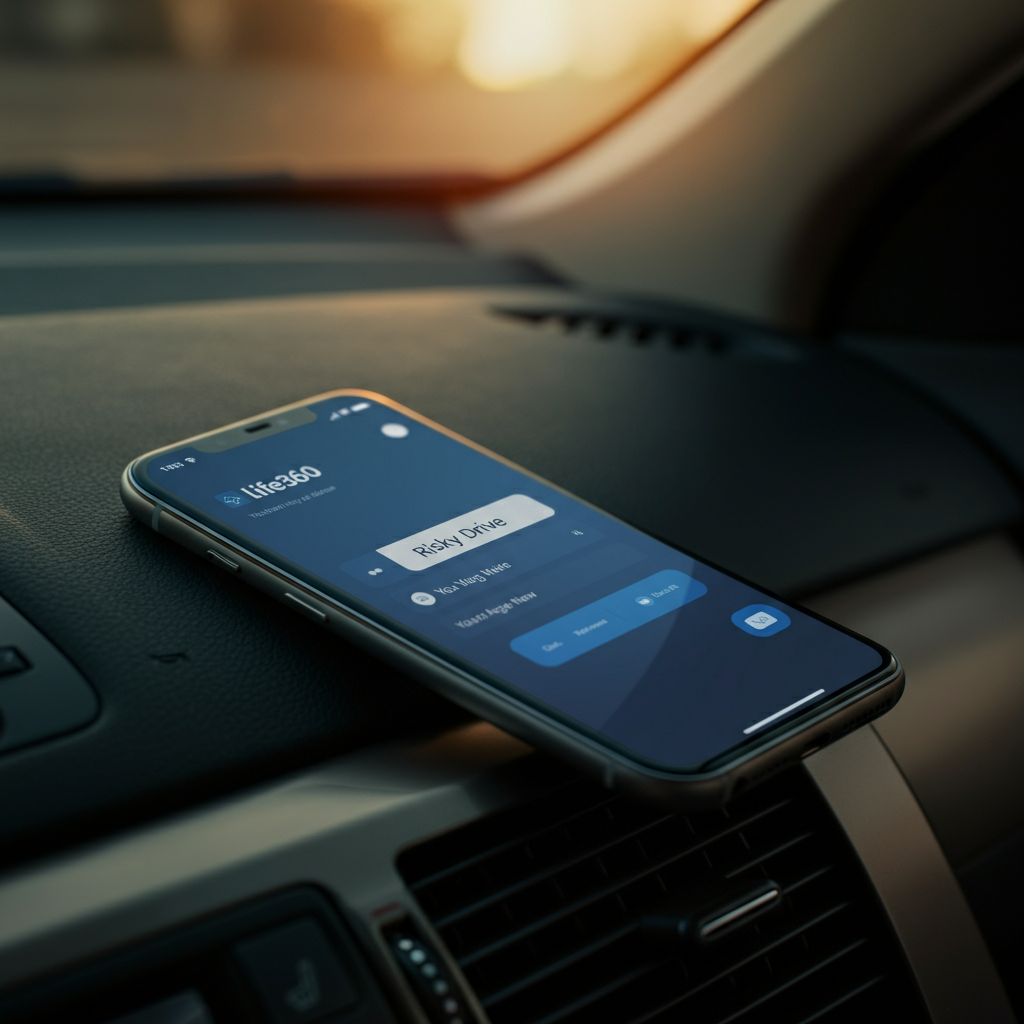
A "Risky Drive" notification from Life360 indicates that the app has detected driving behavior that it deems unsafe. This detection is based on a combination of factors, including speed, acceleration, braking patterns, and phone usage while driving. The app uses your phone's sensors and GPS data to track these parameters and identify potentially dangerous situations. It is important to note, that the alert is triggered for anyone within your circle, not just the driver.
Step 2: How Life360 Detects Risky Driving
The Technology Behind Drive Detection
Life360’s Drive Detection relies on a sophisticated algorithm that analyzes real-time data from your smartphone. The app monitors your speed and location changes when you’re driving; if you travel at least 1/2 mile (0.80 km) and go faster than 15 miles per hour (24 km/h) at any point, Life360 registers it as driving. This data is then compared against pre-defined thresholds for risky behaviors such as speeding, hard braking, and rapid acceleration. Drive detection can be turned on or off for the members in your circle.
The app also monitors phone usage. If Life360 senses phone activity, your Circle will get a notification for a Risky Drive. However, there are some conditions where a drive will not be logged. These include, having less than 10% battery, having battery-saving settings turned on, having a weak cell signal, or not allowing Life360 to run in the background.
Step 3: Common Triggers for Risky Drive Alerts (Even When You're Not Being Risky)
Beyond Reckless Driving: Understanding False Positives
It's important to recognize that a Risky Drive notification doesn't always indicate actual unsafe driving. Several scenarios can lead to false positives. For example, if you're a passenger in a vehicle and the driver exhibits risky behavior, Life360 may incorrectly attribute that behavior to you. Another common cause is using streaming apps for music, which Life360 can sometimes misinterpret as active phone use.
Road conditions can also play a role. Bumpy roads or sudden changes in terrain can trigger the accelerometer, leading to false readings of hard braking or rapid acceleration. The sensitivity of the app's algorithms can vary depending on your device and app settings, so it's worth experimenting with different configurations to minimize false positives.
Step 4: Troubleshooting and Preventing Unwanted Notifications
Taking Control of Your Life360 Experience
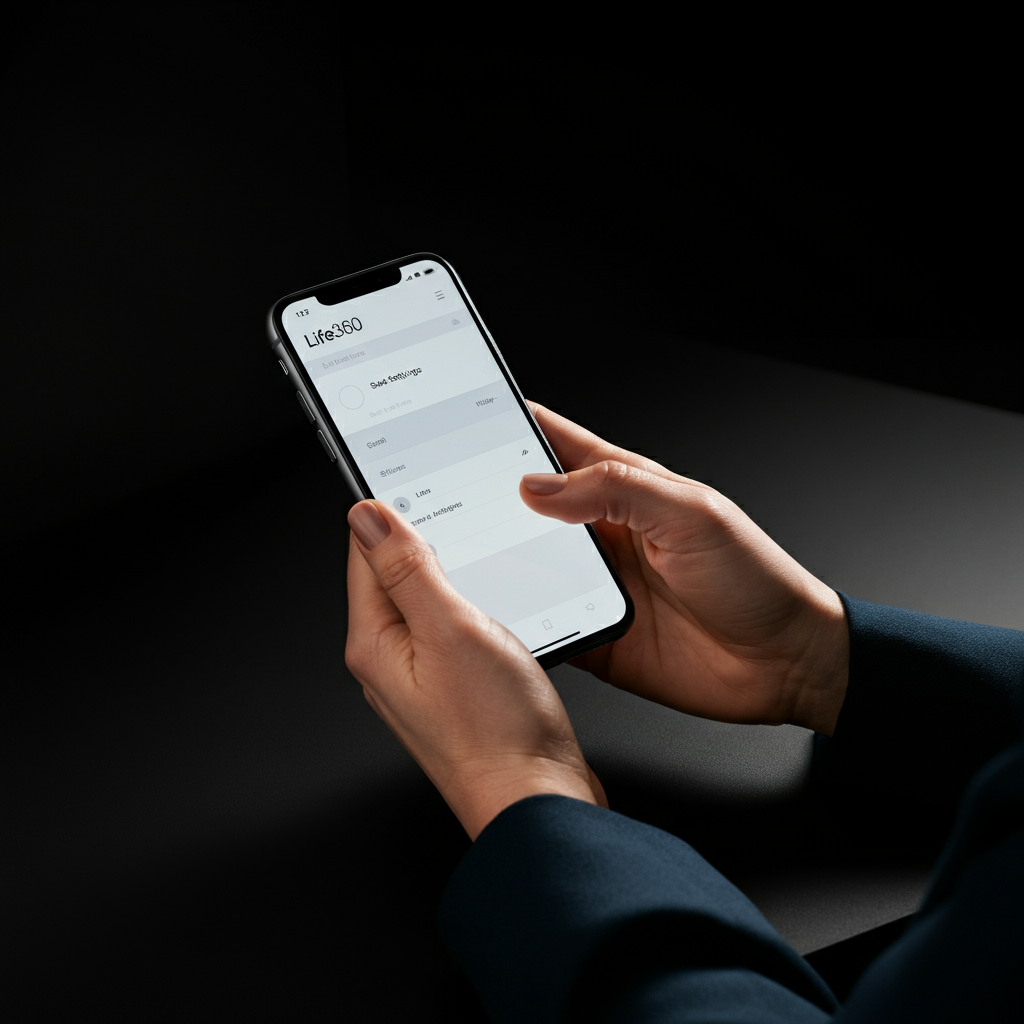
If you're receiving frequent Risky Drive notifications despite being a safe driver, there are several steps you can take to address the issue. First, ensure that your app is up to date, as updates often include bug fixes and improvements to the Drive Detection algorithm. If you're a passenger, you can switch to a passenger instead of a driver. To change to a passenger, select the Circle member you want from the Location tab, then pull up from the bottom of the screen and choose the drive you’re editing. Next, tap the car icon in the top right corner and change the role from Driver to Passenger.
Another option is to adjust the app's sensitivity settings, if available. Some versions of Life360 allow you to customize the thresholds for speed, acceleration, and braking that trigger the alert. Experimenting with these settings can help you fine-tune the app to your specific driving style and environment. It is also important to check your battery and cell service. Drive Detection will not log a drive if you have less than 10% battery, have battery-saving settings turned on, or have a weak cell signal. If all else fails, you can turn off alerts for other members of your Circle.
Step 5: Understanding Life360 Drive Detection FAQs
Common Concerns Addressed
Many users have common questions about Life360's Drive Detection feature. One frequent question is: "Why does Life360 say I’m driving when I’m not?". This is usually due to the factors described in the previous steps. If you go faster than 15 miles per hour (24 km/h) and travel more than 1/2 mile (0.80 km), then Life360 thinks that you’re in a moving vehicle and automatically lists you as the driver.
Another common concern is whether Life360 reports risky driving to the police. Life360 doesn’t report your information to police when you’re speeding or if you get a Risky Driving notification. Only members of your Circle will see the information. Police may be able to access your Life360 records if you’re involved in an accident or if they have a legal reason to check, but they are not actively monitoring your driving through the app.

Common Mistakes to Avoid
- Ignoring Risky Drive notifications: Even if you believe they're false positives, it's essential to investigate them and address any underlying issues.
- Disabling Drive Detection altogether: While tempting, this eliminates a potentially valuable safety feature.
- Assuming the app is always accurate: Remember that Life360 is a tool, not a perfect system.
Conclusion
The Life360 Risky Drive feature is designed to promote safer driving habits, but it's not without its limitations. By understanding how the app works, the potential causes of false positives, and the steps you can take to troubleshoot issues, you can harness its benefits while minimizing unnecessary notifications. Remember that safe driving should always be your top priority, regardless of what Life360 or any other app is telling you. Use Life360 as a helpful tool to enhance safety awareness, but never rely on it as a substitute for responsible driving practices.