Have you ever tried shutting down your computer only to be greeted by the Task Host window, seemingly delaying the process? This is a common issue, and while often harmless, it can be frustrating. The Task Host service is a legitimate Windows component responsible for managing tasks performed by DLLs (Dynamic Link Libraries) when they're no longer in use. When a DLL doesn't shut down properly, Task Host steps in, potentially holding up the shutdown process.
While the Task Host itself isn't a virus, its persistent appearance can be a sign of underlying problems. In this guide, we'll walk you through a series of troubleshooting steps to identify the cause and prevent the Task Host window from delaying your shutdowns. These steps range from basic checks to more advanced procedures, ensuring that you can find a solution that fits your technical skill level.
Remember to proceed with caution and follow the instructions carefully. Incorrectly modifying system settings can lead to instability. Let's dive in and get your computer shutting down smoothly again.
Step 1: Scan for Malware
Perform a Comprehensive Antivirus Scan
Even though the Task Host is a legitimate Windows process, it's always wise to rule out malware as a potential cause. Malware can sometimes disguise itself as legitimate system processes or interfere with their normal operation. Use your preferred antivirus software to perform a full system scan. Ensure your antivirus definitions are up-to-date before starting the scan for the best results.

Step 2: Run the Windows Troubleshooter
Utilize the Built-in Troubleshooting Tools
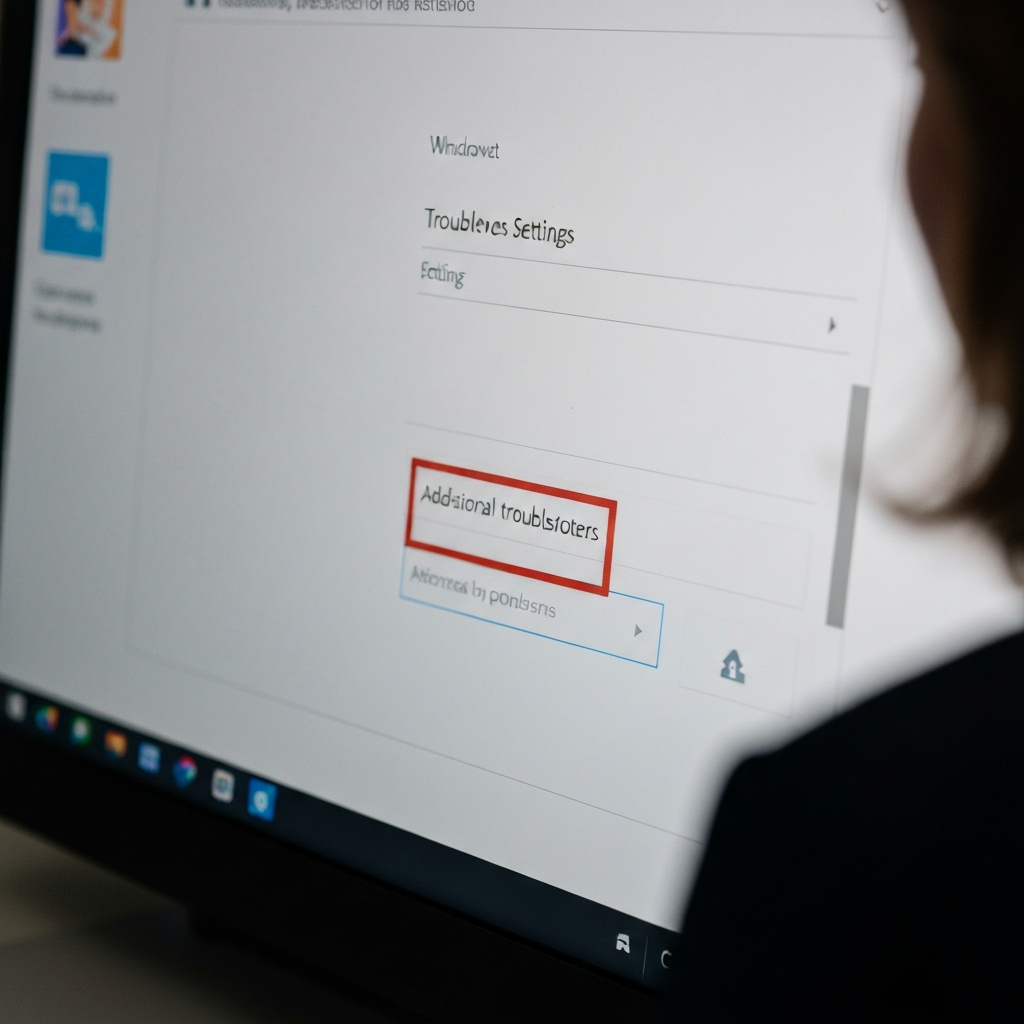
Windows comes with a suite of built-in troubleshooters designed to automatically detect and fix common problems. Running the "System Maintenance" and "Windows Update" troubleshooters can often resolve issues related to shutdown delays. To access them, search for "Troubleshooting Settings" in the Start Menu, click on "Additional Troubleshooters," and then run the relevant troubleshooters one by one. Pay close attention to any recommended fixes and apply them accordingly.
Step 3: Disable Fast Startup
Adjust Power Options for Faster Shutdowns (Ironically)
Fast Startup is a feature that speeds up boot times by saving a snapshot of your system to a hibernation file. However, it can sometimes interfere with the shutdown process and cause the Task Host window to appear. To disable it, navigate to "Control Panel" > "Power Options" > "Choose what the power buttons do." Click "Change settings that are currently unavailable," and then uncheck "Turn on fast startup." Remember to save your changes. Disabling Fast Startup may slightly increase boot times, but it can often resolve shutdown issues.

Step 4: Ensure All Applications Are Closed
Manually Close Programs Before Shutting Down
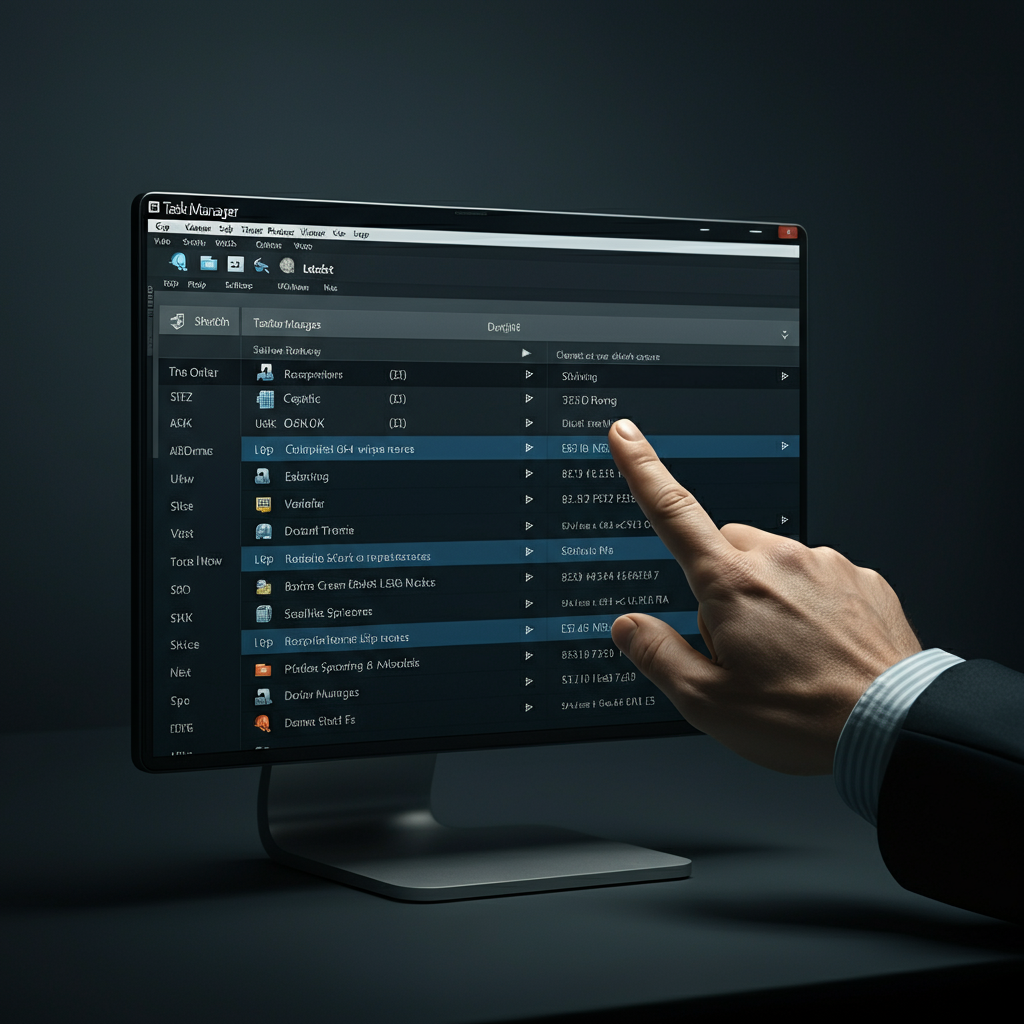
The Task Host window often appears when applications are still running in the background, preventing Windows from shutting down cleanly. Before initiating a shutdown, make sure to close all open programs, including those minimized to the system tray. You can also use Task Manager (Ctrl+Shift+Esc) to identify and close any unresponsive or resource-intensive processes. Forcefully closing programs can sometimes lead to data loss, so save your work before proceeding.
Step 5: Check for Scheduled Updates
Manage Windows Update Settings
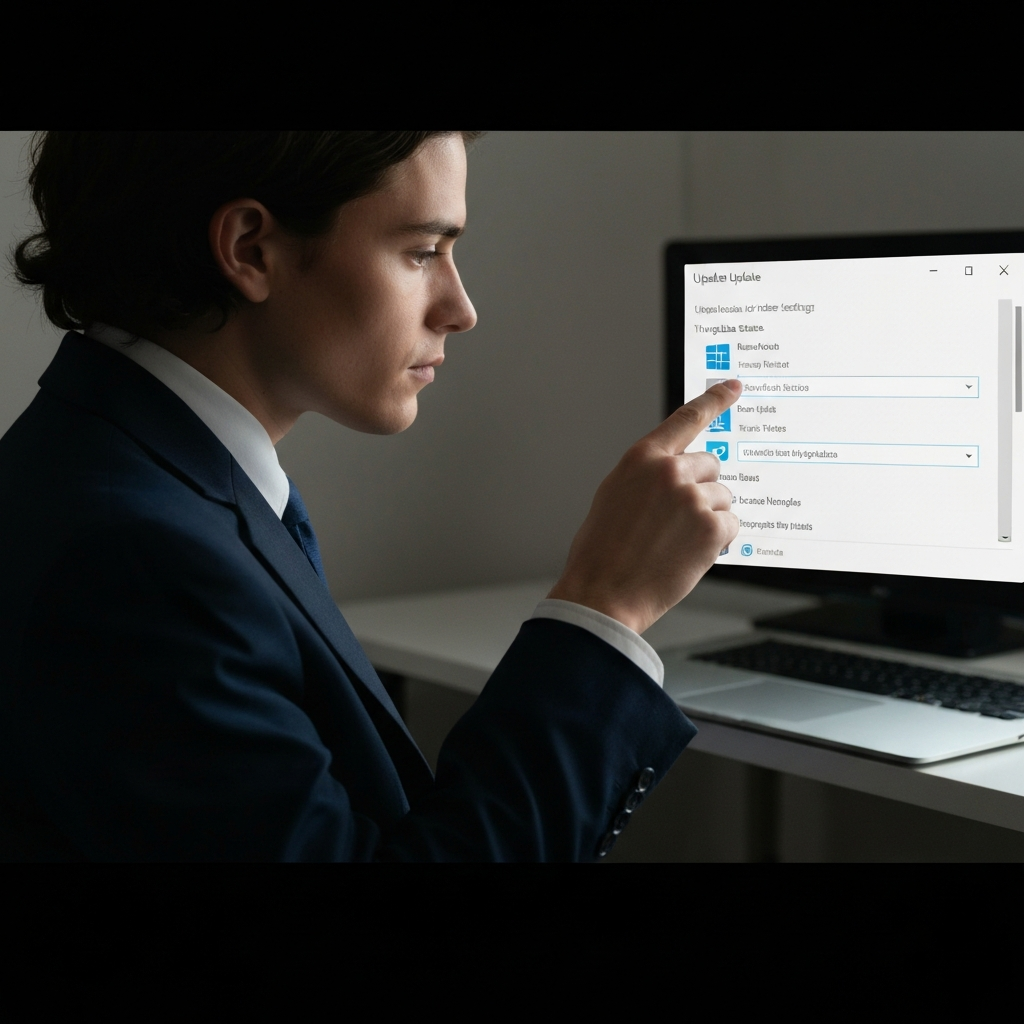
Windows Update sometimes initiates updates during shutdown, which can be managed by the Task Host, leading to delays. Check your Windows Update settings to see if there are any pending updates or scheduled restarts. You can either install the updates manually or adjust the active hours to prevent updates from occurring during critical times. Search "Check for updates" in the Start Menu and follow the on-screen instructions. Postponing important security updates for prolonged periods is generally not recommended.
Step 6: Run the System File Checker (SFC)
Repair Corrupted System Files
Corrupted system files can sometimes cause unpredictable behavior, including shutdown delays. The System File Checker (SFC) is a built-in tool that scans for and repairs corrupted system files. To run it, open Command Prompt as an administrator and type `sfc /scannow`, then press Enter. The process may take some time to complete. After SFC finishes, it's recommended to also run the DISM (Deployment Image Servicing and Management) tool using the commands: `Dism /Online /Cleanup-Image /CheckHealth`, `Dism /Online /Cleanup-Image /ScanHealth`, and `DISM /Online /Cleanup-Image /RestoreHealth`. Restart your computer after the DISM process. Ensure you have a stable internet connection during the DISM process, as it may download replacement files from Windows Update.
Step 7: Perform a Clean Boot
Isolate Software Conflicts
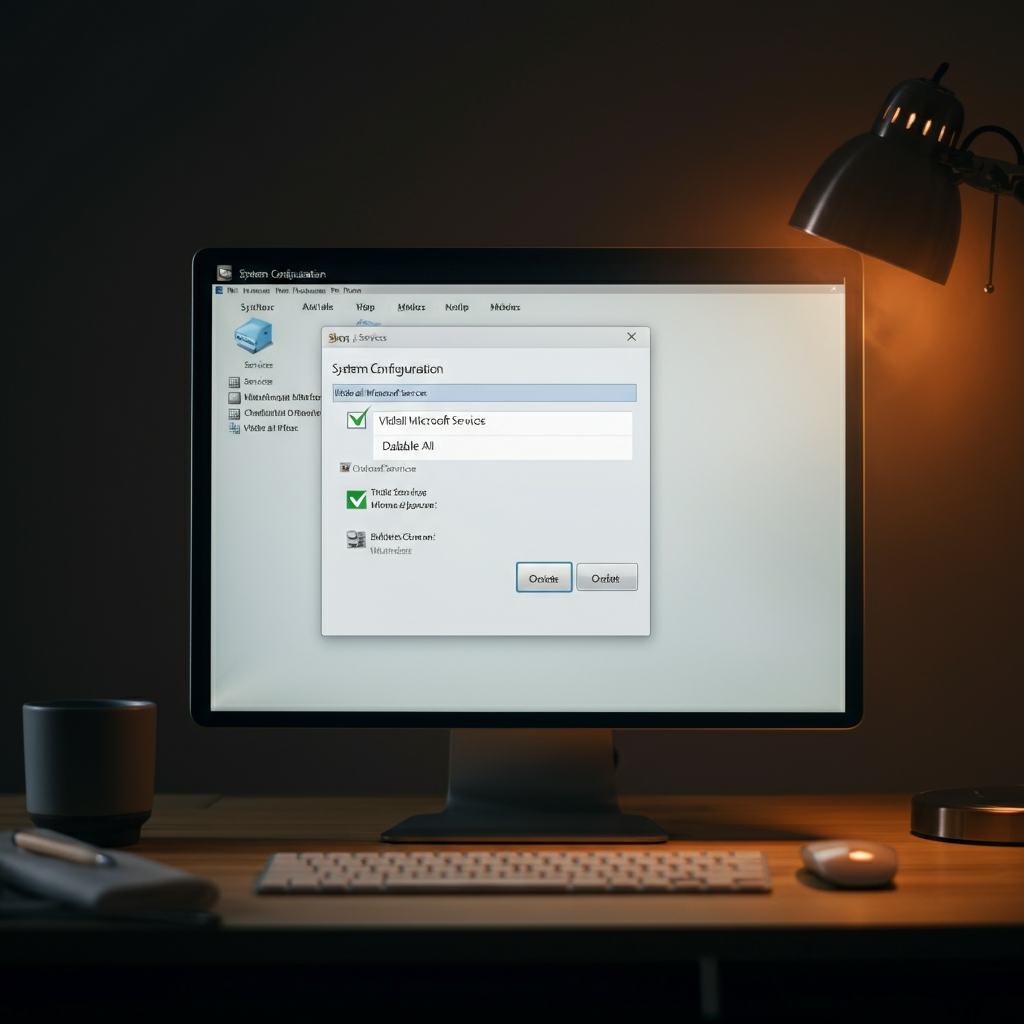
A clean boot starts Windows with a minimal set of drivers and startup programs, helping to identify if a third-party application is causing the shutdown issues. To perform a clean boot, type `msconfig` in the Start Menu and press Enter. In the System Configuration window, go to the "Services" tab, check "Hide all Microsoft services," and then click "Disable all." Next, go to the "Startup" tab and click "Open Task Manager." Disable all startup items. Restart your computer. If the issue is resolved after a clean boot, you can then re-enable services and startup items one by one to identify the culprit. Remember to re-enable all Microsoft services before troubleshooting further.
FAQ Section
- Q: What is the Task Host service?
- A: The Task Host service is a legitimate Windows component responsible for managing tasks performed by DLLs when they are no longer in use.
- Q: Is the Task Host window a sign of a virus?
- A: Not necessarily. While the Task Host itself is not a virus, it's always a good idea to scan your system for malware to rule out any potential threats.
- Q: Can disabling Fast Startup affect my computer's performance?
- A: Disabling Fast Startup may slightly increase boot times, but it can often resolve shutdown issues. The performance impact is usually minimal.
Common Mistakes to Avoid
- Incorrectly modifying system settings without understanding the consequences.
- Skipping important troubleshooting steps, such as scanning for malware.
- Ignoring warning messages or error codes.
Pro Tips
- Regularly update your antivirus software and Windows operating system.
- Keep your drivers up-to-date.
- Monitor your system resources using Task Manager to identify resource-intensive processes.
Conclusion
The Task Host window preventing shutdown can be a persistent annoyance, but by systematically following these troubleshooting steps, you can often identify and resolve the underlying cause. Remember to start with the simpler solutions, such as scanning for malware and closing background applications, before moving on to more advanced procedures. With patience and persistence, you can restore smooth and efficient shutdowns to your Windows system.