The dreaded "stage light" effect – those annoying bars of light at the bottom of your MacBook screen – is a frustrating issue affecting many users, particularly those with MacBook Pro models from 2016 to 2018. This isn't a software glitch; it's a hardware problem related to the display cable. Understanding the cause and your options is the first step in addressing this common issue.
This guide will walk you through the causes of the "stage light" effect, identify which MacBook models are most susceptible, and explore both temporary workarounds and more permanent solutions. While a full repair is often necessary, knowing your options can help you make informed decisions about your MacBook's future. We'll cover everything from Apple's repair programs (and why they may no longer be available) to cost-effective alternatives.
Whether you're a student, a professional, or simply someone who relies on their MacBook daily, this guide aims to provide you with the knowledge you need to navigate this frustrating display problem. Let's dive in and explore how to tackle the "stage light" effect.
Step 1: Identifying the "Stage Light" Effect and Affected Models
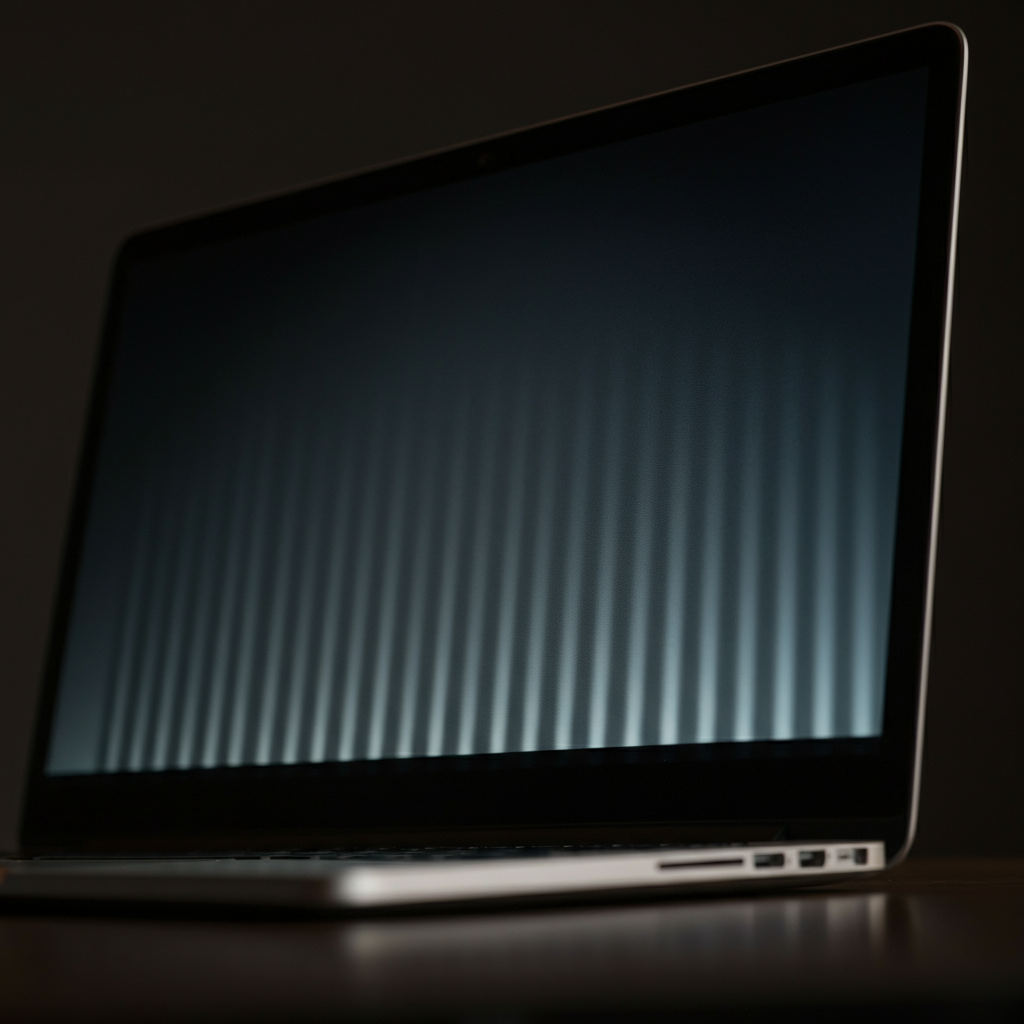
The "stage light" effect manifests as vertical bars of light emanating from the bottom of your MacBook screen, resembling stage footlights. This is typically most noticeable on darker backgrounds. The problem is most prevalent in 13-inch and 15-inch MacBook Pro models released between 2016 and 2018, though some reports indicate that later models, including certain M1 MacBooks, can also exhibit similar symptoms. Intermittent flickering or color distortion might accompany the "stage light" before the display eventually fails entirely. If you own a MacBook Pro within this timeframe and are experiencing these issues, your display cable is likely the culprit.
Step 2: Understanding the Root Cause: The Flexgate Design Flaw
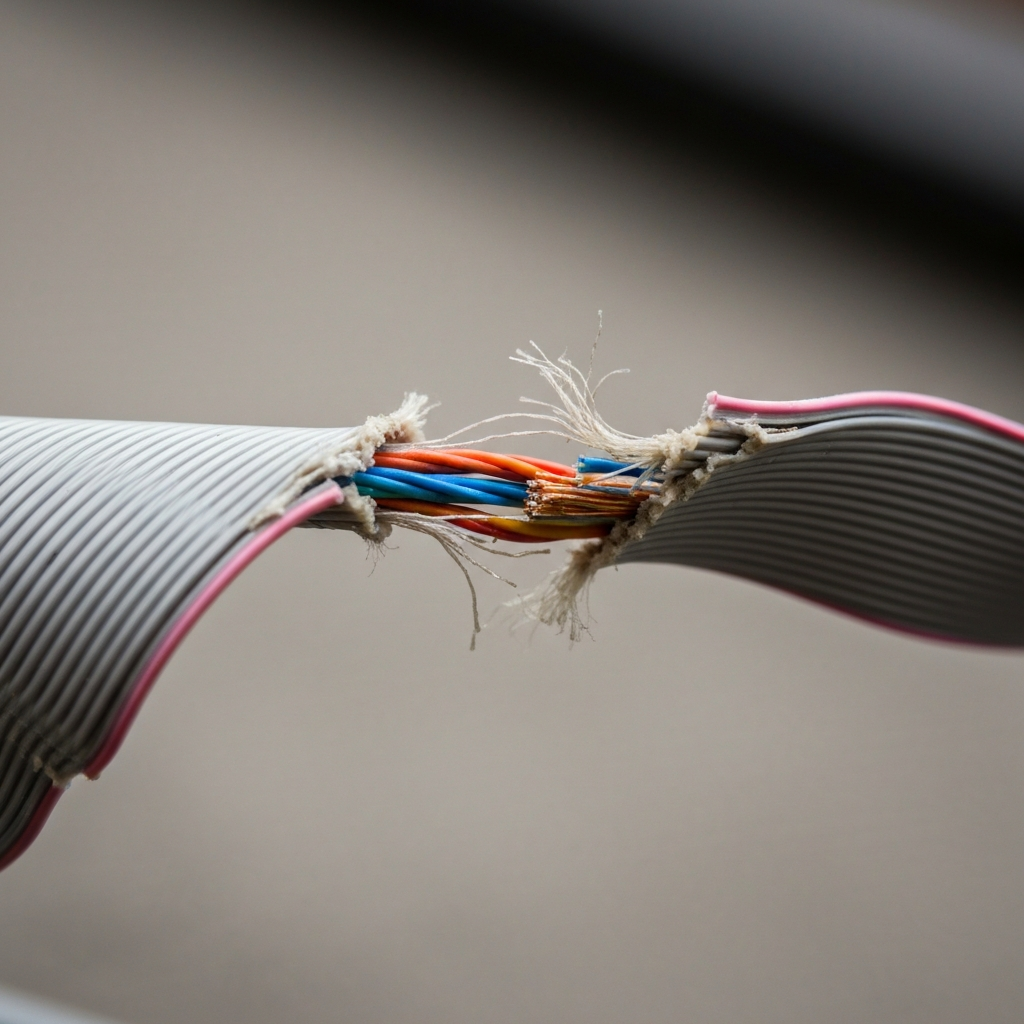
The underlying cause of the "stage light" effect lies in the design of the flexible ribbon cables connecting the display to the logic board, often referred to as "Flexgate." These cables, particularly in the 2016-2018 MacBook Pro models, are exceptionally thin and prone to damage from repeated opening and closing of the laptop. Each time you adjust the screen angle, stress is placed on these cables, eventually leading to tears and breaks. The backlight cable is particularly vulnerable, resulting in the characteristic "stage light" appearance. Even though Apple purportedly addressed this design flaw in later models, reports suggest that similar issues persist in some newer MacBooks, indicating that the problem might not be entirely resolved. The longevity of the design fix is still being questioned by end-users.
Step 3: Exploring Repair Options: Replacement is Usually Necessary
Unfortunately, fixing the "stage light" issue isn't a simple DIY repair. Due to the way the display is constructed, the display cable is integrated directly into the screen assembly. This means that replacing the cable independently is impossible; the entire display unit must be replaced. This can be an expensive undertaking, as display assemblies are one of the most costly components in a MacBook. Consider the age of your device and the cost of repair versus the cost of a new machine before committing to a screen replacement.
Step 4: Checking for Warranty Coverage and Repair Programs
Apple previously offered a special repair program for certain 2016 13-inch MacBook Pro models affected by "Flexgate". However, this program has since expired. Check your MacBook's warranty status on Apple's website to determine if you're still covered under AppleCare or AppleCare+. If you are still within the warranty period, you may be eligible for a free or discounted repair. If your MacBook is out of warranty, you'll need to explore alternative repair options, such as independent repair providers.

Step 5: Considering Third-Party Repair Services
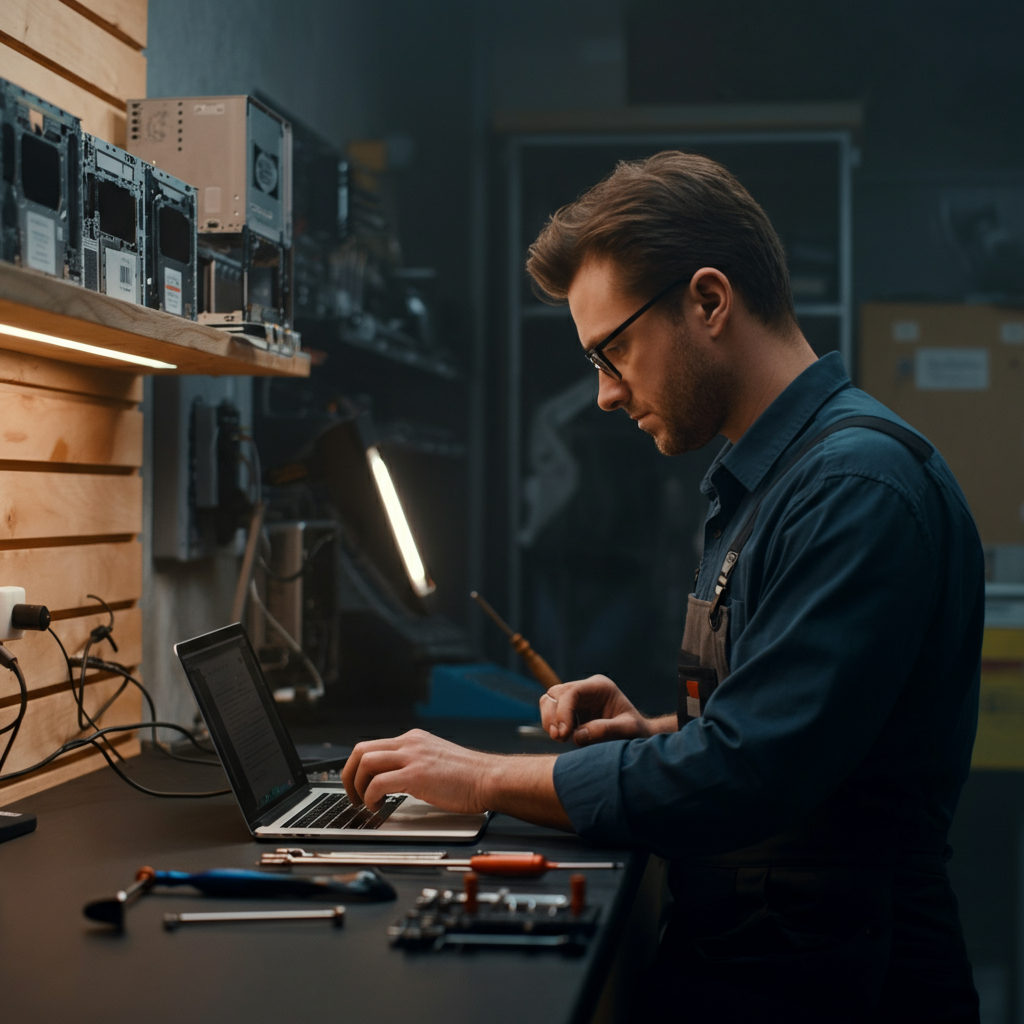
If your MacBook is no longer covered by warranty or AppleCare, independent repair shops offer a more affordable alternative to Apple's official repair services. Look for certified technicians or those participating in Apple's Independent Repair Provider program. These technicians have access to genuine Apple parts and repair procedures, ensuring a higher quality repair. Be sure to get quotes from multiple shops and compare their prices and warranties before making a decision.
Step 6: Temporary Workarounds and Mitigation Strategies
If a full display replacement is not feasible, either due to cost or availability, several temporary workarounds can help extend the life of your MacBook screen. One common suggestion is to clean the hinge area between the keyboard and screen with an alcohol wipe or a soft brush dampened with rubbing alcohol. Some users have reported that this can temporarily alleviate the "stage light" effect. Additionally, avoid opening your laptop screen beyond a certain angle (e.g., 90 degrees) to minimize stress on the display cable. Finally, you could connect an external monitor to your MacBook, allowing you to continue using the computer even if the built-in display becomes unusable.

Common Mistakes to Avoid
- Attempting to replace the display cable yourself without proper tools and expertise: This can lead to further damage and void any remaining warranty.
- Ignoring the problem: The "stage light" effect will likely worsen over time, eventually leading to complete display failure.
- Using harsh chemicals to clean the screen or hinge: This can damage the display or internal components.
Pro Tips
- Regularly back up your data: In case of complete display failure, you'll want to ensure your important files are safe.
- Consider an extended warranty when purchasing a new MacBook: This can provide peace of mind and cover potential hardware issues.
FAQ Section
- Q: Is the "stage light" effect covered by Apple's warranty? A: It depends. Check your warranty status on Apple's website. AppleCare or AppleCare+ may cover the repair.
- Q: Can I fix the "stage light" effect myself? A: It is not recommended unless you have professional experience repairing MacBooks. The display cable is integrated into the display assembly.
- Q: How much does it cost to replace a MacBook Pro display? A: The cost varies depending on the model and the repair provider. Contact Apple or independent repair shops for quotes.
Conclusion
The "stage light" effect is a common and frustrating issue affecting certain MacBook Pro models. While a full display replacement is often the only permanent solution, understanding the cause, exploring your repair options, and implementing temporary workarounds can help you manage the problem. Remember to back up your data regularly and consider an extended warranty for future purchases to protect yourself from unexpected hardware failures. By taking proactive steps, you can mitigate the impact of the "stage light" effect and keep your MacBook running smoothly for as long as possible.