Finding the model number of your Samsung device, whether it's a TV, smartphone, or appliance, is crucial for accessing support, downloading the correct software updates, and ordering compatible accessories. The model number is a unique identifier that pinpoints the exact specifications and features of your product. Without it, you're essentially trying to navigate Samsung's vast product catalog blindfolded.
Fortunately, Samsung makes it relatively easy to locate your device's model number. This guide will provide you with several methods for finding this important information, ranging from checking physical labels to navigating the device's settings. We'll also delve into how to interpret the model number to understand key details about your Samsung product.
Whether you're a tech novice or a seasoned enthusiast, this comprehensive guide will equip you with the knowledge and skills to quickly and accurately identify your Samsung device's model number. Let's get started!
Step 1: Checking the Physical Label
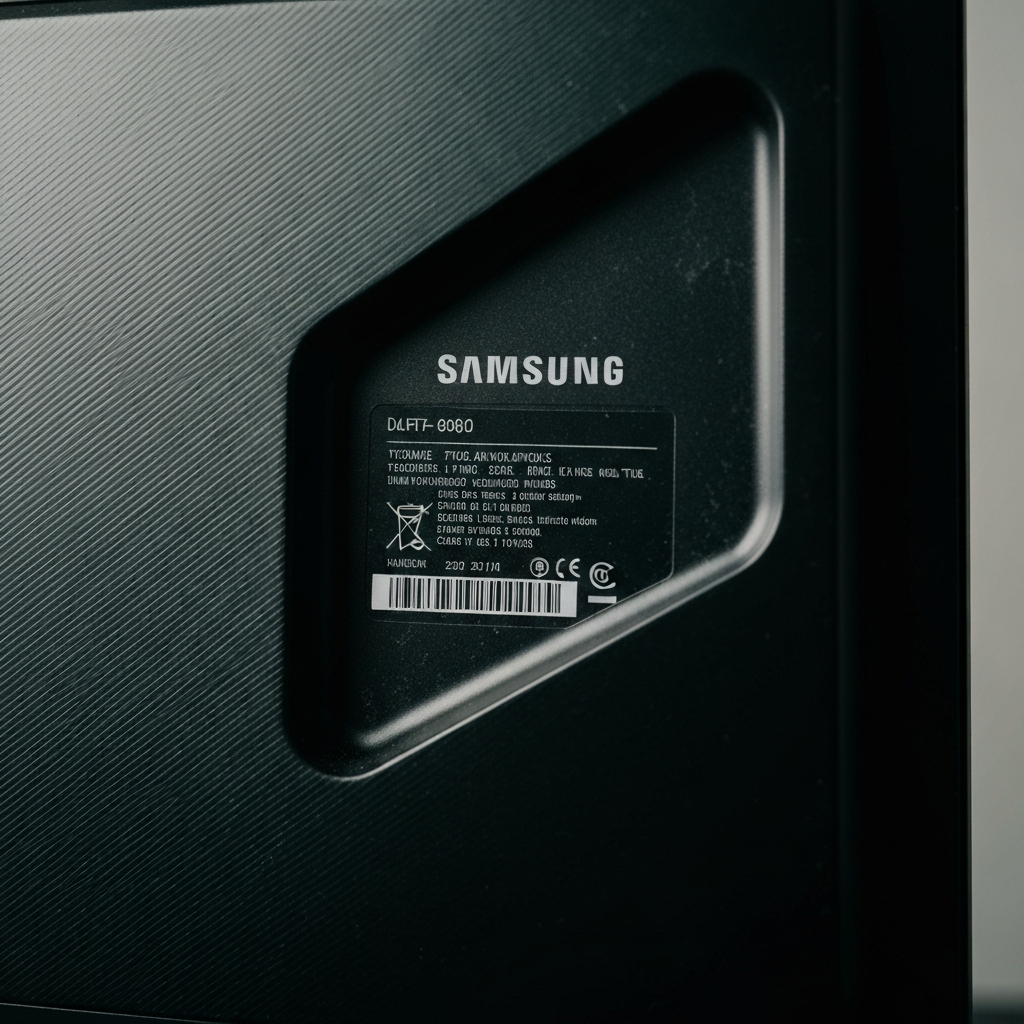
The most straightforward way to find your Samsung device's model number is by examining the physical label. This label is typically located on the back or bottom of the device. For TVs, it's usually on the rear panel; for appliances, it might be inside a door or on the back; and for smartphones and tablets, it's often printed on the device itself or the original packaging. The label usually includes the model number, serial number, manufacturing date, and regulatory information. Look for a string of characters that clearly identifies itself as "Model No." or "Model Code." Be careful not to confuse the model number with the serial number, which is another unique identifier for your device.
Step 2: Navigating the Device Settings (Smart TVs & Mobile Devices)
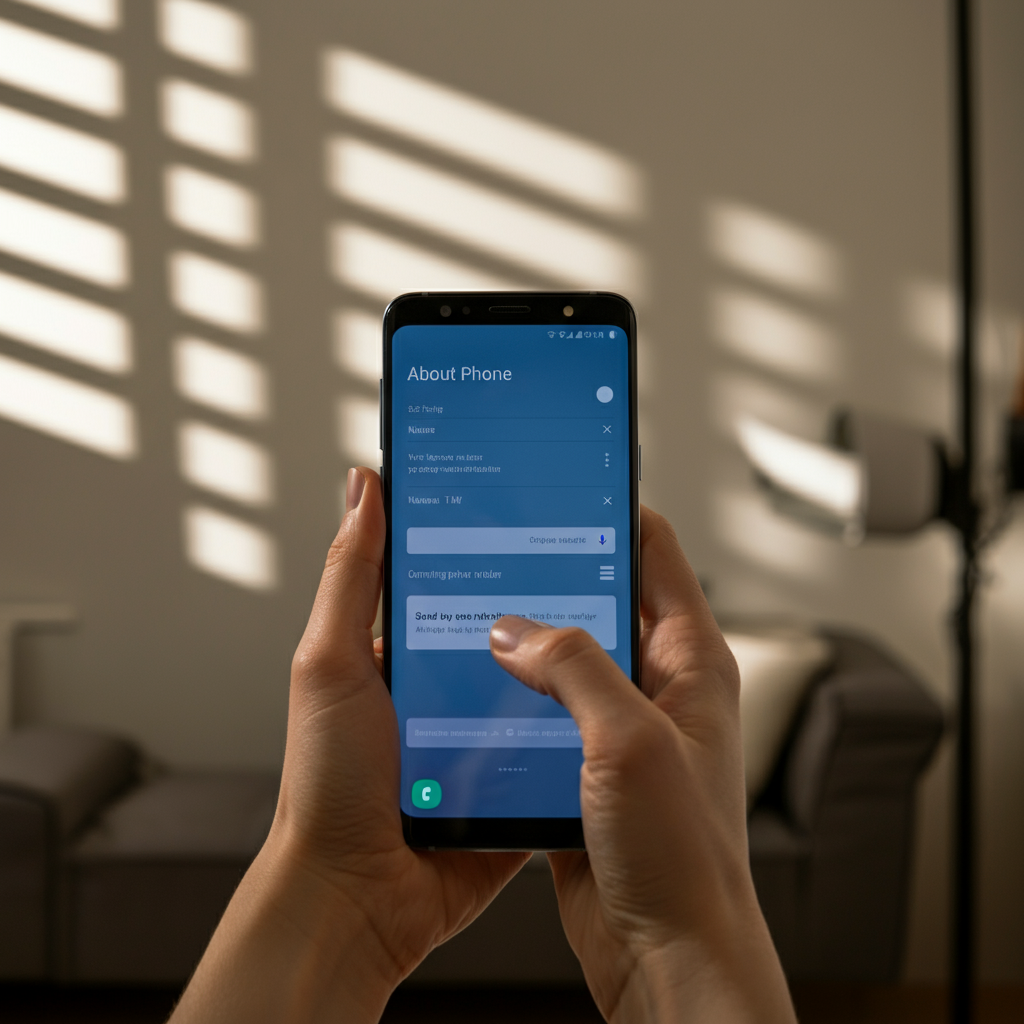
If you can't find the physical label or it's illegible, you can often find the model number within the device's settings menu. This method is primarily applicable to Samsung Smart TVs, smartphones, and tablets. The exact steps may vary slightly depending on the device and software version, but the general process is similar. Start by accessing the "Settings" menu, usually represented by a gear icon. Then, look for a section labeled "About," "Support," or "Device Information." Within that section, you should find the model number listed alongside other device details. Remember to fully power on the device and ensure it’s properly functioning to access the settings menu.
Step 3: Decoding Samsung TV Model Numbers (Post-2008)
Understanding the structure of a Samsung TV model number can provide valuable insights into the TV's specifications and features. For TVs manufactured after 2008, the model number typically follows a specific format. The first letter indicates the TV type (e.g., "Q" for QLED, "U" for LED). The second letter usually signifies the region (e.g., "N" for North America, "E" for Europe). The subsequent numbers represent the screen size in inches. The following series of letters and numbers denote the specific model line (e.g., "QN90A"). Understanding these codes allows you to quickly determine key characteristics without having to look up the full specifications. Finally, the last few letters typically represent the year and any specific variations or features of the model.

Step 4: Decoding Samsung TV Model Numbers (Pre-2008)
For older Samsung TVs (manufactured before 2008), the model number format differs slightly. The first two letters usually indicate the TV technology (e.g., "FP" or "HP" for Plasma, "LN" for LCD). The letter immediately following the hyphen represents the model year (e.g., "T" for 2007, "S" for 2006). The subsequent numbers indicate the screen size. The remaining characters provide information about the series, resolution, design code, and manufacturing details. While the older format may seem less intuitive than the newer one, understanding the basic structure can still help you glean valuable information about your TV, such as its age and technology.

Step 5: Utilizing Online Resources and Support
If you're still struggling to find or decipher your Samsung device's model number, numerous online resources and support channels are available. Samsung's official website provides a product support section where you can enter a partial model number or search by product type to narrow down your options. Online forums and communities dedicated to Samsung products can also be valuable resources. Be sure to consult the official documentation or Samsung support before modifying or repairing your device. Additionally, Samsung's customer support team can assist you in identifying your model number and providing relevant information and assistance.

FAQ Section
Q: Why is finding the model number so important?
A: The model number is essential for accessing support, downloading software updates, ordering compatible accessories, and troubleshooting issues. It ensures you're working with the correct information and resources for your specific device.
Q: What if the physical label is damaged or missing?
A: Try checking the device settings (if applicable). If that fails, contact Samsung customer support with as much information as you have about the device, such as purchase date and any identifying features.
Q: Can I use the serial number instead of the model number?
A: While the serial number is also a unique identifier, it's not a substitute for the model number. The model number provides broader information about the device's specifications and features, which is crucial for support and compatibility purposes.
Q: Where else might I find the model number?
A: Check the original packaging, purchase receipt, or warranty documents. The model number is often listed in these places.
Conclusion
Locating your Samsung device's model number is a simple yet crucial task for accessing support, downloading updates, and ensuring compatibility. By following the steps outlined in this guide, you can quickly and accurately identify your device's model number, whether it's a TV, smartphone, or appliance. Remember to check the physical label first, and if that's not possible, explore the device settings or consult online resources. With the knowledge you've gained, you'll be well-equipped to manage your Samsung devices effectively.