Encountering the dreaded "No Audio Output Device Is Installed" error on your Windows machine can be a frustrating experience. Suddenly, your favorite music, videos, and even system sounds vanish, leaving you in digital silence. This error typically indicates a problem with your audio drivers, the software that allows your operating system to communicate with your sound card or audio output devices. However, it can also stem from hardware issues, incorrect settings, or even simple glitches.
Fortunately, resolving this issue is often a straightforward process. This guide provides a comprehensive, step-by-step approach to troubleshooting and fixing the "No Audio Output Device Is Installed" error, helping you restore sound to your system and get back to enjoying your audio content. We'll explore common causes, offer practical solutions, and highlight essential troubleshooting techniques to ensure a successful outcome.
Before diving in, remember to save any unsaved work and close unnecessary applications, as some steps may require restarting your computer. Let's get started!
Step 1: Perform a Simple Restart
Sometimes, the simplest solution is the most effective. A restart can resolve temporary glitches or configuration issues that may be preventing your audio device from being recognized. The operating system will reload drivers and reset connections, potentially fixing the problem without further intervention. Consider this your first line of defense against the "No Audio Output Device Is Installed" error.
Step 2: Check Physical Connections
Ensure that your speakers, headphones, or other audio output devices are properly connected to your computer. For external devices, double-check the cable connections at both ends. Make sure the cables are securely plugged into the correct ports (usually a 3.5mm audio jack or a USB port). If you're using USB devices, try a different USB port to rule out a faulty port. For internal speakers, ensure the connections on the motherboard are secure (though this is usually less accessible). A loose or faulty connection is a surprisingly common cause of this error.
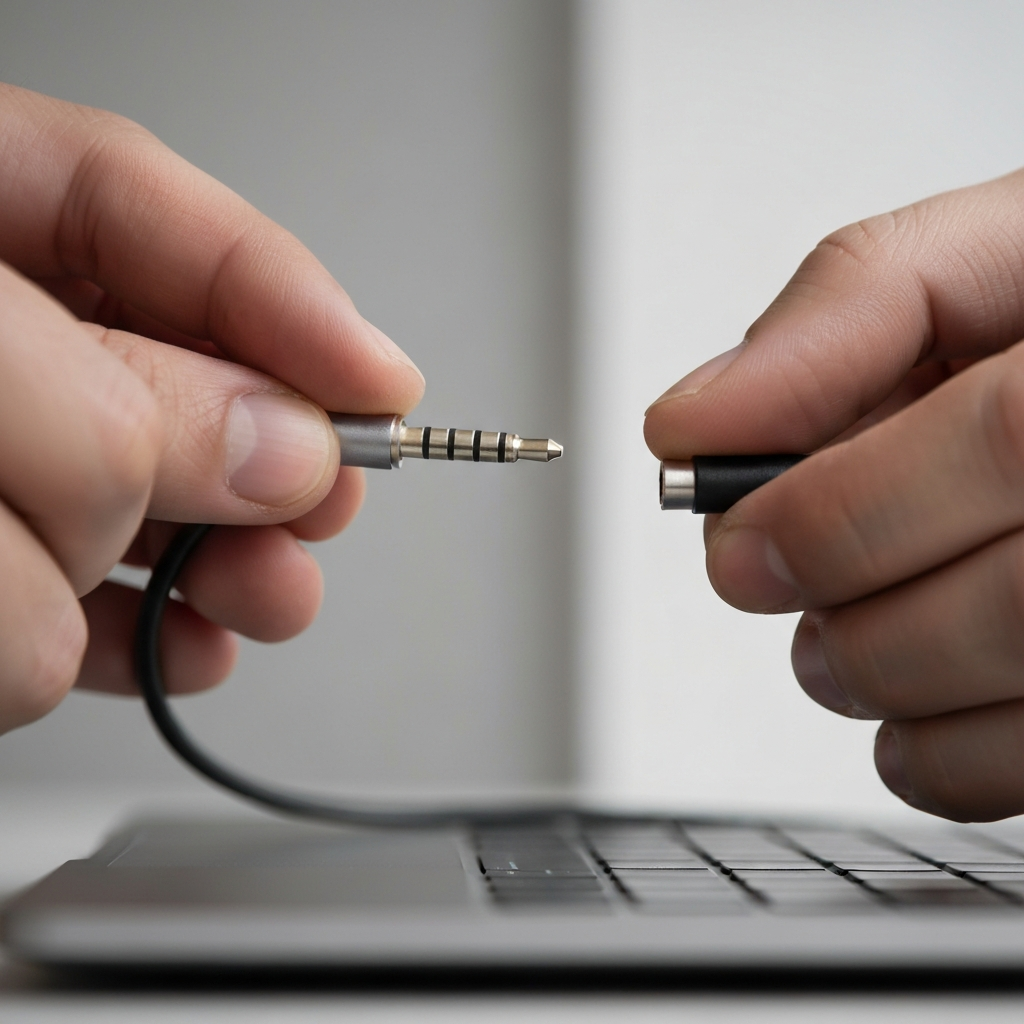
Step 3: Verify Audio Device is Enabled in Device Manager
Step 3.1: Open Device Manager
Device Manager allows you to view and manage all the hardware connected to your computer. To open it, right-click the Windows Start button and select "Device Manager" from the menu.
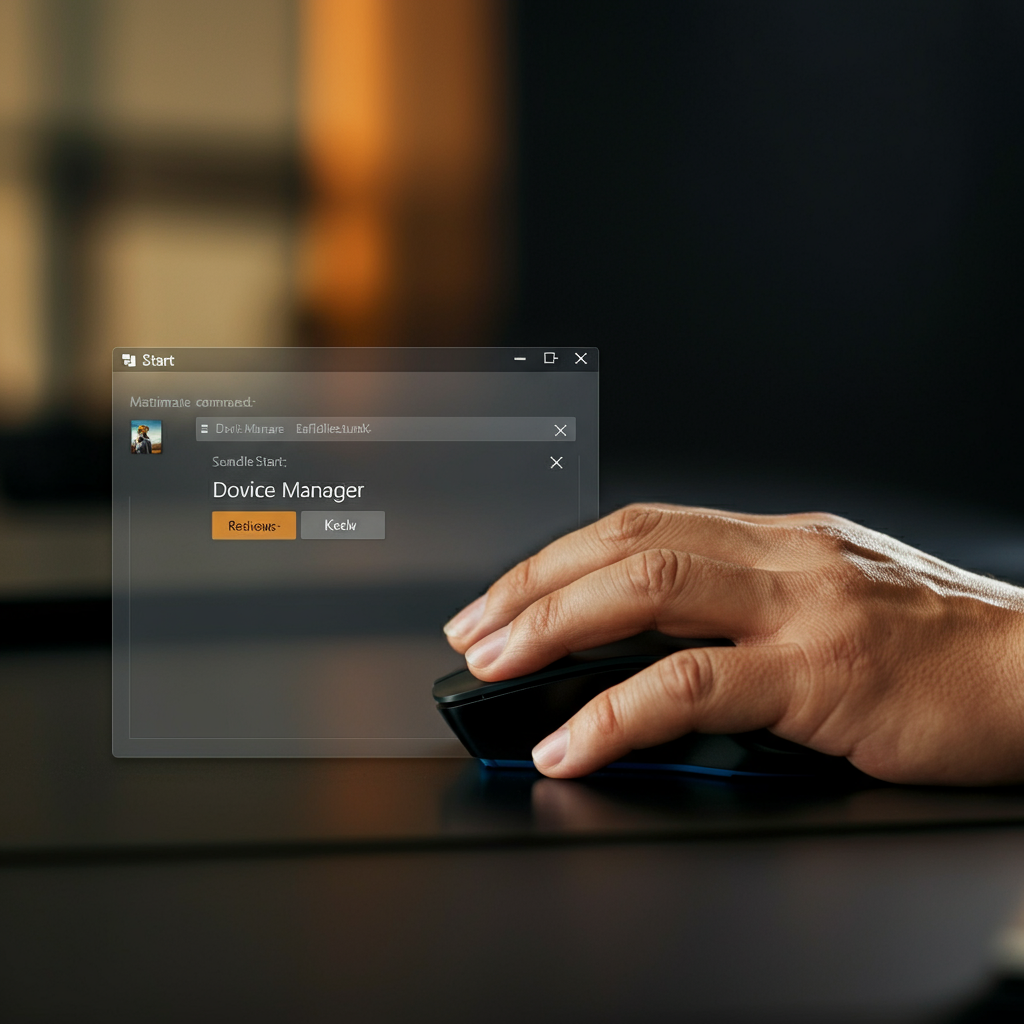
Step 3.2: Locate Audio Devices
In Device Manager, expand the "Audio inputs and outputs" and "Sound, video and game controllers" categories. Look for your audio devices, such as your speakers or headphones. If a device has a small yellow exclamation mark next to it, it indicates a problem.
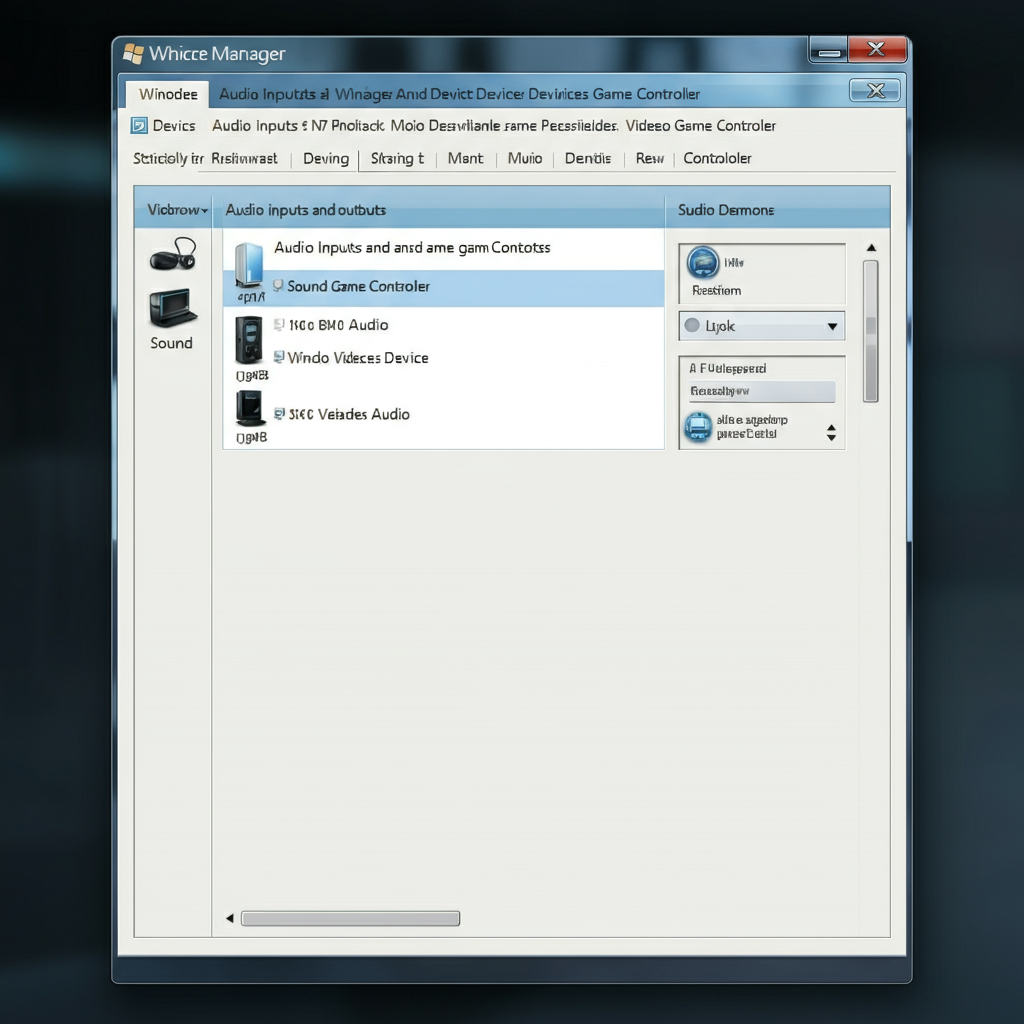
Step 3.3: Enable Disabled Devices
If a device is disabled, right-click on it and select "Enable device". If the device is already enabled, you can try disabling it and then re-enabling it to refresh the connection. This can often resolve driver conflicts or initialization errors.
Step 4: Update Audio Drivers
Outdated or corrupted audio drivers are a primary cause of the "No Audio Output Device Is Installed" error. Updating your audio drivers can resolve compatibility issues and improve performance.
Step 4.1: Update Drivers Through Device Manager
Right-click on your audio device in Device Manager (as described in Step 3) and select "Update driver". Choose "Search automatically for drivers". Windows will attempt to find and install the latest drivers for your device. If Windows cannot find a suitable driver, you may need to download it from the manufacturer's website.
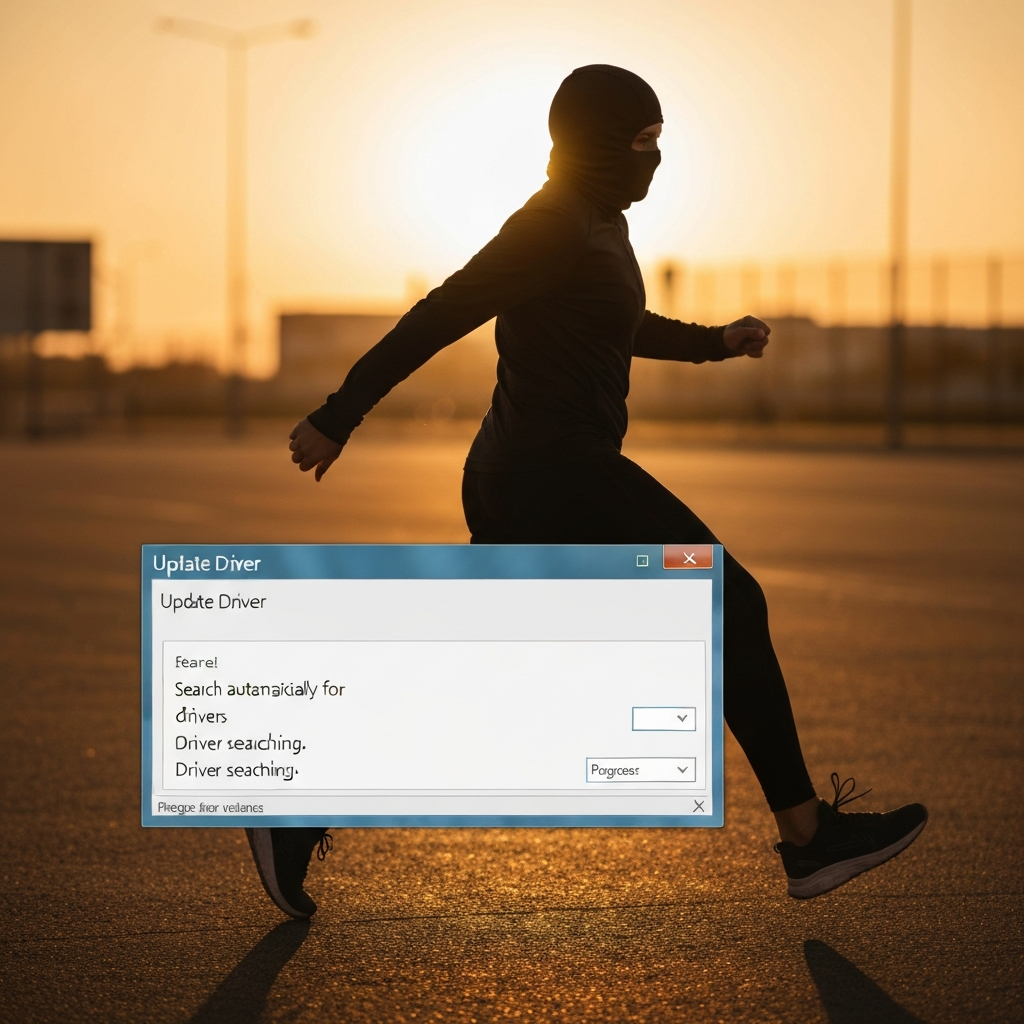
Step 4.2: Download Drivers from Manufacturer's Website
Visit the website of your computer manufacturer (e.g., Dell, HP, Lenovo) or the manufacturer of your sound card (e.g., Realtek, Creative). Locate the drivers section for your specific model and operating system. Download and install the latest audio drivers. Be sure to download the correct driver version for your version of Windows (32-bit or 64-bit).
Step 5: Run the Windows Audio Troubleshooter
Windows includes a built-in audio troubleshooter that can automatically detect and fix common audio problems. To run the troubleshooter, right-click the speaker icon in the system tray (usually located in the lower-right corner of your screen) and select "Troubleshoot sound problems". Follow the on-screen instructions. The troubleshooter may identify and resolve issues with audio playback, recording, or device configuration.
Step 6: Check Windows Audio Services
The Windows Audio and Windows Audio Endpoint Builder services are essential for audio playback. If these services are not running, you will likely encounter audio problems.
Step 6.1: Open Services
Press the Windows key + R to open the Run dialog box. Type "services.msc" and press Enter.
Step 6.2: Verify Service Status
In the Services window, locate the "Windows Audio" and "Windows Audio Endpoint Builder" services. Ensure that their status is set to "Running". If the status is not "Running", right-click on the service and select "Start".
Step 6.3: Set Startup Type to Automatic
Double-click each service to open its Properties window. In the "Startup type" dropdown menu, select "Automatic". Click "Apply" and then "OK". This ensures that the services start automatically when Windows starts.
Step 7: Disable Audio Enhancements
Audio enhancements can sometimes interfere with audio playback, especially if they are not compatible with your audio device or drivers. Disabling these enhancements can resolve audio problems.
Step 7.1: Open Sound Settings
Right-click the speaker icon in the system tray and select "Open Sound settings".
Step 7.2: Access Sound Control Panel
In the Sound settings window, scroll down and click "Sound Control Panel" on the right-hand side.
Step 7.3: Disable Enhancements
In the Sound Control Panel, select your audio playback device (e.g., Speakers, Headphones) and click "Properties". Go to the "Enhancements" tab and check the box that says "Disable all enhancements". Click "Apply" and then "OK".
Step 8: Check Default Audio Device
Ensure that the correct audio device is set as the default playback device. If a different device is set as the default, audio may be routed to the wrong output.
Step 8.1: Open Sound Control Panel
Open the Sound Control Panel as described in Step 7.
Step 8.2: Set Default Device
In the Sound Control Panel, go to the "Playback" tab. Select your preferred audio output device (e.g., Speakers, Headphones) and click "Set Default". Click "Apply" and then "OK".
Step 9: Uninstall and Reinstall Audio Devices
If other troubleshooting steps have failed, try uninstalling and reinstalling your audio devices. This can resolve driver corruption or conflicts.
Step 9.1: Open Device Manager
Open Device Manager as described in Step 3.
Step 9.2: Uninstall Devices
Expand the "Audio inputs and outputs" and "Sound, video and game controllers" categories. Right-click on each audio device and select "Uninstall device".
Step 9.3: Restart Computer
Restart your computer. Windows will automatically detect and reinstall the audio devices upon startup. This process may require an internet connection to download the necessary drivers.
Step 10: Replace Defective Hardware (If Necessary)
If you've exhausted all software troubleshooting steps and the "No Audio Output Device Is Installed" error persists, there may be a hardware problem. Check the cables connected to your audio hardware and ensure they are not damaged. Try connecting your speakers or headphones to another device to confirm they are working correctly. If your external hardware is working, you may need to replace your sound card. If your sound card is integrated, you may need to consult a computer repair technician.
Pro Tips
- Always back up your drivers before making any changes. This allows you to revert to a previous state if something goes wrong.
- Check the Event Viewer for any audio-related error messages. This can provide clues about the underlying cause of the problem.
- Consider performing a system restore to a point before the error occurred.
Common Mistakes to Avoid
- Downloading drivers from unofficial sources. Always download drivers from the manufacturer's website to avoid malware or incompatible drivers.
- Installing the wrong driver version for your operating system.
- Ignoring physical connection problems.
FAQ Section
Q: Why does the "No Audio Output Device Is Installed" error suddenly appear?
A: This error can appear due to various reasons, including driver updates, Windows updates, hardware malfunctions, or software conflicts.
Q: Will reinstalling Windows fix this issue?
A: Reinstalling Windows should be considered a last resort. While it can resolve software-related issues, it's a time-consuming process. Try the other troubleshooting steps first.
Q: How do I know if my sound card is defective?
A: If you've tried all the troubleshooting steps and the error persists, and you've confirmed that your speakers or headphones work on another device, it's possible that your sound card is defective. Consider consulting a computer repair technician for further diagnosis.
Conclusion
The "No Audio Output Device Is Installed" error can be a perplexing issue, but with a systematic approach, it can often be resolved. By following the steps outlined in this guide, you can identify the root cause of the problem and restore audio functionality to your Windows computer. Remember to start with the simplest solutions, such as restarting your computer and checking physical connections, and then move on to more advanced troubleshooting steps if necessary. Persistence and careful attention to detail are key to successfully resolving this error.