Monitor ghosting, a visual artifact that can plague even the most discerning computer user, manifests as blurry or smeared trails following moving objects on your screen. This effect is particularly noticeable in fast-paced video games, action-packed movies, and even during rapid scrolling through documents. While it might initially appear as a minor annoyance, prolonged exposure to ghosting can lead to eye strain and a diminished visual experience.
Understanding the root causes of monitor ghosting is the first step toward effectively addressing the issue. Factors like slow response times, low refresh rates, and specific panel technologies (particularly VA panels) can all contribute to this frustrating phenomenon. Fortunately, various techniques, ranging from simple monitor setting adjustments to more significant hardware upgrades, can help mitigate or even eliminate ghosting. This guide will provide a comprehensive overview of how to identify, understand, and combat monitor ghosting, empowering you to optimize your visual display and enjoy a clearer, more immersive viewing experience.
This guide will equip you with the knowledge and practical steps to diagnose and resolve ghosting issues, helping you get the most out of your monitor and minimizing visual distractions.
Step 1: Identifying Monitor Ghosting
Understanding the Visual Symptoms
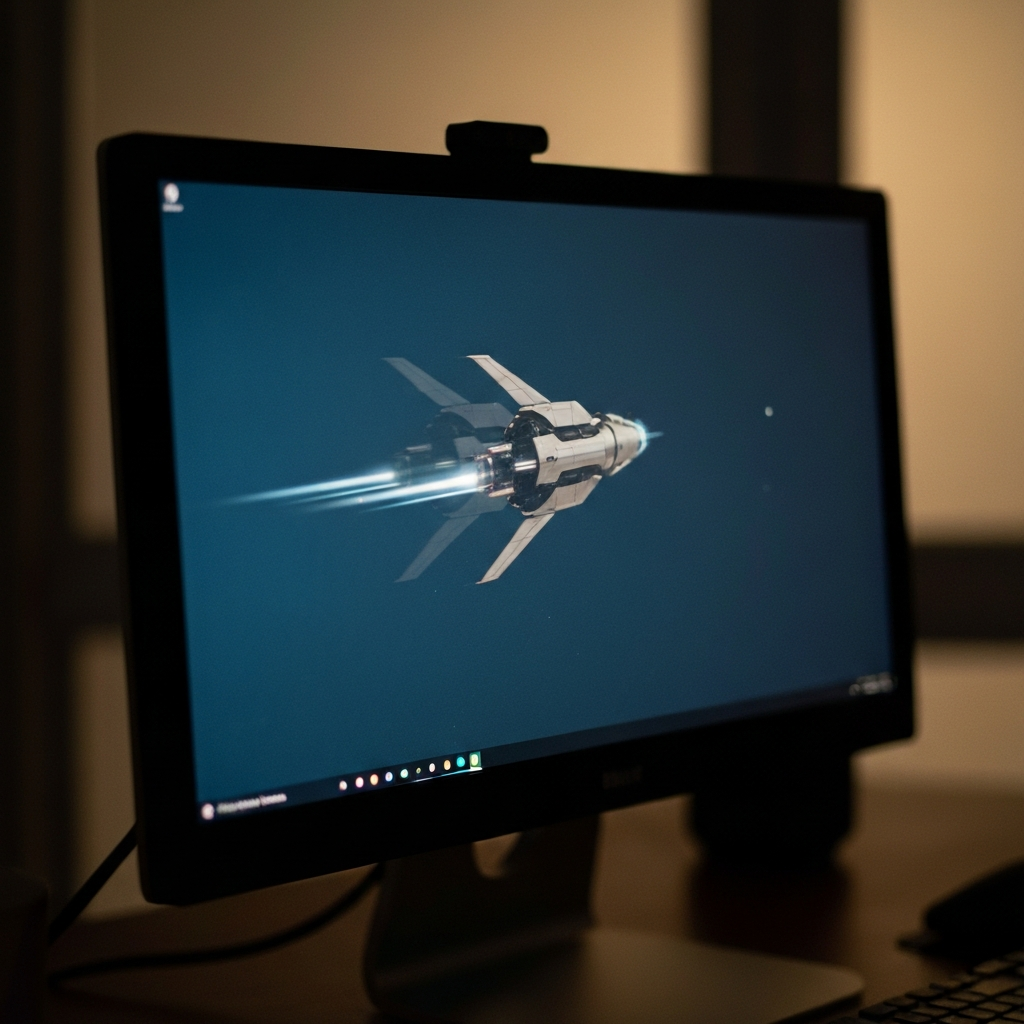
Monitor ghosting presents itself as a faint trail or blurring effect that follows moving objects on your screen. This "ghost" image is essentially a delayed or lingering representation of the object's previous position. It's important to differentiate ghosting from motion blur, which is a more natural blurring effect caused by the camera or your eyes tracking a fast-moving object. Ghosting tends to be more pronounced in dark scenes or when objects with high contrast move across the screen. You might see a distinct "shadow" or a smeared appearance behind the moving element. A simple test is to observe text as you scroll up and down a webpage; ghosting will make the text appear less sharp and slightly doubled.
Step 2: Assessing Monitor Specifications
Checking Response Time and Refresh Rate
The specifications of your monitor play a crucial role in determining its susceptibility to ghosting. The two key factors to consider are the response time and refresh rate. Response time, measured in milliseconds (ms), indicates how quickly a pixel can change from one color to another. Lower response times (e.g., 1ms to 5ms) are generally better at minimizing ghosting. Refresh rate, measured in Hertz (Hz), represents how many times per second the monitor redraws the image. Higher refresh rates (e.g., 120Hz, 144Hz, or higher) reduce the persistence of old frames, thus minimizing ghosting. Use your monitor's manual or the manufacturer's website to find these specifications. Monitors with slower response times (above 8ms) and lower refresh rates (60Hz) are more prone to exhibiting noticeable ghosting.

Step 3: Adjusting Monitor Response Time (Overdrive)
Navigating OSD Settings
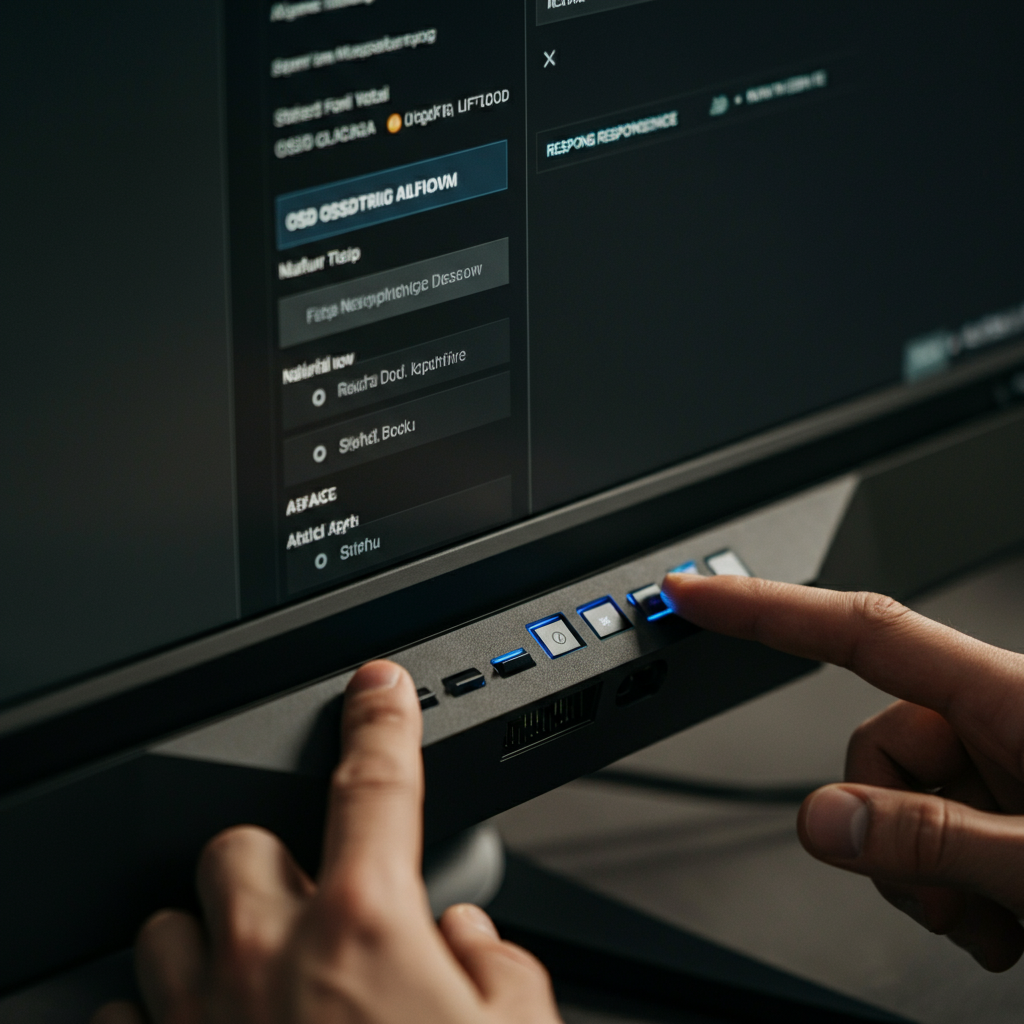
Many monitors offer an "Overdrive" setting (or similarly named feature like "Response Time Acceleration") in their On-Screen Display (OSD) menu. This setting attempts to accelerate pixel response times, reducing ghosting. Accessing the OSD typically involves pressing physical buttons on the monitor itself. The location and appearance of these buttons vary by manufacturer and model. Once in the OSD, navigate to the "Gaming," "Display," or "Picture" settings to find the "Response Time" or "Overdrive" option. Experiment with the different overdrive levels (e.g., "Normal," "Fast," "Extreme"). Setting it too high can introduce "inverse ghosting" or "overshoot," where a bright trail appears *before* the moving object. Finding the optimal balance is key. If you see colored trails instead of a blur, reduce the setting.
Step 4: Increasing Refresh Rate
Configuring Display Settings in Your Operating System
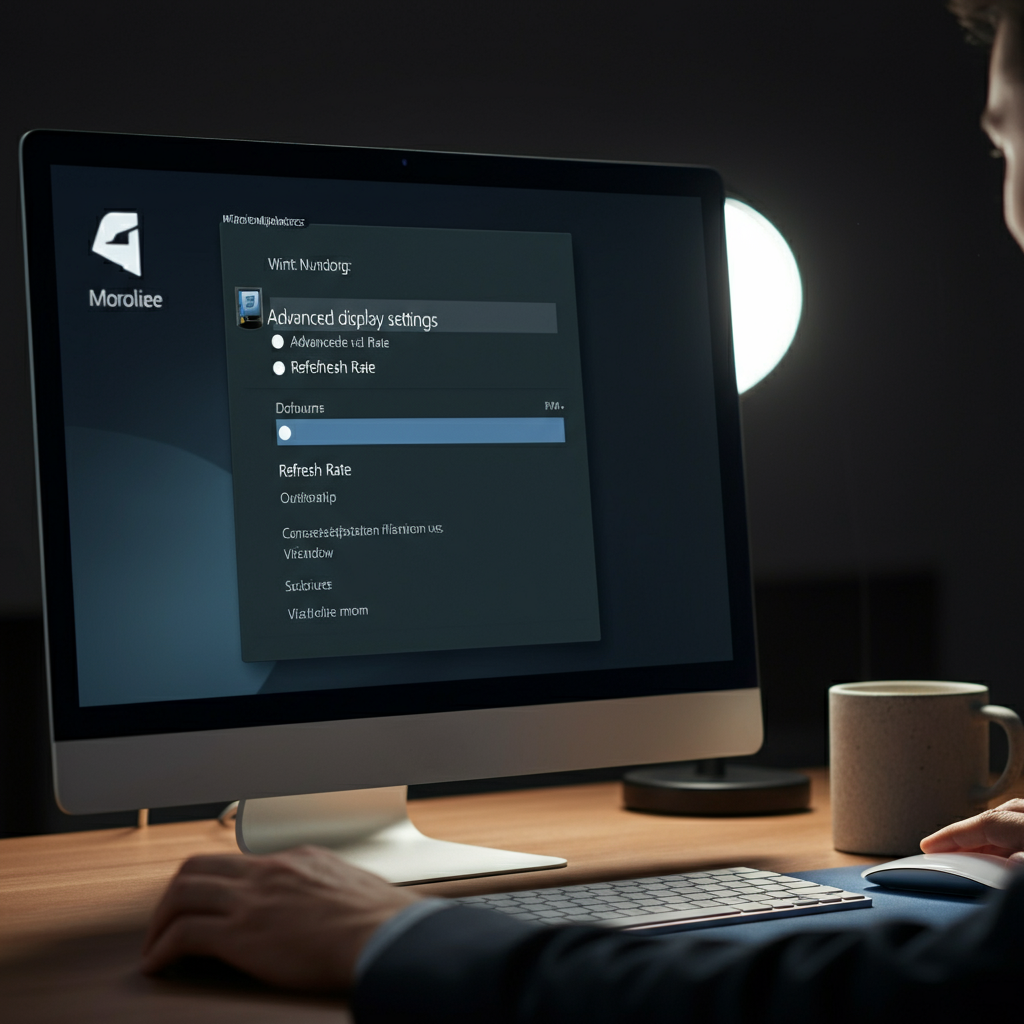
Increasing your monitor's refresh rate can significantly reduce ghosting. This is done through your operating system's display settings. In Windows, search for "Display Settings" in the taskbar. Scroll down and click on "Advanced display settings." Select your monitor (if you have multiple displays) and then choose a higher refresh rate from the dropdown menu. Common refresh rates are 60Hz, 75Hz, 120Hz, 144Hz, and higher. Ensure your graphics card and monitor support the selected refresh rate. If the option isn't available, your monitor may not support it, or your display drivers may need updating. Set it to the highest value your system supports for optimal performance.
Step 5: Enabling Adaptive Sync (G-SYNC or FreeSync)
Synchronizing Monitor and GPU
Adaptive sync technologies like NVIDIA G-SYNC and AMD FreeSync synchronize your monitor's refresh rate with your graphics card's frame rate. This eliminates screen tearing and can also reduce ghosting. To enable G-SYNC, open the NVIDIA Control Panel, navigate to "Set up G-SYNC," and enable the feature for your monitor. For FreeSync, open the AMD Radeon Settings, go to the "Display" tab, and ensure FreeSync is enabled. Note that your monitor and graphics card must both support the same adaptive sync technology for it to function. Also, ensure that your monitor is connected via DisplayPort, as HDMI support can be limited or nonexistent for these technologies.

Step 6: Adjusting In-Game Settings
Optimizing for Clarity
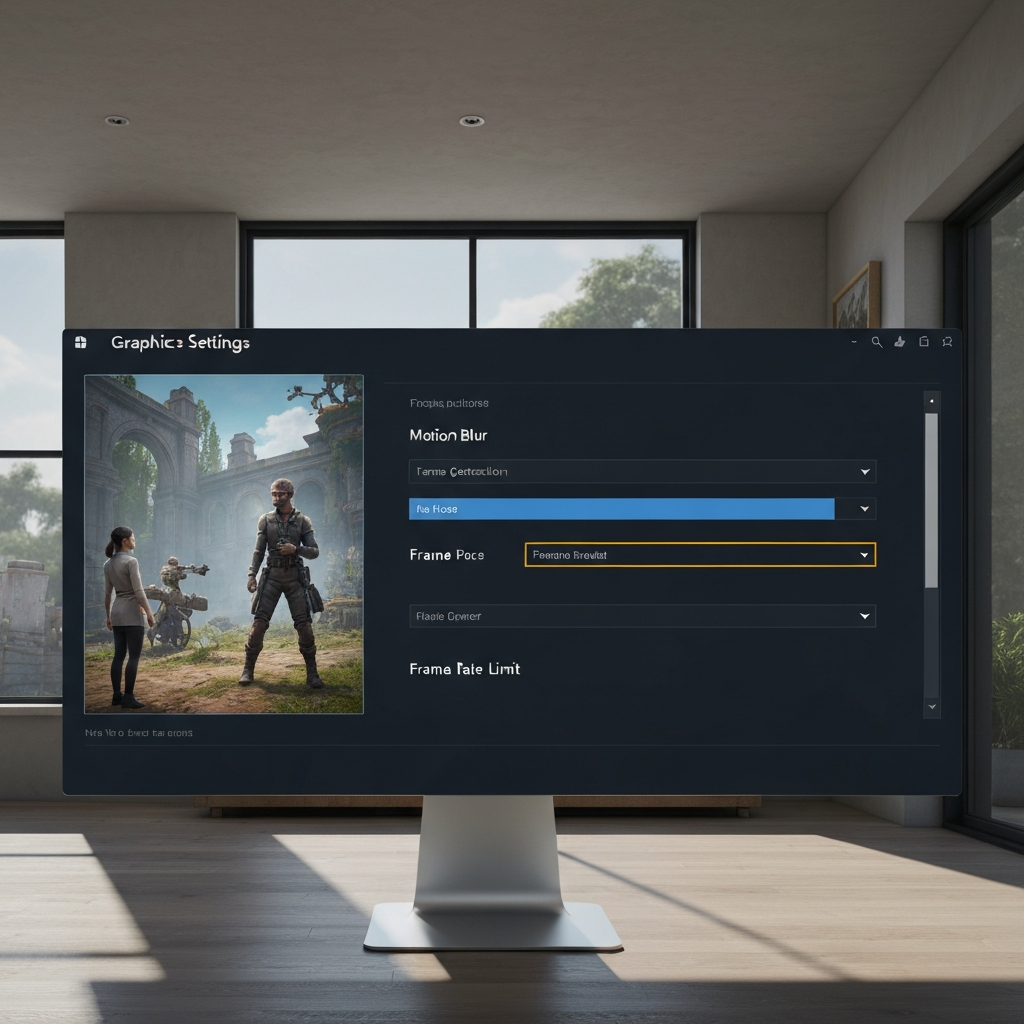
Sometimes, ghosting is more pronounced in specific games due to their graphics settings. Try adjusting in-game settings like motion blur, frame generation, and frame rate caps. Disabling motion blur can often improve clarity. Frame generation technologies, while boosting performance, can sometimes introduce visual artifacts, including ghosting. Experiment with disabling frame generation if you suspect it's contributing to the issue. Also, try matching your game's frame rate to your monitor's refresh rate to minimize inconsistencies. Check the game's settings menu for these options. It is common to see resolution and refresh rate also defined in the INI configuration files for many games.
Step 7: Examining Display Cables
Checking Connections and Upgrading Cables
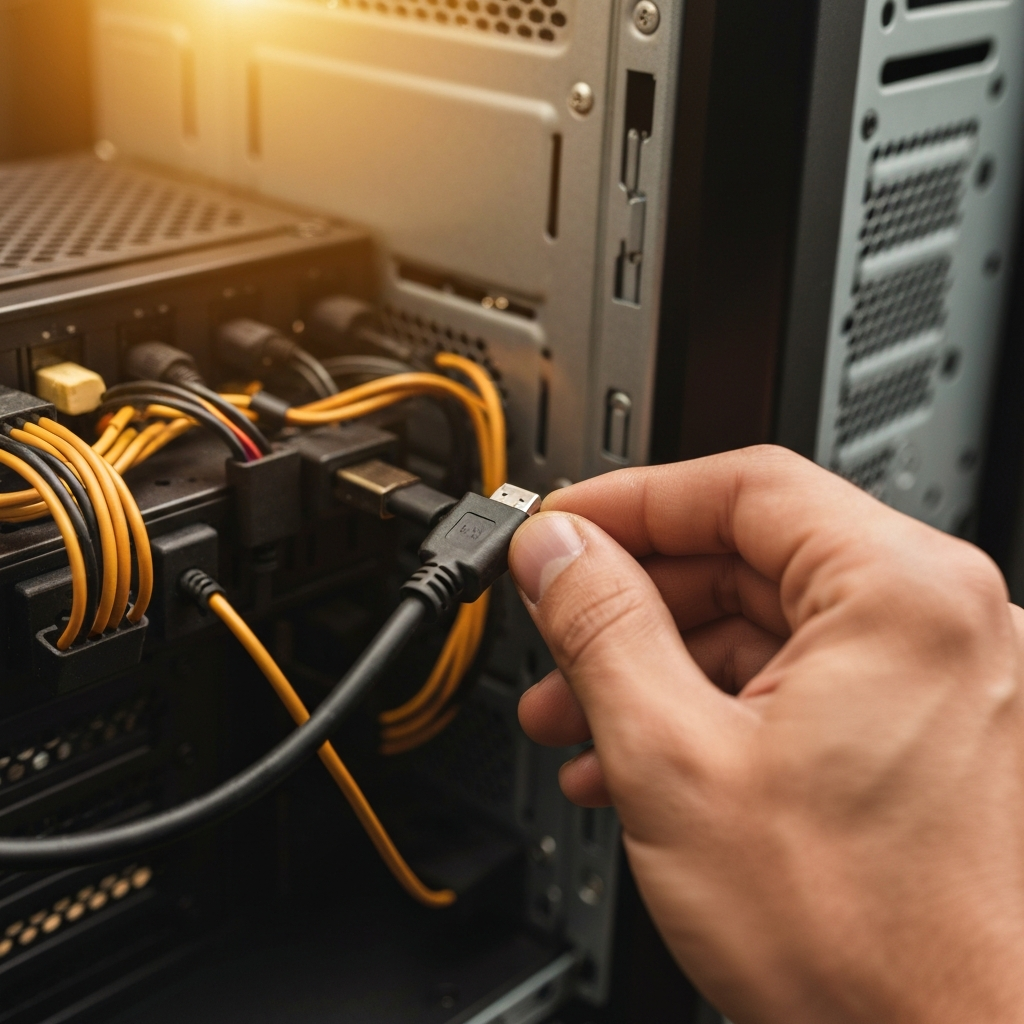
While less common, a faulty or outdated display cable can contribute to ghosting. Ensure your cable is securely connected to both your computer and monitor. Try using a different cable, especially if your current one is old or damaged. DisplayPort cables generally offer better performance and support for higher refresh rates and adaptive sync technologies compared to HDMI, though a quality HDMI 2.1 cable will also serve you well. Consider upgrading to a higher-quality cable that supports the resolution and refresh rate you're aiming for. Try switching ports on your graphics card and monitor to rule out any port-specific issues.
Step 8: Updating Graphics Drivers
Ensuring Compatibility and Performance
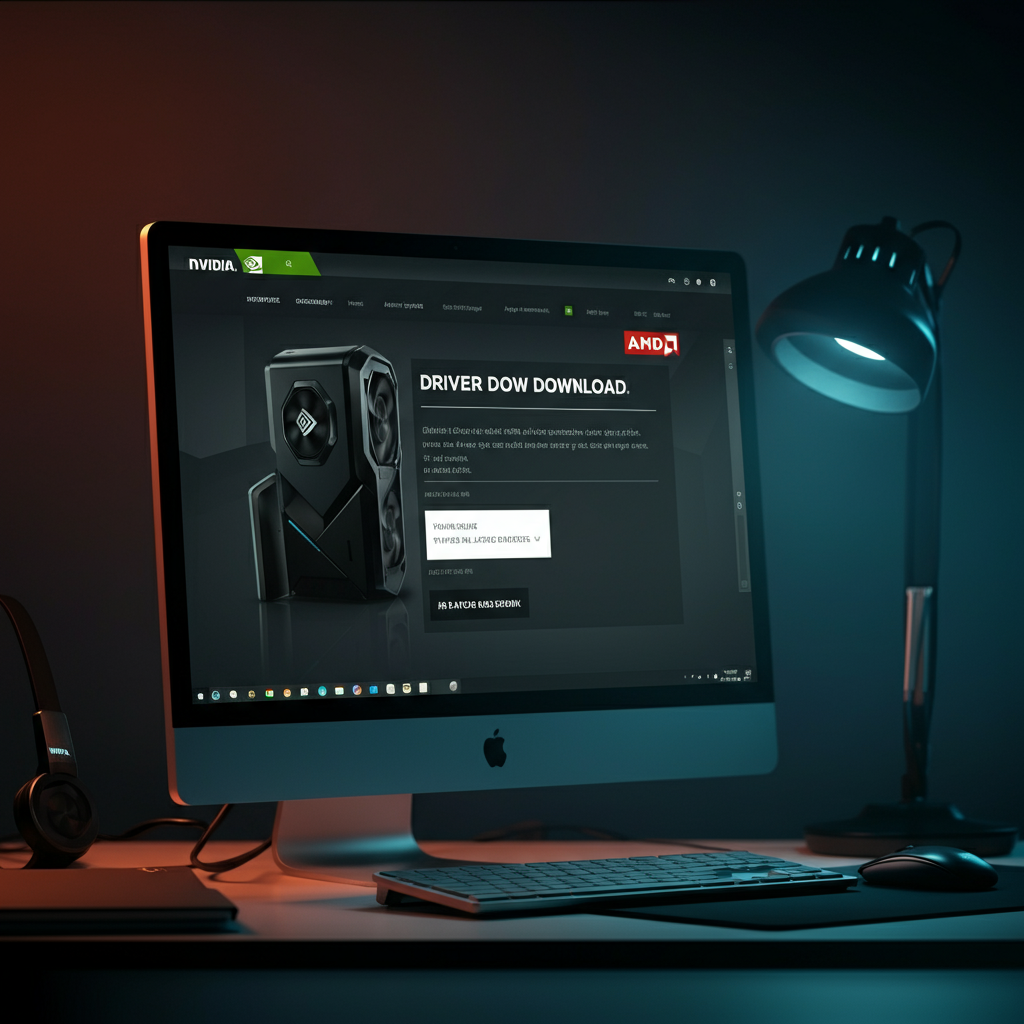
Outdated graphics drivers can sometimes cause display issues, including ghosting. Ensure you have the latest drivers installed for your graphics card. Visit the NVIDIA or AMD website to download the latest drivers for your specific card model. A clean installation of the drivers is often recommended, which removes any previous driver files that could be causing conflicts. After installing, restart your computer for the changes to take effect. Sometimes, the latest drivers may introduce issues. If ghosting appears after a driver update, consider reverting to a previous stable version.
Tools or Materials Required
- Your monitor's user manual (or access to it online)
- Access to your computer's display settings
- Up-to-date graphics drivers
- Potentially, a new DisplayPort or HDMI cable
Common Mistakes to Avoid
- Setting the monitor's overdrive setting too high, causing inverse ghosting.
- Using an outdated or damaged display cable.
- Forgetting to enable adaptive sync technologies (G-SYNC/FreeSync) if supported.
Safety Considerations
- Always disconnect power cables before physically inspecting or changing display cables.
- Handle display cables with care to avoid damaging the connectors.
Pro Tips
- Test for ghosting using online tools designed for motion testing (e.g., Blur Busters Motion Test).
- Pay close attention to dark scenes or high-contrast objects when assessing ghosting.
FAQ Section
- Is monitor ghosting permanent?
- Ghosting may or may not be permanent, and it can be fixed or reduced in a variety of ways. It depends on a few factors, such as your monitor's refresh rate, response time, and display technology. If your monitor has a low refresh rate or uses a VA LCD panel, the ghosting will likely never go away fully, even if you adjust your monitor settings.
- Will monitor ghosting damage my computer?
- In and of itself, ghosting is not considered damage and will not damage your computer. However, if you experience a lot of ghosting, it could strain your GPU or monitor and cause their lifespan to degrade slightly.
- What's the difference between ghosting and burn-in?
- Ghosting is when you see a trail or smear behind an object when it moves across your screen. Burn-in (also called image retention or a ghost image) is when you can see an after-image of an element on your screen after you move or close it. Burn-in is considered damage to the screen, whereas ghosting is a result of certain monitor hardware or settings.
Conclusion
Monitor ghosting can be a persistent issue, but with the right knowledge and approach, it can often be mitigated or eliminated. By understanding the causes of ghosting, assessing your monitor's specifications, and systematically applying the troubleshooting steps outlined in this guide, you can significantly improve your visual experience and enjoy clearer, more immersive images.