iCloud backups are a crucial safety net for your iPhone, iPad, or iPod touch. They safeguard your precious photos, important documents, and indispensable app data. However, the backup process can sometimes feel agonizingly slow. A lengthy backup not only ties up your device but can also leave you feeling frustrated, especially when you need a recent backup for restoration.
Fortunately, there are several strategies you can employ to significantly speed up your iCloud backups. This guide will walk you through proven techniques, from optimizing your device's settings to troubleshooting common bottlenecks, to ensure your backups are completed swiftly and efficiently. We'll cover everything from simple network tweaks to more advanced data management strategies, empowering you to take control of your iCloud backup experience.
By understanding the factors that contribute to slow backups and implementing the solutions outlined below, you can drastically reduce the time it takes to back up your device and enjoy the peace of mind that comes with knowing your data is securely stored in the cloud. Let's dive in and unlock the secrets to faster iCloud backups!
Step 1: Ensure a Stable and Fast Wi-Fi Connection
The most common culprit behind slow iCloud backups is a weak or unstable Wi-Fi connection. iCloud backups rely heavily on bandwidth, and a slow connection can significantly prolong the process. Before initiating a backup, verify that you are connected to a strong and reliable Wi-Fi network. Test your internet speed using an online speed test tool to ensure you have sufficient upload speed, which is the most critical factor for backups.
Consider moving closer to your Wi-Fi router or restarting your router to refresh the connection. Avoid performing backups in areas with known Wi-Fi congestion, such as during peak hours in a densely populated area. If possible, connect to a 5 GHz Wi-Fi network, as it generally offers faster speeds than the 2.4 GHz band. Public Wi-Fi networks should be avoided if possible due to their inconsistent performance and security concerns.

Step 2: Free Up Storage Space on Your Device
A full or nearly full storage on your iPhone, iPad or iPod touch can significantly slow down the backup process. iCloud needs to assess and potentially back up every file on your device, and a cluttered storage drive makes this process more cumbersome. Regularly declutter your device by deleting unnecessary photos, videos, apps, and files. Consider moving large media files to an external drive or cloud storage service like Google Photos or Dropbox to free up space.
Utilize your device's storage management tools (Settings > General > iPhone/iPad Storage) to identify the apps and files consuming the most space. Uninstall apps you no longer use and delete large video files that you can stream online instead of storing locally. Clear out your photo library by deleting duplicate photos and blurry images. Empty the "Recently Deleted" album in the Photos app to permanently remove deleted files from your device.
Step 3: Manage iCloud Storage and Backups
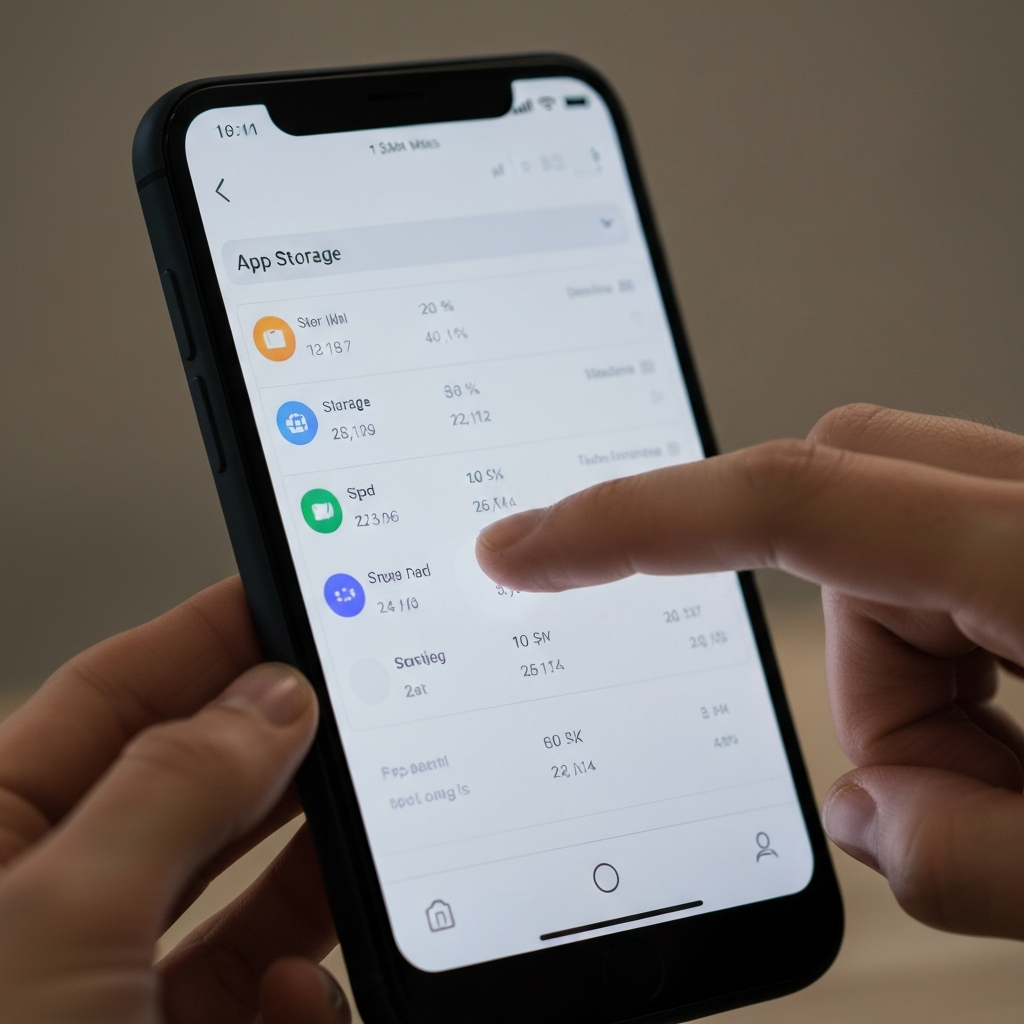
iCloud offers a limited amount of free storage (typically 5 GB), and if your backup exceeds this limit, the process will be significantly slowed down. Regularly manage your iCloud storage to ensure you have sufficient space for backups. Navigate to Settings > [Your Name] > iCloud > Manage Storage to see a breakdown of your iCloud storage usage.
Identify apps and data that are consuming significant iCloud storage and disable backups for those that are not essential. Consider upgrading your iCloud storage plan if you consistently exceed the free tier. You can also delete old backups of devices you no longer use, freeing up valuable storage space. To do this, go to Settings > [Your Name] > iCloud > Manage Storage > Backups, select the old backup, and tap "Delete Backup."

Step 4: Exclude Large, Unnecessary Files from Backups
Not all data on your device needs to be included in your iCloud backup. Large files, such as videos or downloaded content from certain apps, can significantly increase backup times. Review your backup settings and exclude unnecessary data to reduce the overall backup size.
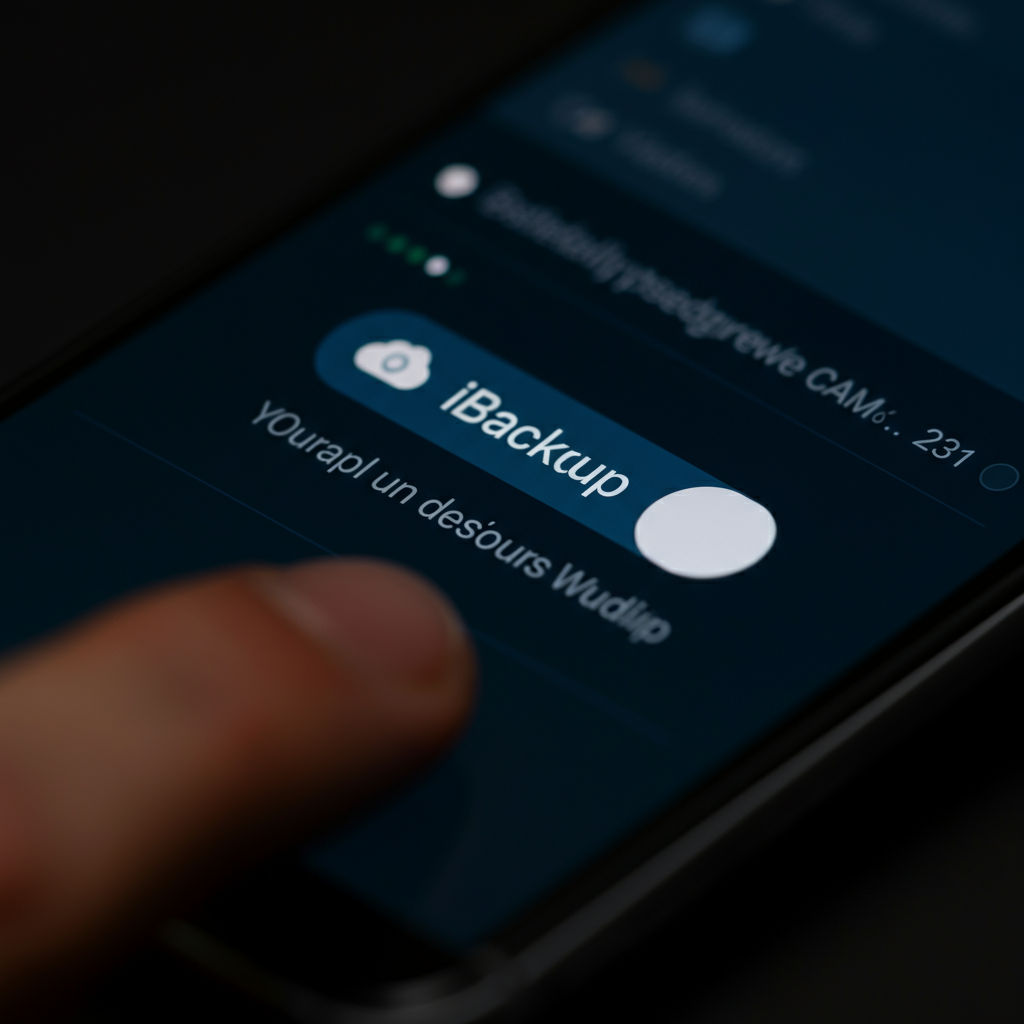
Go to Settings > [Your Name] > iCloud > iCloud Backup. Here, you can choose which apps are backed up to iCloud. Disable the backup option for apps that contain large amounts of data that you don't need to preserve, such as streaming apps or games with downloadable content. You can always re-enable these backups later if needed, but excluding them during regular backups can drastically reduce the backup time.
Step 5: Back Up Regularly and Schedule Appropriately
Performing frequent, smaller backups is generally faster than performing infrequent, large backups. Schedule your iCloud backups to occur automatically when your device is connected to Wi-Fi, plugged into power, and locked. This will ensure that backups happen consistently without disrupting your usage.
Enable iCloud Backup by going to Settings > [Your Name] > iCloud > iCloud Backup and toggling "iCloud Backup" to on. Your device will then automatically back up when the conditions mentioned above are met. Consider scheduling backups overnight when you are asleep and your network is likely less congested. Avoid initiating manual backups during peak usage times, as this can strain your network and prolong the process.

Step 6: Update to the Latest Version of iOS
Apple frequently optimizes the performance of iCloud backups in newer iOS releases. Ensure that your device is running the latest version of iOS to benefit from these improvements. Software updates often include bug fixes and enhancements that can significantly speed up the backup process.
To check for updates, go to Settings > General > Software Update. If an update is available, download and install it. Keep in mind that software updates can take some time to download and install, so plan accordingly. Backing up your device before updating is always recommended to safeguard your data in case of any unforeseen issues during the update process.

Step 7: Restart Your Device
Sometimes, a simple restart can resolve underlying software glitches that may be contributing to slow iCloud backups. Restarting your device clears temporary files and processes, potentially improving performance.
To restart your iPhone or iPad, press and hold the power button (or the side button and volume up button on newer models) until the power-off slider appears. Slide the power-off slider to turn off your device. Wait a few seconds, then press and hold the power button again until the Apple logo appears. Once your device has restarted, try initiating an iCloud backup again to see if the performance has improved.

Pro Tips
- Disable Background App Refresh: Limiting background app activity can free up system resources and improve overall performance. Go to Settings > General > Background App Refresh and disable it for apps you don't need running in the background.
- Reset Network Settings: If you're still experiencing Wi-Fi issues, try resetting your network settings (Settings > General > Transfer or Reset iPhone/iPad > Reset > Reset Network Settings). This will erase your saved Wi-Fi passwords, so be sure to have them handy.
- Contact Apple Support: If you've tried all the above steps and are still experiencing slow iCloud backups, consider contacting Apple Support for assistance. They may be able to diagnose underlying issues with your iCloud account or device.
Common Mistakes to Avoid
- Ignoring Low Battery: Attempting to back up your device with a low battery can prolong the process or even cause it to fail. Always ensure your device is adequately charged before initiating a backup.
- Using Unreliable Cables: Using a damaged or non-certified Lightning cable can lead to connectivity issues and slow transfer speeds. Always use an Apple-certified Lightning cable for charging and backups.
- Skipping Software Updates: Neglecting to install software updates can leave your device vulnerable to bugs and performance issues that can affect iCloud backups.
FAQ Section
- Q: How long should an iCloud backup take?
- A: The duration of an iCloud backup can vary depending on the amount of data being backed up and the speed of your internet connection. A small backup might take only a few minutes, while a large backup can take several hours.
- Q: Can I use my device while it's backing up to iCloud?
- A: Yes, you can continue to use your device while it's backing up to iCloud. However, performance may be slightly slower during the backup process.
- Q: How do I know if my iCloud backup is complete?
- A: You can check the status of your iCloud backup by going to Settings > [Your Name] > iCloud > iCloud Backup. The screen will display the date and time of the last successful backup.
- Q: Why is my iCloud backup stuck?
- A: A stuck iCloud backup can be caused by various factors, including a weak internet connection, insufficient storage space, or software glitches. Try the troubleshooting steps outlined in this guide to resolve the issue.
Conclusion
Speeding up your iCloud backups is achievable by implementing the strategies outlined in this guide. By ensuring a stable Wi-Fi connection, freeing up storage space, managing your iCloud storage, excluding unnecessary files, backing up regularly, updating your iOS software, and restarting your device when needed, you can significantly reduce the time it takes to back up your device and enjoy the peace of mind that comes with knowing your data is safe and secure. Remember to regularly review your backup settings and adapt your approach as your data and usage patterns evolve. With these tips, you can take control of your iCloud backups and ensure they are completed efficiently and effectively.