Technology is an integral part of our lives, but it doesn't always work as expected. From frustrating Wi-Fi outages to computers that refuse to cooperate, tech problems can be incredibly disruptive. Instead of immediately calling for professional help, you can often resolve many common issues yourself with a systematic approach to troubleshooting.
This guide provides a comprehensive, step-by-step methodology for diagnosing and fixing various tech problems. We'll cover everything from basic connection issues to more complex software glitches, empowering you to become your own tech support hero. Remember to always back up important data before undertaking any major troubleshooting steps to prevent data loss.
By following these steps, you'll gain a better understanding of how your technology works, saving you time, money, and unnecessary stress. Let's get started!
Step 1: Identify the Problem
Before you can fix anything, you need to clearly define the problem. What exactly isn't working? Is it a complete failure, or is it intermittent? The more specific you are, the easier it will be to find a solution. For example, instead of saying "My internet is slow," try "Web pages load slowly, but streaming video works fine." Isolate the issue. Does the problem happen on multiple devices, or just one? Is it only affecting a particular program or website? Write down your observations – it's helpful to have a clear record as you troubleshoot.

Step 2: Restart the Device
It sounds cliché, but restarting your device is often the simplest and most effective solution. Restarting clears temporary files, resets the system, and can resolve minor software glitches. This is especially effective for issues like freezing, lagging, or applications that refuse to open. Completely shut down the device – don't just put it to sleep or hibernate. Wait a few seconds, then power it back on. While it seems basic, this action restarts background processes that might be causing the problem. It’s surprising how often this simple step resolves the issue.

Step 3: Check the Physical Connections
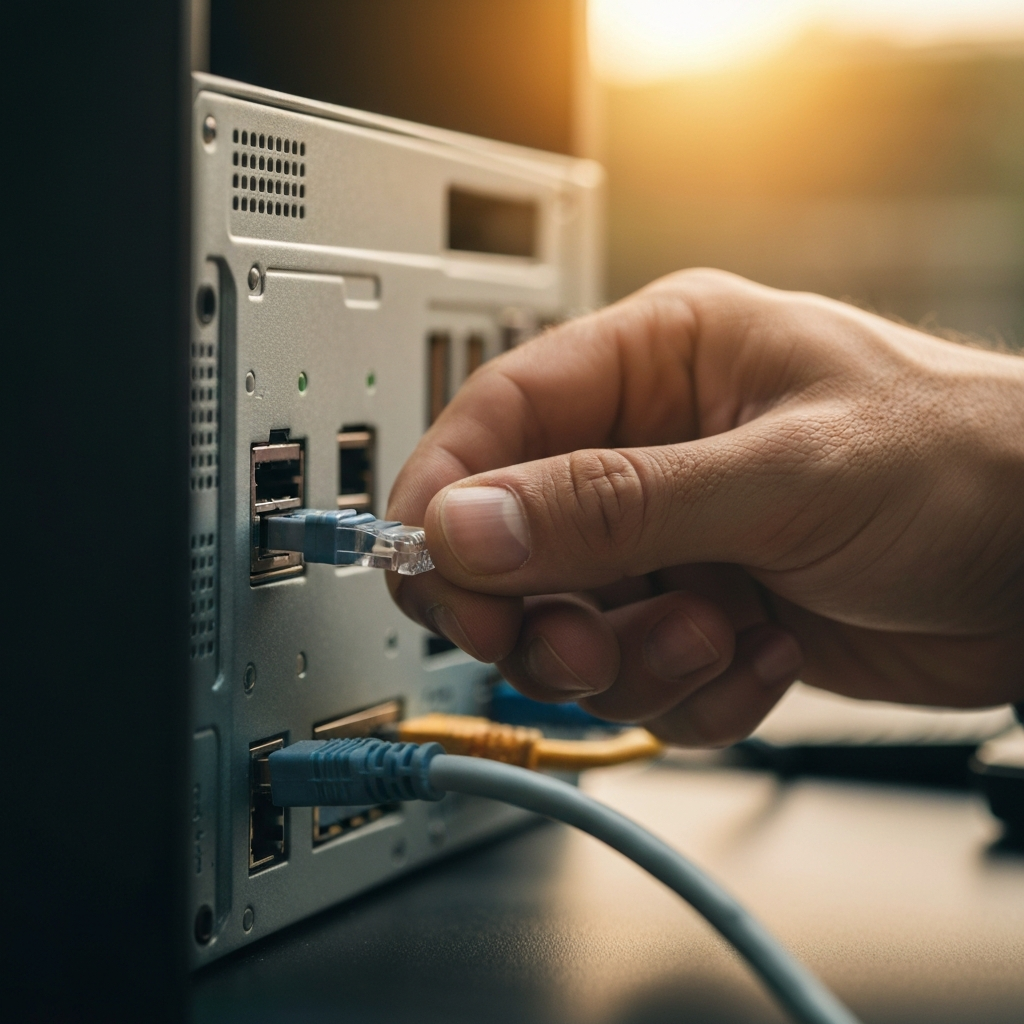
Loose cables, disconnected power cords, or damaged wires can cause a variety of issues. Make sure all cables are securely plugged into both the device and the power outlet or relevant port. Visually inspect the cables for any signs of damage, such as fraying, kinks, or exposed wires. Try wiggling the connections to see if that makes a difference – if it does, you've likely found the culprit. Replace any damaged cables immediately. For network issues, ensure the Ethernet cable (if used) is properly connected to both your device and the router or modem. This is a common overlooked problem.
Step 4: Troubleshoot Your Network Connection
Network issues are a common source of frustration. If you're having trouble connecting to the internet, start by checking your router and modem. First, restart both devices by unplugging them from the power outlet, waiting 30 seconds, and plugging them back in. Give them a few minutes to fully reboot. Make sure your router's firmware is up to date, as outdated firmware can cause connectivity problems. Next, ensure that your laptop's wireless adapter is enabled. Many laptops have a switch or button that turns the wireless adapter on and off, sometimes requiring you to hold the function key (Fn) to use it.
Step 5: Update Drivers and Software
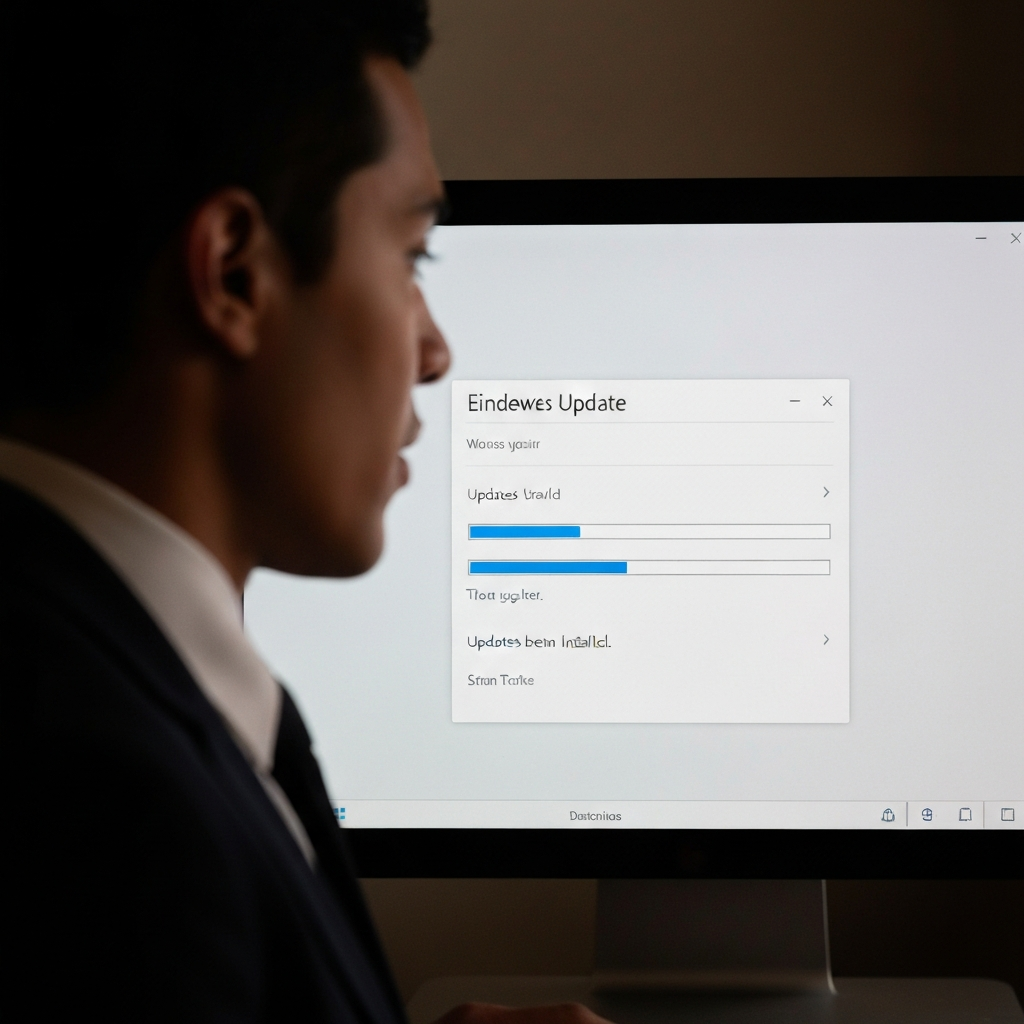
Outdated drivers or software can cause compatibility issues and performance problems. Ensure that your operating system and applications are up to date. For Windows, check Windows Update. For macOS, check the App Store. Pay particular attention to drivers for your graphics card, network adapter, and other hardware components. Visit the manufacturer's website to download the latest drivers if Windows Update doesn't provide them. This is a crucial step for hardware-related issues, such as display problems or peripherals not working correctly.
Step 6: Run Diagnostics and Repair Tools
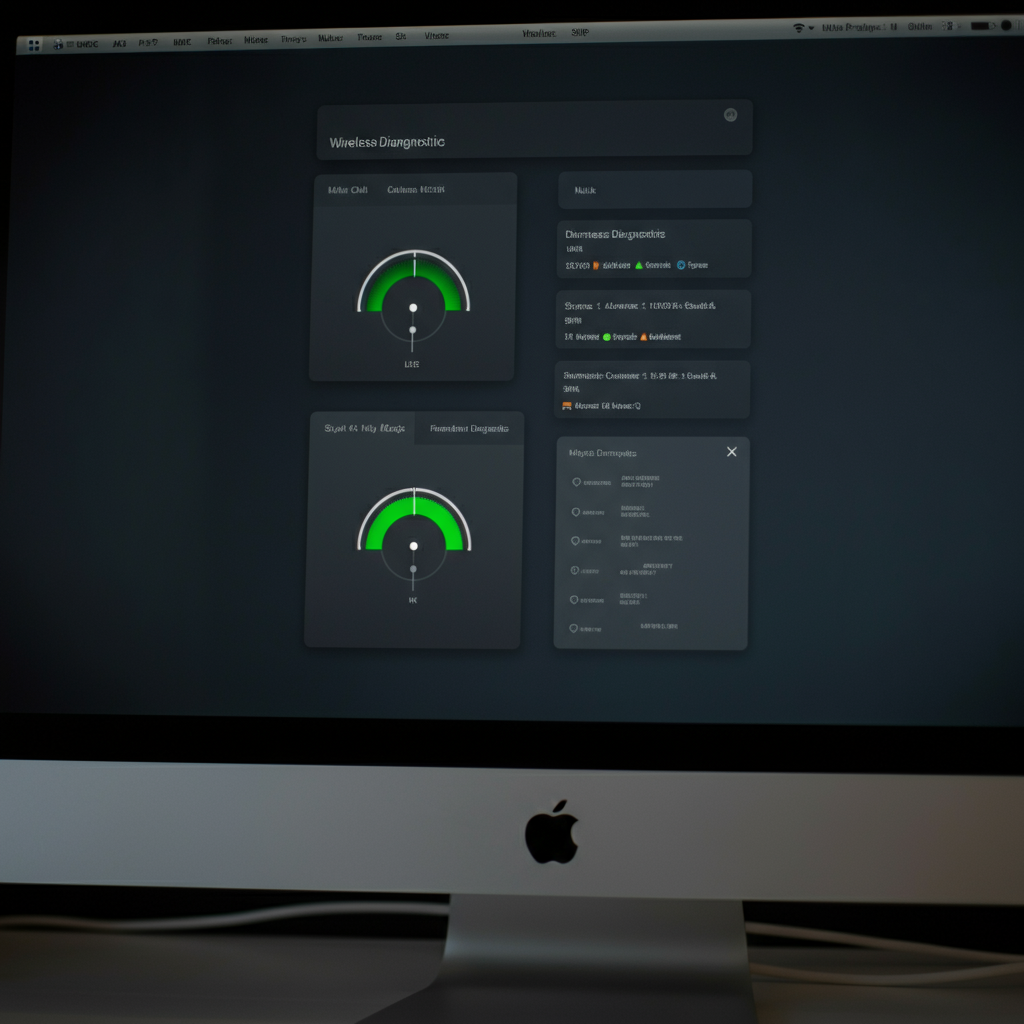
Both Windows and macOS have built-in diagnostic tools that can help identify and fix common problems. On Windows 10, go to Settings > Network and Internet > Status > Network Troubleshooter > Troubleshoot Problems. On Windows 11, open the Get Help app and run the Network and Internet troubleshooter. On a Mac, press and hold the Opt key and click the Wi-Fi icon in the menu bar, then select Open Wireless Diagnostics. These tools can automatically detect and resolve network configuration issues, driver problems, and other common errors. Let the tools run to completion, and carefully review their findings and suggested solutions.
Step 7: Check for Malware
Malware can cause a wide range of problems, including slow performance, system crashes, and network connectivity issues. Run a full system scan using your antivirus software. If you don't have antivirus software, download and install a reputable program like Malwarebytes or Windows Defender. Ensure that your antivirus software is up to date before running the scan. Quarantine or remove any detected threats. If you suspect a particularly stubborn infection, consider using a bootable antivirus rescue disk to scan your system outside of the operating system.

Step 8: Consult Online Resources
If you're still stuck, turn to the internet for help. Search engines like Google and DuckDuckGo can be invaluable resources. Be specific with your search terms. Instead of "My computer won't turn on," try "HP laptop won't power on after battery replacement." Look for official support documentation from the manufacturer, as well as forums and communities where other users may have encountered and resolved similar problems. Be wary of unofficial sources offering potentially harmful or ineffective solutions.

Common Mistakes to Avoid
- Ignoring Error Messages: Error messages often provide valuable clues about the cause of the problem. Read them carefully and search online for solutions.
- Making Unnecessary Changes: Avoid randomly changing settings or deleting files without understanding the consequences. This can often make the problem worse.
- Not Backing Up Data: Always back up your important data before attempting any major troubleshooting steps.
Pro Tips
- Keep a Troubleshooting Log: Track the steps you've taken and their results. This will help you avoid repeating the same mistakes and can be useful if you need to seek professional help.
- Use a Process of Elimination: Systematically rule out potential causes until you find the one that's responsible for the problem.
- Don't Be Afraid to Ask for Help: If you're truly stuck, don't hesitate to seek assistance from a qualified technician or IT professional.
FAQ Section
- Q: My internet is slow. What should I do?
- A: Start by restarting your modem and router. Then, check your Wi-Fi signal strength and move closer to the router if necessary. You may also want to run a speed test to see if you're getting the speeds you're paying for.
- Q: My computer keeps freezing. What could be the cause?
- A: Freezing can be caused by a variety of factors, including software conflicts, driver issues, overheating, or hardware problems. Try updating your drivers, running a virus scan, and checking your system's temperature.
- Q: I can't connect to a specific website. What should I do?
- A: First, make sure you have an active internet connection. Then, try clearing your browser's cache and cookies. If that doesn't work, the website may be temporarily down or experiencing technical difficulties.
Conclusion
Troubleshooting tech problems can seem daunting, but by following a systematic approach, you can often resolve many issues yourself. Remember to identify the problem clearly, restart devices, check connections, update software, run diagnostics, and consult online resources. Don't be afraid to experiment, but always proceed with caution and back up your data first. With a little patience and persistence, you can become your own tech support expert and keep your technology running smoothly.