Technology is an integral part of our daily lives, but it can also be incredibly frustrating when things go wrong. From slow computers to malfunctioning smartphones, dealing with technical issues is a common experience. Fortunately, many problems can be resolved with a little patience and the right approach. This guide provides a simple, step-by-step method for troubleshooting common computer and electronic issues, empowering you to fix problems yourself and avoid costly repairs.
This guide emphasizes a systematic approach. Avoid jumping to conclusions or making random changes, which can often worsen the problem. Instead, follow these steps in order, documenting each attempt, to effectively diagnose and resolve the issue. Remember, even experienced technicians follow a logical process to find the root cause of technical problems.
By mastering these fundamental troubleshooting techniques, you'll not only save time and money but also gain a deeper understanding of how your devices work, making you a more confident and capable technology user.
Step 1: Identify the Problem
Clearly Define the Issue
Before you can fix anything, you need to know exactly what's wrong. Be specific in describing the problem. For example, instead of saying "My computer is slow," say "My computer takes 5 minutes to boot up, and applications take a long time to load." Note any error messages you see, when the problem started, and what you were doing when it occurred. The more detail you provide, the easier it will be to find a solution.

Step 2: Check the Obvious
Power, Connections, and Basic Settings
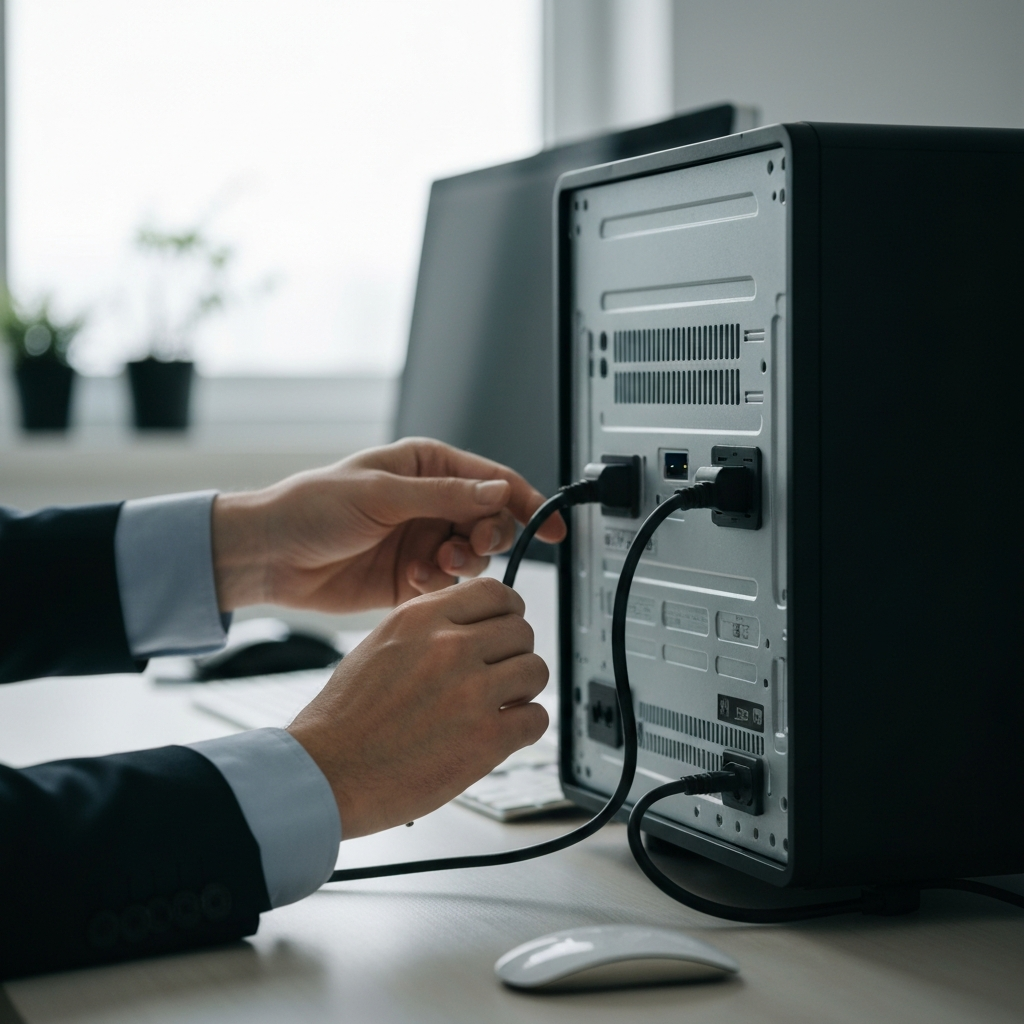
This might seem overly simple, but many problems are caused by basic oversights. Always start by checking the power supply, all cable connections, and basic settings. Is the device plugged in? Is the power switch on? Are all cables securely connected? For wireless devices, check the Wi-Fi connection and Bluetooth settings. Sometimes, a simple restart can resolve temporary glitches. Ensure the screen brightness is adjusted appropriately.
Step 3: Restart the Device
The Universal Fix
Restarting a device is often the first and simplest troubleshooting step. This can resolve many software glitches and temporary errors by clearing the system's memory and restarting processes. Close all open applications and then restart your computer, smartphone, or other electronic device. Wait a few minutes after the restart before attempting to use the device again. If the problem persists, move on to the next step.

Step 4: Search Online for Solutions
Leverage the Power of the Internet
The internet is an invaluable resource for troubleshooting tech problems. Search engines like Google or DuckDuckGo can provide solutions to a wide range of issues. Be specific with your search terms, including the error message or a detailed description of the problem. Look for official support pages from the manufacturer, forum discussions, or how-to articles. Remember to evaluate the credibility of the source before applying any suggested fixes.

Step 5: Update Software and Drivers
Keeping Things Current
Outdated software and drivers can often cause compatibility issues and performance problems. Ensure that your operating system, applications, and device drivers are up to date. Check for updates in the system settings or on the manufacturer's website. Driver updates are particularly important for hardware components like graphics cards and printers. Installing the latest updates can resolve bugs, improve performance, and enhance security.
Step 6: Run Diagnostic Tools
Utilize Built-in or Third-Party Utilities
Many operating systems and devices have built-in diagnostic tools that can help identify hardware or software problems. For example, Windows has a Memory Diagnostic tool, and smartphones often have diagnostic apps. Run these tools to scan for errors and identify potential issues. You can also use third-party diagnostic software to perform more comprehensive tests. These tools can help you pinpoint the source of the problem and suggest potential solutions.

Step 7: Uninstall Recently Installed Software
Reverse Recent Changes
If the problem started after you installed new software, it's possible that the software is causing a conflict. Uninstall the software to see if the issue resolves. Go to the Control Panel (Windows) or Applications folder (macOS) and remove the software. Restart your device after uninstalling. If the problem goes away, the software was likely the culprit. You can then try reinstalling the software to see if the problem returns. Alternatively, look for a different version or an alternative program.

Step 8: Check for Malware
Scan for Viruses and Other Threats
Malware can cause a wide range of problems, including slow performance, system crashes, and data loss. Run a full system scan using a reputable antivirus program. Ensure that your antivirus software is up to date. If the scan detects any malware, follow the program's instructions to remove it. Consider using a second opinion scanner to confirm that all threats have been eliminated. Regularly scan your system to prevent future infections.

Step 9: Seek Professional Help
When to Call in the Experts
If you've tried all the above steps and are still unable to resolve the problem, it's time to seek professional help. Don't hesitate to contact a qualified technician or repair shop. They have the expertise and tools to diagnose and fix more complex issues. Be prepared to describe the problem in detail and explain what troubleshooting steps you've already taken. Providing this information will help them diagnose the problem more quickly and efficiently.
Safety Considerations
Always disconnect electronic devices from the power source before attempting any internal repairs or modifications. This will prevent electric shock and potential damage to the device. Avoid working in damp or wet environments. If you are uncomfortable with any aspect of the repair process, seek professional assistance. Working with electronic devices requires care and attention to safety.
Common Mistakes to Avoid
- Assuming the worst without proper diagnosis.
- Ignoring error messages.
- Making random changes without documenting them.
- Downloading software from untrusted sources.
- Opening attachments from unknown senders.
FAQ Section
- Q: My computer is running very slowly. What should I do?
- A: First, try restarting your computer. Then, check for malware, update your software, and close any unnecessary programs that are running in the background. If the problem persists, consider upgrading your hardware or reinstalling the operating system.
- Q: My printer isn't printing. What should I check?
- A: Ensure that the printer is turned on, connected to the computer, and has sufficient paper and ink. Check the printer queue to see if there are any pending print jobs. Update the printer driver and try restarting both the printer and the computer.
- Q: My Wi-Fi isn't working. What should I do?
- A: Restart your router and modem. Check the Wi-Fi settings on your device to ensure that you are connected to the correct network. Verify that your router's firmware is up to date. If the problem persists, contact your internet service provider.
Conclusion
Troubleshooting tech problems can be a daunting task, but by following a systematic approach, you can often resolve issues yourself. Remember to identify the problem, check the obvious, restart the device, search online for solutions, update software and drivers, run diagnostic tools, and uninstall recently installed software. If all else fails, don't hesitate to seek professional help. With a little patience and persistence, you can become a more confident and capable technology user.