Is your old laptop feeling sluggish? Are you tired of waiting minutes for programs to load or for files to open? Before you resign yourself to buying a new machine, know that there are several effective ways to breathe new life into your aging laptop. With a combination of hardware upgrades and software tweaks, you can significantly improve its performance and extend its usability.
This guide will walk you through the essential steps to supercharge your old laptop. We'll cover everything from upgrading your RAM and storage to optimizing your operating system and keeping your system clean. Follow these instructions carefully, and you'll be amazed at the difference it can make.
Remember to back up all your important data before making any changes to your system. We are not responsible for any data loss or damage to your computer that may occur as a result of following these instructions.
Step 1: Upgrade Your RAM
Understanding and Installing New RAM
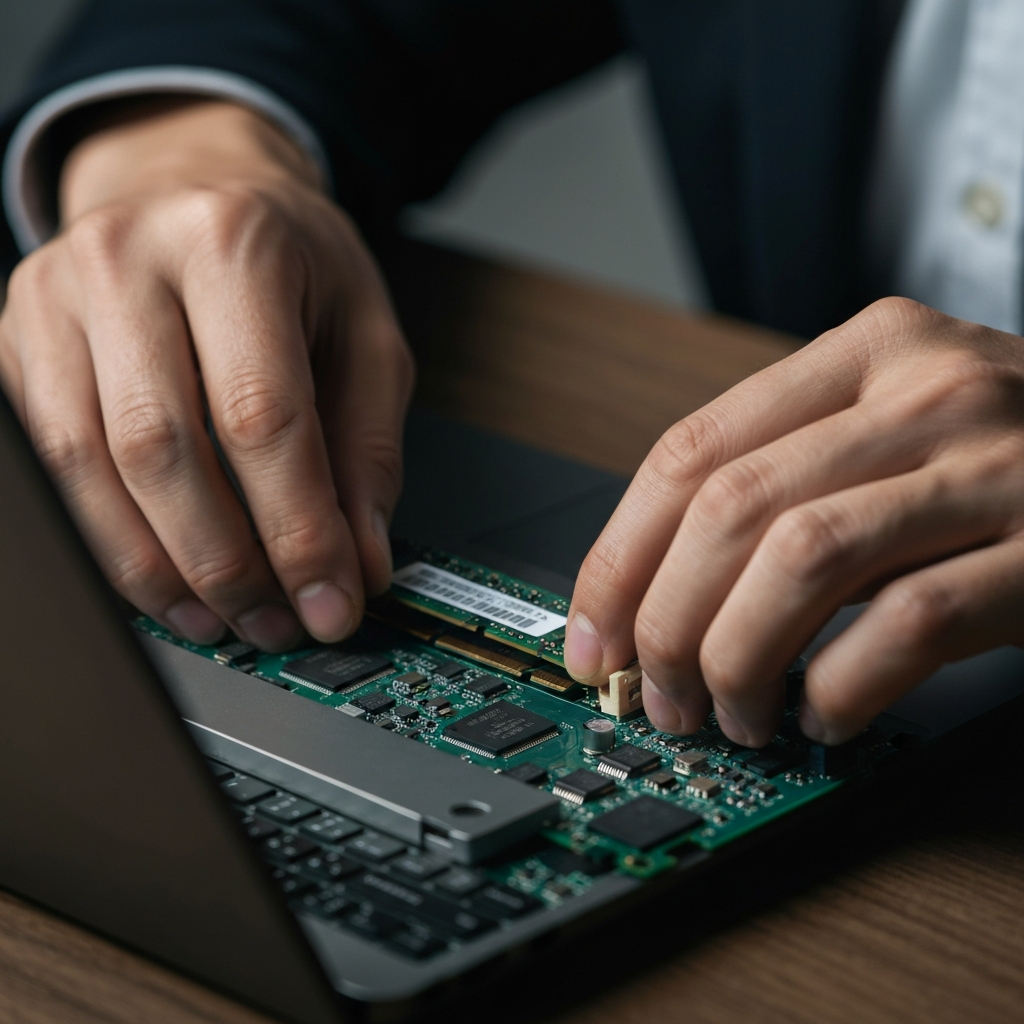
One of the most effective ways to boost your laptop's performance is to upgrade its RAM (Random Access Memory). RAM allows your computer to quickly access frequently used data. More RAM means your laptop can handle more tasks simultaneously without slowing down. First, determine the maximum RAM capacity supported by your laptop. This information can usually be found on the manufacturer's website or by using a tool like Crucial's System Scanner. Next, identify the type of RAM your laptop uses (e.g., DDR3, DDR4). Purchase compatible RAM modules and carefully install them into the available slots. Ensure the clips on the sides of the slots lock the RAM in place.
Step 2: Swap Your HDD for an SSD
The Speed Advantage of Solid State Drives
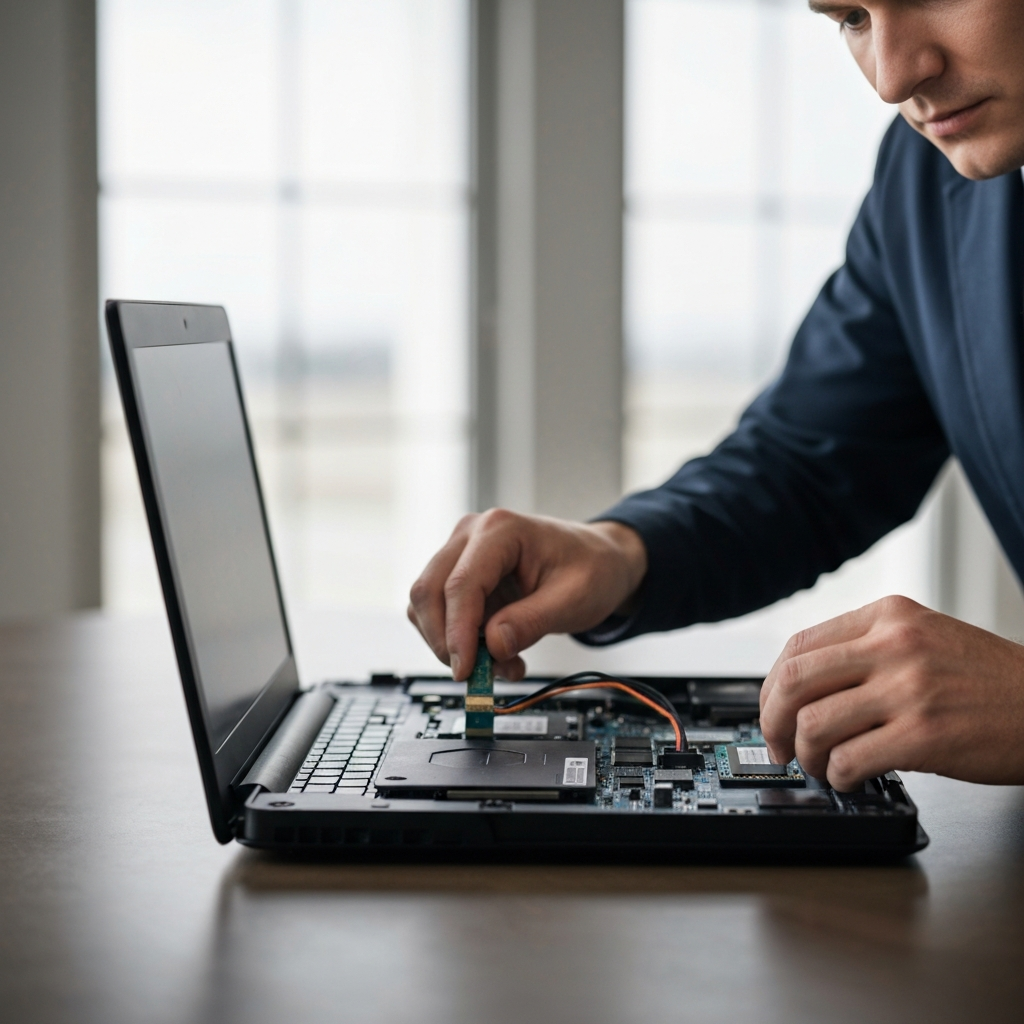
Replacing your old Hard Disk Drive (HDD) with a Solid State Drive (SSD) can dramatically improve your laptop's speed. SSDs are much faster than HDDs because they use flash memory instead of spinning platters. This results in significantly faster boot times, application loading, and file transfer speeds. To upgrade to an SSD, you'll need to purchase a compatible drive (usually a 2.5-inch SATA SSD for older laptops). You can clone your existing HDD to the SSD using disk cloning software, or perform a clean installation of your operating system. Cloning is generally easier, but a clean install can remove unnecessary bloatware.
Step 3: Defragment Your Hard Drive (If You Still Have One)
Optimizing HDD Performance
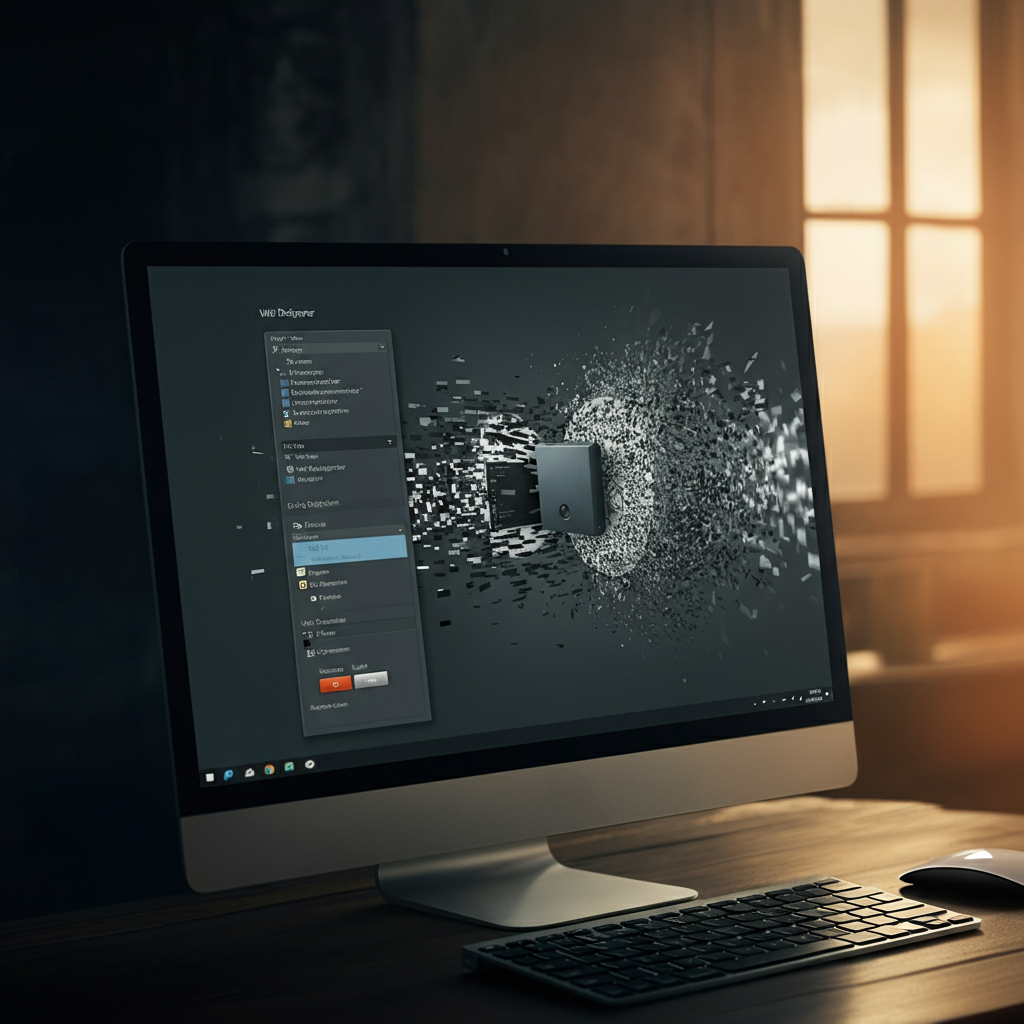
While an SSD is ideal, if you are sticking with a traditional HDD, defragmenting it can still provide a performance boost. Over time, files on an HDD can become fragmented, meaning they are scattered across the drive. Defragmentation rearranges these files, placing related data closer together, which improves read/write speeds. Windows has a built-in defragmentation tool, or you can use a third-party defragmentation utility. This step is unnecessary (and even detrimental) for SSDs, as they access data differently.
Step 4: Remove Unnecessary Programs
Cleaning Up Software Bloat
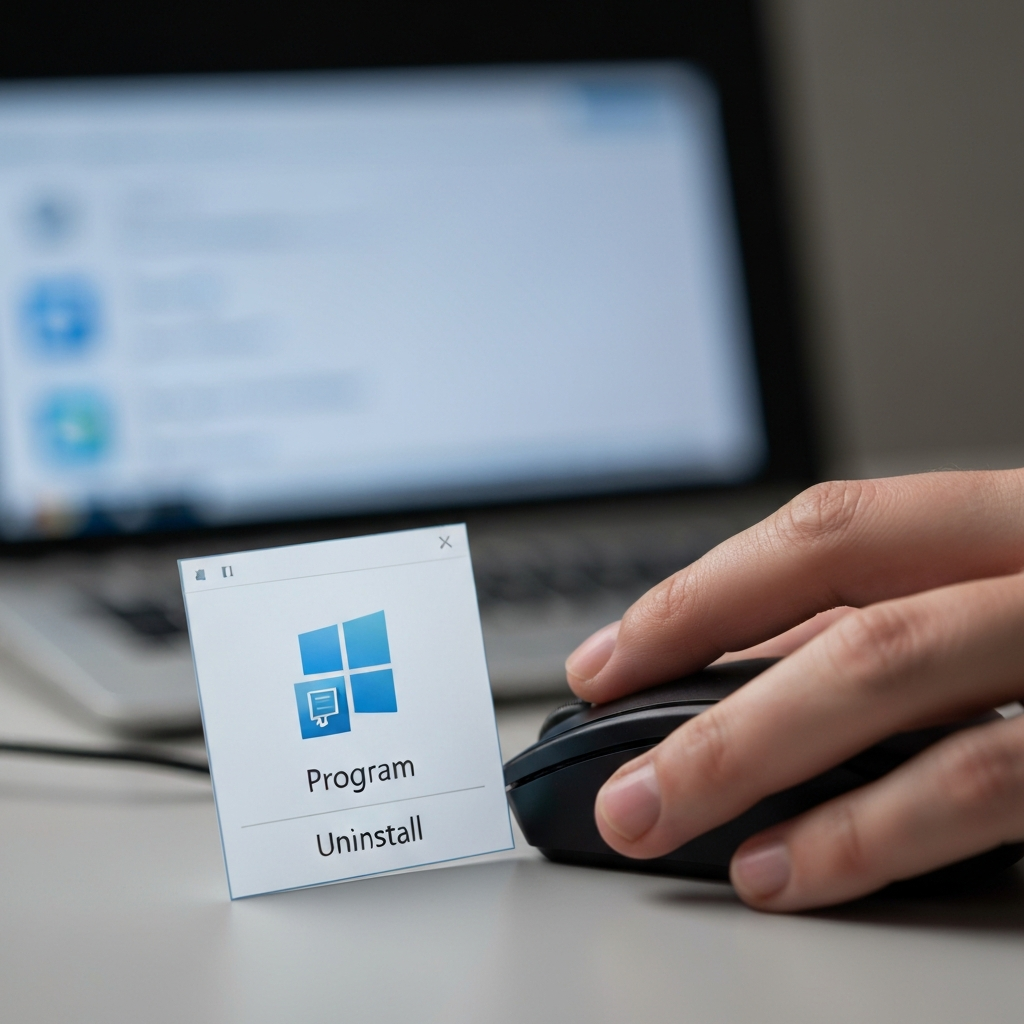
Many laptops come pre-installed with bloatware – unnecessary programs that consume system resources and slow down performance. Go through your installed programs and uninstall anything you don't use or need. In Windows, you can do this through the "Programs and Features" control panel. Be cautious about removing programs you're unsure about; research them online first to avoid accidentally uninstalling essential system software. Additionally, disable startup programs that launch automatically when you turn on your laptop. These programs can significantly increase boot times.
Step 5: Update Your Drivers
Ensuring Hardware Compatibility and Performance
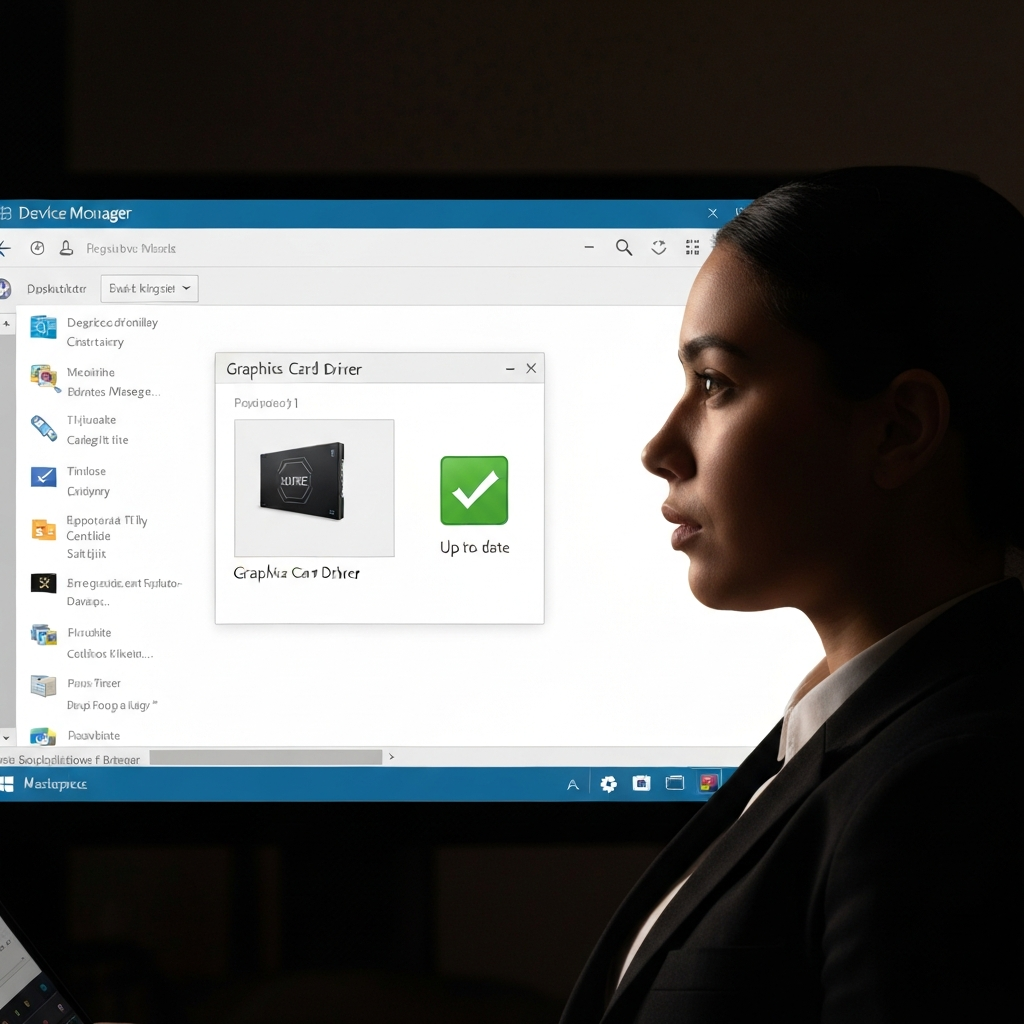
Outdated drivers can cause performance issues and compatibility problems. Ensure your drivers for your graphics card, network adapter, and other hardware components are up to date. You can usually download the latest drivers from the manufacturer's website (e.g., NVIDIA, AMD, Intel). Windows Update can also install some driver updates, but it's not always the most reliable source for the latest versions. For graphics cards, dedicated software from the manufacturer (e.g., NVIDIA GeForce Experience, AMD Radeon Software) can help you manage and update drivers.
Step 6: Optimize Your Operating System
Tweaking Windows for Speed
There are several ways to optimize your operating system for better performance. Disable visual effects that consume system resources, such as animations and transparency effects. Adjust your power settings to prioritize performance over battery life (though this will reduce battery run time). Regularly run disk cleanup to remove temporary files and other unnecessary data. Consider using a lightweight antivirus program to minimize the impact on system performance. Also, periodically check the task manager to identify processes consuming high CPU or memory.

Step 7: Keep Your System Cool
Preventing Thermal Throttling
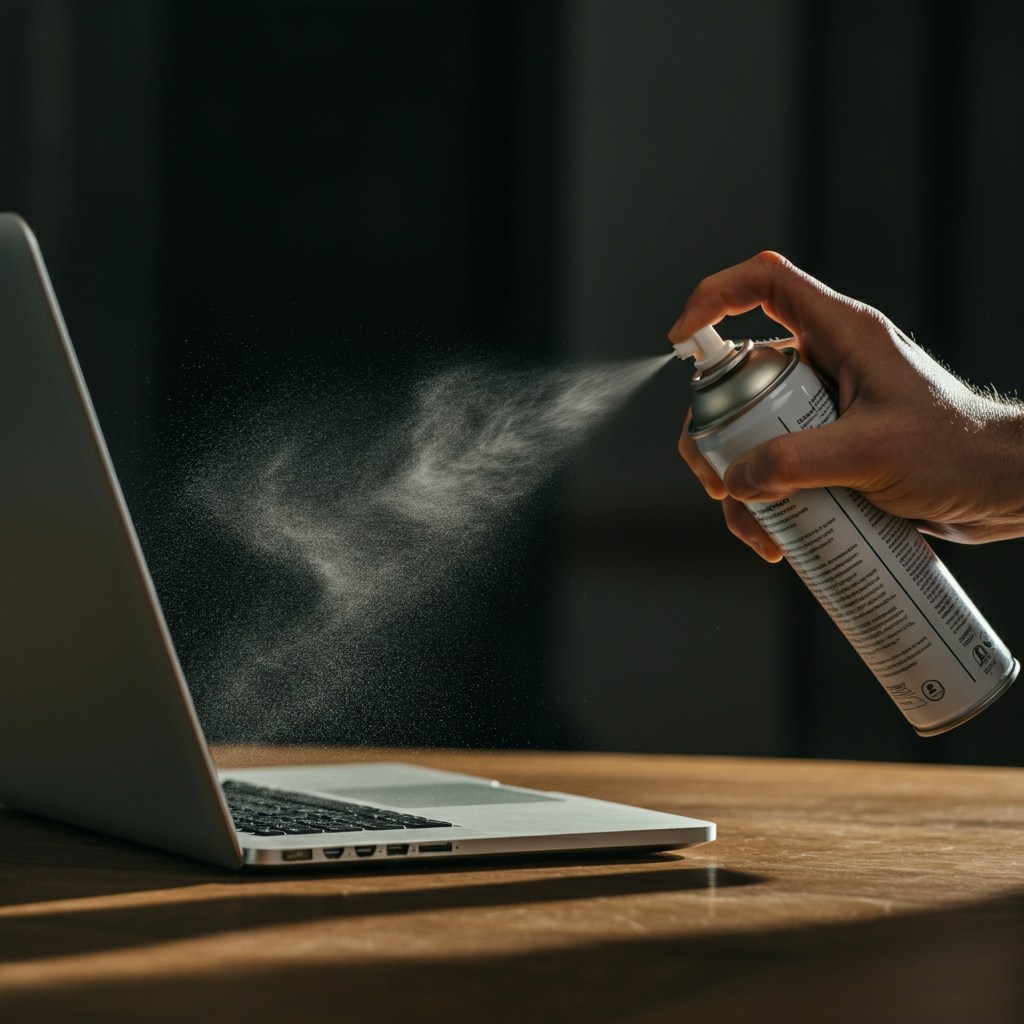
Overheating can significantly impact your laptop's performance. When the CPU or GPU gets too hot, the system may throttle performance to prevent damage. Ensure your laptop's vents are not blocked by dust or other debris. Use a can of compressed air to clean out the vents. Consider using a laptop cooling pad to improve airflow. You can also monitor your CPU and GPU temperatures using monitoring software. If temperatures are consistently high, you may need to reapply thermal paste to the CPU and GPU, but this requires more advanced technical skills and should only be attempted if you are comfortable disassembling your laptop.
FAQ Section
Q: How much RAM do I need?
A: For basic tasks like browsing the web and writing documents, 4GB of RAM may be sufficient. However, for more demanding tasks like gaming, video editing, or running multiple applications simultaneously, 8GB or 16GB of RAM is recommended.
Q: Is it difficult to install an SSD?
A: Installing an SSD is generally straightforward, but it does require some basic technical skills. There are many online tutorials and videos that can guide you through the process. The most challenging aspect is often cloning your existing hard drive to the SSD.
Q: Will these tips work on any laptop?
A: These tips are generally applicable to most older laptops, but the specific steps may vary depending on the model and operating system. Always consult your laptop's manual or the manufacturer's website for specific instructions.
Conclusion
By following these steps, you can significantly improve the performance of your old laptop and extend its lifespan. Upgrading the RAM and replacing the HDD with an SSD are the most impactful upgrades, but software optimization and regular maintenance are also crucial. Don't give up on your old laptop just yet – with a little effort, you can make it feel like new again.