Is your once-beloved laptop feeling sluggish and struggling to keep up with modern demands? Don't resign it to the tech graveyard just yet! With a few carefully chosen upgrades and tweaks, you can breathe new life into your aging machine and significantly improve its performance. This guide provides a step-by-step approach to supercharging your old laptop, offering practical advice and expert insights along the way.
Before you begin, it's crucial to assess your laptop's current specifications and identify its bottlenecks. Understanding where your laptop is underperforming will help you prioritize your upgrades and make the most of your budget. Consider factors like the age of the hard drive, the amount of RAM, and the overall processor speed. This will allow you to make informed decisions about which upgrades will have the biggest impact.
This guide focuses on upgrades that are generally considered safe and relatively easy to perform, even for users with limited technical experience. However, it's always recommended to proceed with caution and consult professional resources if you're unsure about any step. Remember to back up your important data before making any significant changes to your system.
Step 1: Upgrade to a Solid State Drive (SSD)
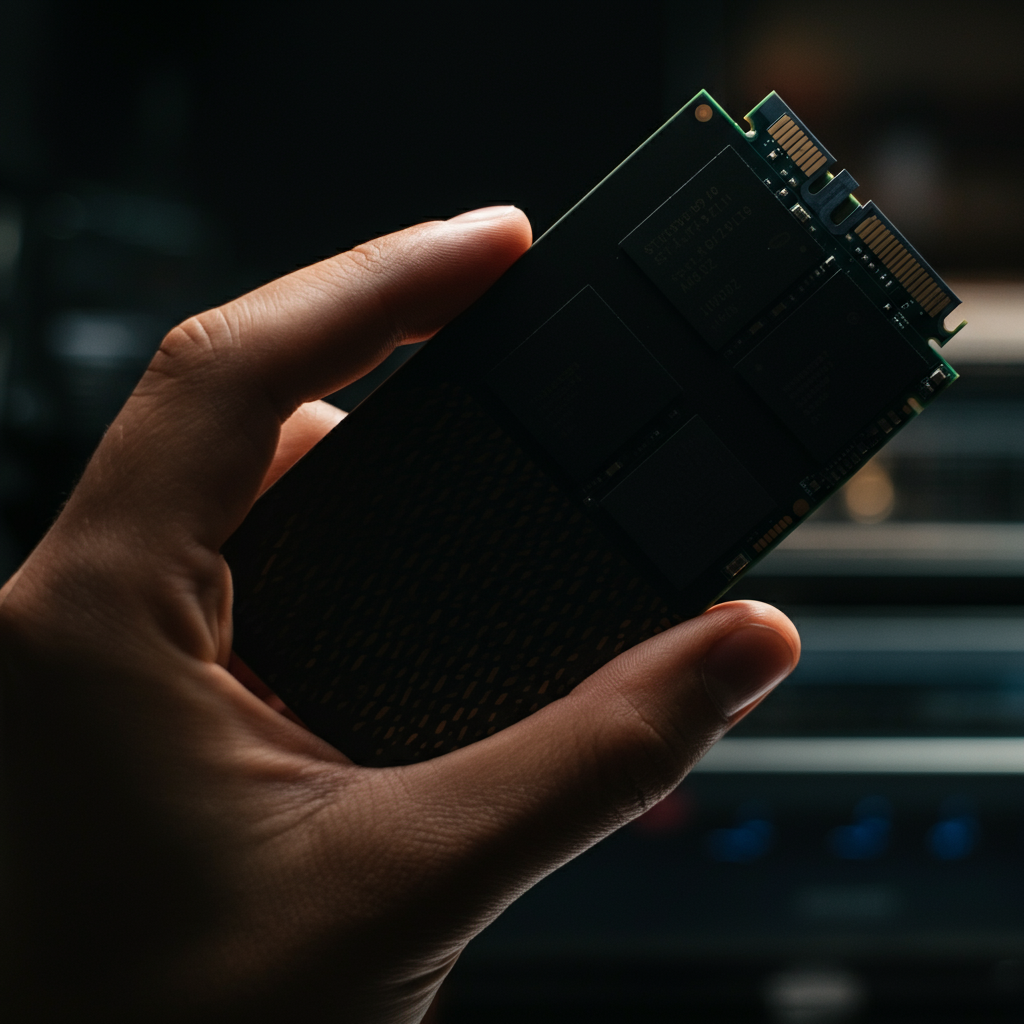
Replacing your old mechanical hard drive (HDD) with a Solid State Drive (SSD) is arguably the single most impactful upgrade you can make. SSDs offer significantly faster read and write speeds compared to HDDs, resulting in quicker boot times, faster application loading, and an overall snappier system. This upgrade will transform your laptop from feeling sluggish to feeling responsive and modern. Ensure you purchase an SSD that is compatible with your laptop's interface (usually SATA or NVMe) and form factor (2.5-inch or M.2).
Step 2: Increase Your RAM
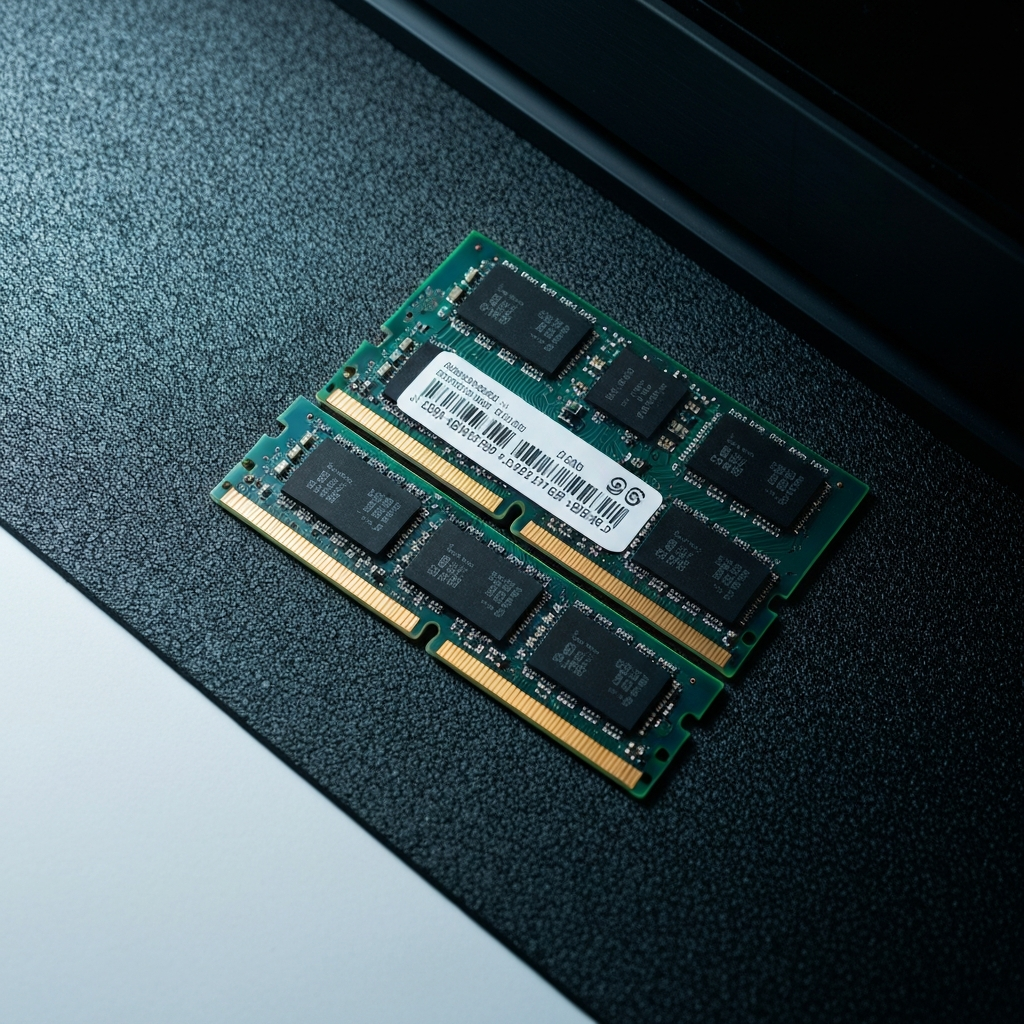
Random Access Memory (RAM) is crucial for multitasking and running demanding applications. If your laptop has limited RAM (e.g., 4GB or less), upgrading to 8GB or 16GB can dramatically improve performance. Check your laptop's specifications to determine the type and maximum amount of RAM it supports. Crucial.com and similar sites are great resources for determining compatible RAM modules. Ensure the new RAM modules match the existing modules' speed and type (e.g., DDR3, DDR4).
Step 3: Clean Up Your Operating System
Over time, your operating system can become cluttered with unnecessary files, programs, and processes that slow down performance. Regularly cleaning up your OS can significantly improve speed and responsiveness. Uninstall unused programs, delete temporary files, and run a disk cleanup utility. Consider using a reputable system optimization tool to automate these tasks. Defragmenting your hard drive (if you haven't upgraded to an SSD) can also help improve performance, though it's unnecessary and potentially harmful for SSDs.

Step 4: Update Your Drivers
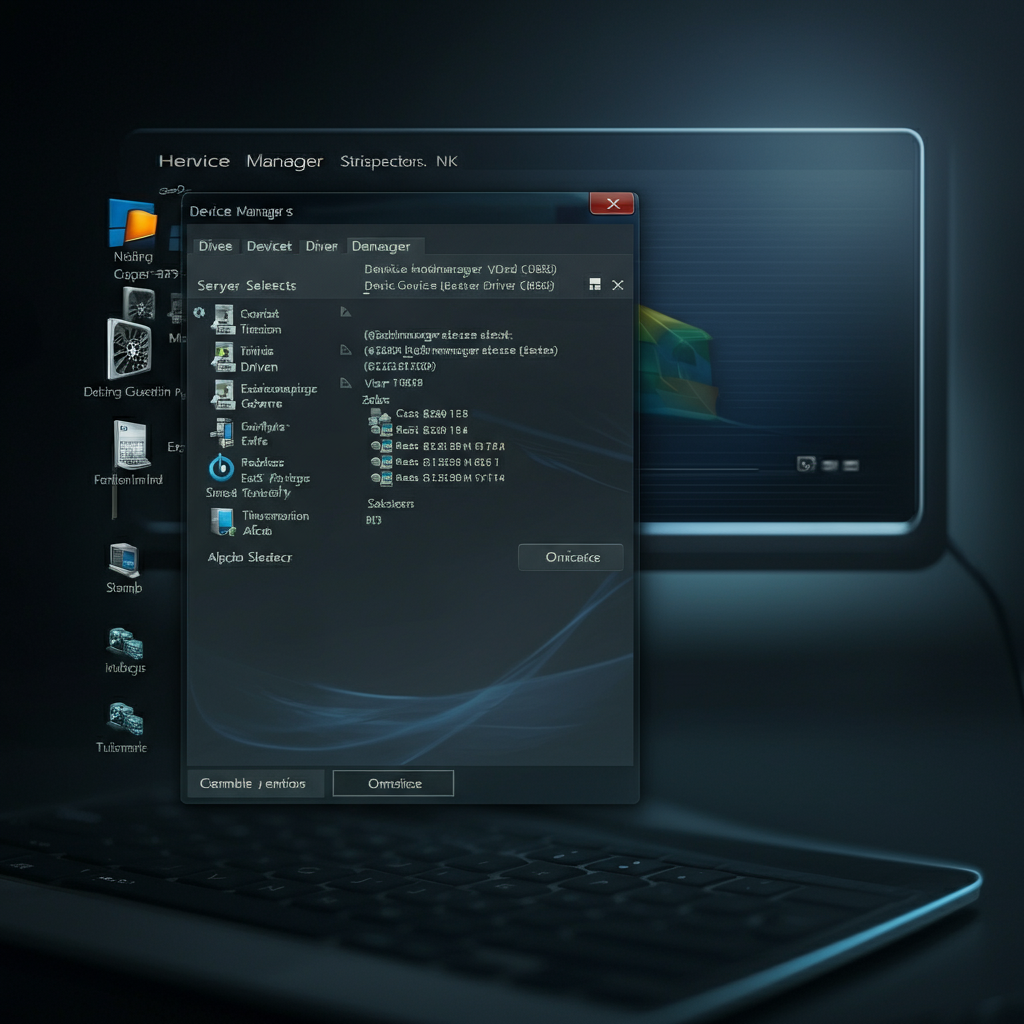
Outdated drivers can cause performance issues and compatibility problems. Keeping your drivers up to date ensures that your hardware is functioning optimally. Visit your laptop manufacturer's website or use a driver update utility to download and install the latest drivers for your graphics card, network adapter, and other components. Be cautious when using third-party driver update tools, as some may bundle unwanted software or malware.
Step 5: Reinstall Your Operating System (Optional, but Recommended)
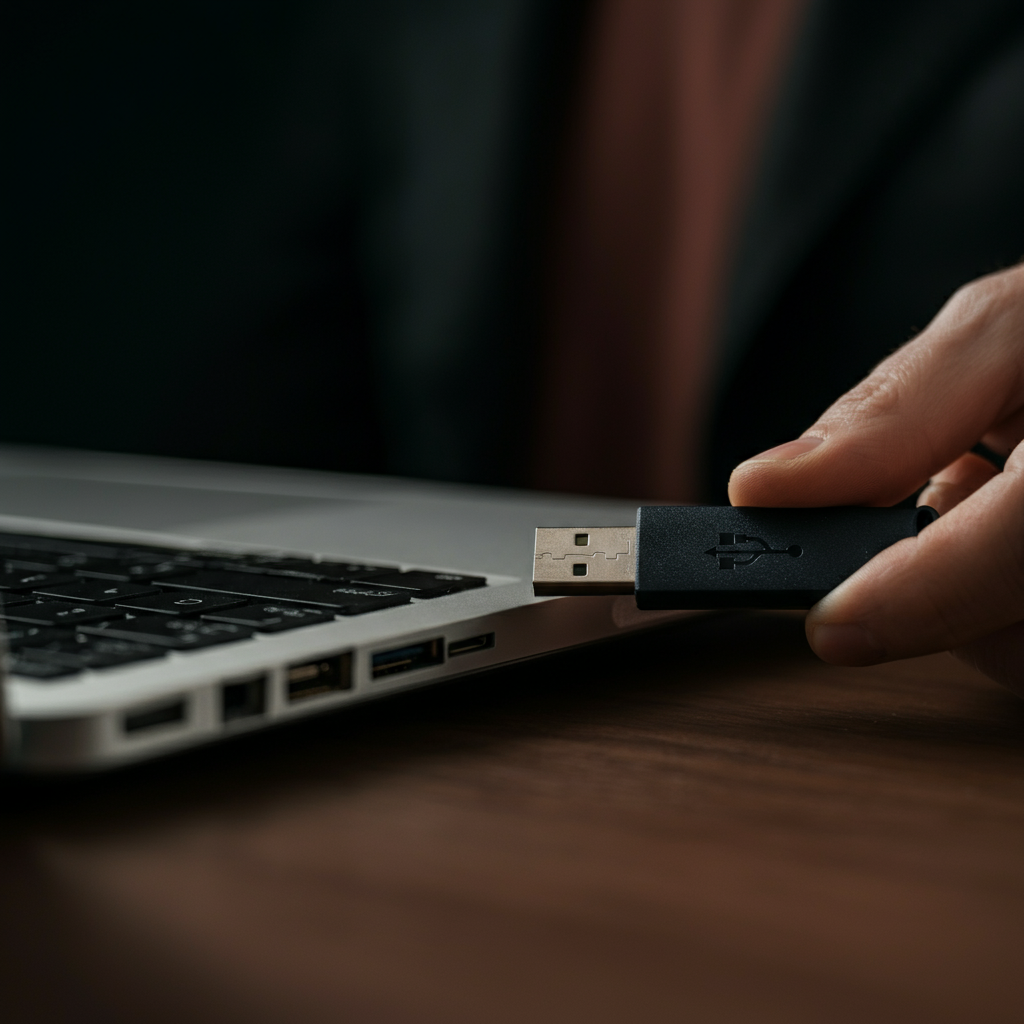
A fresh installation of your operating system can often resolve lingering performance issues that cannot be fixed by other means. This process will wipe your hard drive, so be sure to back up all your important data beforehand! Download the latest version of your operating system from the manufacturer's website and create a bootable USB drive. Follow the on-screen instructions to install the OS. This will give you a clean slate to work with and eliminate any accumulated bloat and conflicts.
Tools or Materials Required
- Screwdrivers (Phillips and possibly Torx)
- Anti-static wrist strap
- Solid State Drive (SSD)
- RAM modules (compatible with your laptop)
- USB drive (for OS reinstallation)
- Data backup device (external hard drive or cloud storage)
Common Mistakes to Avoid
- Forgetting to back up your data before making changes.
- Purchasing incompatible RAM or SSD.
- Stripping screws due to using the wrong screwdriver.
- Static discharge damaging components (use an anti-static wrist strap!).
- Installing drivers from untrusted sources.
Safety Considerations
Always disconnect the laptop from the power adapter and remove the battery (if possible) before opening the case. Wear an anti-static wrist strap to prevent electrostatic discharge from damaging sensitive components. Be careful when handling small screws and components to avoid losing or damaging them.
FAQ Section
- Q: How much will these upgrades cost?
- A: The cost can vary significantly depending on the components you choose and your location. An SSD can range from $30 to $150, RAM from $20 to $80, and the OS reinstallation is typically free (assuming you have a valid license).
- Q: Is it worth upgrading an old laptop?
- A: It depends on your needs and budget. If you only need basic functionality, upgrading can significantly extend the life of your laptop. However, if you need to run demanding applications or play modern games, a new laptop may be a better investment.
- Q: What if I'm not comfortable opening my laptop?
- A: If you're not comfortable performing these upgrades yourself, consider taking your laptop to a professional repair shop.
By following these steps, you can significantly improve the performance of your old laptop and extend its lifespan. Remember to research compatible components, proceed with caution, and always back up your data before making any changes. With a little effort and investment, you can breathe new life into your aging machine and enjoy a smoother, more responsive computing experience.