Is your computer taking ages to boot up? Are programs freezing or responding slowly? A sluggish computer can be incredibly frustrating, impacting your productivity and overall experience. The good news is that you don't necessarily need to rush out and buy a new machine. Often, the problem can be diagnosed and fixed with some simple troubleshooting and maintenance.
This comprehensive guide will walk you through a series of steps to identify the cause of your computer's sluggishness and implement practical solutions to restore its performance. We'll cover everything from basic software optimization to more advanced disk cleanup techniques, helping you breathe new life into your PC.
Before you begin, it’s essential to remember to back up your important files. While the methods outlined here are generally safe, unforeseen issues can sometimes arise, and having a recent backup ensures your data is protected.
Step 1: Restart Your Computer
The simplest solution is often the most effective. Restarting your computer clears its temporary memory (RAM), closes any running processes, and allows the operating system to start fresh. This can resolve temporary glitches and free up system resources that may be contributing to the slowdown. Think of it as giving your computer a short nap to refresh itself. Many memory leaks and poorly written programs can be mitigated with a simple reboot.

Step 2: Close Unnecessary Applications
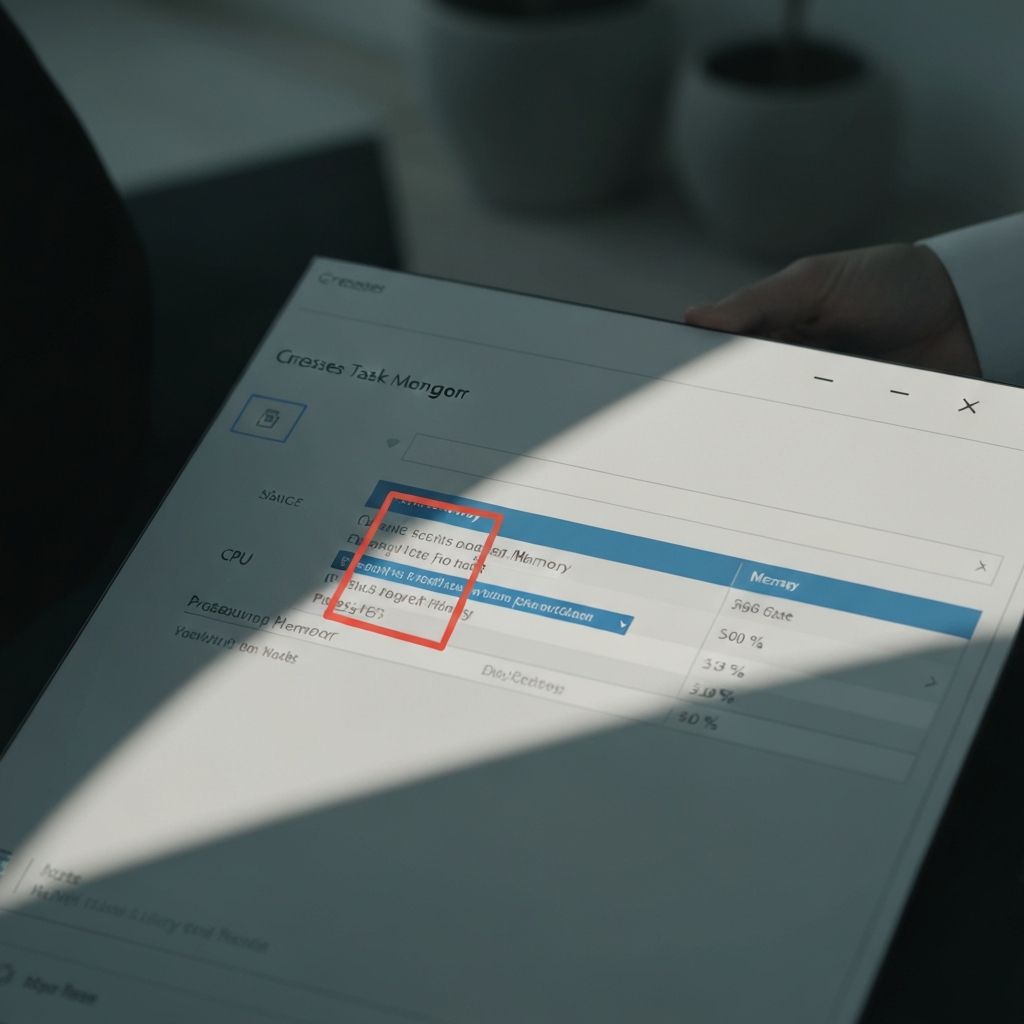
Running too many applications simultaneously puts a significant strain on your computer's resources, particularly RAM and CPU. Even if you're not actively using an application, it may still be running in the background, consuming valuable resources. Open your Task Manager (Windows) or Activity Monitor (Mac) to see which applications are using the most resources and close those you don't need. Be especially wary of resource-intensive programs like video editors, games, or multiple browser windows.
Step 3: Update Your Operating System
Software updates often include performance improvements, bug fixes, and security patches that can significantly improve your computer's speed and stability. Outdated operating systems are also more vulnerable to malware, which can severely impact performance. Check for updates regularly and install them promptly. Windows Update (Windows) and System Preferences -> Software Update (Mac) are your go-to places. Keep in mind that some updates require a significant amount of disk space to download and install, so make sure you have enough free space before proceeding.
Step 4: Empty Your Trash/Recycle Bin
Files you delete aren't actually gone until you empty the Trash (Mac) or Recycle Bin (Windows). These files still take up space on your hard drive, which can contribute to a slowdown, especially if you're running low on disk space. Regularly emptying your Trash/Recycle Bin is a simple way to reclaim storage space. Consider setting up automatic emptying of your recycle bin every X days/weeks.

Step 5: Check for Viruses and Malware
Malware can wreak havoc on your computer's performance, consuming resources, slowing down your system, and even stealing your personal information. Run a full system scan with a reputable antivirus program to detect and remove any malicious software. Keep your antivirus software up-to-date to ensure it can detect the latest threats. Free options like Windows Defender, Avast, or AVG can provide a good baseline level of protection. Consider a subscription to a commercial product like Norton or Kaspersky for more comprehensive features.
Step 6: Clean Up Your Disk
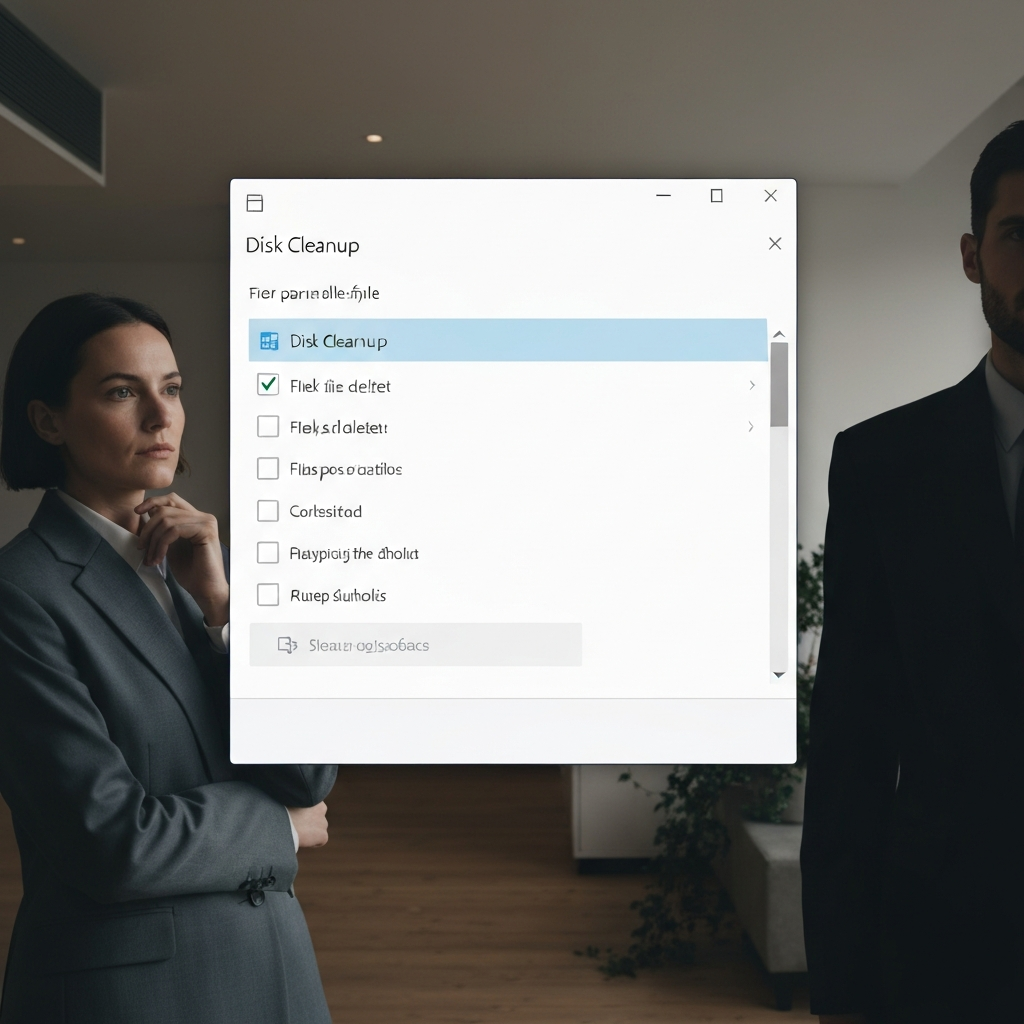
Over time, your hard drive can become cluttered with temporary files, installation files, and other unnecessary data. Disk Cleanup (Windows) and Disk Utility (Mac) are built-in tools that can help you identify and remove these files, freeing up storage space and improving performance. Be careful when deleting files – ensure you understand what you're deleting before proceeding, as some files may be important for your operating system or applications.
Step 7: Delete Temporary Internet Files
Browsers store temporary internet files (cache) to speed up page loading times, but these files can accumulate over time and take up valuable disk space. Regularly clearing your browser's cache and cookies can help improve performance. The process varies slightly depending on the browser you're using (Chrome, Firefox, Safari, etc.), but the settings are usually found in the browser's preferences or settings menu. Clearing your cache might log you out of websites you're currently logged into, so have your passwords handy.

Step 8: Defragment Your Hard Drive (Windows Only) or Enable TRIM (SSD)
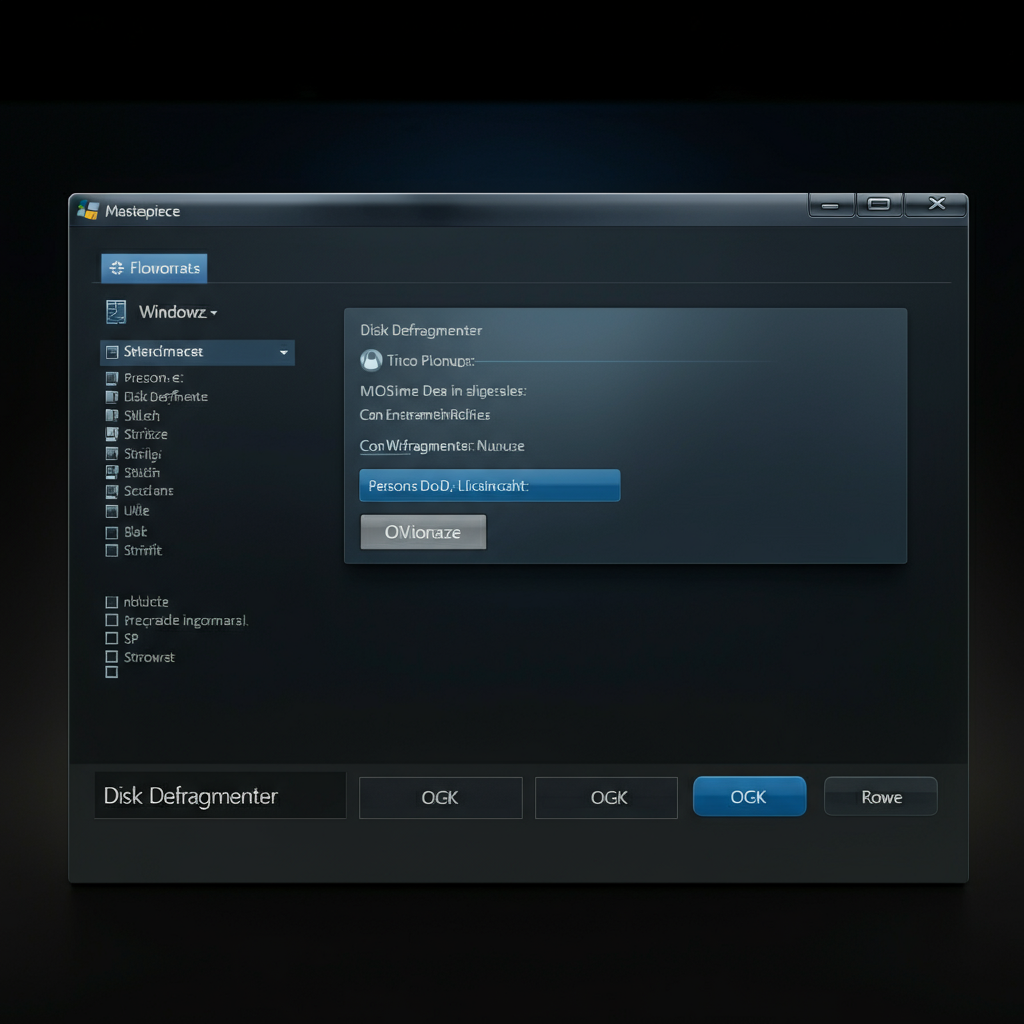
Over time, files on your hard drive can become fragmented, meaning that the different parts of a file are stored in different locations on the disk. This can slow down access times as your computer has to search for all the pieces of the file. Disk Defragmenter (Windows) reorganizes the files on your hard drive, placing related files closer together to improve performance. Do NOT defragment an SSD. For SSDs, ensure that TRIM is enabled. TRIM is a command that tells the SSD which data blocks are no longer in use and can be erased, improving performance and lifespan.
To check if TRIM is enabled on Windows, open Command Prompt as an administrator and type: `fsutil behavior query disabledeletenotify`. If the result is "DisableDeleteNotify = 0", TRIM is enabled. If the result is "DisableDeleteNotify = 1", TRIM is disabled, and you can enable it by typing: `fsutil behavior set DisableDeleteNotify 0`.
Tools or Materials Required
- Reputable Antivirus Software
- Your Operating System's Update Utility
- Patience
Common Mistakes to Avoid
- Downloading suspicious software from untrusted sources.
- Deleting files without understanding their purpose.
- Ignoring system updates for extended periods.
- Defragmenting an SSD.
FAQ Section
- Why is my computer still slow after trying these steps?
- It's possible that your computer has hardware limitations (e.g., low RAM, slow hard drive) or a more complex software issue that requires professional assistance. Consider upgrading your RAM or replacing a traditional HDD with an SSD.
- How often should I perform these maintenance tasks?
- Regularly restarting your computer (at least once a week) and emptying your Trash/Recycle Bin (daily or weekly) are good habits. Run a full system scan with your antivirus software at least once a month. Disk cleanup can be performed every few months, or when you notice your hard drive is getting full.
- Is it safe to use registry cleaners?
- Using registry cleaners is generally NOT recommended. They often cause more problems than they solve and can potentially damage your operating system. Stick to the methods outlined in this guide.
Conclusion
By following these steps, you can effectively diagnose and fix many of the common causes of a sluggish computer. Remember to be patient, methodical, and always back up your data before making significant changes to your system. With a little effort, you can restore your computer's performance and enjoy a faster, more responsive computing experience.