The App Store is your gateway to a universe of applications for your iPhone, iPad, and other Apple devices. While many apps come with a price tag, countless others are available for free. Navigating the App Store to find and download these free gems can seem daunting at first, but with a little guidance, it becomes a straightforward process.
This comprehensive guide will walk you through the different methods of finding and installing free apps on the App Store. We'll cover everything from searching for specific apps to browsing curated lists of popular free options. By the end of this guide, you'll be equipped with the knowledge to confidently expand the functionality of your Apple device without spending a dime. Remember to always check app permissions before downloading, ensuring you're comfortable with the level of access the app requests.
Whether you're a new iPhone user or simply looking to discover new free apps, this guide is for you. We’ll also cover troubleshooting tips and address some common concerns. Let's dive in!
Step 1: Opening the App Store
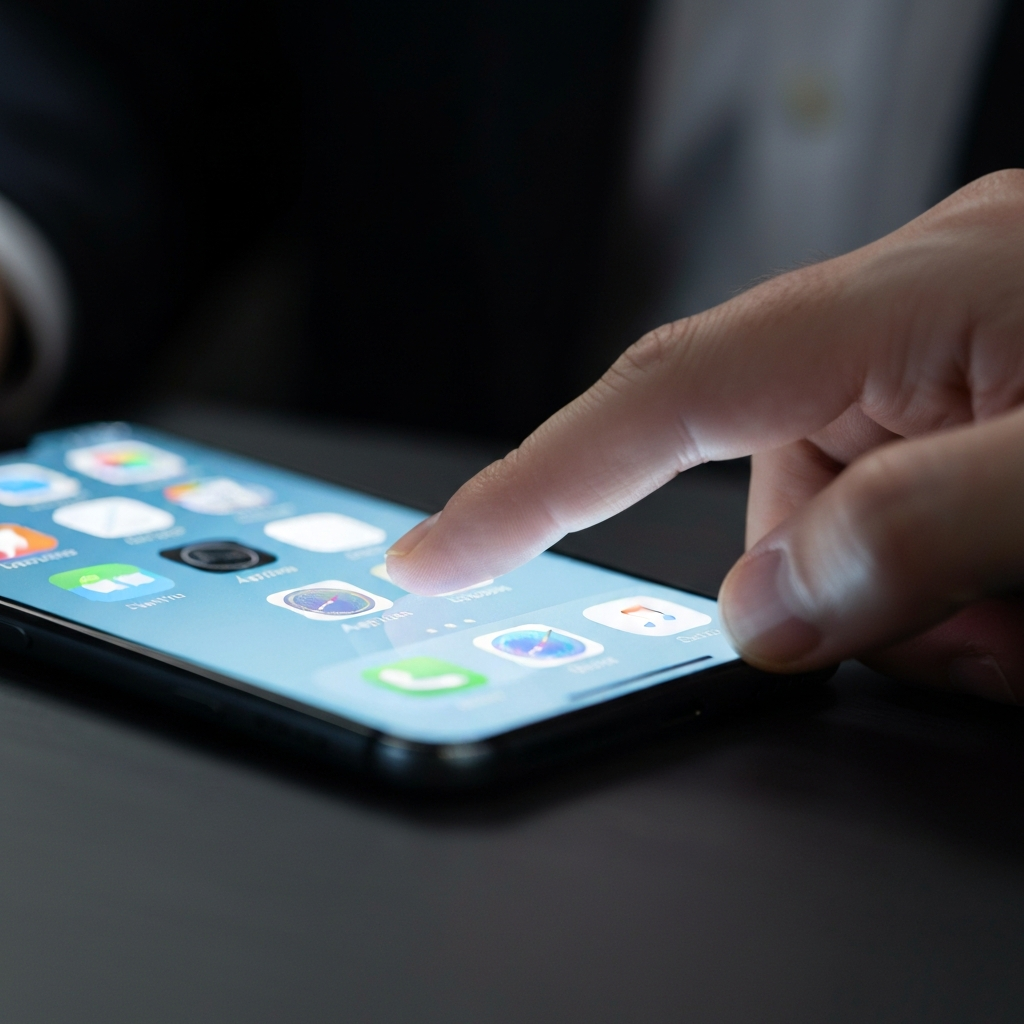
The first step is to locate and open the App Store application on your iPhone or iPad. The App Store icon is a distinctive white "A" logo against a light blue background. It's typically found on your home screen, but if you have many apps, it might be tucked away in a folder or on a different page. If you can't find it, use the Spotlight search feature by swiping down from the middle of your home screen and typing "App Store." Alternatively, it may be in the App Library, accessible by swiping left past your last home screen.
Step 2: Searching for a Specific App
If you have a particular app in mind, the search function is the most efficient way to find it. At the bottom of the App Store screen, you'll see a row of icons. Tap the "Search" icon, which resembles a magnifying glass. This will take you to the search interface. In the search bar at the top of the screen, type the name of the app you're looking for. Even if you're not entirely sure of the exact name, try entering keywords related to the app's function. For example, if you want a photo editing app, typing "photo editor" will yield relevant results.

Step 3: Browsing the App's Info Page
Once you've performed your search, a list of apps matching your query will appear. Scroll through the results and tap on the app that interests you to view its information page. This page provides crucial details about the app, including screenshots, user ratings and reviews, a description of its features, and information about in-app purchases (if any). Pay close attention to the user reviews to get an idea of the app's quality and reliability. Negative reviews can be a red flag. Check the developer's name to ensure it's a reputable source.
Step 4: Identifying and Downloading Free Apps
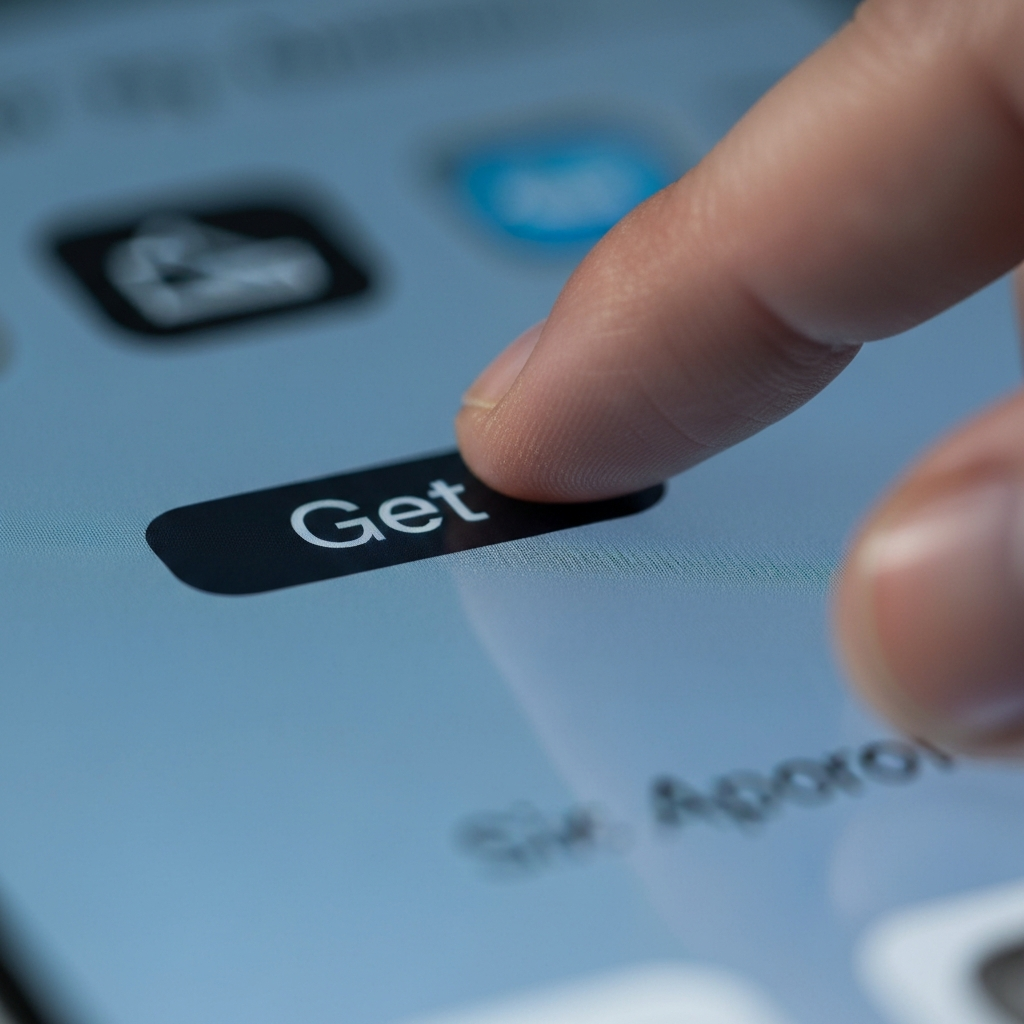
On the app's info page, look for a button labeled "Get" next to the app's name. This indicates that the app is free to download. If the button displays a price instead, the app is a paid app. Be wary of apps that are "free to download" but heavily rely on in-app purchases for essential features. These can quickly become expensive. Once you've confirmed that the app is free, tap the "Get" button.
Step 5: Authenticating the Download
After tapping "Get," the button will likely change to "Install." Tapping this will initiate the download process. Depending on your iPhone or iPad settings, you may be prompted to authenticate the download using Face ID, Touch ID, or your Apple ID password. This is a security measure to prevent unauthorized downloads. Ensure your Apple ID is secured with a strong password and two-factor authentication to protect your account. If you’re on a shared device, be extra cautious.

Step 6: Opening the App
Once the download and installation are complete, the "Install" button will transform into an "Open" button. Tapping this button will launch the newly installed app. You can also find the app icon on your home screen or in the App Library. If the app doesn't appear on your home screen immediately, swipe left to access the App Library, where newly installed apps are typically located in the "Recently Added" folder.

Step 7: Browsing Top Free Apps
If you don't have a specific app in mind and are simply looking for something new to try, you can browse the "Top Free Apps" section of the App Store. To do this, open the App Store and tap either "Apps" or "Games" at the bottom of the screen, depending on whether you're looking for general apps or games. Scroll down until you find the "Top Free Apps" or "Top Free Games" section. This section displays a curated list of the most popular free apps currently being downloaded.
Common Mistakes to Avoid
- Ignoring App Permissions: Always review the permissions an app requests before downloading. If an app asks for access to information that seems unrelated to its function, it's a potential red flag.
- Downloading from Unverified Sources: Only download apps from the official App Store. Avoid third-party app stores, as they may contain malware or pirated software.
- Overlooking In-App Purchases: Some apps are free to download but heavily monetize through in-app purchases. Be aware of this before investing time in an app.
- Not Reading Reviews: User reviews provide valuable insights into an app's quality and reliability. Take the time to read them before downloading.
Safety Considerations
While the App Store is generally a safe place to download apps, it's still important to exercise caution. Be wary of apps that request excessive permissions or have a large number of negative reviews. Regularly update your iOS or iPadOS software to ensure you have the latest security patches. Consider using a VPN for added security, especially when using public Wi-Fi networks.
Pro Tips
- Set Download Restrictions: You can set restrictions on app downloads and in-app purchases in the "Screen Time" settings to prevent accidental or unauthorized downloads.
- Use Family Sharing: If you have Family Sharing set up, you can share purchased apps with your family members.
- Check the "Today" Tab: The App Store's "Today" tab often features curated lists of free apps and games.
FAQ Section
- Q: Why does the "Get" button sometimes show a cloud icon?
- A: The cloud icon indicates that you've previously downloaded the app on your Apple ID. Tapping the cloud icon will re-download the app.
- Q: Can I download free apps without an Apple ID?
- A: No, an Apple ID is required to download any app from the App Store, even free ones.
- Q: What if I don't have enough storage space to download an app?
- A: You'll need to free up storage space on your device by deleting unused apps, photos, or videos.
Conclusion
Downloading free apps from the App Store is a simple process once you understand the basics. By following the steps outlined in this guide, you can easily find and install a wide variety of free apps to enhance the functionality of your iPhone or iPad. Always prioritize safety by reviewing app permissions and reading user reviews before downloading. Happy downloading!