In today's mobile-first world, the ability to manage and share documents seamlessly across different devices is paramount. While DOCX is a widely used format for creating and editing documents, its compatibility can sometimes be limited. This is where the PDF (Portable Document Format) comes in, offering a universally accessible and consistent viewing experience regardless of the operating system or device. Converting your DOCX files to PDF on your mobile device is a straightforward process that ensures your documents can be opened and viewed by virtually anyone.
This guide will walk you through several reliable methods to convert DOCX to PDF directly on your smartphone or tablet, covering both Android and iOS platforms. We'll explore options using built-in features, free online tools, and dedicated mobile apps. Each method offers a different level of convenience and features, allowing you to choose the one that best suits your needs.
Whether you're a student, a professional, or simply someone who needs to share documents on the go, mastering these conversion techniques will greatly enhance your productivity and document management skills. Prepare to streamline your workflow and ensure your documents always look their best, no matter where they're opened.
Step 1: Using Google Drive
Uploading Your DOCX to Google Drive
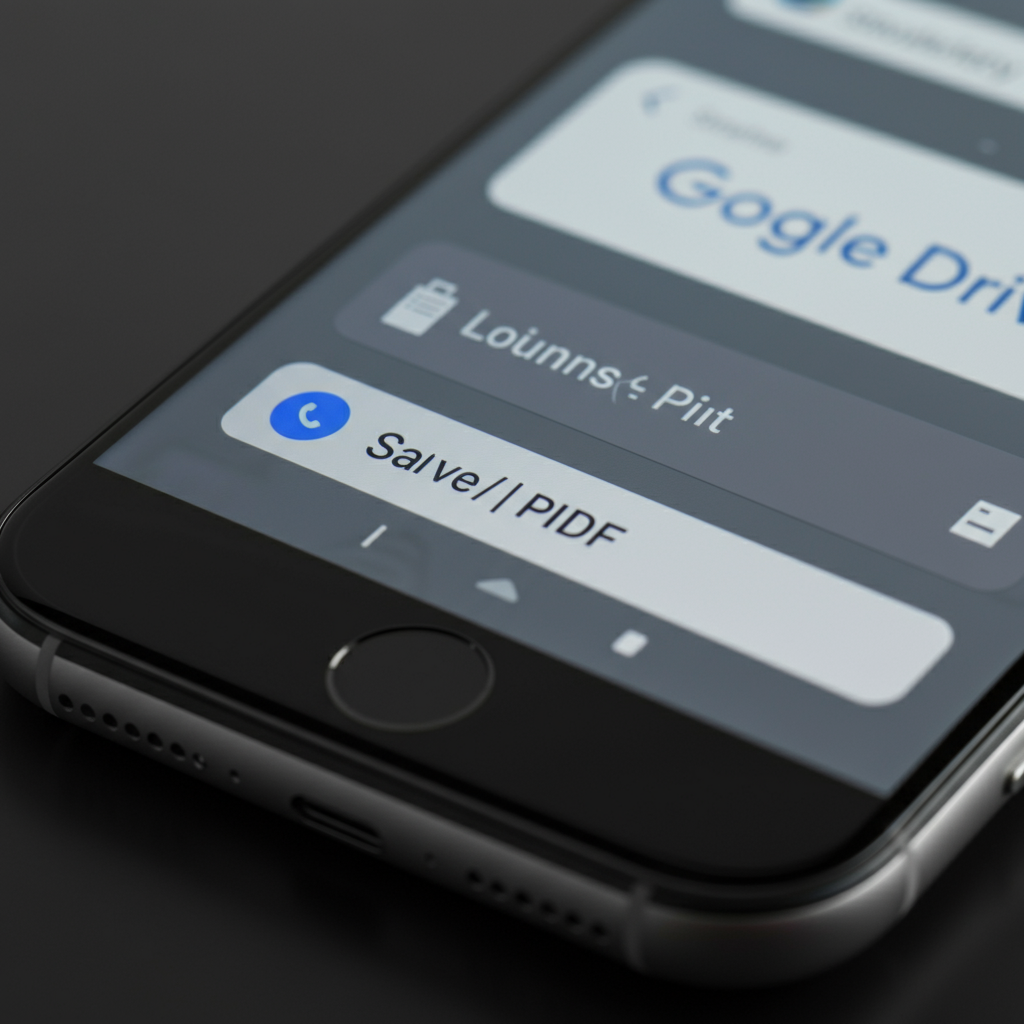
Google Drive, a ubiquitous cloud storage service, offers a surprisingly simple way to convert DOCX files to PDF on both Android and iOS devices. First, ensure you have the Google Drive app installed. If not, download it for free from your respective app store. Open the app and tap the "+" button, typically located in the lower-right corner. Select "Upload" and navigate to the DOCX file you wish to convert. The upload speed will depend on your internet connection and file size, so be patient. Once uploaded, the file will be accessible within your Google Drive.

Converting to PDF within Google Drive
Once the DOCX file is uploaded, locate it within your Google Drive. Tap the three-dot menu (⋮) next to the file name. A menu will appear; scroll through the options and select "Print". This might seem counterintuitive, but it's the key to accessing the "Save as PDF" function. In the print preview screen, look for a drop-down menu at the top, which likely displays available printers. Tap this menu and select "Save as PDF." Finally, tap the download icon (usually a downward-pointing arrow with "PDF") to save the converted file. Choose a location on your device to save the PDF, such as your Downloads folder or a specific document directory.
Step 2: Using the Smallpdf Mobile App
Installing and Opening Smallpdf
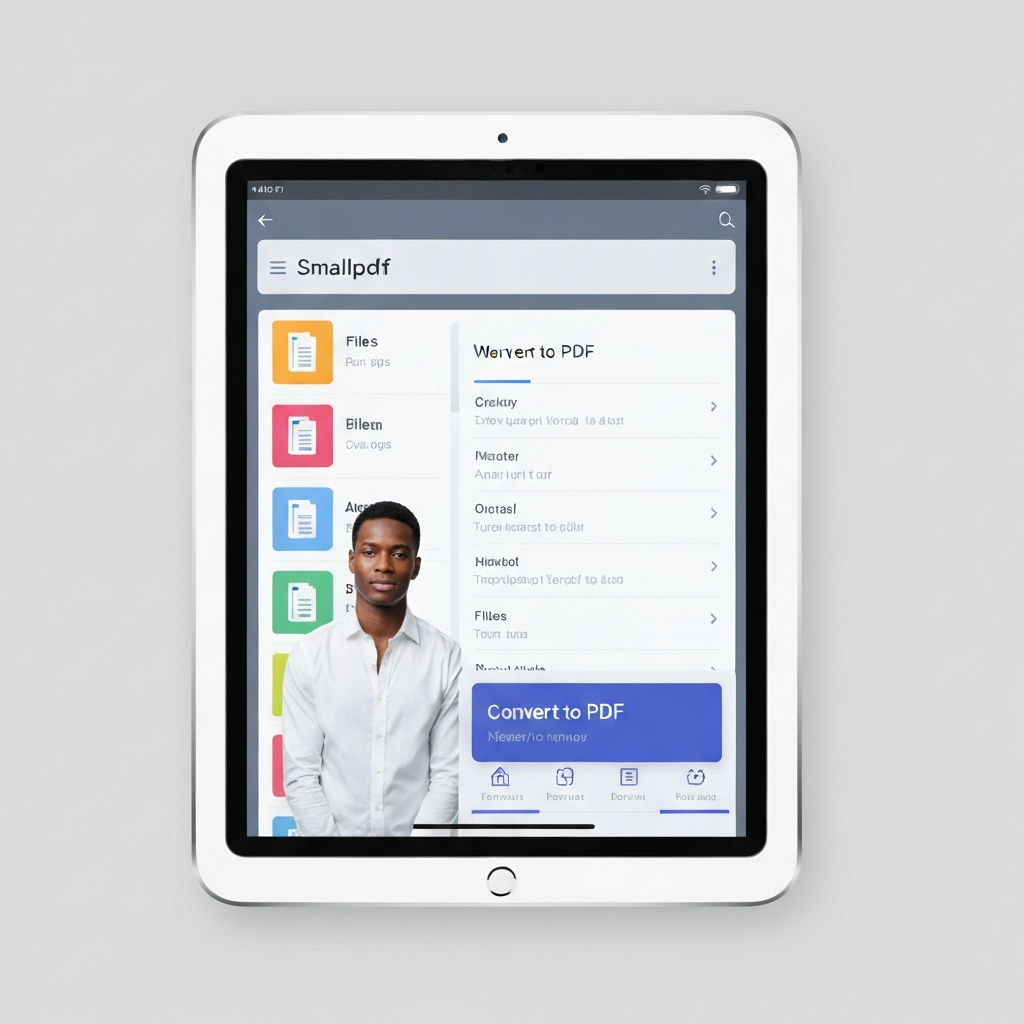
Smallpdf is a popular and user-friendly mobile app designed specifically for PDF-related tasks, including DOCX to PDF conversion. Download the Smallpdf app from the Google Play Store (Android) or the App Store (iOS). Once installed, open the app. You'll be greeted with a clean and intuitive interface. Smallpdf offers a free version with limited features and a paid subscription for unlimited access. For basic DOCX to PDF conversion, the free version is usually sufficient.

Converting with Smallpdf
Within the Smallpdf app, tap the "+" button, usually located at the bottom of the screen. Select "Files" to browse your device's storage. Navigate to and select the DOCX file you want to convert. Once selected, tap the three-dot menu (⋮) next to the DOCX document's name. A menu will appear with various options. Choose "Convert to PDF." The app will then process the file and generate a PDF version. You can then tap the PDF file to open, download, or share it. The conversion process is typically quick, but larger files may take a bit longer.
Step 3: Using Microsoft Word on Android
Opening Your Document in Word
If you have Microsoft Word installed on your Android device (available on the Google Play Store), you can use it to convert DOCX files to PDF directly. Open the Word app and locate the DOCX file you wish to convert. You might be prompted to open a project upon launching Word; otherwise, navigate to File > Open and choose your document. Ensure you have the latest version of the Word app for optimal performance and features.

Saving as PDF in Word
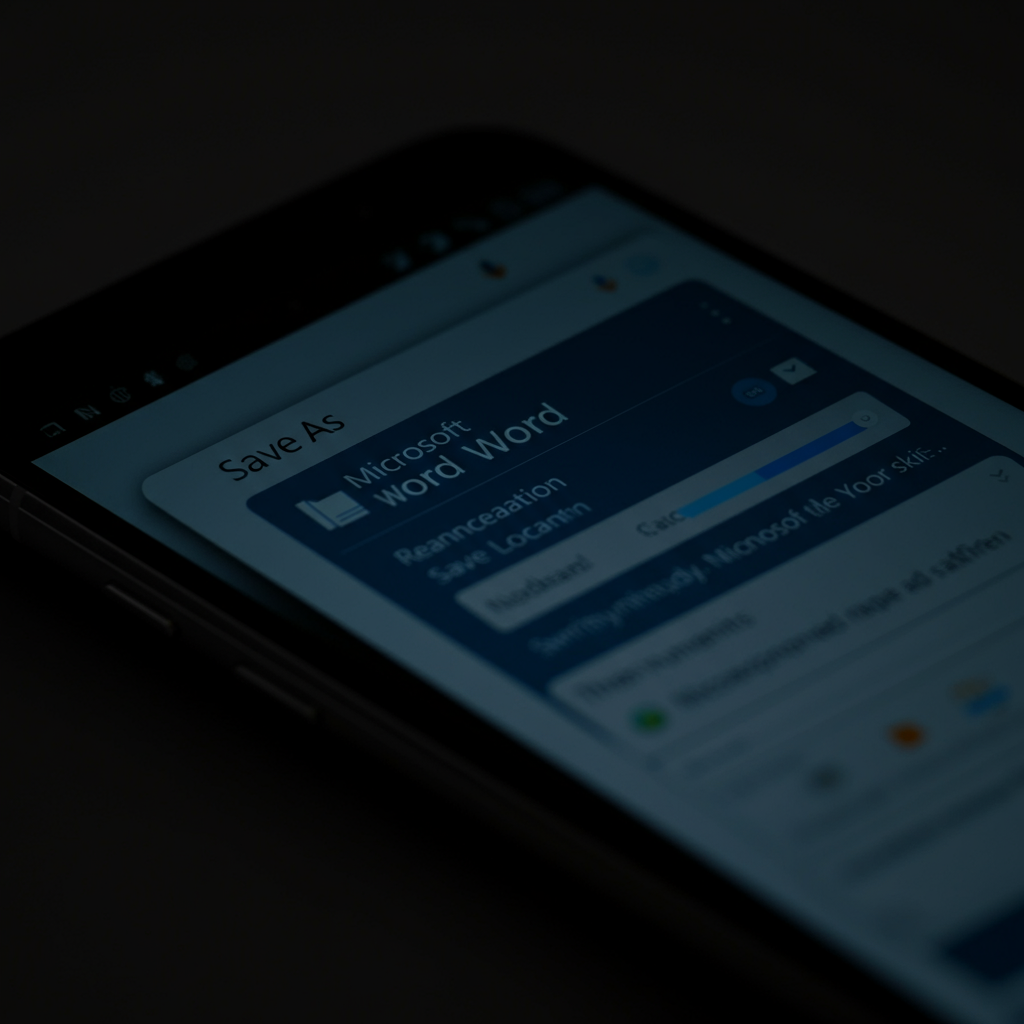
Once your document is open in Word, tap "File" in the editing ribbon above your workspace. Then, tap "Print." In the print options, tap the drop-down menu (if it doesn't already display "Save as PDF") and choose "Save as PDF". This option will convert your document to a PDF format. Tap "Save" at the bottom of the window. A window will pop up prompting you to choose a location and name for your PDF file. The PDF document will default to the same name as the DOCX file; consider renaming it to avoid confusion. Finally, tap "Save" again to store the PDF on your device.
Pro Tips
- Optimize for Mobile Viewing: Before converting, ensure your document is formatted for optimal mobile viewing. Use clear headings, concise paragraphs, and appropriately sized images.
- File Size Considerations: Large DOCX files can result in equally large PDF files. Consider compressing images or removing unnecessary elements to reduce the file size. Smaller PDF files are easier to share and store.
- Cloud Integration: Utilize cloud storage services like Google Drive or Dropbox to seamlessly access and manage your converted PDF files across multiple devices.
Common Mistakes to Avoid
- Forgetting to Save: Always double-check that you've saved the converted PDF file to your desired location on your device.
- Overwriting Original Files: Be mindful of file names and locations to avoid accidentally overwriting your original DOCX files.
- Ignoring Formatting Issues: Review the converted PDF file to ensure the formatting is preserved correctly. Minor adjustments may be necessary. Pay close attention to fonts, images, and tables.
FAQ Section
- Q: Is it safe to use online DOCX to PDF converters?
- A: While many online converters are safe, exercise caution and only use reputable websites. Avoid uploading sensitive or confidential documents. Consider using offline methods for sensitive data.
- Q: Can I convert password-protected DOCX files?
- A: You will typically need to remove the password protection from the DOCX file before converting it to PDF. Many online converters and apps cannot handle password-protected files.
- Q: Are there any limitations to the free methods?
- A: Yes, free methods may have limitations such as file size restrictions, watermarks, or limited access to advanced features. Paid options often offer more flexibility and features.
Conclusion
Converting DOCX to PDF on your mobile device is a valuable skill in today's digital landscape. By mastering the techniques outlined in this guide, you can ensure your documents are universally accessible, professionally presented, and easily shared. Whether you choose to leverage the power of Google Drive, the convenience of the Smallpdf app, or the familiarity of Microsoft Word, you now have the tools to seamlessly convert your DOCX files to PDF on the go. Remember to prioritize file security, optimize for mobile viewing, and choose the method that best aligns with your individual needs and preferences.