Your cursor might seem like a small detail, but it's an integral part of your daily computer experience. Whether you're seeking better visibility, expressing your personal style, or simply looking for a change, customizing your cursor can significantly improve usability and inject a bit of fun into your routine. This guide offers a complete walkthrough on how to modify your cursor on various operating systems, including Windows, macOS, Chromebook, and Linux.
From adjusting the size and color to installing custom cursor themes, the possibilities are vast. We’ll explore both built-in settings and third-party tools, equipping you with the knowledge to personalize your cursor to perfection. Get ready to transform your digital interaction with a cursor that truly reflects you!
Follow the steps below to learn how to modify your cursor based on your operating system. Be careful to follow each step exactly!
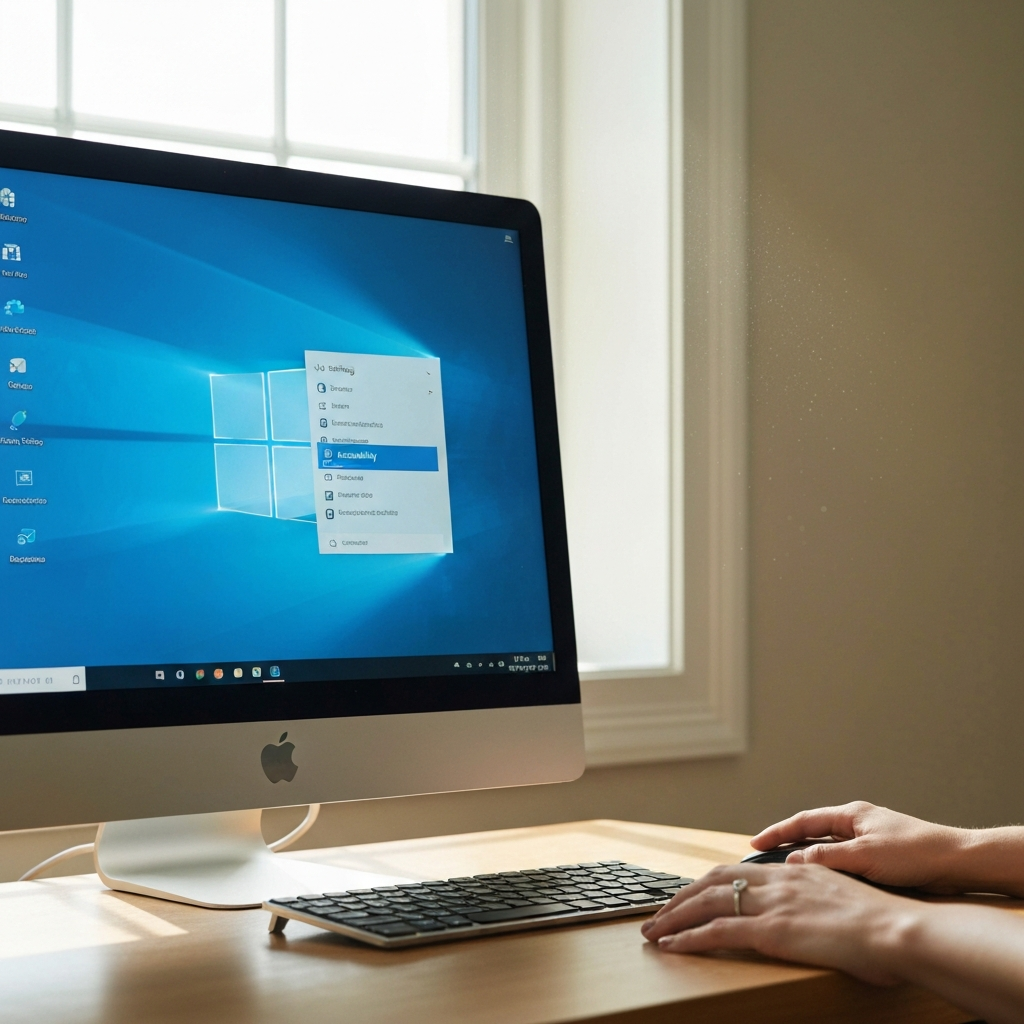
1. Changing Cursor Settings on Windows Using PC Settings
This method utilizes the built-in Accessibility settings in Windows for basic cursor customization. It's ideal for adjusting the size and color of your cursor without delving into advanced settings. This is the easiest method for basic cursor changes, especially for users seeking enhanced visibility. This approach offers immediate visual feedback, allowing you to fine-tune the cursor to your preferred size and color in real-time.
2. Modifying Cursor Settings on Windows Using Mouse Properties
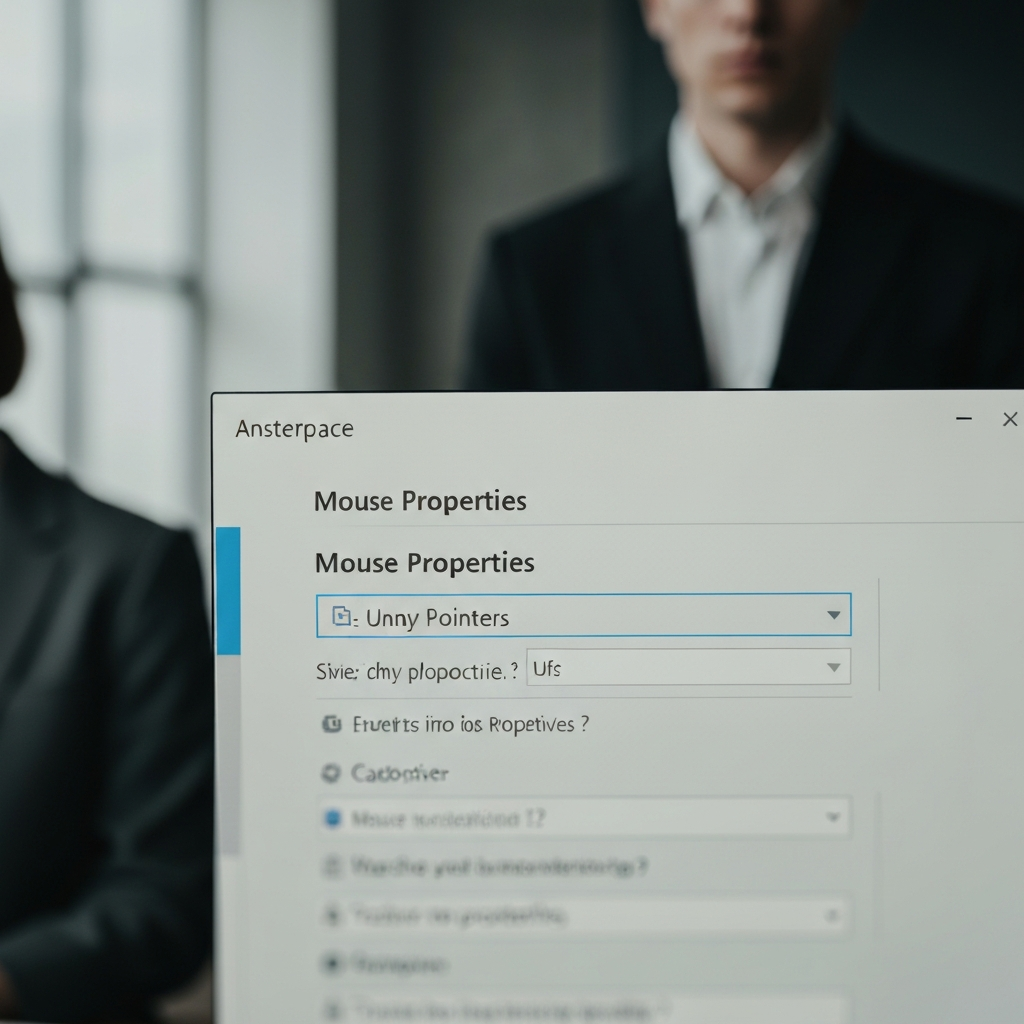
For advanced customization, Windows offers the "Mouse Properties" menu, accessible through the Control Panel or Settings. This method allows you to change the entire cursor scheme, including individual cursor types for different actions. You can also enable or disable the cursor shadow. It's a powerful tool for users seeking fine-grained control over every aspect of their cursor's appearance. This method is particularly useful for installing custom cursor themes downloaded from the internet.
3. Adjusting Cursor Settings on macOS
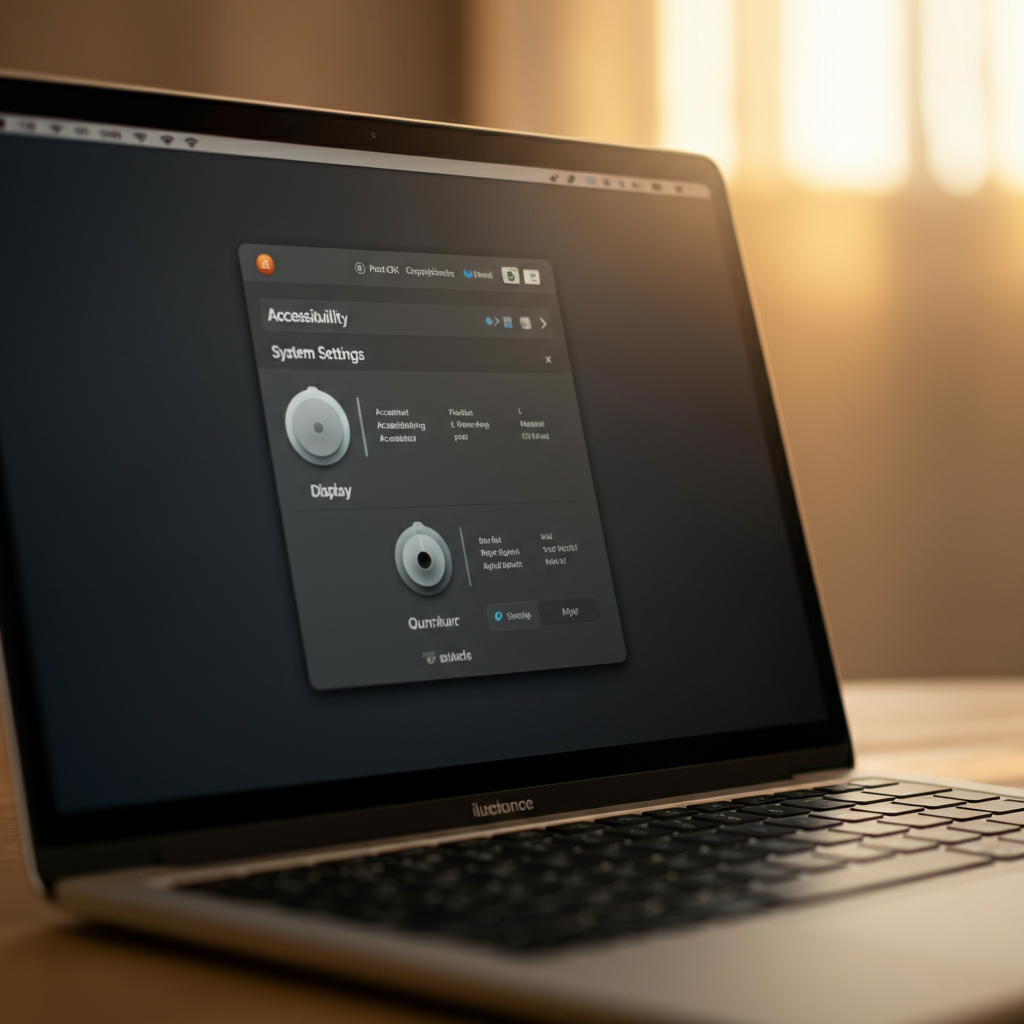
macOS provides a straightforward way to change the cursor size and color directly within the System Settings. The Accessibility settings offer easy-to-use sliders and color palettes for quick adjustments. While the options are less extensive than on Windows, the process is intuitive and user-friendly. Keep in mind that more advanced cursor customization on macOS might require third-party tools.
4. Customizing Cursor Settings on Chromebook
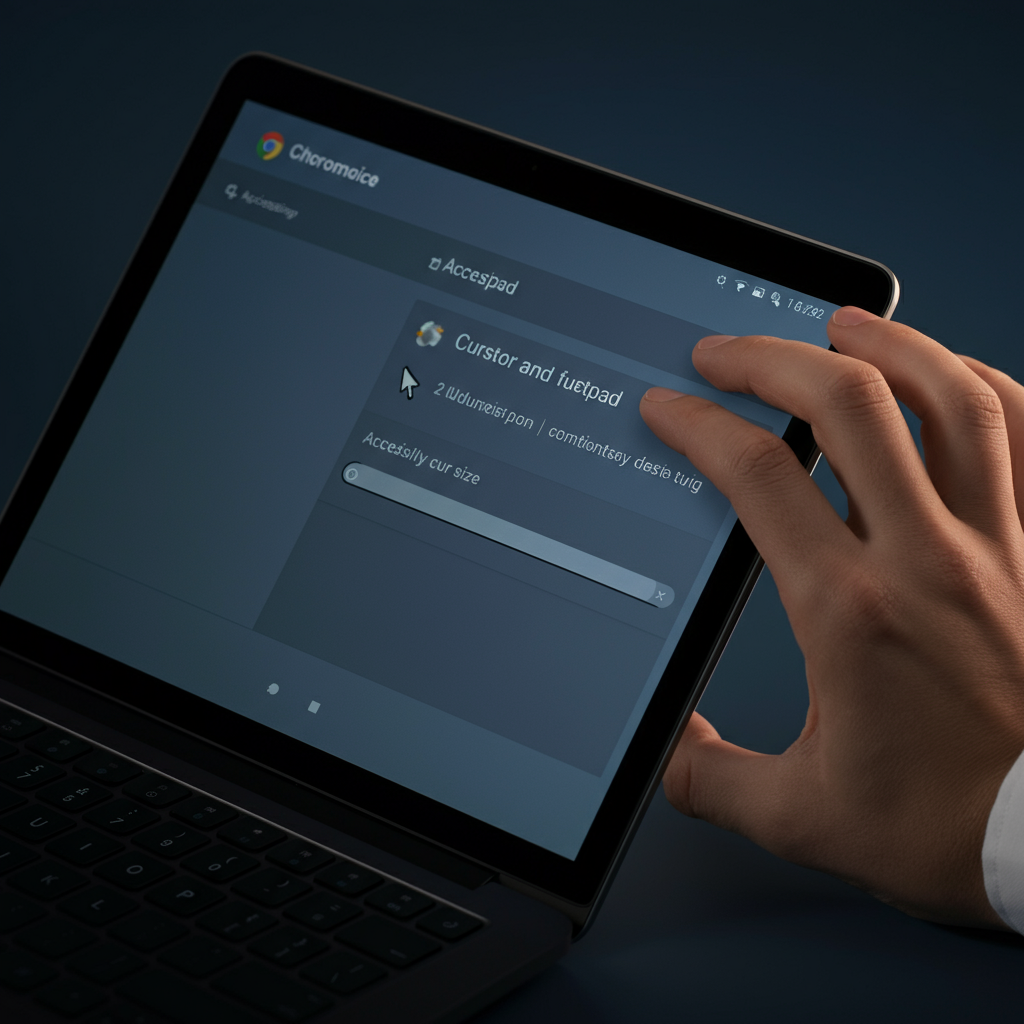
Chromebooks offer a simplified set of cursor customization options within the Accessibility settings. You can easily adjust the cursor size and color to improve visibility. The settings are designed for ease of use, making it simple to personalize the cursor for optimal viewing. The simplicity is good for beginners, but can be limiting to advanced users.
5. Changing Cursor Settings on Linux
Cursor customization on Linux varies depending on the distribution (distro) you're using. Generally, you can use the GNOME Tweaks tool or the system settings to select from pre-installed cursor themes. For more advanced customization, you may need to download and install custom cursor packs. Customizing the cursor on Linux can often require a bit of technical knowledge.

6. Installing Custom Cursors
To install custom cursors, you first need to download them from a reputable source. For Windows, you'll typically use the Mouse Properties menu to browse and select the downloaded cursor files. For Linux, you'll need to copy the cursor files to the appropriate directory (usually `/usr/share/icons/`) and then select the theme in the system settings or GNOME Tweaks. Always download cursors from trusted sources to avoid malware. Remember to back up your existing settings before making any changes.

Common Mistakes to Avoid
- Downloading cursors from untrusted sources. Stick to reputable websites to avoid malware.
- Forgetting to apply the changes after selecting a new cursor scheme.
- Overlooking compatibility issues with custom cursors on different operating systems.
- Not backing up existing settings before making changes.
FAQ Section
Q: Can I revert back to the default cursor?
A: Yes, in most operating systems, there's an option to restore the default cursor settings.
Q: Where can I find safe custom cursors?
A: Reputable websites include Open Cursor Library and GNOME-Look.org (for Linux).
Q: How do I create my own custom cursor?
A: You can use built-in tools in Windows or third-party software like Cursor.cc.
Conclusion
Changing your cursor is a simple yet effective way to personalize your computer experience. By following this guide, you can easily adjust the size, color, and style of your cursor to suit your preferences and needs. Whether you're aiming for better visibility or a unique aesthetic, the ability to customize your cursor empowers you to create a more comfortable and enjoyable digital environment. So, go ahead and experiment with different options to find the perfect cursor that complements your workflow and personality.