Have you ever needed to switch the primary language displayed on your computer? Whether you're learning a new language, working in a multilingual environment, or simply prefer a different language setting, changing your computer's display language is a straightforward process. This guide provides detailed instructions for changing the language settings on Windows, macOS, and Linux operating systems.
Switching your computer's language affects the system-wide interface, including menus, dialog boxes, and other text elements. It's important to remember that changing the system language will not automatically translate the content of your files or websites. You might still need to configure language settings within individual applications or web browsers.
Follow these step-by-step instructions to successfully change the language on your computer and tailor it to your specific needs. We will cover potential pitfalls and essential considerations to ensure a smooth transition.
Step 1: Windows - Accessing Language Settings
To begin, you need to access the Language settings panel in Windows. The easiest way to do this is by pressing the Windows key + I to open the Settings app directly. Alternatively, you can click on the Start menu icon, usually located in the bottom-left corner of your screen, and then click on the gear-shaped "Settings" icon. Once the Settings app is open, look for the "Time & Language" option and click on it. This will bring you to a screen where you can adjust various settings related to date, time, region, and most importantly, language.

Step 2: Windows - Adding a New Language
If the language you want to use is already listed under the "Preferred languages" section, you can skip this step. However, if the desired language is not available, you'll need to add it. To do this, click on the "Add a language" button, which is typically located below the "Preferred languages" list. A new window will appear, presenting you with a comprehensive list of available languages. You can either scroll through the list or use the search bar at the top to quickly find the language you're looking for. Note that some languages may have regional variations, such as "English (United States)" or "English (United Kingdom)." Select the appropriate variation for your needs.
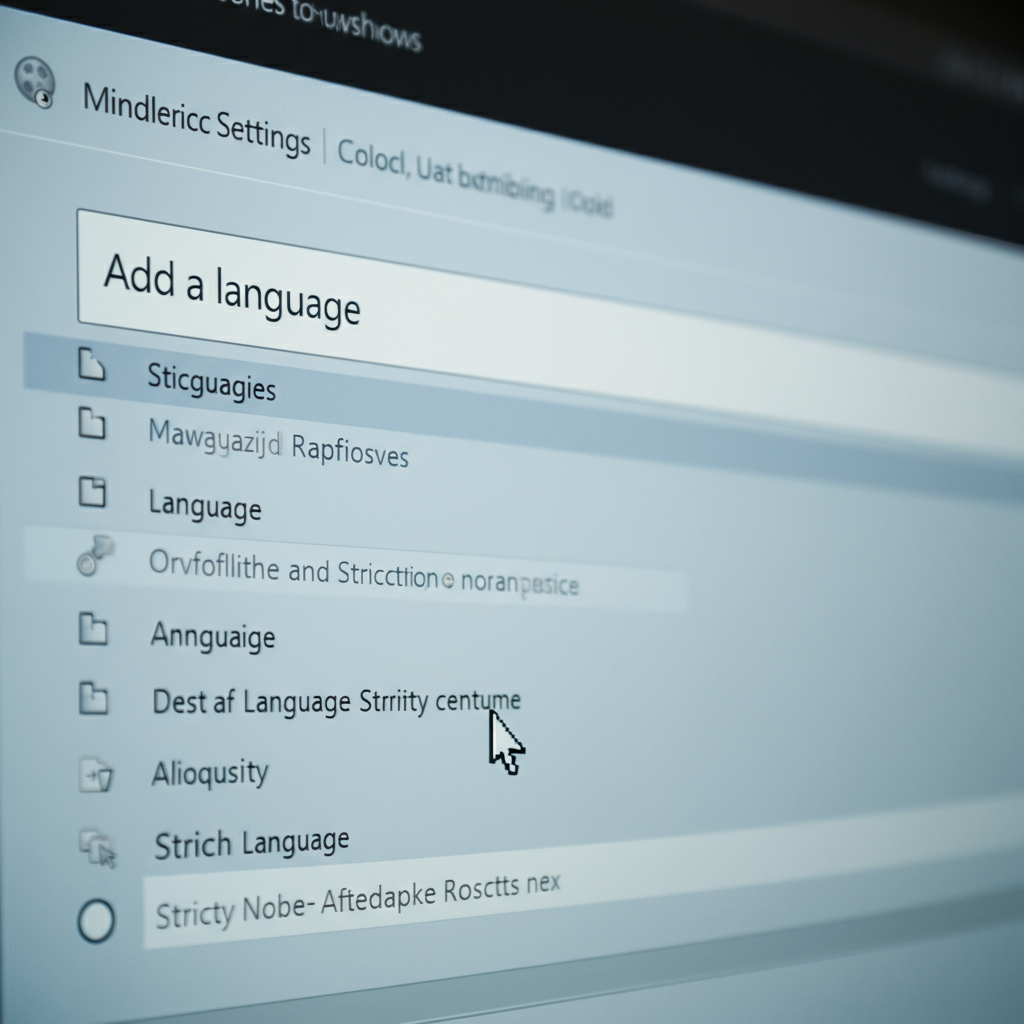
Step 3: Windows - Installing the Language Pack
After selecting your desired language, click "Next." You'll be presented with a screen where you can choose which language features to install. Ensure the box labeled "Set as my Windows display language" is checked. This will make the selected language the default language for your system's interface. Then, click the "Install" button. Windows will then download and install the necessary language pack. This process may take a few minutes, depending on your internet connection speed. You can monitor the progress of the installation under the "Preferred languages" section in the Language settings panel.
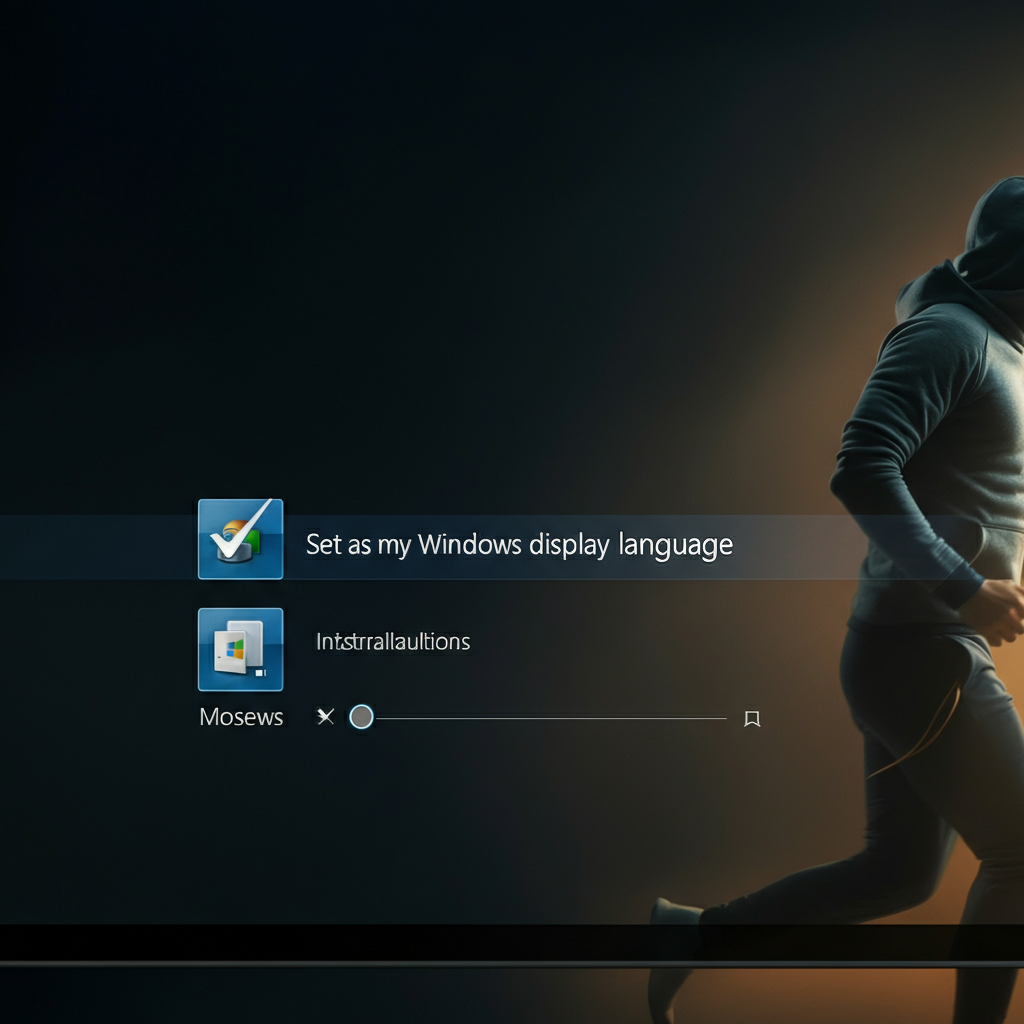
Step 4: Windows - Changing the Display Language and Restarting
Once the installation is complete, select the newly installed language from the "Windows display language" dropdown menu. You'll be prompted to sign out of your account to apply the changes. Save any open documents or work before proceeding. Click "Sign out" to log out of your account. When you sign back in, Windows will display in your chosen language. If you don't see the changes immediately, try restarting your computer. A full restart often ensures that all system components are updated to the new language setting.

Step 5: macOS - Accessing Language & Region Settings
On macOS, changing the system language is done through the "System Settings" (or "System Preferences" on older versions). Click on the Apple icon in the top-left corner of your screen and select "System Settings" from the dropdown menu. In the System Settings window, locate and click on "General." In the General settings, you should see the "Language & Region" option. Click on this to access the language settings for your Mac.
Step 6: macOS - Adding or Prioritizing a Language
In the "Language & Region" settings, you'll see a section labeled "Preferred Languages." To add a new language, click the "+" button below the list. A window will appear with a list of available languages. Select your desired language and click "Add." If the language is already listed but not at the top, you can drag it to the top of the list to prioritize it. macOS will use the first language in the list as the default, and if that language isn't fully supported by an application, it will fall back to the next language in the list.
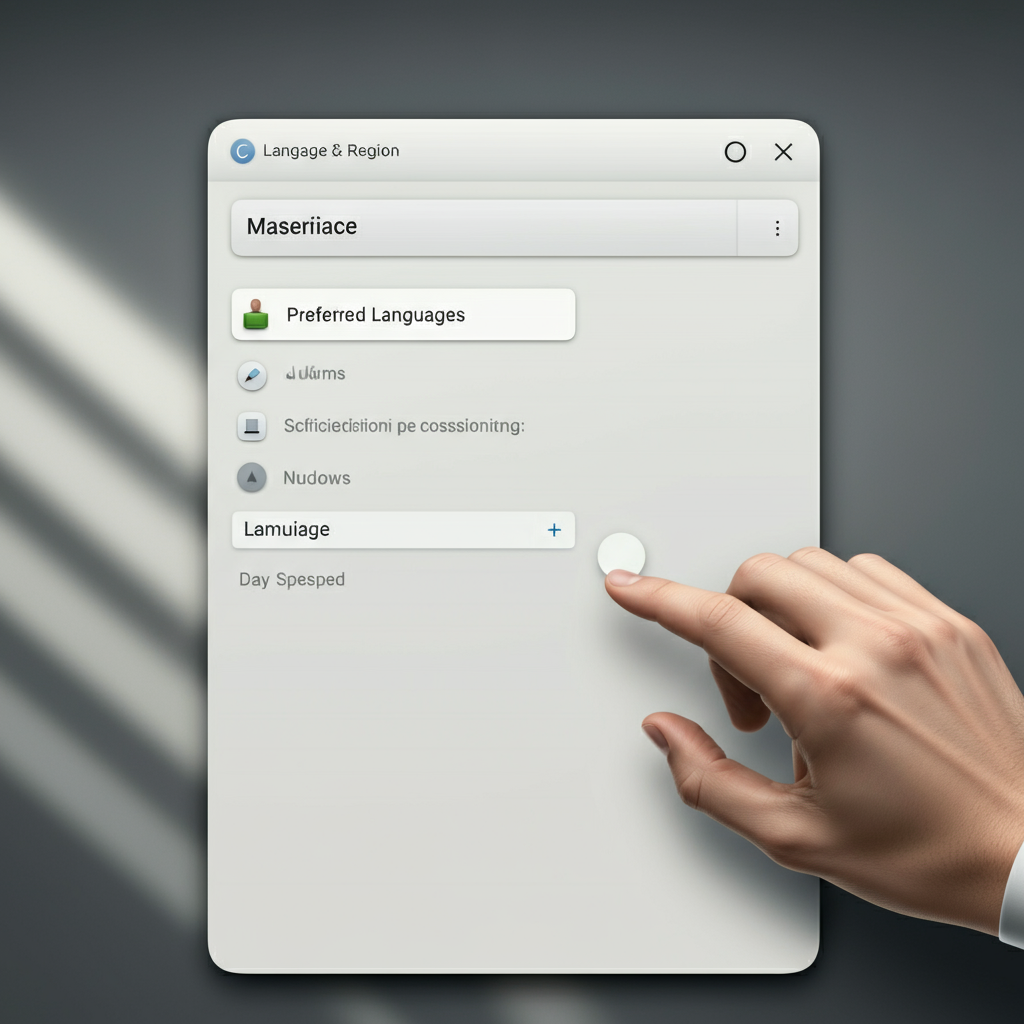
Step 7: macOS - Restarting Your Mac
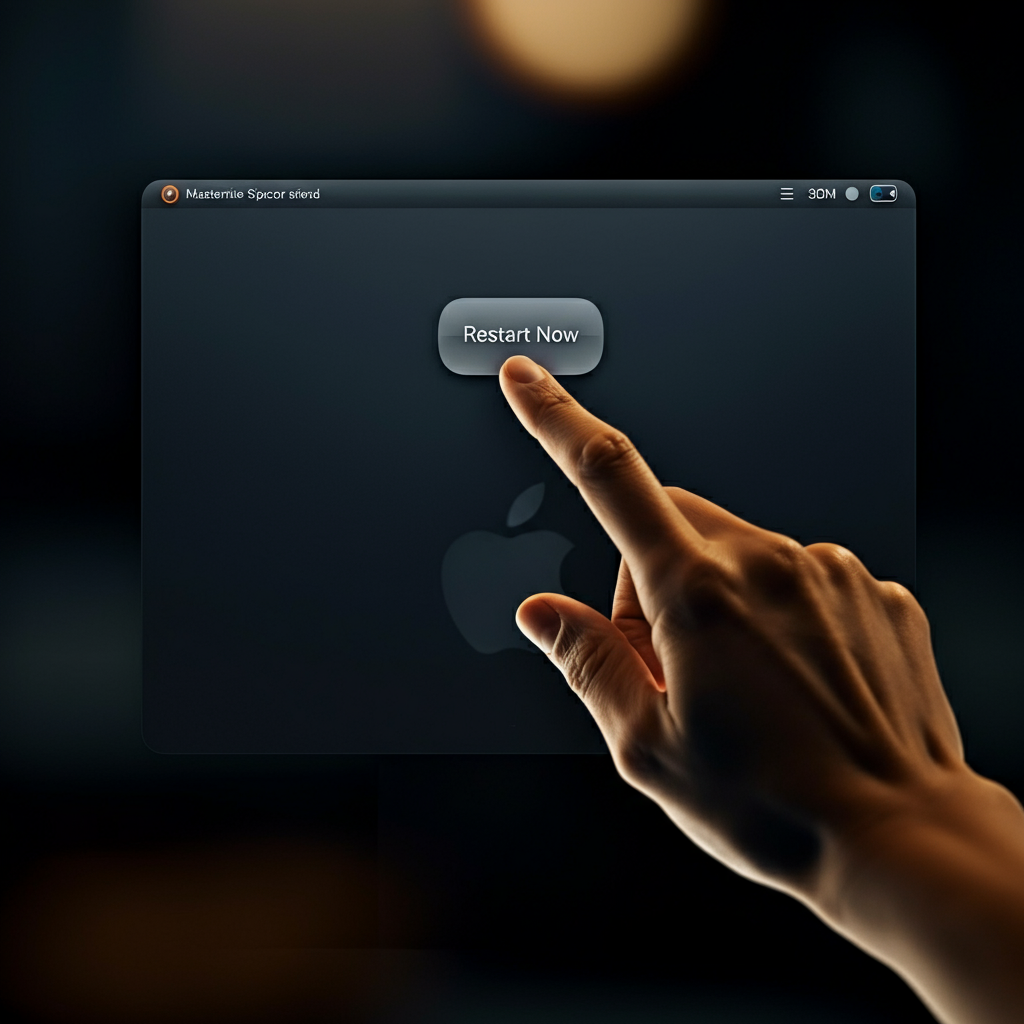
After adding or prioritizing your desired language, macOS will prompt you to restart your computer to apply the changes. Save any open documents or work before proceeding. Click "Restart Now" to restart your Mac. Once your Mac has restarted, the system interface will be displayed in your chosen language. If you have multiple user accounts on your Mac, you can choose to apply the language change to the login window, ensuring that all users see the new language.
Step 8: Linux - Editing the Locale File
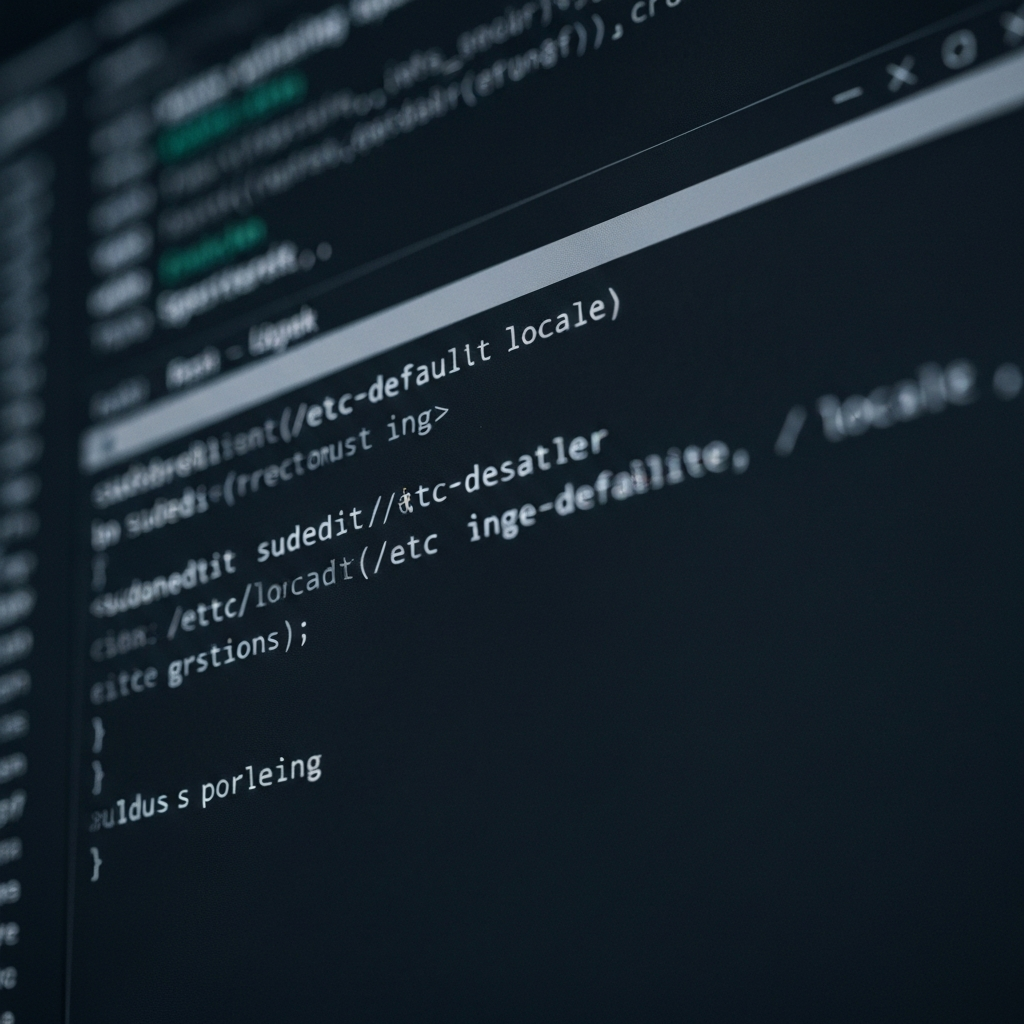
Changing the language in Linux typically involves editing configuration files using the Terminal. Open the Terminal application. A common shortcut to open Terminal is Ctrl+Alt+T. Once the Terminal is open, you'll need to edit the `/etc/default/locale` file. To do this, use the following command: `sudoedit /etc/default/locale`. You'll be prompted for your password. Enter it and press Enter. The `locale` file will open in a text editor.
Step 9: Linux - Modifying Language Variables
In the `/etc/default/locale` file, you'll see lines defining the language settings. Modify these lines to reflect your desired language. For example, to set the language to English (United States), you would change the lines to: `LANG="en_US.UTF-8"` and `LANGUAGE="en_US:en"`. Replace `en_US` with the appropriate language code for your desired language. Ensure that you use the correct language code and encoding, such as UTF-8, to avoid display issues. Save the file after making the changes.
Step 10: Linux - Editing the .pam_environment File
Next, you need to edit the `.pam_environment` file. In the Terminal, run the following command: `sudoedit ~/.pam_environment`. This will open the `.pam_environment` file in a text editor. Similar to the previous step, modify the lines defining the language settings to match your desired language. For example: `LANG=en_US.UTF-8` and `LANGUAGE=en_US`. Save the file after making the changes. Remember to replace `en_US` with the correct language code for your chosen language.
Step 11: Linux - Rebooting the System
After editing both the `/etc/default/locale` and `.pam_environment` files, you need to reboot your system for the changes to take effect. In the Terminal, run the command `sudo reboot`. Your computer will restart, and when it boots up, the system interface should be displayed in your chosen language. If the language doesn't change after rebooting, double-check the language codes in both files and ensure they are correct.
Common Mistakes to Avoid
- Incorrect Language Codes: Using the wrong language code can lead to unexpected behavior or display issues. Double-check the language codes before applying the changes.
- Forgetting to Restart: Changes to the system language often require a restart to take effect. Don't forget to restart your computer after making the changes.
- Not Setting the Windows Display Language: When adding a language in Windows, make sure to check the box that sets it as the Windows display language.
- Conflicting Application Settings: Some applications have their own language settings that may override the system language. Check the application's settings to ensure it's using your desired language.
FAQ Section
- Q: Will changing the system language translate my existing documents?
- A: No, changing the system language only affects the system interface, not the content of your files.
- Q: Can I change the language for a specific application without changing the system language?
- A: Yes, some applications allow you to set a specific language in their settings, overriding the system language.
- Q: What if I accidentally set the language to something I don't understand?
- A: Use a translation app on your phone to help you navigate the settings and change the language back to something you can read. Familiarize yourself with the icons and general layout of the settings menus beforehand.
In conclusion, changing the language on your computer is a relatively simple process, regardless of whether you're using Windows, macOS, or Linux. By following the step-by-step instructions outlined in this guide and avoiding common mistakes, you can successfully tailor your computer's language settings to your specific needs and preferences. Remember to double-check your language codes, restart your computer after making changes, and adjust individual application settings if necessary.