The AirPods Max offer a premium audio experience, but like any wireless device, they can sometimes encounter connectivity issues. A frustrating experience is when your AirPods Max simply refuse to connect to your iPhone, iPad, Mac, or other Bluetooth-enabled devices. Don't panic! This guide will walk you through a series of troubleshooting steps to get your AirPods Max connected and working smoothly again.
We'll cover everything from basic checks to more advanced solutions, ensuring you've explored all possible avenues to resolve the problem. This guide focuses on practical solutions you can implement at home, without needing specialized technical skills. Follow these steps methodically, and you'll likely be enjoying your immersive audio experience again in no time.
Remember to try each step and test the connection before moving on to the next. Often, the simplest solution is the one that works!
Step 1: Restart Your AirPods Max
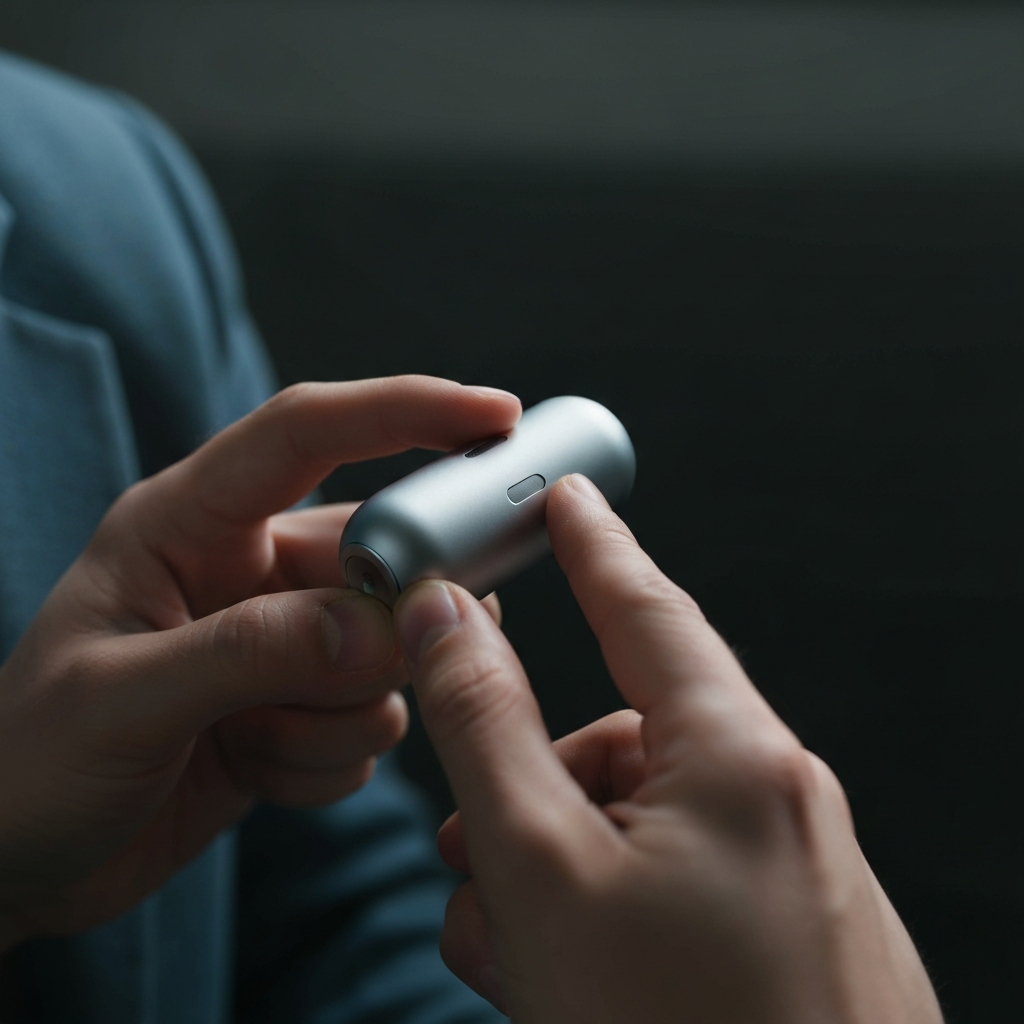
A simple restart is often the first and easiest solution to many electronic device issues. This process can clear temporary software glitches that might be interfering with the Bluetooth connection. To restart your AirPods Max, simultaneously press and hold both the noise control button and the Digital Crown button. Continue holding both buttons until the status light on the bottom of the right earcup flashes amber. Once the amber light appears, release both buttons. The AirPods Max will then restart. After a few seconds, try connecting them to your device again.
Step 2: Verify Bluetooth is Enabled on Your Device
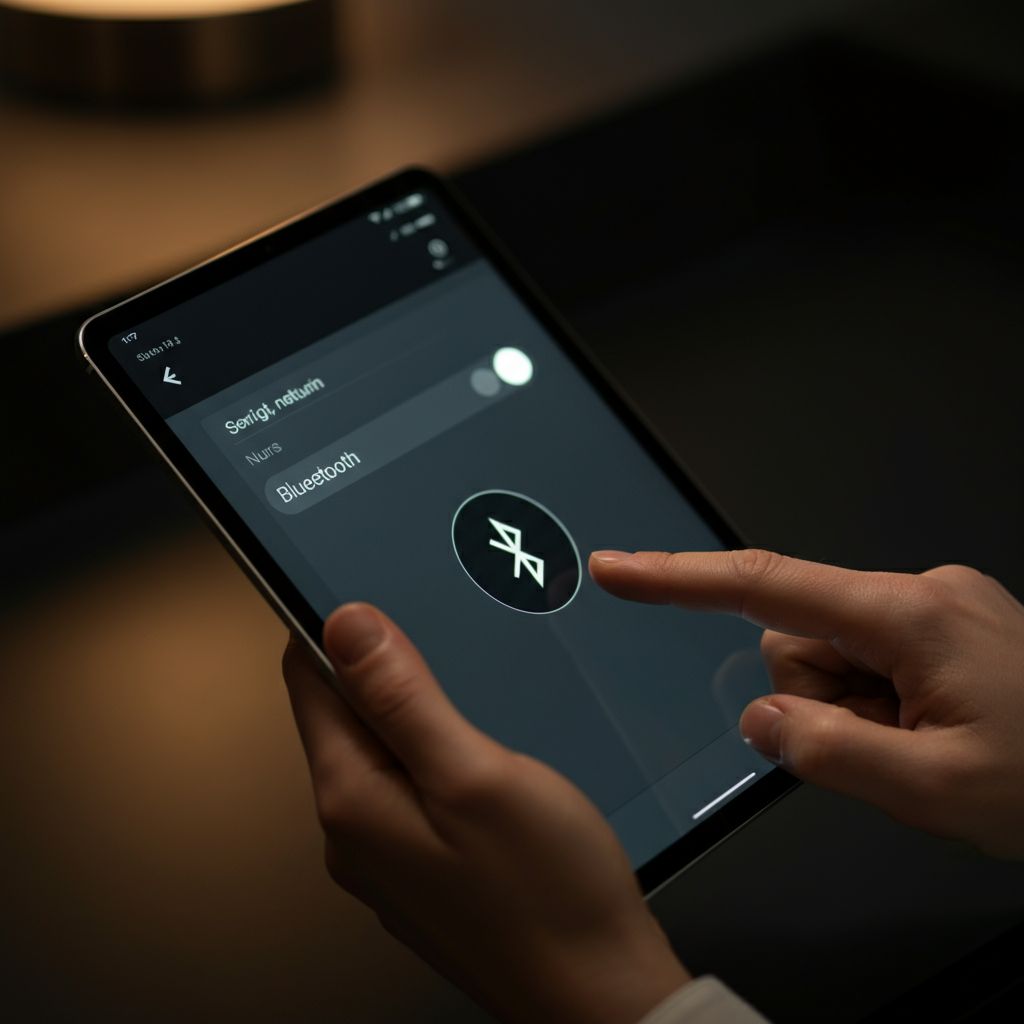
It sounds obvious, but it's crucial to confirm that Bluetooth is actually turned on on the device you're trying to connect your AirPods Max to. The process varies slightly depending on whether you're using an iPhone, iPad, or Mac. On iPhones and iPads, open the Settings app and tap "Bluetooth". Ensure the switch next to Bluetooth is toggled to the "on" (green) position. On a Mac, click the Apple menu in the top-left corner of the screen, select "System Settings" (or "System Preferences" on older macOS versions), then click "Bluetooth." Again, confirm that the Bluetooth switch is turned on (blue). If Bluetooth is already enabled, try toggling it off and then back on again. This can sometimes refresh the Bluetooth connection and resolve minor issues.
Step 3: Forget the Device and Re-Pair
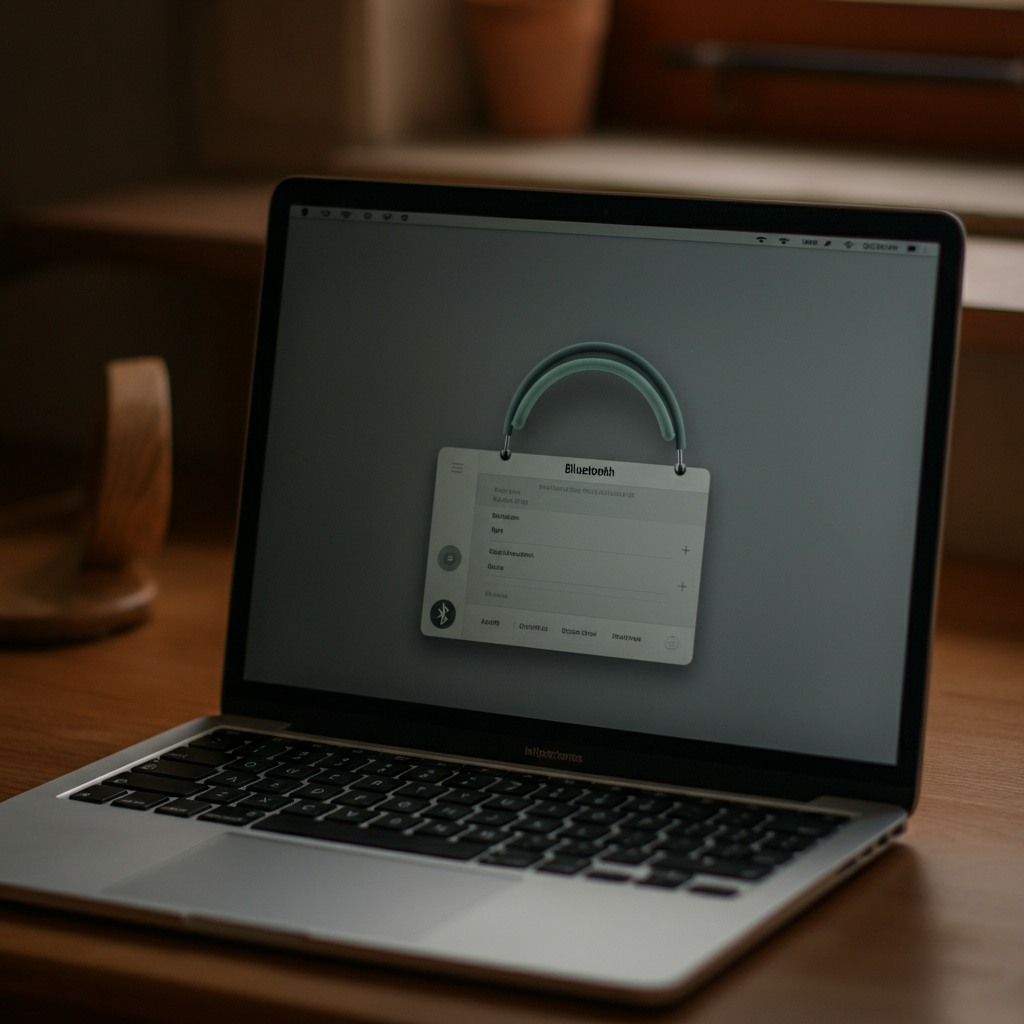
If your AirPods Max have previously connected to your device, but are now failing to connect properly, "forgetting" the device and then re-pairing can often resolve the issue. This clears any stored connection data that might be corrupted. On iPhone or iPad, go to Settings > Bluetooth. Find your AirPods Max in the list of devices, tap the "i" icon next to them, and then tap "Forget This Device." Confirm your choice. On a Mac, go to System Settings > Bluetooth, control-click (or right-click) on your AirPods Max in the list, and select "Remove." To re-pair, press and hold the noise control button on your AirPods Max for about 5 seconds, or until the status light flashes white. Then, bring the AirPods Max close to your iPhone, iPad, or Mac, and follow the on-screen prompts to pair them again.
Step 4: Charge Your AirPods Max
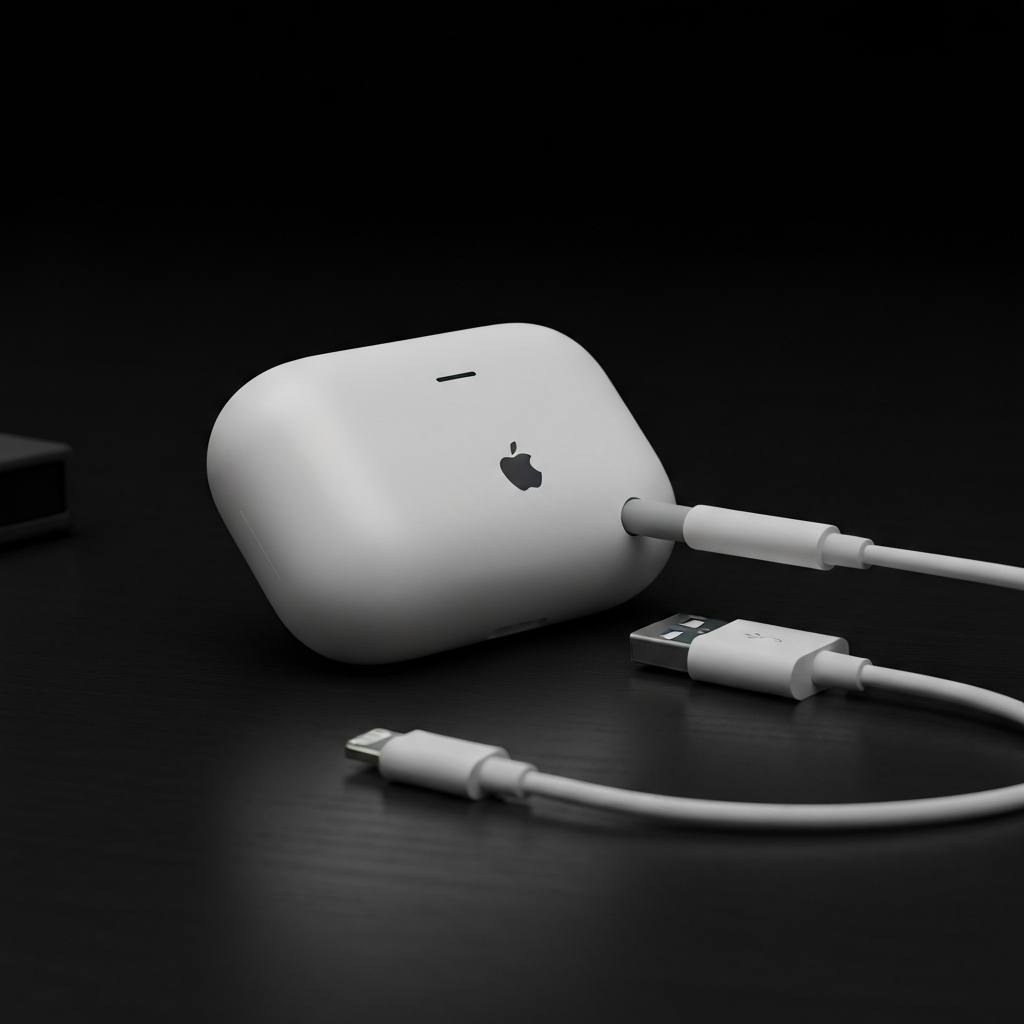
Low battery can sometimes lead to connection problems. Ensure your AirPods Max have sufficient charge before attempting to connect them. Connect your AirPods Max to a power source using the provided USB-C to Lightning cable. While charging, you can check the battery status by pressing the noise control button. A green light indicates that the AirPods Max are at least 95% charged, while an amber light indicates that they are less than 95% charged. It's recommended to charge them to at least 50% before troubleshooting connection issues. Using Apple-certified cables is recommended to ensure proper charging and avoid potential incompatibilities.
Step 5: Reset Your AirPods Max (Factory Reset)
If simpler troubleshooting steps haven't worked, performing a factory reset can often resolve more stubborn connection problems. This will erase all previous settings and pairings, returning your AirPods Max to their original factory state. To reset your AirPods Max, press and hold both the noise control button and the Digital Crown button simultaneously. Continue holding both buttons until the status light first flashes amber, and then eventually flashes white. Release the buttons after the white light appears. Your AirPods Max have now been reset. After the reset, you will need to re-pair them with your devices as if they were brand new.
Step 6: Check Volume Settings
It's possible that the AirPods Max are connected but the volume is turned down, leading you to believe they aren't working. Check the volume level on both your AirPods Max (using the Digital Crown) and on the device you're connected to. Ensure that the volume isn't muted or set too low. Sometimes, the volume settings on one device can override the settings on the other. Also, make sure that the correct audio output device is selected on your computer or phone.
Step 7: Update Your Device's Operating System
An outdated operating system can sometimes cause compatibility issues with newer devices like the AirPods Max. Ensure that your iPhone, iPad, or Mac is running the latest version of its respective operating system (iOS, iPadOS, or macOS). On iPhones and iPads, go to Settings > General > Software Update. If an update is available, download and install it. On a Mac, click the Apple menu > System Settings > General > Software Update (or System Preferences > Software Update on older macOS versions). Download and install any available updates. Software updates often include bug fixes and compatibility improvements that can resolve connection problems.
Step 8: Contact Apple Support
If you've tried all the above troubleshooting steps and your AirPods Max still won't connect, it's time to contact Apple Support. There might be a hardware issue or a more complex software problem that requires professional assistance. You can contact Apple Support through their website or by visiting an Apple Store. Be prepared to provide details about the issue you're experiencing and the troubleshooting steps you've already taken. They may be able to offer further guidance or arrange for a repair or replacement if necessary.
FAQ Section
Q: My AirPods Max connect, but the sound quality is poor. What should I do?
A: Try cleaning the earcups and mesh with a soft, dry cloth. Make sure there are no obstructions blocking the audio. Also, ensure that your Bluetooth device is within range and that there are no sources of interference nearby. If the problem persists, try resetting your AirPods Max.
Q: Can I use my AirPods Max with non-Apple devices?
A: Yes, you can connect your AirPods Max to any device that supports Bluetooth audio. However, some features, such as automatic device switching and spatial audio, may only be available when used with Apple devices.
Q: How do I check the battery level of my AirPods Max on my iPhone?
A: You can check the battery level by bringing your AirPods Max close to your iPhone while they are connected. A card will appear on your iPhone's screen displaying the battery levels of your AirPods Max and their case (if applicable). You can also add a battery widget to your home screen for quick access to this information.
Conclusion
Troubleshooting AirPods Max connection issues can sometimes be a process of elimination. By systematically working through the steps outlined in this guide, you should be able to identify and resolve the problem. Remember to start with the simplest solutions first, such as restarting your AirPods Max and ensuring Bluetooth is enabled. If all else fails, don't hesitate to contact Apple Support for further assistance. With a little patience and effort, you'll be back to enjoying the immersive audio experience that AirPods Max offer.