Having a plethora of applications automatically launch when you boot up your computer can be frustrating. It slows down your startup time, consumes valuable system resources, and can clutter your desktop with unnecessary windows. Fortunately, controlling which applications launch at startup is generally a straightforward process, although the specific method varies depending on your operating system and even the individual application.
This guide provides a comprehensive overview of how to prevent applications from automatically launching on startup for Windows, macOS, and Android devices. We'll cover several methods, ranging from simple settings adjustments to more advanced techniques for those particularly stubborn applications. By following these instructions, you can regain control over your startup process and optimize your computer's performance.
Take note that some applications manage their startup behavior internally. We'll also guide you on how to adjust these application-specific settings to prevent unwanted auto-launches. Let's dive in and reclaim your startup speed!
Step 1: Using Windows Settings
Accessing Startup Apps via Settings
The Windows Settings app offers a relatively easy way to manage startup applications. To access this feature, press the Windows key + i shortcut. This will directly open the Settings window. Alternatively, you can click on the Start menu (the Windows logo) and then select the "Settings" icon, which usually resembles a gear.

Step 2: Navigating to the Startup Section
Locating the Startup Menu
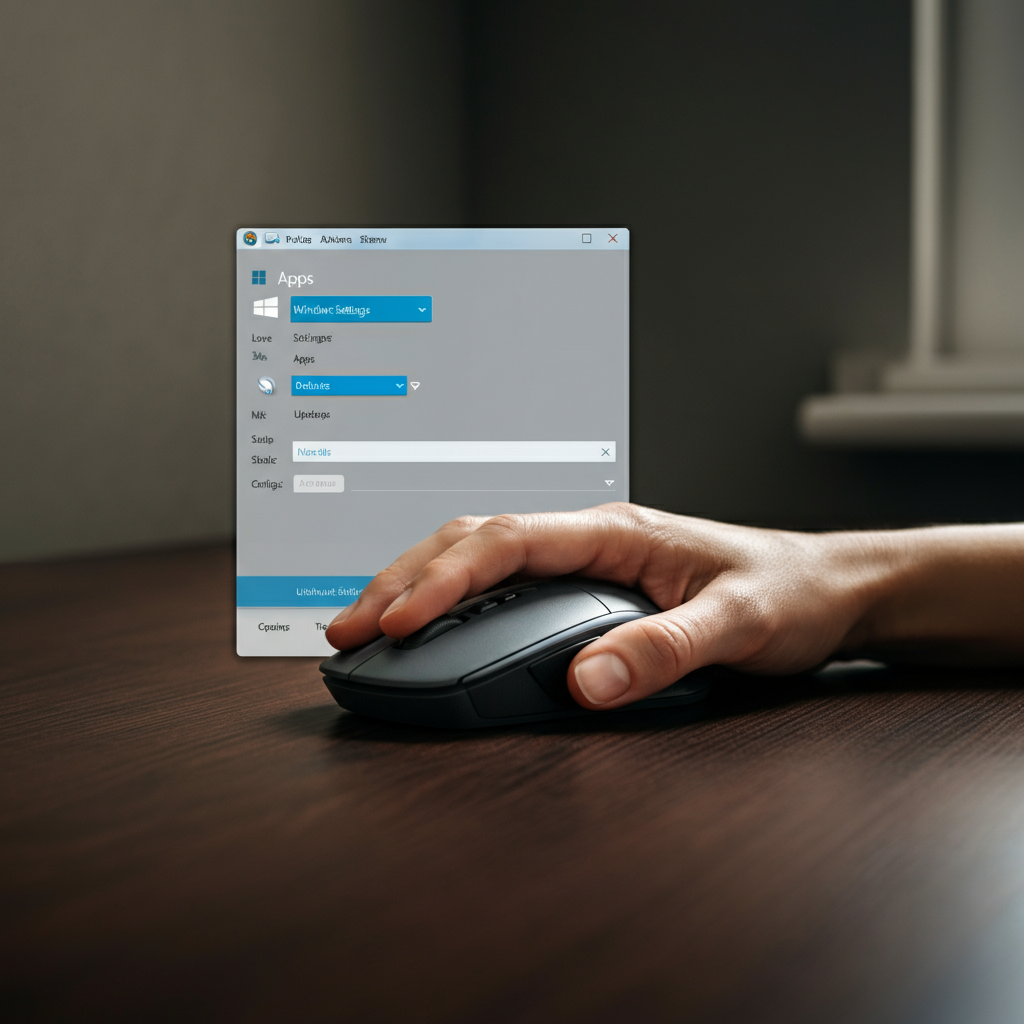
Once the Settings window is open, click on "Apps". In the Apps settings, you'll see a list of options on the left-hand side. Click on "Startup." This will display a list of applications that are configured to launch when your computer starts. Note that not all startup apps will be listed here, so if you don't find the application you're looking for, don't be alarmed; other methods may be necessary.
Step 3: Disabling Startup Apps
Toggling the Startup Switch
In the Startup apps list, you'll see a toggle switch next to each application. To prevent an application from launching at startup, simply click the corresponding switch to turn it off. When the switch is greyed out, it signifies that the application is disabled from launching at startup. Always restart your computer after making changes to ensure the changes take effect. If the app continues to launch, proceed to the next method.

Step 4: Using Task Manager (Windows)
Opening Task Manager
Task Manager provides another effective way to disable startup applications. To open Task Manager, press the Ctrl + Shift + Esc keys simultaneously. Alternatively, you can right-click on the taskbar (the bar at the bottom of your screen) and select "Task Manager" from the context menu. If Task Manager opens in a simplified view, click on "More details" to expand it.

Step 5: Accessing Startup Apps in Task Manager
Navigating to the Startup Tab
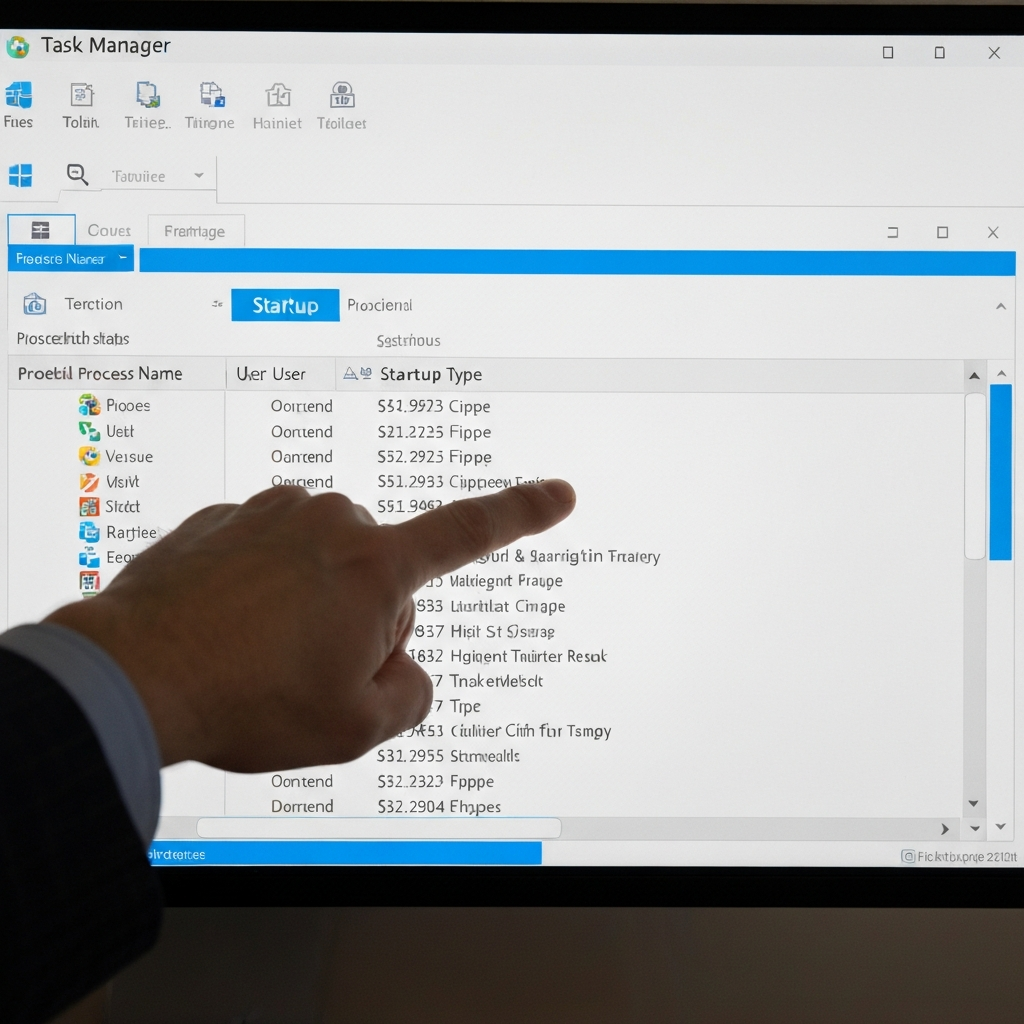
In the Task Manager window, locate the "Startup apps" tab. In some versions of Windows, this tab may simply be labeled "Startup." Click on this tab to view a list of applications that are enabled or disabled at startup. The "Status" column indicates whether an application is currently enabled or disabled. If you don't see the "Startup" tab, look for a three-line menu icon to expand the options.
Step 6: Disabling Startup Apps in Task Manager
Disabling Applications
To disable an application from launching at startup, select the application from the list and then click the "Disable" button located in the bottom-right corner of the Task Manager window. Once disabled, the "Status" column for that application should change to "Disabled." Restart your computer after disabling apps to confirm the changes. Task Manager is often more reliable than Settings for managing startup apps.
Step 7: Using File Explorer (Windows)
Accessing the Startup Folder
Some applications run at startup from a special folder within File Explorer. To access this folder, right-click the Start menu and select "Run." In the Run dialog box, type `shell:startup` and press Enter. This will open the Startup folder for the current user. To configure startup apps for all users on the computer, type `shell:common startup` instead.
Step 8: Removing Startup Items from the Folder
Deleting Shortcuts
In the Startup folder, you'll see shortcuts to applications that launch at startup. To prevent an application from launching, simply delete the shortcut from this folder. Deleting the shortcut does not uninstall the application; it only removes it from the startup process. Right-click on the shortcut and select "Delete," then confirm the deletion.
Step 9: Using Task Scheduler (Windows)
Opening Task Scheduler
Some applications are launched at startup via the Task Scheduler. To open Task Scheduler, click the Start menu, type "task scheduler," and select "Task Scheduler" from the search results. The Task Scheduler allows for more complex scheduling of tasks, including launching applications at startup.
Step 10: Disabling Tasks
Navigating and Disabling Tasks
In the Task Scheduler window, click on "Task Scheduler Library" in the left-hand pane. Browse the list of tasks and look for triggers related to startup, such as "At log on of any user." Select the task you want to disable and click "Disable" in the Actions pane on the right side of the window. Be cautious about deleting tasks unless you are absolutely certain of what they are and that deleting them won’t cause issues. Disabling is safer.
Step 11: Using the Autoruns Utility (Windows)
Downloading and Launching Autoruns
For more advanced control over startup processes, download the Autoruns utility from the Microsoft website. This utility helps manage multiple autorun locations. Extract the ZIP file and right-click the Autoruns EXE file. Select "Run as administrator." This ensures Autoruns has the necessary permissions to modify startup settings.
Step 12: Disabling Startup Items in Autoruns
Unchecking Entries
In Autoruns, check the "Logon" tab for apps that run when you log on. Uncheck the box next to any apps you want to disable from running at logon. You can also check the "Scheduled Tasks" tab for apps scheduled to launch at startup. Autoruns provides a comprehensive view of all startup processes.
Step 13: Editing the Registry (Windows) - Advanced
Launching Registry Editor
For extra stubborn startup apps, you can try modifying the registry. Be extremely careful using this method, as deleting the wrong thing could cause serious problems. Launch the Registry Editor by pressing Windows key + R and typing `regedit` then press Enter. Always back up the registry before making any edits.
Step 14: Deleting Registry Entries
Navigating to Startup Paths
Several paths in the registry contain startup entries. Follow the paths below, then right-click the entries you want to remove in the right-hand pane and select Delete. Be sure to delete the correct entries.
- Paths for apps that run at startup for all users:
- `HKLM\Software\Wow6432Node\Microsoft\Windows\CurrentVersion\Run`
- `HKLM\Software\Microsoft\Windows\CurrentVersion\Run`
- Paths for apps that run at startup for the current user:
- `HKCU\Software\Microsoft\Windows\CurrentVersion\Run`
Step 15: Using Mac System Settings
Accessing Login Items
On macOS, click the Apple menu and select "System Settings" (or "System Preferences" on older versions). In System Settings, click "General" in the sidebar, then "Login Items". This displays a list of apps that open at login. Select the app you want to stop and click the "-" (minus) button to remove it.
Step 16: Background Activity (Mac)
Managing Background App Activity
From the same Login Items screen, you can toggle off apps that you don’t want to run in the background. Scroll down to the "App Background Activity" header, then toggle off the switches next to any apps you don’t want running in the background. This reduces resource usage and improves performance.
Step 17: Preventing Apps from Reopening (Mac)
Unchecking Reopen Windows
Some apps automatically relaunch if you restart your computer while they’re running. To prevent this, select "Restart" from the Apple menu. In the window that pops up, uncheck the box for "Reopen windows when logging back in," then click "Restart." This ensures a clean startup.
Step 18: Changing In-App Settings (Any OS)
Checking Application Preferences
Some apps have a setting within the app itself that determines whether it opens at startup. If other methods aren’t working, open the app and check its "Settings," "Preferences," or "Options" menu. Look for an option to "Launch at startup" and uncheck it or toggle it off. This is often the most reliable method.
Step 19: Using Android Developer Mode
Enabling Developer Options
To disable auto-starting apps on Android (note this method can be limited and may vary by manufacturer), first enable Developer Mode. Open the Settings app, tap "About phone" (or similar), find the "Build number," and tap it seven times. You’ll see a message "You are now a developer!" Be cautious when using Developer Options as they can affect phone stability.
Step 20: Stopping Apps in Running Services
Accessing Running Services
In Developer options, tap "Running services." This will show a list of apps and processes currently running. Tap an app you don’t want to start automatically and then tap "Stop." This will prevent the app from starting or restarting automatically (though it may still be started by other apps or the system). Repeat for other apps.
Step 21: Using iPhone/iPad Background App Refresh
Turning off Background App Refresh
iOS doesn’t have a direct setting to launch apps at startup. However, you can limit background activity. Open the Settings app, tap "General," then "Background App Refresh." You can turn off Background App Refresh for all apps or selectively disable it for individual apps. Turning off background app refresh conserves battery life.
Tools or Materials Required
No physical tools or materials are required to complete the steps outlined in this guide. All necessary tools are built into your operating system or available as free software downloads.
Common Mistakes to Avoid
- Deleting the wrong registry entries (Windows). Always back up the registry before making changes.
- Deleting system-critical tasks in Task Scheduler (Windows). Disable instead of deleting if unsure.
- Deleting applications from the Startup folder instead of the shortcuts (Windows).
Pro Tips
- Restart your computer after making any changes to ensure they take effect.
- Use Autoruns (Windows) for a comprehensive overview of all startup processes.
- Check in-app settings for launch-at-startup options.
FAQ Section
- Why are some apps not listed in the Startup settings?
- Some apps use different methods to launch at startup, such as Task Scheduler or registry entries. Use Autoruns (Windows) for a complete view.
- Will disabling a startup app prevent it from running entirely?
- No, disabling a startup app only prevents it from launching automatically at startup. You can still manually open and use the app.
- What if I accidentally disable a critical startup process?
- If you experience issues after disabling a startup process, you can re-enable it using the same methods described in this guide.
Conclusion
By following this comprehensive guide, you can effectively prevent unwanted applications from launching at startup, improving your computer's startup time and overall performance. Remember to exercise caution when editing the registry or Task Scheduler. Start with the simplest methods and progress to more advanced techniques as needed. With a little effort, you can reclaim control over your startup process and enjoy a cleaner, faster computing experience.