Locking your Tesla is crucial for security and peace of mind. Whether you own a Model 3, Model Y, Model S, or Model X, Tesla offers multiple convenient ways to ensure your vehicle is safely secured. This guide provides a detailed walkthrough of each method, from using the touchscreen to employing the walk-away lock feature, and even utilizing the Tesla app. Mastering these techniques will keep your Tesla protected and give you control over its security.
We'll delve into both the manual and automatic locking options available on your Tesla. Understanding these methods not only safeguards your vehicle but also enhances your overall ownership experience. This guide also covers preventative measures like setting up Car Left Open Notifications and Sentry Mode to add layers of protection to your investment.
By the end of this guide, you'll have a comprehensive understanding of all the ways to lock and secure your Tesla, as well as key safety features that can be enabled. From the basics to the advanced options, we'll ensure you are fully equipped to keep your Tesla safe.
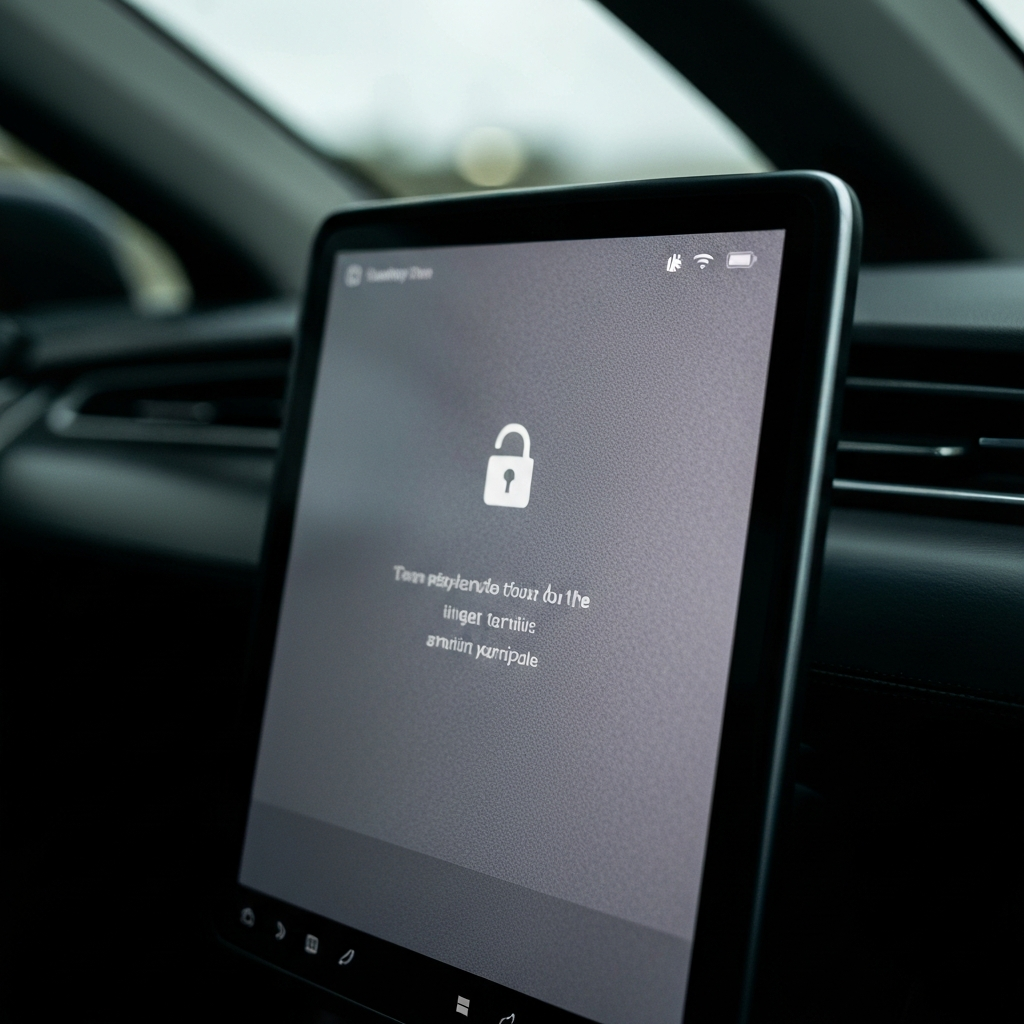
Step 1: Locking from the Inside Using the Touchscreen
The most straightforward way to lock your Tesla from the inside is by using the touchscreen. Locate the lock icon at the top of the screen, usually positioned next to the clock. Tapping this icon toggles the lock status. A closed lock icon indicates that your doors and trunk are securely locked. Conversely, an open lock icon signifies that the vehicle is unlocked. This method is especially useful before exiting the car to ensure it's immediately locked once you step out.
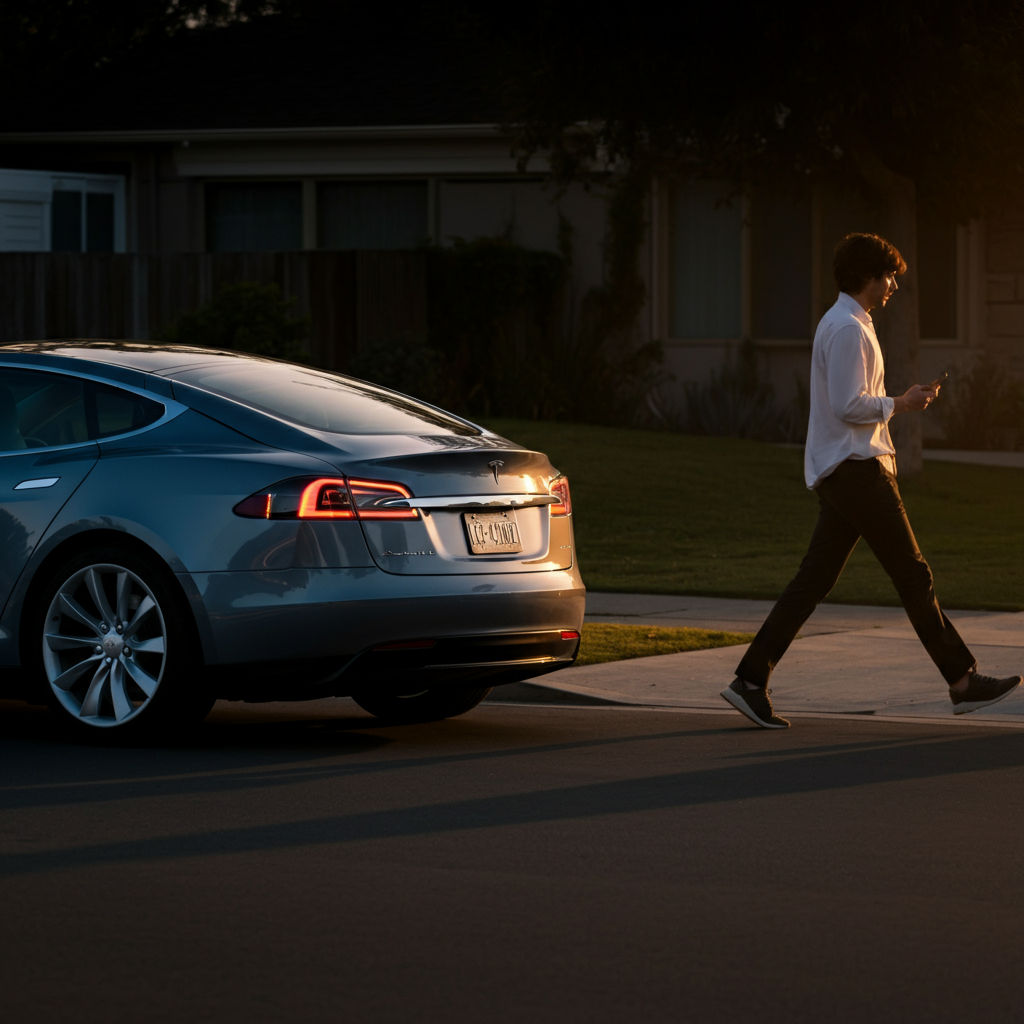
Step 2: Automatic Locking with Walk-Away Door Lock
Tesla's "Walk-Away Door Lock" feature provides an incredibly convenient way to automatically lock your vehicle. With this feature enabled, the doors and trunk will lock automatically a few moments after you exit the car while carrying your phone key or key fob. To activate this feature, navigate to "Controls," then "Locks," and select "Walk-Away Door Lock" on your Tesla's touchscreen. Ensure your phone's Bluetooth is enabled, as this is how the car detects your presence. The exterior lights will flash as confirmation that the vehicle has successfully locked.
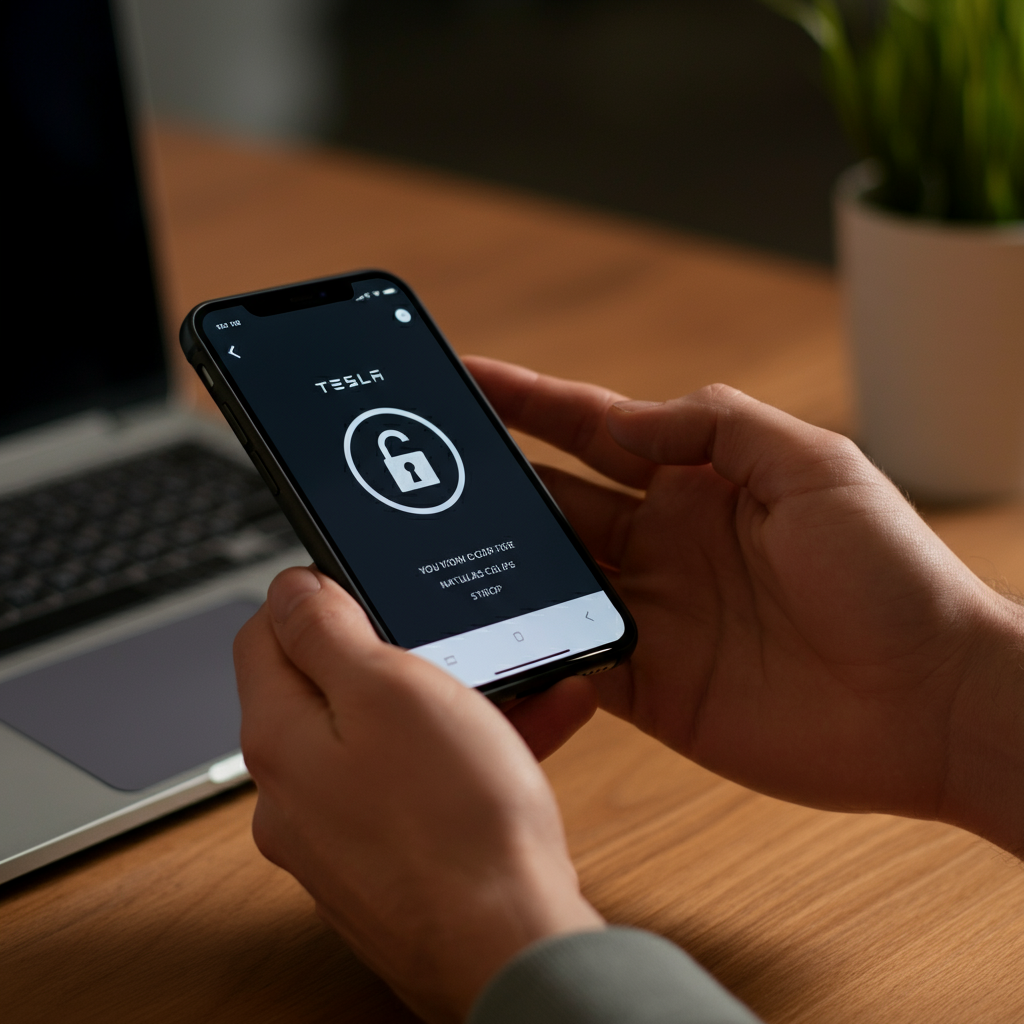
Step 3: Using the Tesla App to Lock from the Outside
The Tesla mobile app offers remote control over many vehicle functions, including locking and unlocking. Simply open the app on your smartphone and locate the lock icon, typically situated below the image of your car. Tapping the lock icon will lock or unlock the vehicle accordingly. The app provides a visual confirmation by displaying a closed or open lock icon, mirroring the status of your Tesla. This is particularly useful for ensuring your car is locked when you're not physically near it.
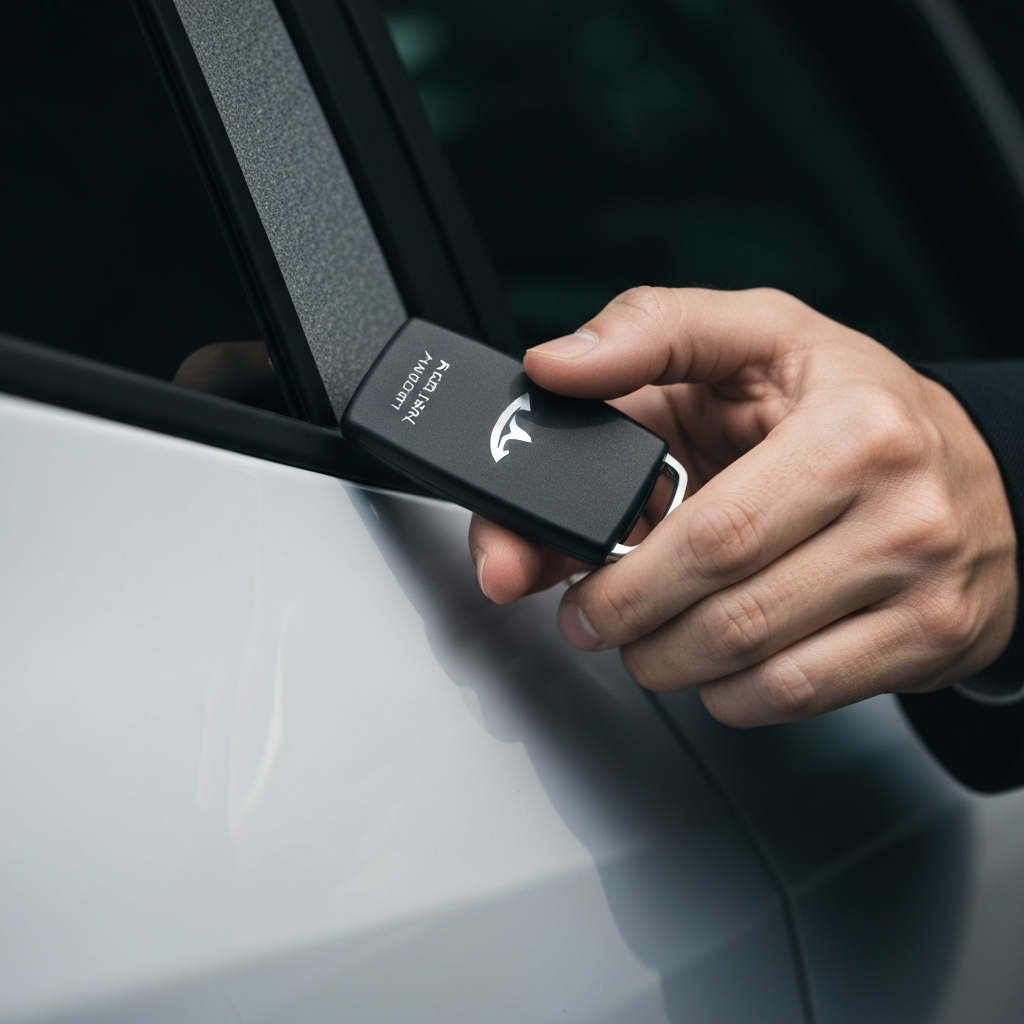
Step 4: Locking with the Key Card
Your Tesla comes with two key cards that can be used to lock and unlock the vehicle. To lock your car using the key card, tap the card against the pillar on the driver's side door, specifically the area between the window and the door frame. Hold the card firmly against the pillar until the exterior lights flash, indicating successful locking. The key card uses RFID technology, making it a reliable backup method for locking and unlocking your Tesla.
Step 5: Using a Key Fob (If Applicable)
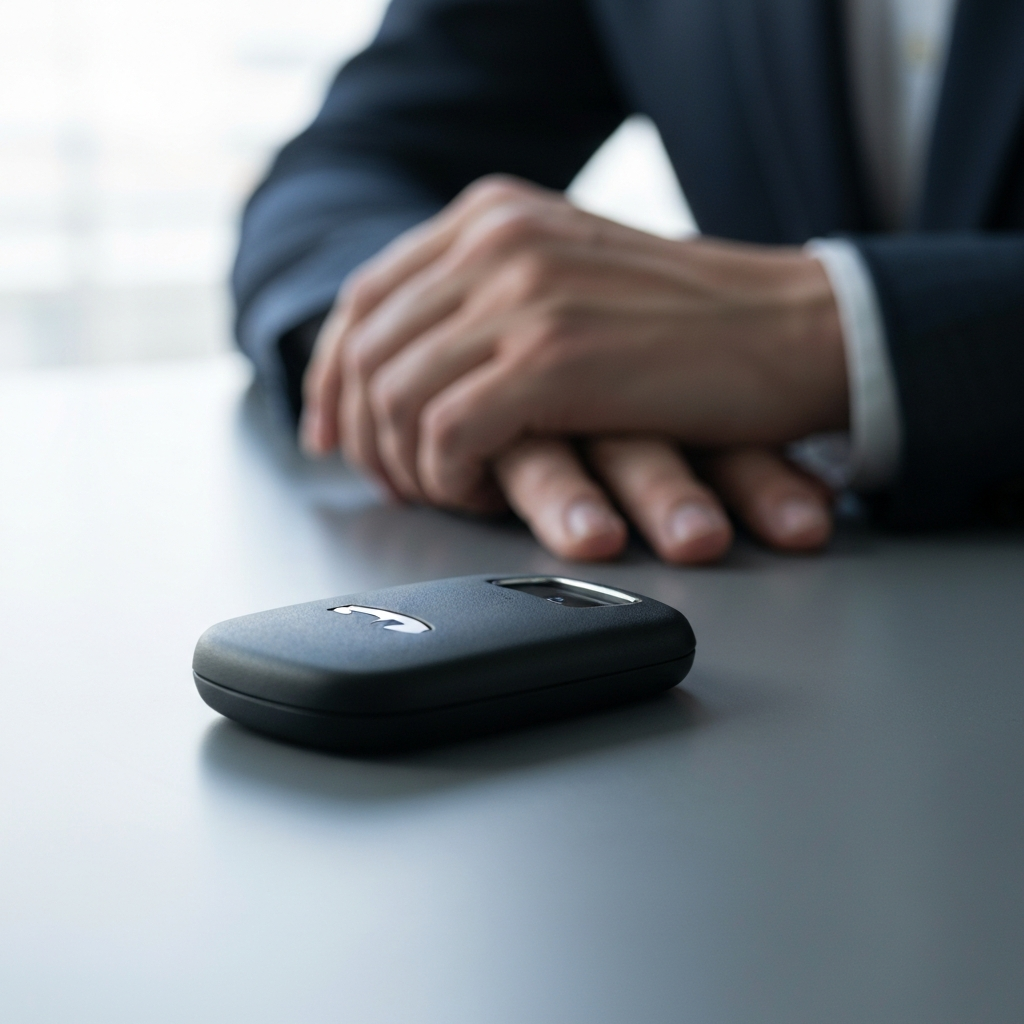
If you've purchased a key fob for your Tesla (it's an optional accessory), locking the car is a simple matter of pressing the center button once. The exterior lights will flash once to confirm the car is locked. To unlock, press the center button twice. If the lights flash three times, it indicates that the car didn't lock successfully, usually because a door or the trunk is not fully closed. Always double-check the doors and trunk if you encounter this issue.
Step 6: Locking with Voice Commands
Teslas also offer voice command functionality. By pressing the voice command button (location varies by model: Model S/X on the steering wheel, Model 3/Y on the scroll button or touchscreen microphone), you can simply say, "Lock doors." The car will then lock all doors and the trunk. This is a convenient hands-free option, especially while still inside the vehicle. Ensure the system recognizes your voice command clearly for optimal results.

Safety Considerations
Always double-check that your Tesla is locked, especially when relying on the Walk-Away Door Lock feature. In some cases, external factors like interference or a weak Bluetooth signal can prevent the automatic locking from engaging. It's a good habit to visually confirm the lock status or use the Tesla app to remotely check. Additionally, be aware of your surroundings when using the key card or phone app in public spaces.
Common Mistakes to Avoid
A common mistake is leaving your phone key or key fob inside the car, which will prevent the Walk-Away Door Lock from functioning. Always ensure you have your key with you when exiting the vehicle. Another issue is failing to fully close the doors or trunk, as this will also prevent the car from locking automatically or with the key fob. Ensure all entry points are securely closed before walking away.
Pro Tips
- Enable "Car Left Open Notifications" in the Tesla settings to receive alerts if any doors, windows, or the trunk are left open or if the car is left unlocked.
- Utilize Sentry Mode when parking in unfamiliar or high-risk areas to monitor the surroundings and record any suspicious activity.
- Set up "PIN to Drive" for an extra layer of security, requiring a four-digit PIN to be entered before the car can be driven.
FAQ Section
Q: What happens if my phone battery dies and I can't use the app to unlock my Tesla?
A: You can use your key card as a backup. Simply tap it against the driver's side door pillar to unlock the car.
Q: Does Sentry Mode drain the battery?
A: Yes, Sentry Mode consumes battery power. Tesla will notify you if the battery drops below 20%, at which point Sentry Mode will automatically turn off.
Q: Can I lock my Tesla from anywhere in the world using the app?
A: As long as you have an internet connection on your smartphone and your Tesla has cellular connectivity, you can lock and unlock your vehicle remotely.
Conclusion
Locking your Tesla is a multifaceted process with several convenient options tailored to your preferences and circumstances. From the simple touchscreen lock to the advanced Walk-Away Door Lock feature and remote app control, Tesla provides a robust suite of tools to secure your vehicle. By understanding and utilizing these methods, you can enjoy peace of mind knowing your Tesla is well-protected. Remember to always double-check the lock status and enable additional security features for enhanced protection.