Technology is an integral part of modern life, but it can also be frustrating when things go wrong. From computers that won't start to smartphones that refuse to connect to Wi-Fi, electronic devices often present unexpected challenges. Don't immediately resign yourself to expensive repairs or replacements! Many common tech issues can be resolved with a bit of patience, methodical troubleshooting, and the right knowledge. This guide will provide you with a beginner-friendly approach to diagnosing and fixing common computer and electronic problems, empowering you to become your own tech support.
This guide is designed to equip you with the fundamental skills and techniques necessary to tackle a range of technical glitches. We'll walk you through a step-by-step process, offering clear instructions, practical tips, and safety precautions to ensure you can confidently troubleshoot your devices without causing further damage. Remember, troubleshooting is a process of elimination. Don't be afraid to experiment, but always proceed with caution and consult online resources or professional assistance when needed.
Before you begin, it’s crucial to understand the limitations of your expertise. While this guide covers common issues, complex hardware or software problems may require specialized knowledge or equipment. If you’re uncomfortable working with sensitive components or dealing with potentially dangerous situations, it’s always best to seek professional help. Let's dive in!
Step 1: Identify the Problem
Gather Information and Define the Issue
The first and most crucial step in troubleshooting any tech issue is to accurately identify the problem. Don't just say "my computer is broken." Be specific. What exactly is happening? Is the computer failing to turn on, displaying an error message, or running slowly? Gather as much information as possible. Note any recent changes you made to the device, such as installing new software or hardware. What were you doing when the problem started? Error messages are your friend! Write them down exactly as they appear.

Step 2: Restart the Device
The Universal Solution
You've probably heard this a million times, but it's true: restarting your device is often the simplest and most effective solution to many tech problems. Restarting clears the device's memory, closes running programs, and resets the operating system. This can resolve temporary glitches, software conflicts, and other minor issues. Before attempting any complex troubleshooting steps, always try restarting first. For a computer, perform a proper shutdown from the operating system, rather than just holding down the power button, unless the system is completely unresponsive. For phones and tablets, a restart is usually achieved by holding down the power button and selecting the "Restart" option.

Step 3: Check Connections and Power
The Foundation of Functionality
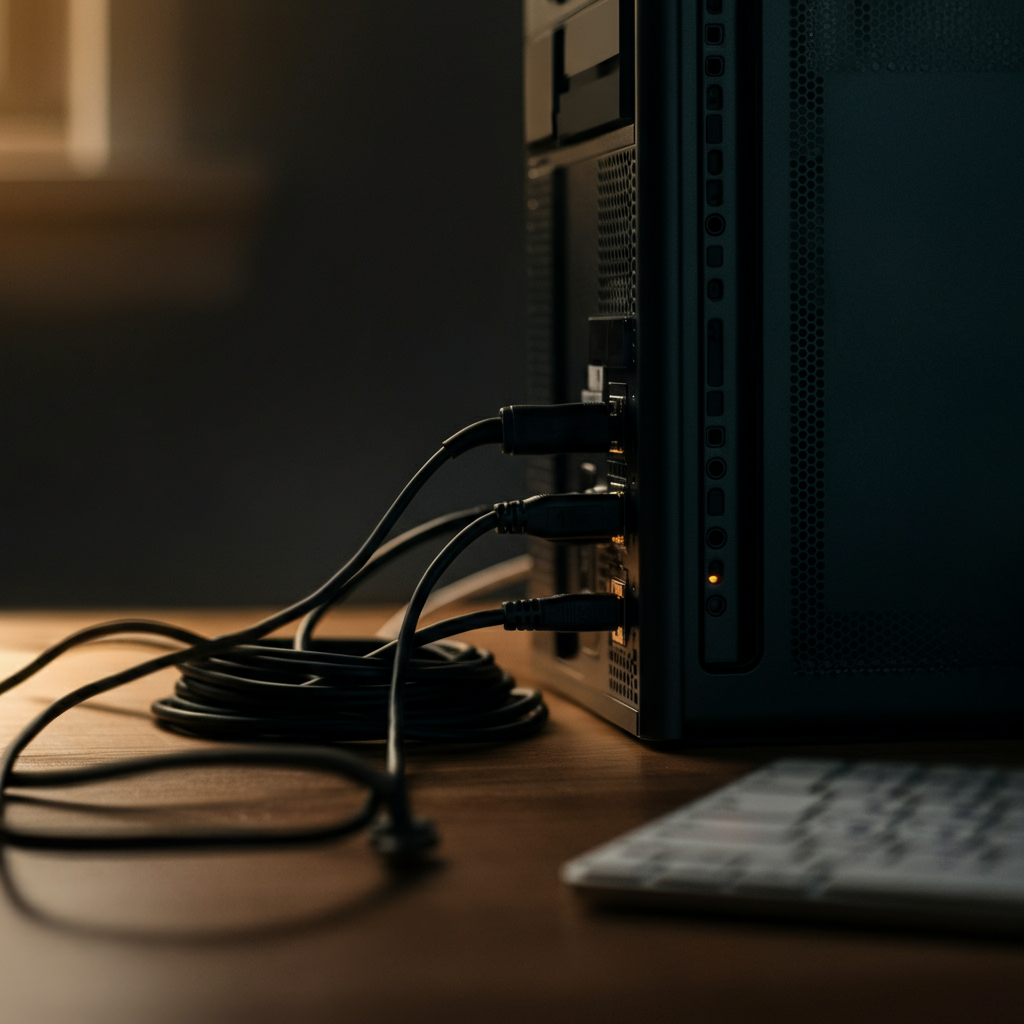
Many electronic issues stem from simple connection problems. Ensure that all cables are securely plugged into their respective ports. Check both ends of the cable, as a loose connection at either end can cause problems. Verify that power cords are properly connected to both the device and the power outlet. Test the outlet with another device to ensure it's working. For wireless devices, make sure the device is within range of the Wi-Fi router and that the Wi-Fi is enabled. A surprisingly common mistake is overlooking the power switch on power strips or surge protectors! Inspect cables for damage, such as fraying or exposed wires. Damaged cables should be replaced immediately.
Step 4: Update Software and Drivers
Keeping Everything Current
Outdated software and drivers can cause a variety of problems, including compatibility issues, security vulnerabilities, and performance degradation. Ensure that your operating system, applications, and device drivers are up to date. Most operating systems have built-in update mechanisms that automatically check for and install updates. Drivers are essential pieces of software that allow your operating system to communicate with hardware devices. Outdated or corrupted drivers can cause devices to malfunction or not work at all. Device Manager (on Windows) or System Information (on macOS) allows you to view and update drivers. When updating drivers, download them directly from the manufacturer's website to ensure you're getting the latest and most reliable versions.
Step 5: Run a Virus Scan
Protecting Against Malicious Software
Malware, such as viruses, spyware, and ransomware, can cause a wide range of problems, including slow performance, system crashes, data loss, and security breaches. Regularly run a full system scan using a reputable antivirus program. Ensure that your antivirus software is up to date with the latest virus definitions. A virus scan is not a one-time fix; it needs to be done regularly to maintain your system's health. If your existing antivirus software isn't detecting anything, consider running a second opinion scan with a different antivirus program. Be wary of suspicious emails, websites, and downloads, as these are common sources of malware.
Step 6: Check Available Disk Space
Storage Matters
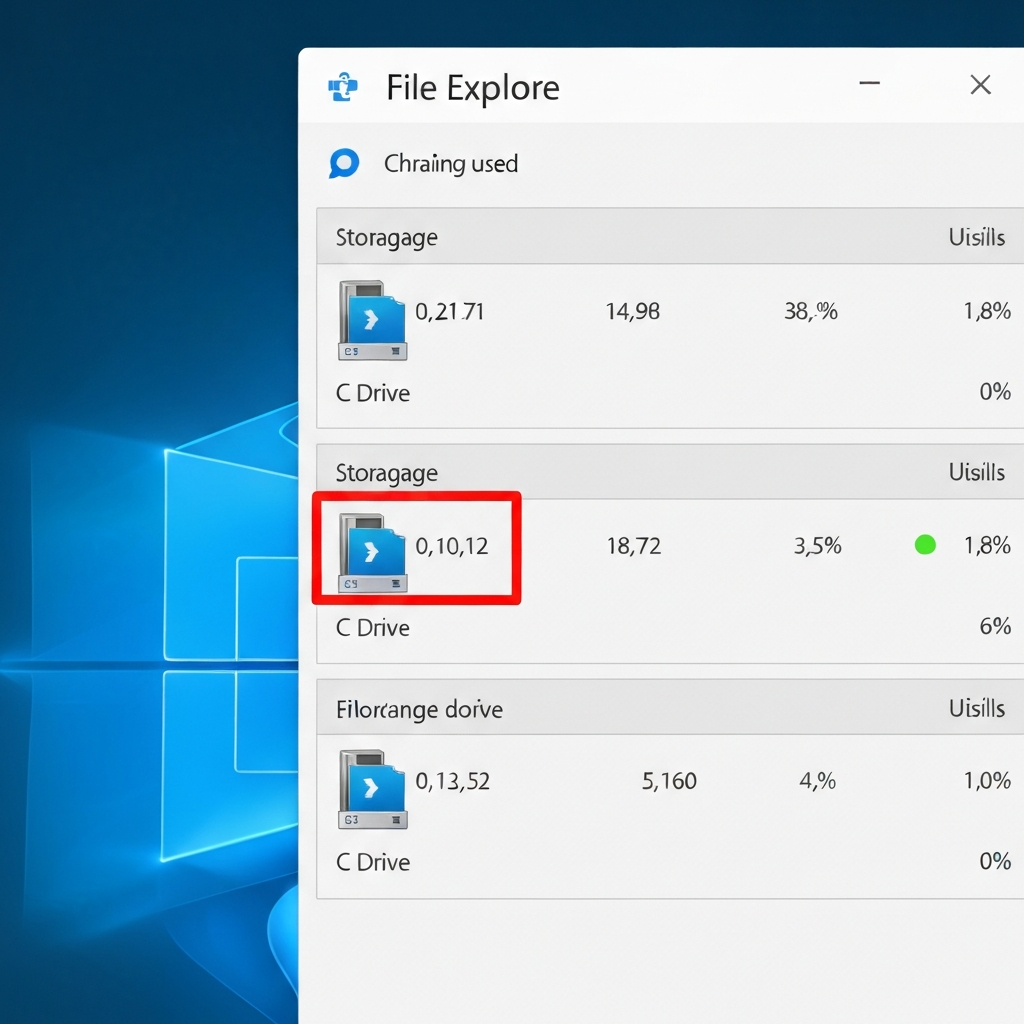
A full or nearly full hard drive can significantly impact your computer's performance. When your hard drive is running out of space, the operating system struggles to perform basic tasks, leading to slow performance, errors, and even system crashes. Check your available disk space and delete unnecessary files, such as temporary files, old downloads, and unused programs. Use Disk Cleanup (on Windows) or similar tools to identify and remove files that are safe to delete. Consider moving large files, such as videos and photos, to an external hard drive or cloud storage service. Aim to keep at least 10-15% of your hard drive free.
Step 7: Test Your Internet Connection
Diagnosing Network Issues
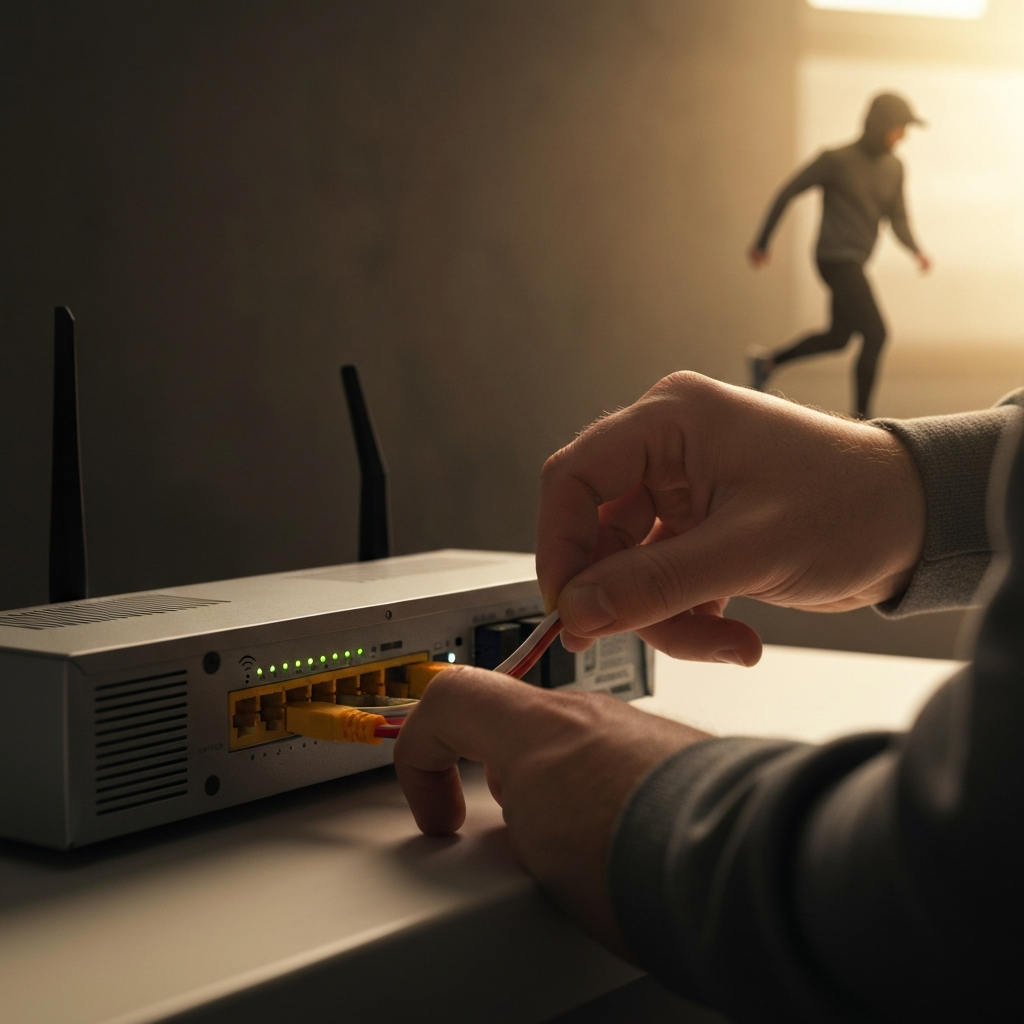
If you're experiencing problems with your internet connection, such as slow speeds, intermittent connectivity, or inability to connect to the internet at all, there are several troubleshooting steps you can take. First, check your modem and router. Ensure that they are properly connected and powered on. Restart both devices by unplugging them from the power outlet for 30 seconds and then plugging them back in. A hard reset of your modem and router can often resolve connectivity issues. Check the Wi-Fi signal strength on your device. If the signal is weak, try moving closer to the router. Use a speed test website to check your internet speed and compare it to your subscribed plan. If the speed is significantly lower than expected, contact your internet service provider.
Tools or Materials Required
- Screwdrivers (various sizes)
- Antistatic wrist strap
- Compressed air
- Cleaning cloths
- Flashlight
- Multimeter (optional)
Common Mistakes to Avoid
- Ignoring warning signs (unusual noises, overheating)
- Attempting repairs without proper knowledge
- Using excessive force
- Disregarding safety precautions
- Not backing up data before making changes
Safety Considerations
- Always disconnect the power cord before working on electronic devices.
- Avoid working in damp or wet environments.
- Use an antistatic wrist strap to prevent electrostatic discharge, which can damage sensitive components.
- Be careful when handling sharp objects or components.
- Consult a professional if you're unsure about any troubleshooting step.
FAQ Section
- Q: My computer is running slow. What should I do?
- A: First, restart your computer. Then, check for unnecessary programs running in the background. Run a virus scan, check your hard drive space, and defragment your hard drive. If the problem persists, consider upgrading your hardware.
- Q: My printer is not printing. What should I do?
- A: Check that the printer is turned on and connected to your computer. Ensure that there is paper in the tray and that the ink or toner cartridges are not empty. Check for any error messages on the printer's display. Restart both the printer and your computer. Make sure you have the right driver installed and try running the printer troubleshooter.
- Q: I can't connect to the internet. What should I do?
- A: Restart your modem and router. Check your Wi-Fi connection and ensure that you're within range of the router. Verify that your network adapter is enabled. If the problem persists, contact your internet service provider.
Pro Tips
- Keep a record of your troubleshooting steps and the results. This will help you track your progress and avoid repeating the same steps.
- Use online resources, such as forums and support websites, to find solutions to common problems.
- Back up your data regularly to protect against data loss in case of hardware failure or other issues.
- Consider investing in a surge protector to protect your electronic devices from power surges.
By following the steps outlined in this guide, you can confidently troubleshoot a wide range of common computer and electronic issues. Remember to start with the simplest solutions first, be patient, and proceed with caution. With a little practice and perseverance, you can save yourself time, money, and frustration by becoming your own tech support. Happy troubleshooting!