The Geek Bar Pulse has rapidly become a popular choice among vaping enthusiasts, thanks to its innovative features like the LED screen, dual-coil configuration, and distinct Pulse Mode. This device offers a unique vaping experience compared to traditional disposable vapes. However, to fully leverage its capabilities and ensure optimal performance, understanding its functionalities is crucial.
This guide is designed to provide you with a comprehensive understanding of how to effectively use and maintain your Geek Bar Pulse. We will walk you through everything from initial setup and basic usage to advanced features like Pulse Mode, troubleshooting common issues, and proper maintenance practices. Whether you're new to vaping or an experienced user looking to maximize your device's potential, this guide will equip you with the knowledge you need.
By following these steps, you'll be able to enjoy a consistent and satisfying vaping experience while also extending the lifespan of your Geek Bar Pulse. Let's dive in!
Step-by-Step Guide to Using Your Geek Bar Pulse
Step 1: Unboxing and Initial Setup
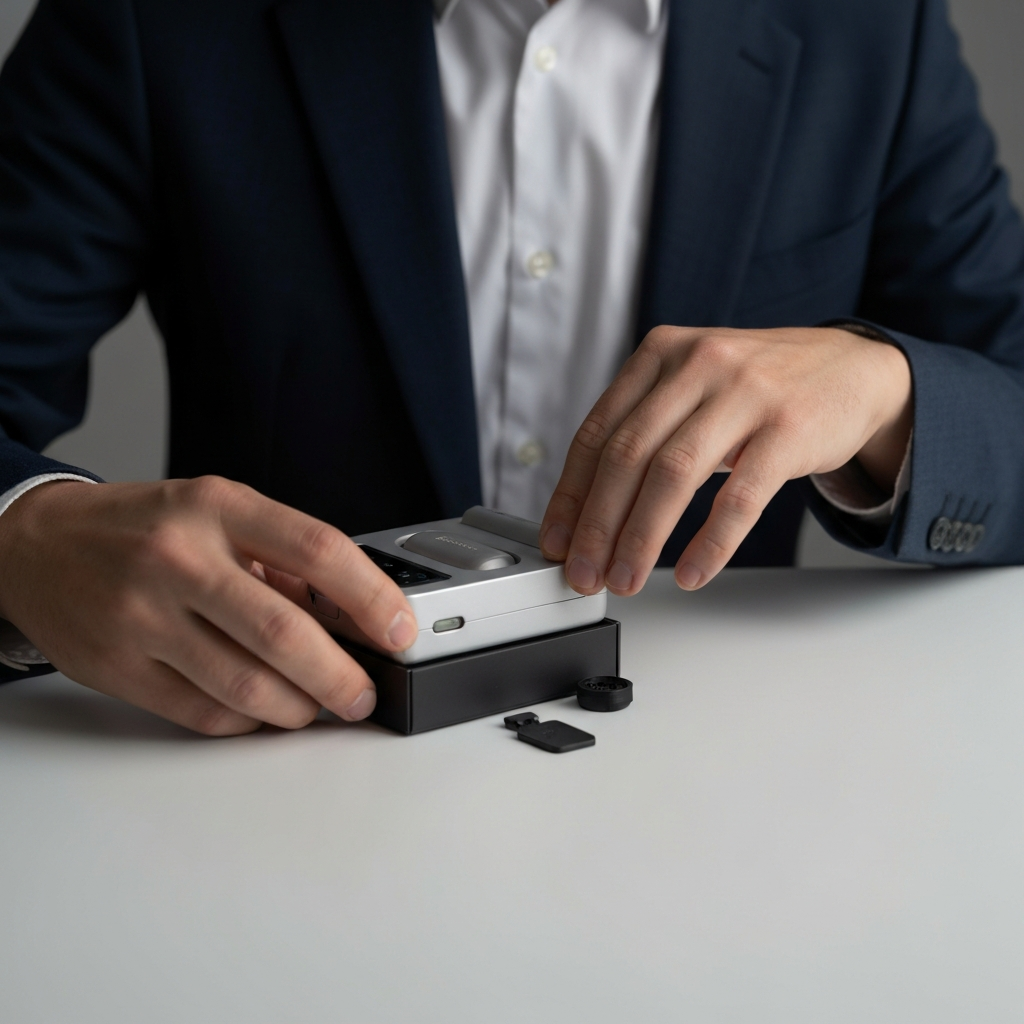
Carefully unbox your Geek Bar Pulse. Begin by tearing the strip at the top of the box and removing the pouch containing your device. Once the pouch is open, the first thing you need to do is remove the silicone plug from the mouthpiece. This plug prevents leakage during shipping and must be removed before you can use the device. Also, check the packaging for a USB-C charger and a flavor card. Be mindful when opening the pouch to avoid accidentally dropping your new device. The flavor card is a useful tool to understand the coolness and sweetness level of each flavor available for Geek Bar Pulse.
Step 2: Powering On and Selecting Your Mode
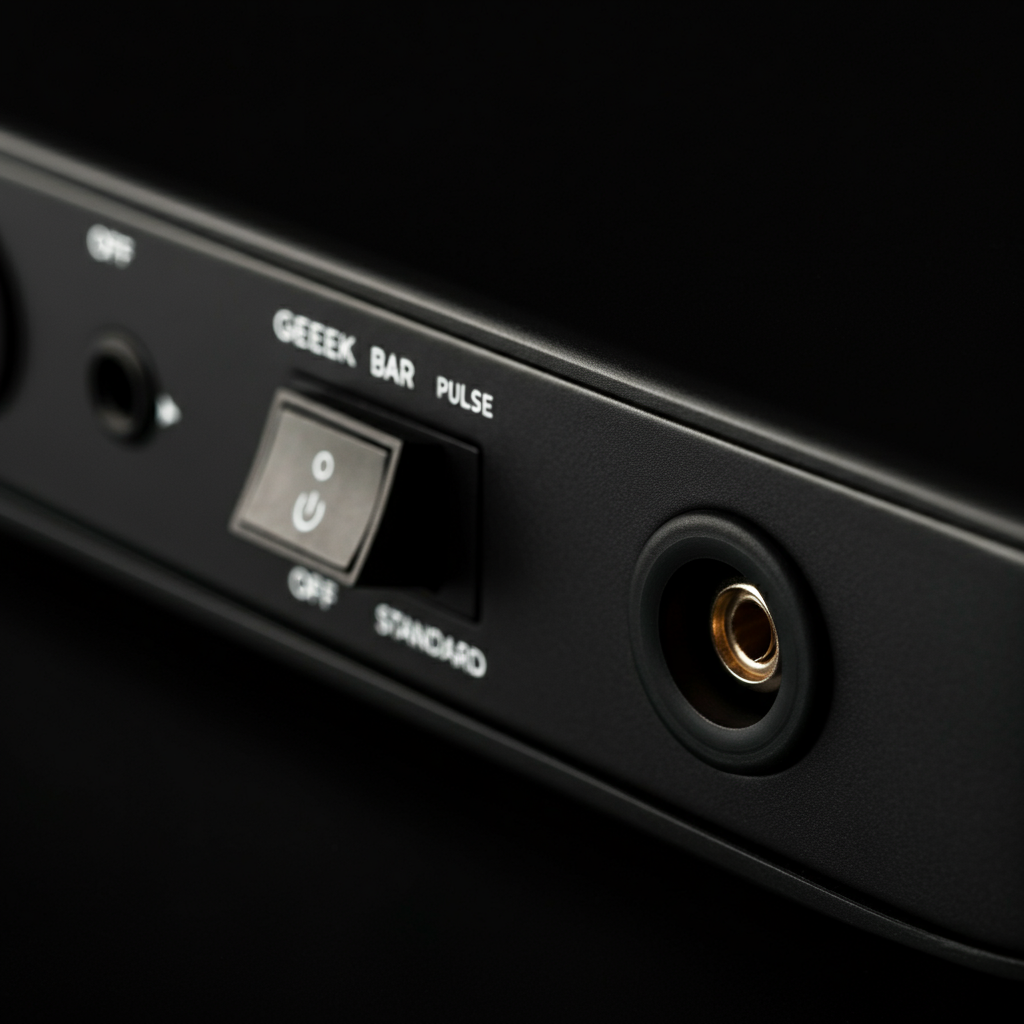
The Geek Bar Pulse features a unique switch on the bottom that controls the power and vaping mode. Locate the tab on the bottom of the device. The bottom-most position typically indicates the device is off. Moving the tab to the middle position activates Standard Mode, while moving it to the uppermost position activates Pulse Mode. Pulse Mode delivers stronger puffs, utilizing both coils simultaneously for enhanced flavor and vapor production. Standard mode uses a single coil, extending the life of the device and providing a milder vaping experience. Choose your preferred mode based on your desired intensity.
Step 3: Taking Your First Puff
Once your device is powered on and the mode is selected, it's time to take your first puff. If you're new to vaping, start with a small, gentle puff to avoid overwhelming yourself or experiencing any discomfort, such as e-liquid spitting. Inhale slowly and steadily. If you are experienced, you can begin using it as you normally would. Pay attention to the flavor and vapor production to ensure the device is functioning correctly. The screen will activate during your puff, displaying battery and e-liquid levels.

Step 4: Understanding the Display Screen
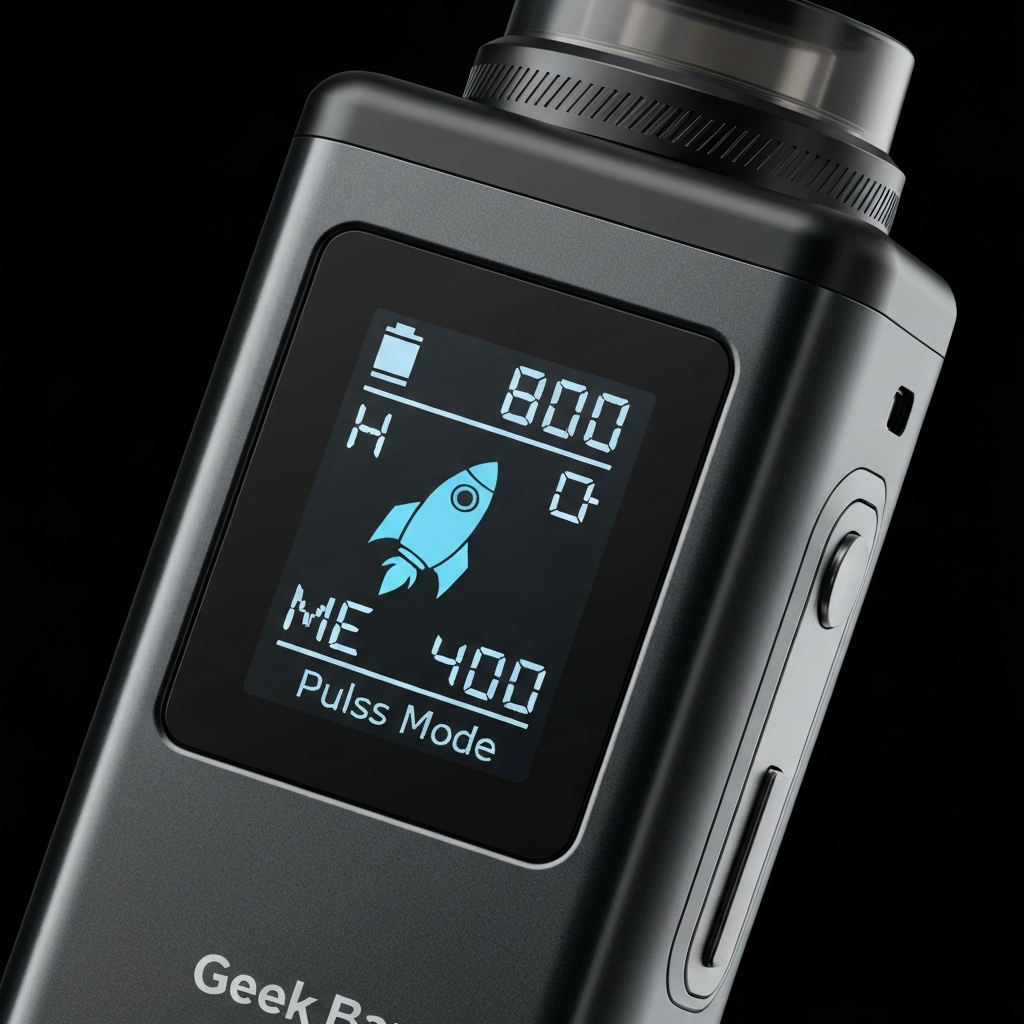
The LED screen is a key feature of the Geek Bar Pulse, providing essential information at a glance. The screen displays your battery level, remaining e-liquid, and the current mode. The battery level is typically indicated by a lightning bolt icon with segments showing the remaining charge percentage. The e-liquid level is represented by a droplet icon and segments indicating how much liquid remains. An open circle in the center of the screen signifies Standard mode, while a rocket ship icon indicates Pulse mode. Regularly check the screen to monitor your device's status and avoid unexpected depletion.
Step 5: Recharging Your Geek Bar Pulse
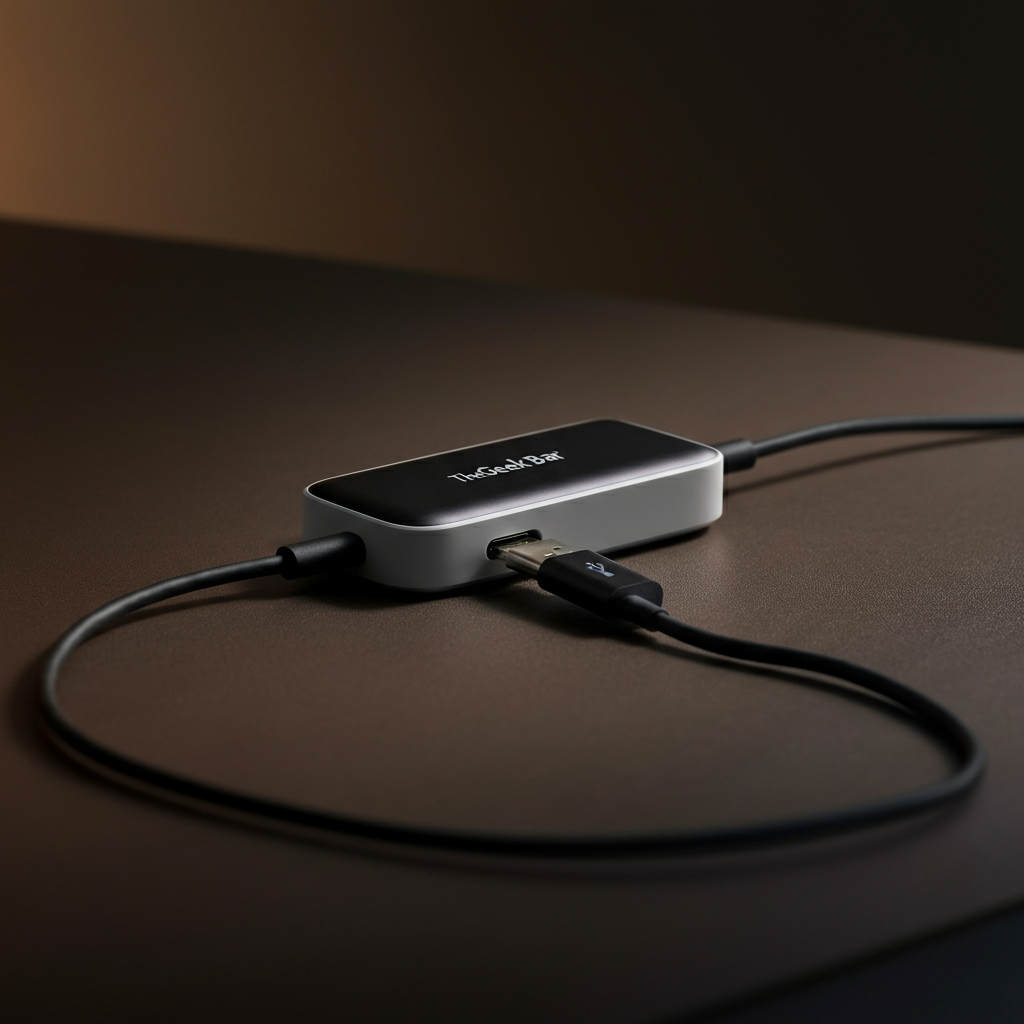
The Geek Bar Pulse is rechargeable via a USB-C port located on the bottom of the device. When the battery level gets low, connect the USB-C cable to the port and plug it into a power source. The screen will illuminate and display the charging progress. The device typically takes around 55 minutes to fully charge. Avoid overcharging the device, and always use a reputable USB-C charger. It is best practice to charge whenever the battery gets low to avoid running out of power unexpectedly.
Geek Bar Pulse Settings
Standard Mode (15,000 Puffs)
Standard mode on the Geek Bar Pulse utilizes a single coil and is designed to deliver approximately 15,000 puffs. This mode offers a more consistent and prolonged vaping experience, similar to other standard disposable vapes. Since it only uses a single coil, the puffs are lighter and the flavor is subtly delivered. Activate this mode by sliding the switch on the bottom of the device to the middle position.
Pulse Mode (7,500 Puffs)
Pulse Mode sets the Geek Bar Pulse apart, using both coils simultaneously to produce a stronger, more flavorful vape. This mode delivers approximately 7,500 puffs, significantly fewer than Standard Mode, but with a more intense experience. You will notice a difference in the vapor and the flavor. This setting is activated by moving the switch to the upper position, indicated by the word “Pulse” near the switch.
Taking Care of Your Geek Bar Pulse
To ensure longevity and optimal performance, proper care is essential. Regularly charge your Geek Bar Pulse to avoid complete battery depletion. When not in use, store it in a cool, dry place away from direct sunlight and extreme temperatures. Avoid dropping the device, as this can cause internal damage or e-liquid leaks.
Common Mistakes to Avoid
- Forgetting to remove the silicone plug from the mouthpiece before use.
- Using excessive force when puffing, which can lead to e-liquid spitting.
- Storing the device in direct sunlight or extreme temperatures.
- Dropping the device, as it can cause internal damage.
Troubleshooting
Blinking Red Light: This usually indicates a low battery or a potential issue with the puff sensor. Try charging the device first. If that doesn't work, gently blow into the mouthpiece to dislodge any potential obstructions.
Screen Not Working: First, ensure the device is charged. If the screen remains unresponsive, check if the device still produces vapor. If it does, you can continue to use it, but if it doesn’t, it is time for a replacement.
Not Charging: Inspect the charging port for any debris or dust. Use a small, non-metallic tool to gently remove any obstructions. Ensure you're using a functional USB-C cable and power adapter.
Safety Considerations
- Keep the device out of reach of children and pets.
- Do not expose the device to extreme temperatures or direct sunlight.
- Dispose of the device responsibly at a hazardous waste collection facility or designated recycling center.
FAQ Section
- What flavors does the Geek Bar Pulse offer?
- The Geek Bar Pulse comes in a wide variety of flavors, including popular options like Mexico Mango, Sour Apple Ice, and Miami Mint.
- What do the lights on my Geek Bar Pulse mean?
- Flashing red means low battery or an issue; solid green means fully charged; red cascading light indicates Pulse Mode; green cascading light indicates Standard Mode.
- How long does a Geek Bar Pulse last?
- It lasts for weeks or months, depending on usage and the selected mode. Pulse Mode drains the e-liquid faster than Standard Mode.
- How do I properly dispose of a Geek Bar Pulse?
- The safest option is a Household Hazardous Waste Collection Facility, which safely disposes of hazardous household waste. Some vape shops also accept old vapes.
Conclusion
The Geek Bar Pulse provides a unique vaping experience, but it requires understanding its features and settings to maximize its potential. By following this comprehensive guide, you can confidently use your device, troubleshoot common issues, and ensure its longevity. Remember to prioritize safety, proper maintenance, and responsible disposal practices. Enjoy your Geek Bar Pulse!